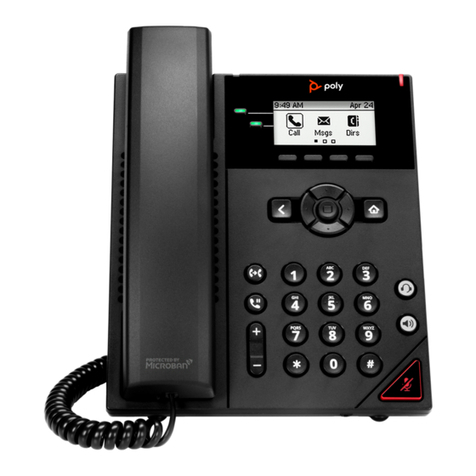
Poly VVX D230 User manual

USER GUIDE 7.1.1 | February 2021 | 3725-49215-003A
VVX D230 DECT IP Phone
Getting Help
For more information about installing, configuring, and
administering Poly/Polycom products or services, go to
Polycom Support.
Plantronics, Inc. (Poly — formerly Plantronics and Polycom)
345 Encinal Street
Santa Cruz, California
95060
© 2021 Plantronics, Inc. All rights reserved. Poly, the propeller
design, and the Poly logo are trademarks of Plantronics, Inc.
All other trademarks are the property of their respective
owners.

Contents
Before You Begin................................................................................................4
Audience, Purpose, and Required Skills.............................................................................4
Related Poly and Partner Resources..................................................................................4
Getting Started with VVX D230 DECT IP Phones............................................ 5
VVX D230 DECT IP Phone Hardware Overview................................................................ 5
VVX D230 Wireless Handset .................................................................................. 5
VVX D230 Base Station........................................................................................... 6
Setting Up the Base Station................................................................................................ 7
Access the Home Screen....................................................................................................7
VVX D230 Base Station Status Indicator............................................................................ 8
Audio Calls..........................................................................................................9
Placing Calls....................................................................................................................... 9
Place a Call Using the Default Line..........................................................................9
Place a Call Using an Alternate Line........................................................................9
Place a New Call During an Active Call................................................................. 10
Calling Contacts from the Directory........................................................................10
Call a Speed Dial Entry...........................................................................................11
Call a Missed Call Entry..........................................................................................11
Call a Received Call Entry......................................................................................11
Call a Dialed Call Entry...........................................................................................11
Call a Recent Calls Entry........................................................................................11
Redial a Number............................................................................................................... 12
Answering Calls................................................................................................................ 12
Answer an Incoming Call........................................................................................12
Answer an Incoming Call During a Call..................................................................12
Holding and Resuming Calls.............................................................................................13
Hold a Call..............................................................................................................13
Resume a Call........................................................................................................13
Switch Between Calls.............................................................................................13
End a Call..........................................................................................................................13
Transferring Calls..............................................................................................................14
Transfer a Call to Another Wireless Handset......................................................... 14
Blind Transfer a Call to a Contact...........................................................................14
Parking Calls..................................................................................................................... 14
Park a Call on a Extension..................................................................................... 14
1

Park a Call Locally on a Base Station.................................................................... 15
View Parked Call Details........................................................................................ 15
Retrieve a Call Parked on an Extension.................................................................15
Retrieve a Locally Parked Call............................................................................... 15
Rejecting Incoming Calls...................................................................................................16
Reject an Incoming Call......................................................................................... 16
Rejecting Calls with Do Not Disturb....................................................................... 16
Forwarding Calls............................................................................................................... 17
Enable Call Forwarding.......................................................................................... 17
Forward an Incoming Call...................................................................................... 17
Enable Call Forwarding on a Specific Line.............................................................17
Conference Calls.............................................................................................. 18
Initiate a Conference Call..................................................................................................18
Join Calls to Create a Conference Call............................................................................. 18
Split a Conference Call..................................................................................................... 18
Shared Lines.....................................................................................................19
Barge In.............................................................................................................................19
Pick Up Held Calls............................................................................................................ 19
Accessing and Broadcasting Messages........................................................20
Access Voicemail Messages.............................................................................................20
Placing Intercom Calls...................................................................................................... 20
Place an Intercom Call .......................................................................................... 20
Place an Intercom Call During a Call..................................................................... 21
Broadcasting Messages with Group Paging..................................................................... 21
Send a Group Page................................................................................................21
Broadcasting Messages with Push-to-Talk....................................................................... 21
Send a Push-to-Talk Broadcast .............................................................................21
Call Lists and Directories................................................................................ 22
Call Lists............................................................................................................................22
View Details for a Call List Entry............................................................................ 22
Delete a Call List Entry...........................................................................................22
Delete All Entries in a Call List............................................................................... 23
Speed Dial.........................................................................................................................23
Add a Speed Dial Entry.......................................................................................... 23
Replace a Speed Dial Entry................................................................................... 23
Delete a Speed Dial Entry...................................................................................... 24
Contents
2

Contact Directory.............................................................................................................. 24
Adding Contacts..................................................................................................... 24
View Contact Information....................................................................................... 25
Sort the Contact Directory...................................................................................... 25
Edit a Contact in the Contact Directory.................................................................. 25
Delete a Contact from the Contact Directory..........................................................26
Enterprise Directory.......................................................................................................... 26
View Contact Information for Enterprise Directory Contacts.................................. 26
Search the Enterprise Directory............................................................................. 26
Save an Enterprise Directory Contact to the Contact Directory............................. 27
VVX D230 DECT IP Phone Settings................................................................ 28
Set the Time and Date Format..........................................................................................28
Set the Display Language................................................................................................. 28
Audio Adjustments............................................................................................................ 28
Adjust the Volume.................................................................................................. 28
Switch Between the Earpiece and the Speakerphone........................................... 29
Mute or Unmute the Microphone............................................................................29
Maintaining VVX D230 DECT IP Phones........................................................ 30
View Wireless Handset Information.................................................................................. 30
View Base Station Information.......................................................................................... 30
Clean Your System Components...................................................................................... 30
Restart a Wireless Handset.............................................................................................. 31
Register a Handset........................................................................................................... 31
Deregister a Handset........................................................................................................ 31
Factory Reset a Handset.................................................................................................. 32
Troubleshooting............................................................................................... 33
Wireless Handset Range.................................................................................................. 33
Find a Misplaced Handset.................................................................................................33
Contents
3

Before You Begin
Topics:
•Audience, Purpose, and Required Skills
•Related Poly and Partner Resources
This guide contains overview information, procedures, and references you can use to perform tasks with
your Poly VVX D230 DECT IP phone.
Audience, Purpose, and Required Skills
This guide is for beginning users, as well as intermediate and advanced users, who want to learn more
about the features available with VVX D230 DECT IP phones.
Related Poly and Partner Resources
See the following sites for information related to this product.
• The Poly Online Support Center is the entry point to online product, service, and solution support
information including Video Tutorials, Documents & Software, Knowledge Base, Community
Discussions, Poly University, and additional services.
• The Polycom Document Library provides support documentation for active products, services, and
solutions. The documentation displays in responsive HTML5 format so that you can easily access
and view installation, configuration, or administration content from any online device.
• The Poly Community provides access to the latest developer and support information. Create an
account to access Poly support personnel and participate in developer and support forums. You can
find the latest information on hardware, software, and partner solutions topics, share ideas, and
solve problems with your colleagues.
• The Poly Partners are industry leaders who natively integrate the Poly standards-based
RealPresence Platform with their customers’ current UC infrastructures, making it easy for you to
communicate face-to-face with the applications and devices you use every day.
• The Poly Services help your business succeed and get the most out of your investment through the
benefits of collaboration.
4

Getting Started with VVX D230 DECT IP
Phones
Topics:
•VVX D230 DECT IP Phone Hardware Overview
•Setting Up the Base Station
•Access the Home Screen
•VVX D230 Base Station Status Indicator
VVX D230 DECT IP phones are standalone IP-based wireless phones that enable you to manage calls to
your line while you’re away from your desk.
The system consists of a base station with support for up to 10 handsets.
VVX D230 DECT IP Phone Hardware Overview
The following figures and tables provide information about hardware features available on your phone.
VVX D230 Wireless Handset
The following figure displays the hardware features on VVX D230 wireless handsets.
The table lists each numbered feature shown in the figure.
Figure 1: VVX D230 wireless handset hardware features
5

VVX D230 Wireless Handset Hardware Feature Descriptions
Reference
Number Feature Feature Description
1 Soft keys Enables you to select context sensitive keys that display along the bottom of the
screen.
2 Navigation
keys / OK key
Use the navigation keys to increase or decrease the ringer volume, scroll through
menus, or move the cursor within fields.
Press OK to enter the main menu, select a highlighted item, or save an entry or
setting while in a menu.
3 Call key Place a call, answer a call, or view recent calls.
4 End key Hang up a call or cancel the handset software update. Press and hold to power
the wireless handset on or off.
5 Keypad Enter numbers or characters.
Press and hold * to turn on or turn off the ringer.
Press and hold # to lock or unlock the keypad.
Press and hold 0 to insert a plus sign (+) for international calls.
6 Speakerphone
key
Place or answer a call using the wireless handset speakerphone, and switch
between the speakerphone and the earpiece during a call.
7 Redial key Redial the last dialed number.
8 Mute key Mute or unmute the microphone during an active call.
9 Microphone Transmit audio during a call.
10 LED indicator Flashes to indicate an incoming call, missed call, or new voicemail.
11 Earpiece Listen to audio directly from the handset.
12 Headset port Connect a headset to the phone.
VVX D230 Base Station
The following figure displays the hardware features on the VVX D230 DECT base station.
The table lists each numbered feature shown in the figure.
Figure 2: VVX D230 DECT base station hardware features
Getting Started with VVX D230 DECT IP Phones
6

VVX D230 DECT Base Station Hardware Feature Descriptions
Reference
Number Feature Feature Description
1 Find Press to locate the registered wireless handsets.
Press and hold for 5 seconds or longer to register a wireless handset to the
base station.
2 Status indicator Shows the status of the phone.
3 Charging cradle Charges the wireless handset.
Setting Up the Base Station
Your wireless handset works by sending radio signals between the wireless handset and the base station.
The strength of the signal depends on where you place the base station.
Depending on the surrounding conditions, as well as space available and the building’s structure, the
connectivity range between the handset and base station may fluctuate. For maximum coverage and to
reduce interference, follow these recommendations when you set up the VVX D230 base station.
• Place the base station within 1.8 m (6 ft) of the main power socket (when not using PoE) and
Ethernet port so that the cables can reach.
• Make sure that the base station is at least 0.9 m (3 ft) from other electrical appliances to avoid
interference.
• If the reception for the base station location isn’t satisfactory, move it higher or to another location
for better reception.
Access the Home Screen
You can access the Home screen from any other screen on the wireless handset.
Procedure
»Do one of the following:
• Press Back repeatedly until you return to the Home screen.
• Press End .
Getting Started with VVX D230 DECT IP Phones
7

VVX D230 Base Station Status Indicator
The following table explains the behavior of the status indicator on the base station.
VVX D230 Base Station Status Indicator
Base Station State Status Indicator Behavior
Powering on
On
Idle
Steady indicator.
Waiting for network readiness Repeatedly flashes on for 1 second and off for 1 second.
Locating a handset Repeatedly flashes on for 1 second and off for 1 second.
Registering a handset Repeatedly flashes on for 2 seconds and off for 1 second.
Getting Started with VVX D230 DECT IP Phones
8

Audio Calls
Topics:
•Placing Calls
•Redial a Number
•Answering Calls
•Holding and Resuming Calls
•End a Call
•Transferring Calls
•Parking Calls
•Rejecting Incoming Calls
•Forwarding Calls
VVX D230 DECT IP phones support up to seven concurrent calls per base station and can make or
answer a maximum of two calls.
Placing Calls
You can place a call using the default line or an alternate line.
Place a Call Using the Default Line
Unless you choose an alternate line, the phone uses your default line when you place a call.
Procedure
1. Do one of the following:
• Enter your contact’s number.
• Select a contact from a directory.
• Select a contact from the recent calls list.
• Select a message from the Messages list.
2. Press Call .
Place a Call Using an Alternate Line
You can choose to use an alternate line before placing a call.
Procedure
1. Press Lines and select a line.
2. Do one of the following:
• Enter your contact’s number.
• Select a contact from a directory.
9
Other manuals for VVX D230
8
Table of contents
Other Poly IP Phone manuals

Poly
Poly VVX 150 User manual

Poly
Poly VVX 300 User manual

Poly
Poly Edge E Series User manual

Poly
Poly Rove DECT User manual

Poly
Poly Edge E Series User manual

Poly
Poly ROVE Assembly instructions

Poly
Poly VVX 450 Series User manual

Poly
Poly Edge E Series User manual

Poly
Poly Edge B Series Assembly instructions

Poly
Poly Polycom VVX Series User manual

Poly
Poly Edge B Series User manual

Poly
Poly Edge B30 User manual

Poly
Poly Rove 20 User manual

Poly
Poly VVX 250 User manual

Poly
Poly VVX D230 User manual

Poly
Poly VVX 350 User manual

Poly
Poly VVX D230 Service manual

Poly
Poly VVX D23 Service manual

Poly
Poly VVX D230 User manual

Poly
Poly VVX 600 Operating instructions