
Poly Polycom VVX Series User manual

USER GUIDE 6.4.0 | July 2019 | 3725-85476-003B
Polycom® VVX® Business IP Phones, OBi Edition
Getting Help
For more information about installing, configuring, and
administering Poly/Polycom products or services, go to
Polycom Support.
Plantronics, Inc. (Poly — formerly Plantronics and Polycom)
345 Encinal Street
Santa Cruz, California
95060
© 2020 Plantronics, Inc. All rights reserved. Poly, the propeller
design, and the Poly logo are trademarks of Plantronics, Inc.
All other trademarks are the property of their respective
owners.

Contents
Before You Begin................................................................................................6
Audience, Purpose, and Required Skills.............................................................................6
Related Documentation.......................................................................................................6
Getting Started with Polycom VVX Business IP Phones, OBi Edition.......... 7
Product Overview................................................................................................................7
Overview of Phone Hardware and Keys............................................................................. 7
VVX 150 Hardware...................................................................................................7
VVX 250 Hardware...................................................................................................9
VVX 350 Hardware.................................................................................................11
VVX 450 Hardware.................................................................................................13
Securing Your Phone with the Security Slot........................................................... 15
Phone Keys.......................................................................................................................15
Soft Keys................................................................................................................ 16
Line Keys and Virtual Line Keys.............................................................................16
Feature Keys.......................................................................................................... 16
Navigating VVX Business IP Phones, OBi Edition............................................................20
Home Screen......................................................................................................... 20
Calls Screen........................................................................................................... 21
Icons and Status Indicators.................................................................................... 22
Entering Characters............................................................................................... 23
Logging In to Your Phone................................................................................24
Find the Phone IP Address............................................................................................... 24
Access the Phone Native Web Portal............................................................................... 24
Use the Guest Login or Logout for Hot Desk Environments (Hoteling).............................24
Audio Calls........................................................................................................26
Placing and Answering Audio Calls.................................................................................. 26
Placing Calls...........................................................................................................26
Answering Calls......................................................................................................28
Holding and Resuming Calls.............................................................................................29
Hold a Call..............................................................................................................29
Resume a Call........................................................................................................29
Resume a Call on an Expansion Module............................................................... 30
End a Call..........................................................................................................................30
Ignoring or Rejecting Incoming Calls................................................................................ 30
1

Reject Incoming Calls.............................................................................................30
Rejecting Calls with Do Not Disturb....................................................................... 30
Reject Anonymous Calls........................................................................................ 31
Transferring Calls..............................................................................................................32
Transfer a Call........................................................................................................32
Cancel a Transfer...................................................................................................32
Call Park and Call Pickup..................................................................................................32
Call Forwarding................................................................................................................. 33
Set Up Call Forward Unconditional........................................................................ 33
Set Up Call Forward Busy...................................................................................... 33
Set Up Call Forward No Answer............................................................................ 34
Forward an Incoming Call...................................................................................... 34
Conference Calls...............................................................................................................34
Start a Conference Call.......................................................................................... 34
Add a Contact to a Conference Bridge...................................................................35
Shared Lines.....................................................................................................36
Shared Line Appearance.................................................................................................. 36
Busy Lamp Field (BLF)..................................................................................................... 37
Recording Audio Calls.....................................................................................39
Record a Call.................................................................................................................... 39
Pause a Recording............................................................................................................39
Resume a Recording........................................................................................................ 39
Stop Recording................................................................................................................. 40
Call Lists and Directories................................................................................ 41
Managing Contacts........................................................................................................... 41
Search for Contacts................................................................................................41
Add a Contact.........................................................................................................42
View Contact Information....................................................................................... 42
Edit a Contact.........................................................................................................42
Delete a Contact.....................................................................................................42
Delete All Contacts.................................................................................................43
Add Picture to a Contact........................................................................................ 43
Customize the Phone Book Display..................................................................................43
Contact Groups................................................................................................................. 43
Add a Group........................................................................................................... 43
Delete a Group....................................................................................................... 44
Add Contact to a Group..........................................................................................44
Contents
2

Call History........................................................................................................................44
View Call History.................................................................................................... 44
View Call Listing Detail...........................................................................................45
Clear Call History................................................................................................... 45
Network Directories...........................................................................................................46
Refresh Network Directories.................................................................................. 46
Search Network Directories....................................................................................46
Using Speed Dial.............................................................................................................. 46
Set a Speed Dial Feature Key Number.................................................................. 46
Set a Speed Dial Feature Key Number from Contacts...........................................47
Add a Speed Dial Entry.......................................................................................... 47
Edit a Speed Dial Entry.......................................................................................... 47
Delete a Speed Dial Entry...................................................................................... 47
Showing the Contact Status with a Buddy List..................................................................48
Set Your Buddy List Presence................................................................................48
Set Your Buddy List Status.....................................................................................48
Buddy List Management.........................................................................................49
Buddy Groups........................................................................................................ 49
Expanded Buddy List............................................................................................. 49
Broadcasting Messages.................................................................................. 50
Send a Group Page.......................................................................................................... 50
Leave a Group Page......................................................................................................... 50
Enable Auto Answer Page................................................................................................ 51
Disable Auto Answer Page............................................................................................... 51
Join a Page Group............................................................................................................ 51
Leave a Page Group......................................................................................................... 51
Connecting to a Wireless Network................................................................. 53
Add a Wireless Network....................................................................................................53
Enable a Wireless Network............................................................................................... 53
Connect to a Wireless Network.........................................................................................54
Disconnect from a Wireless Network................................................................................ 54
Remove a Wireless Network.............................................................................................54
VVX Business IP Phone Settings....................................................................55
Choose a Theme for Your Phone......................................................................................55
Set the Language..............................................................................................................56
Disable Call Waiting.......................................................................................................... 56
Time and Date Display......................................................................................................57
Contents
3

Change the Time Format........................................................................................57
Change the Date Format........................................................................................57
Backlight Intensity and Timeout........................................................................................ 57
Enable Dim Screen................................................................................................ 57
Set Dim Screen Delay............................................................................................ 58
Disable Dim Screen................................................................................................58
Adjust the Screen Brightness................................................................................. 58
Use a USB Flash Drive to Add a Personal Photo or Ringtone..........................................58
Change the Background Picture....................................................................................... 59
Screen Savers...................................................................................................................59
Enable the Screen Saver....................................................................................... 59
Set the Screen Saver Wait Time............................................................................ 60
Enable Screen Saver Slide Show.......................................................................... 60
Make the Screen Saver a Blank Screen................................................................ 60
Create a Screen Saver Passcode.......................................................................... 61
Display the Time and Date on the Screen Saver................................................... 61
Disable the Screen Saver.......................................................................................61
Changing Audio Settings...................................................................................................61
Set a Ringtone for Incoming Calls..........................................................................61
Set a Ringtone for Individual Contacts................................................................... 62
Change the Volume................................................................................................62
Enable Acoustic Echo Cancellation........................................................................62
Disable Acoustic Echo Cancellation.......................................................................62
Enable Acoustic Fence...........................................................................................63
Disable Acoustic Fence..........................................................................................63
Dialing Autocomplete........................................................................................................ 63
Enable Dialing Autocomplete................................................................................. 63
Disable Dialing Autocomplete................................................................................ 64
Enable Automatic Home Page.......................................................................................... 64
Select a Different Font.......................................................................................................64
Pack Calls On Display.......................................................................................................65
Enable Pack Calls On Display................................................................................65
Disable Pack Calls On Display...............................................................................65
Silencing the Phone Ringer...............................................................................................65
Silence the Phone Ringer.......................................................................................65
Phone Accessories.......................................................................................... 67
Using a Headset with Your Phone.....................................................................................67
Connecting a Headset............................................................................................67
Change the Preferred Audio Device................................................................................. 67
Change the Preferred Headset Device............................................................................. 68
Contents
4

Electronic Hookswitch....................................................................................................... 68
Enable Electronic Hookswitch................................................................................ 68
Disable Electronic Hookswitch............................................................................... 68
Polycom VVX EM50 Expansion Modules....................................................... 69
VVX EM 50 Expansion Module Hardware Features......................................................... 69
Connect a VVX EM50 Expansion Module.........................................................................71
Connect an Additional VVX EM50 Expansion Module......................................................72
Set a Speed Dial on Expansion Modules..........................................................................72
Changing the Backlight Intensity on the Expansion Module............................................. 73
Navigate Expansion Module Paging................................................................................. 73
Accessibility Features..................................................................................... 74
Features for Hearing-Impaired Users................................................................................74
Features for Mobility-Impaired Users................................................................................ 75
Features for Vision-Impaired and Blind Users.................................................................. 75
Maintaining VVX Business IP Phones, OBi Edition...................................... 77
Clear Downloaded Temporary Data.................................................................................. 77
Reboot the Phone............................................................................................................. 77
Product Information...........................................................................................................77
Reset the Phone to Factory Defaults................................................................................ 78
Updating the Phone Firmware.......................................................................................... 78
Update Firmware from the Interactive Voice Response Menu............................... 78
Update Firmware Directly in the Phone..................................................................79
Update Firmware Using the Native Web Portal......................................................79
Contents
5

Before You Begin
Topics:
•Audience, Purpose, and Required Skills
•Related Documentation
The Polycom VVX Business IP Phones, OBi Edition User Guide contains overview information for
navigating and performing tasks on Polycom® VVX® Business IP Phones, OBi Edition.
This user guide contains information for the following Polycom® VVX® products and accessories:
• VVX 150 business IP phones, OBi Edition
• VVX 250 business IP phones, OBi Edition
• VVX 350 business IP phones, OBi Edition
• VVX 450 business IP phones, OBi Edition
Audience, Purpose, and Required Skills
This guide is intended for beginning users, as well as intermediate and advanced users who want to learn
more about the features available with VVX business IP phone, OBi edition.
Related Documentation
You can view the following types of documents on each product support page on Polycom Voice Support:
• Administrator Guide—This guide provides detailed information about setting up your network and
configuring features.
• Deployment Guide—This guide provides detailed information about deploying phones and setting
up initial configurations.
• OBiPhoneXML API Guide—This guide provides detailed information about creating and using
OBiXML apps on your phone.
• Regulatory Notice—This guide provides information for all regulatory and safety guidance.
6

Getting Started with Polycom VVX
Business IP Phones, OBi Edition
Topics:
•Product Overview
•Overview of Phone Hardware and Keys
•Phone Keys
•Navigating VVX Business IP Phones, OBi Edition
Before you use your Polycom® VVX® business IP phone with OBi Edition, take a few moments to
familiarize yourself with its features and user interface.
Note: As you read this guide, remember that your system administrator configures certain features or
your network environment may determine them. As a result, some features may not be enabled or
may operate differently on your device. Additionally, the examples and graphics in this guide may
not directly reflect available options or what your device screen displays.
Product Overview
Polycom VVX business IP phones, OBi Edition provides the following features and capabilities:
• Placing and answering audio calls
• Conference calls
• Programmable feature keys
• Screen customization
Overview of Phone Hardware and Keys
Use the following figures and tables to understand hardware features available on VVX business IP
phone, OBi edition.
For more information about attaching phone hardware, including how to connect your phone to the
network, see the for your phone available on your phone's support page on Polycom Voice Support.
VVX 150 Hardware
The following figure displays the hardware features on the VVX 150 business IP phones. The table lists
each feature numbered in the figure.
7

Figure 1: VVX 150 hardware features
VVX 150 Hardware Feature Descriptions
Reference
Number
Feature Feature Description
1 Line keys Enables you to select a phone line, view calls on a line,
or quickly call a favorite contact.
2 Reversible tab Secures the handset in the cradle when you position
your phone stand at a high angle. To secure the
handset, remove the tab, reverse it so the protrusion
points up, and reinsert it. Position the handset so the
protrusion on the tab fits into the slot on the handset.
3 Speaker Provides ringer and speakerphone audio output.
4 Back key Enables you to return to the previous screen.
5 Transfer key Transfers an active call to a contact.
6 Hold key Holds an active call or resumes a held call.
7 Volume keys Adjusts the volume of the handset, headset, speaker,
and ringer.
8 Dialpad Enables you to enter numbers, letters, and special
characters. You can also use the dialpad keys to select
menu items that have index numbers.
9 Mute key Mutes local audio during calls and conferences.
Getting Started with Polycom VVX Business IP Phones, OBi Edition
8

Reference
Number
Feature Feature Description
10 Speakerphone key Enables you to place and receive calls using the
speakerphone.
11 Headset key Enables you to place and receive calls through a
headset.
12 Home key Displays the Home screen from other screens and
displays the Lines and Calls screen from the Home
screen.
13 Navigation keys / Select key Scrolls through information or options displayed on the
phone's screen. Selects a field of displayed data.
14 Soft keys Enables you to select context sensitive keys that
display along the bottom of the screen.
15 Security slot (on back) Enables you to attach a universal security cable lock to
your phone so you can secure it to a desktop.
16 Screen Shows a 6.35 cm (2.5-inch) monochrome display that
enables you to view menu options and data.
17 Message waiting indicator Flashes red to indicate when you have new messages.
VVX 250 Hardware
The following figure displays the hardware features on VVX 250 business IP phones. The table lists each
feature numbered in the figure.
Getting Started with Polycom VVX Business IP Phones, OBi Edition
9
This manual suits for next models
5
Table of contents
Other Poly IP Phone manuals

Poly
Poly Edge E Series User manual

Poly
Poly VVX 150 Manual

Poly
Poly Edge E Series Assembly instructions

Poly
Poly VVX D230 User manual

Poly
Poly Edge B Series Assembly instructions

Poly
Poly VVX D230 User manual

Poly
Poly Edge E Series User manual

Poly
Poly Edge E Series User manual
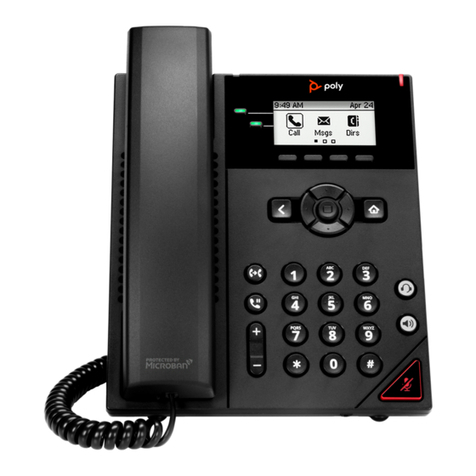
Poly
Poly VVX 150 User manual

Poly
Poly VVX 300 User manual

Poly
Poly Rove 20 User manual

Poly
Poly Edge B Series User manual

Poly
Poly VVX 600 Operating instructions

Poly
Poly VVX 350 Manual

Poly
Poly Rove DECT User manual

Poly
Poly VVX D23 Service manual

Poly
Poly VVX D230 User manual

Poly
Poly VVX 250 User manual

Poly
Poly Edge B Series User manual

Poly
Poly Edge B30 User manual


