Poly G7500 User manual

USER GUIDE 3.10.0 | February 2022 | 3725-86559-012A
Poly Partner Mode
(G7500, Studio X70, Studio X50,
Studio X30, and Studio E70)
Getting Help
For more information about installing, configuring, and
administering Poly/Polycom products or services, go to Poly
Online Support Center.
Poly
345 Encinal Street
Santa Cruz, California
95060
© 2022 Poly. Bluetooth is a registered trademark of Bluetooth
SIG, Inc. All other trademarks are the property of their
respective owners.

Contents
Before You Begin................................................................................................3
Audience, Purpose, and Required Skills.............................................................................3
Related Poly and Partner Resources..................................................................................3
Getting Started................................................................................................... 5
Poly Partner Mode Overview.............................................................................................. 5
Product Overview of Poly Video Systems...........................................................................5
Poly Studio E70 Camera Features and Capabilities........................................................... 6
Overview of System Hardware............................................................................................6
Poly G7500 Hardware.............................................................................................. 6
Poly Studio X70 Hardware....................................................................................... 7
Poly Studio X50 Hardware....................................................................................... 8
Poly Studio X30 Hardware....................................................................................... 9
Poly Studio X50 and Studio X30 Privacy Cover.......................................................9
Poly Studio E70 Camera Hardware....................................................................... 10
LED Status Indicators........................................................................................................11
LED Status Indicators for the G7500 System.........................................................11
LED Status Indicators for the Studio X70 System..................................................12
LED Status Indicators for Studio X50 and Studio X30 Systems............................ 13
LED Status Indicators for the Studio E70 Camera................................................. 14
Powering the System On and Off......................................................................................14
Wake the System.............................................................................................................. 14
Accessibility Features....................................................................................................... 15
Users Who Are Deaf or Hard of Hearing................................................................15
Users Who Are Blind, Have Low Vision, or Have Limited Vision........................... 15
Users with Limited Mobility.....................................................................................15
Sharing Content............................................................................................... 17
Share Content Using an HDMI Connection...................................................................... 17
Using Device Mode.......................................................................................... 18
Computer and Cable Requirements..................................................................................18
Access Device Mode.........................................................................................................18
Use Your System as a Computer Accessory.................................................................... 19
Adjust the System Audio and Camera Settings................................................................ 19
Managing Incoming Calls When in Device Mode .............................................................20
Exit Device Mode and Disconnect Your Computer........................................................... 20
1

Settings............................................................................................................. 21
Cameras............................................................................................................................21
Adjust an In-Room Camera....................................................................................21
Turn Camera Tracking On or Off............................................................................ 21
Audio Adjustments............................................................................................................ 21
Adjust the Volume.................................................................................................. 22
Troubleshooting............................................................................................... 23
Poly Device Mode............................................................................................................. 23
Audio Levels are Too High or Low..........................................................................23
Conferencing Application Doesn’t Use System Camera or Audio..........................23
Can’t Use System’s Camera or Audio....................................................................23
Improve Audio Quality............................................................................................ 24
Improve Laptop Screen Mirroring...........................................................................24
Contents
2

Before You Begin
Topics:
▪Audience, Purpose, and Required Skills
▪Related Poly and Partner Resources
This guide contains overview information, procedures, and references you can use to perform tasks with
your video system.
The information in this guide applies to all the following Poly video systems except where noted:
▪ Poly G7500 (model: P011)
▪ Poly Studio X70 (model: P026)
▪ Poly Studio X50 (model: P017)
▪ Poly Studio X30 (model: P018)
▪ Poly Studio E70 (model: P025)
Audience, Purpose, and Required Skills
This guide is intended for beginning users, as well as intermediate and advanced users, who want to
learn more about the features available with the system.
Related Poly and Partner Resources
See the following sites for information related to this product.
▪ The Poly Online Support Center is the entry point to online product, service, and solution support
information including Video Tutorials, Documents & Software, Knowledge Base, Community
Discussions, Poly University, and additional services.
▪ The Poly Document Library provides support documentation for active products, services, and
solutions. The documentation displays in responsive HTML5 format so that you can easily access
and view installation, configuration, or administration content from any online device.
▪ The Poly Community provides access to the latest developer and support information. Create an
account to access Poly support personnel and participate in developer and support forums. You can
find the latest information on hardware, software, and partner solutions topics, share ideas, and
solve problems with your colleagues.
▪ The Poly Partner Network is a program where resellers, distributors, solutions providers, and unified
communications providers deliver high-value business solutions that meet critical customer needs,
making it easy for you to communicate face-to-face using the applications and devices you use
every day.
▪ The Poly Services help your business succeed and get the most out of your investment through the
benefits of collaboration.
▪Poly Lens enables better collaboration for every user in every workspace. It is designed to spotlight
the health and efficiency of your spaces and devices by providing actionable insights and
simplifying device management.
3

Getting Started
Topics:
▪Poly Partner Mode Overview
▪Product Overview of Poly Video Systems
▪Poly Studio E70 Camera Features and Capabilities
▪Overview of System Hardware
▪LED Status Indicators
▪Powering the System On and Off
▪Wake the System
▪Accessibility Features
Before you use your system, familiarize yourself with its features and local interface.
Poly Partner Mode Overview
Poly Partner Mode allows you to run third-party conferencing applications on supported Poly video
systems. For example, after powering on your system for the first time, you can select Zoom Rooms to
place Zoom calls.
Refer to the supported partner documentation for information on using third-party applications:
▪Zoom Rooms: https://support.zoom.us/hc/en-us
▪Microsoft Teams Rooms: https://support.office.com/en-us/teams
▪GoToRoom by LogMeIn: https://support.goto.com/products
▪StarLeaf: https://support.starleaf.com/
▪RingCentral Rooms (RCV Rooms): https://support.ringcentral.com/
▪Dialpad: https://help.dialpad.com/
▪BlueJeans Rooms by Verizon: https://support.bluejeans.com/s/
Product Overview of Poly Video Systems
Poly G7500, Studio X70, Studio X50, and Studio X30 systems in Partner Mode can seamlessly join
meetings using third-party conferencing applications.
Note: Exact features and capabilities can vary between partner applications. See the application’s
documentation for information.
5

Poly Studio E70 Camera Features and Capabilities
Poly Studio E70 is a dual-camera solution supported on Poly G7500 and Studio X50 systems running
Poly VideoOS 3.6 or later.
The Poly Studio E70 camera is a standalone USB 4K camera that with full tracking and framing
capabilities. The Studio E70 camera provides coverage up to 7.6 m (25 ft).
Speaker Framing and Group Framing on Studio E70
Speaker framing enables Studio E70 to determine which participant is actively speaking. The camera
then frames the speaker when transmitting video to the far end. Group framing enables the camera to
automatically focus on one or more speakers to display all speakers to the far end.
Initially, one camera captures the current view while the other camera tracks the next target. The camera
frames the speaker before displaying the video so that call participants don’t see the pan, tilt, or zoom of
the cameras. If two people speak alternately, one camera tracks the first speaker while the other camera
tracks the second speaker.
Poly Studio E70 Orientation
You can mount the Poly Studio E70 above or below the system display. The Studio E70 supports inverted
mounting and includes a gyroscopic sensor that automatically detects the camera's orientation.
Overview of System Hardware
The following figures and tables provide information about hardware features available on your system.
Poly G7500 Hardware
The following figure displays the hardware features on the Poly G7500 system. The table lists each
feature numbered in the figure.
Poly G7500 Feature Descriptions
Ref. Number Feature Feature Description
1 Reset button Resets the Poly G7500 to the factory software
version
Getting Started
6

Ref. Number Feature Feature Description
2 LED indicator Indicates the system status
3 Remote control pairing button Enables the Bluetooth remote control pairing mode
4 Restart button Restarts your system
Poly Studio X70 Hardware
The following figure displays the hardware features on the Poly Studio X70 system. The table lists each
feature numbered in the figure.
Ref. Number Feature Description
1 Screen Protective screen that covers the
front of the system
2 Microphone array Microphone array that captures
audio
3 Speakers Stereo audio output
4 Dual cameras Camera array with a privacy shutter
that automatically opens or closes,
depending on the camera state
5 LED indicators Indicates the system status and
information on the tracked speaker
Poly Studio X70 Privacy Shutter
The privacy shutter on the Studio X70 camera automatically opens and closes depending on the state of
the system.
The following table provides the privacy shutter behavior.
Getting Started
7

Studio X70 Privacy Shutter Behavior
Action Privacy Shutter Behavior
The system is restarting. Closed
The system is powered and not asleep or idle. Open
The system is asleep or idle. Closed
The system wakes up from being asleep or idle. Open
The system is in use but not in a call. Closed
The system is sending video. Open
The system receives an incoming call. Open
The system is in an active video call and the video is
unmuted.
Open
The system is in an active video call and the video is
muted.
Open
Note: It can take up to 5 minutes for the privacy shutter to close after the system enters into an idle or
sleep state.
Poly Studio X50 Hardware
The following figure displays the hardware features on the Poly Studio X50 system. The table lists each
feature numbered in the figure.
Poly Studio X50 Feature Descriptions
Ref. Number Feature Feature Description
1 Screen Protective screen that covers the front of your
system
2 Microphone array Microphone array that captures audio
3 Camera Camera with a privacy cover that enables or disables
the video input as you choose
Getting Started
8

Ref. Number Feature Feature Description
4 Speakers Stereo audio output
5 LED indicators Indicates the system status and information on the
tracked speaker
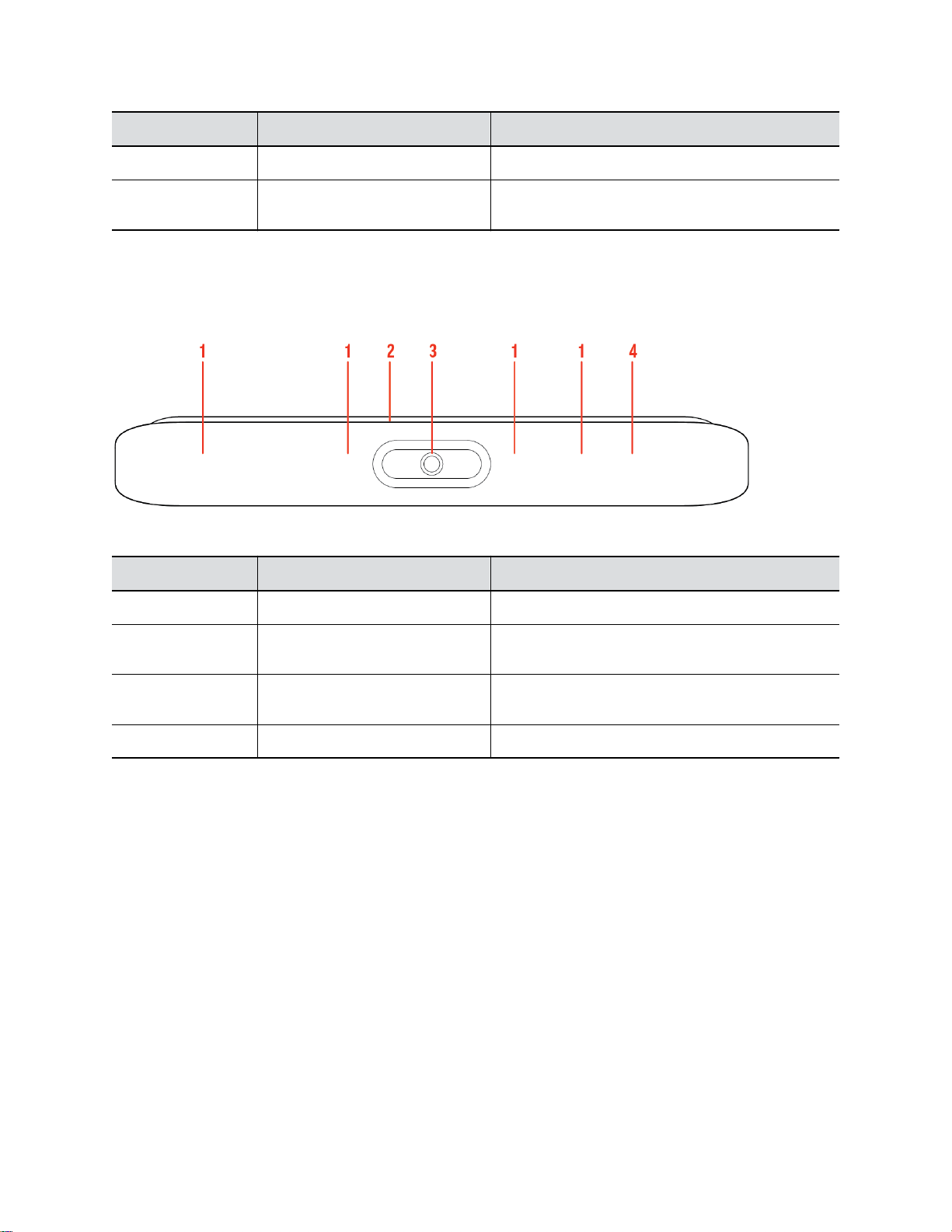
Poly Studio X30 Hardware
The following figure displays the hardware features on the Poly Studio X30 system. The table lists each
feature numbered in the figure.
Poly Studio X30 Feature Descriptions
Ref. Number Feature Feature Description
1 Microphone array Microphone array that captures audio
2 LED indicators Indicates the system status and information on the
tracked speaker
3 Camera Camera with a privacy cover that enables or disables
the video input as you choose
4 Speaker Mono audio output
Poly Studio X50 and Studio X30 Privacy Cover
The Poly Studio X50 and Studio X30 systems provide a physical cover that you can place over the
camera lens to protect your privacy.
Getting Started
9
Other manuals for G7500
9
This manual suits for next models
9
Table of contents
Other Poly Conference System manuals

Poly
Poly G10-T Manual

Poly
Poly G85-T Manual

Poly
Poly G200 User manual

Poly
Poly Studio X Series User manual

Poly
Poly Polycom RealPresence Group Series User manual

Poly
Poly G40-T Manual

Poly
Poly Studio R30 User manual

Poly
Poly Large Room Kit Manual

Poly
Poly Studio R30 User manual

Poly
Poly Studio P21 User manual
Popular Conference System manuals by other brands

Kramer
Kramer VIA GO quick start guide

AVT
AVT MAGIC AC1 Go Configuration guide

ProSoft Technology
ProSoft Technology AN-X4-AB-DHRIO user manual

Sony
Sony PCS-I150 Operation guide

Middle Atlantic Products
Middle Atlantic Products VTC Series instruction sheet

Prentke Romich Company
Prentke Romich Company Vanguard Plus Setting up and using