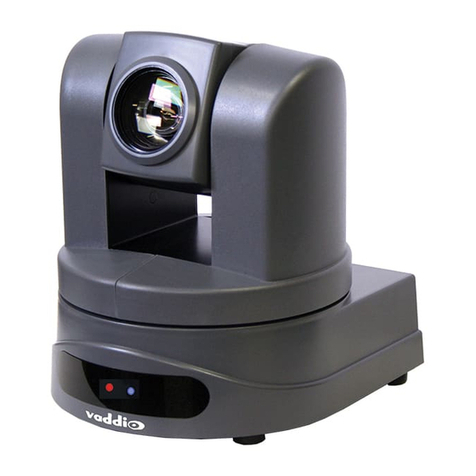
Planet ICA-HM316W User manual

User’s Manual
ICA-HM316W
2Mega-Pixel 11n Outdoor
IR IP Camera

2
Copyright
Copyright 2011 by PLANET Technology Corp. All rights reserved. No part of this publication
may be reproduced, transmitted, transcribed, stored in a retrieval system, or translated into any
language or computer language, in any form or by any means, electronic, mechanical, magnetic,
optical, chemical, manual or otherwise, without the prior written permission of PLANET.
PLANET makes no representations or warranties, either expressed or implied, with respect to
the contents hereof and specifically disclaims any warranties, merchantability or fitness for any
particular purpose. Any software described in this manual is sold or licensed "as is". Should the
programs prove defective following their purchase, the buyer (and not PLANET, its distributor, or
its dealer) assumes the entire cost of all necessary servicing, repair, and any incidental or
consequential damages resulting from any defect in the software. Further, PLANET reserves the
right to revise this publication and to make changes from time to time in the contents hereof
without obligation to notify any person of such revision or changes.
All brand and product names mentioned in this manual are trademarks and/or
registered trademarks of their respective holders.
Federal Communication Commission Interference Statement
This equipment has been tested and found to comply with the limits for a Class B digital device,
pursuant to Part 15 of FCC Rules. These limits are designed to provide reasonable protection
against harmful interference in a residential installation. This equipment generates, uses, and
can radiate radio frequency energy and, if not installed and used in accordance with the
instructions, may cause harmful interference to radio communications. However, there is no
guarantee that interference will not occur in a particular installation. If this equipment does cause
harmful interference to radio or television reception, which can be determined by turning the
equipment off and on, the user is encouraged to try to correct the interference by one or more of
the following measures:
1. Reorient or relocate the receiving antenna.
2. Increase the separation between the equipment and receiver.
3. Connect the equipment into an outlet on a circuit different from that to which the receiver is
connected.
4. Consult the dealer or an experienced radio technician for help.
FCC Caution
To assure continued compliance. (example-use only shielded interface cables when connecting
to computer or peripheral devices). Any changes or modifications not expressly approved by the
party responsible for compliance could void the user’s authority to operate the equipment.
This device complies with Part 15 of the FCC Rules. Operation is subject to the Following two
conditions: ( 1 ) This device may not cause harmful interference, and ( 2 ) this Device must
accept any interference received, including interference that may cause undesired operation.
Federal Communication Commission (FCC) Radiation Exposure Statement
This equipment complies with FCC radiation exposure set forth for an uncontrolled environment.
In order to avoid the possibility of exceeding the FCC radio frequency exposure limits, human
proximity to the antenna shall not be less than 20 cm (8 inches) during normal operation.

Safety
This equipment is designed with the utmost care for the safety of those who install and use it.
However, special attention must be paid to the dangers of electric shock and static electricity
when working with electrical equipment. All guidelines of this and of the computer manufacture
must therefore be allowed at all times to ensure the safe use of the equipment.
CE Mark Warning
This is a Class B product. In a domestic environment, this product may cause radio interference,
in which case the user may be required to take adequate measures.
WEEE Regulation
To avoid the potential effects on the environment and human health as a result of the
presence of hazardous substances in electrical and electronic equipment, end users
of electrical and electronic equipment should understand the meaning of the
crossed-out wheeled bin symbol. Do not dispose of WEEE as unsorted municipal
waste and have to collect such WEEE separately.
Revision
User’s Manual for PLANET 2Mega-Pixel 11n Outdoor IR IP Camera
Model: ICA-HM316W
Rev: 1.00 (May. 2011)
Part No. EM-ICAHM316W
3

Table of Content
1. Introduction................................................................................................................ 6
1.1 Overview............................................................................................................. 6
1.2 Features .............................................................................................................. 6
1.3 Package Contents............................................................................................. 7
2. Basic Setup ............................................................................................................... 8
2.1 System Requirements....................................................................................... 8
2.2 Physical Description.......................................................................................... 9
2.2.1 Identification of ICA-HM316W cable ................................................... 9
2.2.2 ICA-HM316W I/O Control Instruction................................................ 10
2.3 Hardware Installation ...................................................................................... 12
2.3.1 Physical Installation ............................................................................. 12
2.4 Initial Utility Installation ................................................................................... 13
2.4.1 Search and Configure Network by PLANET IP Installer ................ 13
2.5 Setup ActiveX to use the Internet Camera .................................................. 17
2.5.1 Internet Explorer 6 for Windows XP .................................................. 17
2.5.2 Internet Explorer 7 for Windows XP .................................................. 18
2.5.3 Internet Explorer 7 for Windows Vista............................................... 19
3. Web-based Management...................................................................................... 20
3.1 Introduction....................................................................................................... 20
3.2 Connecting to Internet Camera ..................................................................... 20
4. Live View ................................................................................................................. 22
5. Configuration........................................................................................................... 24
5.1 System............................................................................................................... 25
5.1.1 System Information .............................................................................. 25
5.1.2 User Management................................................................................ 27
5.1.3 System Update ..................................................................................... 28
5.2 Network ............................................................................................................. 29
5.2.1 IP Setting ............................................................................................... 29
5.2.2 Using UPnP of Windows XP or Vista ................................................ 30
5.2.2.1 Windows XP ............................................................................ 30
5.2.2.2 Windows Vista ......................................................................... 35
5.2.3 PPPoE.................................................................................................... 37
5.2.4 DDNS ..................................................................................................... 37
5.2.5 Mail & FTP............................................................................................. 40
5.2.6 Wireless Setting.................................................................................... 40
5.3 A/V Setting ........................................................................................................ 42
5.3.1 Image Setting........................................................................................ 42
5.3.2 Video Setting......................................................................................... 42
5.3.3 Audio ...................................................................................................... 45
5.4 Event List .......................................................................................................... 46
5.4.1 Event Setting......................................................................................... 46
5.4.2 Schedule................................................................................................ 48
5.4.3 I/O Setting.............................................................................................. 49
5.4.4 Log List .................................................................................................. 51
Appendix A: Factory Default ......................................................................................... 52
4

5
Appendix B: PING IP Address...................................................................................... 53
Appendix C: 3GPP Access ........................................................................................... 54
Appendix D: Bandwidth and Video Size Estimation ................................................. 55
Appendix E: DDNS Application .................................................................................... 56
Appendix F: Configure Port Forwarding Manually .................................................... 61
Appendix *: Troubleshooting & Frequently Asked Questions ................................ 64
Appendix +: Product Specification............................................................................... 68

1. Introduction
PLANET ICA-HM316W the new 2 Mega-Pixel 11n Outdoor IR IP Camera is to fulfill the
demands in worldwide surveillance market. The ICA-HM316W supports the highest video
compression – H.264, which provides small video size and save you lots of bandwidth usage.
The new video compression is the best solution for Internet video transmission.
The Multi-profile function supported enables the ICA-HM316W to generate H.264 / MPEG-4 /
M-JPEG streaming simultaneously to differentiate users in different resolutions. This
state-of-the-art design is considerable to fit in various network environments.
The ICA-HM316W provides 2-Way audio function for surveillance. It can remotely talk to anyone
at the ICA-HM315W site with additional speaker connected to the camera. The ICA-HM316W
also brings users secure wireless transmission up to 54Mbps through the IEEE 802.11b/g/n
wireless technology and WEP / WPA encryptions.
The ICA-HM316W features zero-lux illumination. The 35 IR illuminators built around the lens bring
the clearest vision at night. Via the new LED technology, the illuminator ensures high-quality
monochrome images in complete darkness up to 25 meters. With the Aluminum rugged
all-weather waterproof housing, the ICA-HM316W, which is the infrared Internet camera performs
reliable operation in any environment. It can work with the PLANET Cam Viewer 3 Lite/Pro
Management software and Network Video Recorder products for various field demands in
surveillance network.
1.1Overview
This user’s guide explains how to operate this camera from a computer. User should read this
manual completely and carefully before you operate the device
1.2 Features
2 Mega-Pixel COMS Sensor with Vari-Focal Lens in 25 meters IR distance
IR-Cut filter brings better video quality in the daytime and nighttime
Supports H.264, MPEG-4 and M-JPEG video compression
Supports IEEE 802.11b/g/n wireless LAN with WEP and WPA encryption
IP-66 protection for outdoor application
Motion Detection feature can monitor any suspicious movement in specific area
2-Way audio supported with external speaker and microphone
DDNS, PPPoE and FTP upload supports more alternatives in surveillance network
Easy configuration and management via Windows-based utility or web interface
Support 3GPP and JAVA for iPhone and Windows mobile for remote view
6

7
1.3Package Contents
The package should contains the followings:
IP Camera Unit x 1
Power Adapter x 1
Screw package x 1
Stand x 1
5dbi Antenna x 1
User’s Manual CD-ROM x 1
Quick Installation Guide x 1
NOTE:1. If any of the above items are missing, please contact your dealer immediately.
2. Using the power supply that is not the one included in Internet camera packet
will cause damage and void the warranty for this product.

2. Basic Setup
This chapter provides details of installing and configuring the Internet camera
2.1 System Requirements
Network Interface 10/100Base-TX Ethernet
Monitoring System Recommended for Internet Explorer 6.0 or later
System Hardware
(Suggested)
· CPU: Intel Dual Core 1.66G
· Memory Size : 1024 MB (1024 MB or above Recommended )
· VGA card resolution : 1024 x 768 or above
· VGA card memory : 128 MB or above
System Hardware
(Minimum)
· CPU: Intel C-2.8G
· Memory Size : 512 MB
· VGA card resolution : 1024 x 768
· VGA card memory : 64 MB
NOTE: The listed information is minimum system requirements only. Actual requirement will
vary depending on the nature of your environment.
8

2.2 Physical Description
2.2.1 Identification of ICA-HM316W cable
1. RJ-45 LAN socket: Connect to PC or Hub/Switch.
For connect to 10Base-T Ethernet or 100Base-TX Fast Ethernet cabling. This Ethernet port built
N-Way protocol can detect or negotiate the transmission speed of the network automatically.
Please use CAT-5 cable to connect the Network Camera to a 100Mbps Fast Ethernet network
switch or hub.
2. Power Jack: The input power is DC 12V.
NOTE: ONLY use package power adapter supplied with the Internet. Otherwise, the
product may be damaged.
3. I/O Control Instruction
I/O terminal connector – used in application, for e.g., motion detection, event triggering, alarm
notifications
4. Video Output
The internet camera also provides composite video output. User can use BNC video cable to
connect the internet camera with a TV monitor or VCR.
5. MIC in (audio in)
Connect a microphone to the network camera.
6. Line out (audio out)
Connect a loud speaker to the network camera. This is for voice alerting and two-way audio.
9

2.2.2 ICA-HM316W I/O Control Instruction
1. Digital Input (GND + Alarm)
An alarm input for connecting devices that can toggle between an open and closed circuit, for
example: PIRs, door/window contacts, glass break detectors, etc. When a signal is received the
state changes and the input becomes active.
2. Relay output (COM +N.O.) / (COM+N.C.)
An output to relay switch, for example: LEDs, Sirens, etc
3. Digital Input/Alarm Input
1) GND (Ground): Initial state is LOW
2) Alarm: Max. 50mA, DC 3.3V
4. Relay Output
1) N.C. (Normally Close): Max. 1A, 24VDC or 0.2A, 110~240VAC
2) COM: (Common)
3) N.O. (Normally Open): Max. 1A, 24VDC or 0.2A, 110~240VAC
Relay
1. Digital Input connection
10
Table of contents
Other Planet Security Camera manuals

Planet
Planet ICA-4250 User manual

Planet
Planet ICA-HM620 User manual

Planet
Planet ICA-601 User manual

Planet
Planet ICA-3480 User manual

Planet
Planet CAM-IVP55 User manual

Planet
Planet ICA-4480 User manual

Planet
Planet ICA-HM136 User manual

Planet
Planet ICA-4500V Owner's manual

Planet
Planet ICA-530 User manual

Planet
Planet ICA-HM101 User manual

Planet
Planet ICA 4200 User manual

Planet
Planet ICA-510 User manual

Planet
Planet ICA-750 User manual

Planet
Planet ICA-M3380P User manual

Planet
Planet ICA-106 User manual

Planet
Planet ICA-700 User manual

Planet
Planet CAM-BX42 User manual

Planet
Planet ICA-H652 User manual

Planet
Planet ICA-210W User manual

Planet
Planet ICA-HM351 User manual