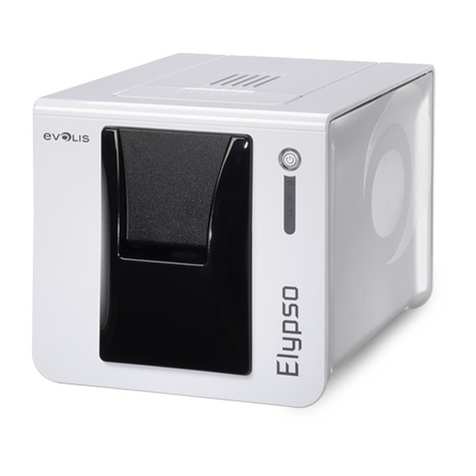
Phomemo PM246S User manual

1
QUICK START GUIDE
For PM-241 Bluetooth version

2
Catalog
QUICK START GUIDE...............................................................................................................1
1. Contact Phomemo Technical support team ........................................................................3
2. Package list........................................................................................................................ 4
3. Power on your printer........................................................................................................5
4. How to feed label...............................................................................................................6
5. Connect to computer.........................................................................................................7
6. Installation for Windows.................................................................................................... 8
7. Installation for Mac............................................................................................................9
8. Installation for ChromeOS................................................................................................10
9. Label editor: Labelife........................................................................................................11
10. Keep your label printer in latest update .........................................................................12
11. Setup: printer preference...............................................................................................13
12. Specifications.................................................................................................................16

3
1. Contact Phomemo Technical support team
We believe that users are the root of our development. Therefore, we are committed to
providing high quality service and reliable products to our customers. No matter you have
any doubts, questions in the process of using, you can contact us through the following
ways anytime. We are at your service. ❤
Phone us: +1 855 957 5321
Our website:www.phomemo.com
Email us:support@phomemo.com
WhatsApp us: +86 139 2808 8284
YouTube Channel: https://www.youtube.com/channel/UC5t52R9QarUIICgo9FfxgtQ
Scan QR code talk to us on WhatsApp.
At last Thank you for choosing Phomemo.
Best wishes for you.
@Phomemo Technical Team 2021

4
2. Package list
What in the box?
Label printer x 1
Fan-fold labels x 1
User manual x 1
Power adapter x 1
Power cable x 1
Usb cord x 1
Usb disk x 1
!! If any accessories missing, please contact us to get support. !!
PM246S Quick start video: https://phomemo.com/pages/pm246s

5
3. Power on your printer
Connect power adapter and power cable to printer.
NOTE: Please switch power to O (I: ON O:OFF) before you connect power cable to printer.
Turn on printer

6
4. How to feed label
Open printer cover. And feed label into printer.
NOTE: The printing side must be faced up or it will print blank label.
Close printer cover. The printer catch label automatically.
Press and hold FEED button(on the top of the cover) until blue light blink 2 times then
release button. Printer will run label identification automatically.
Press and hold FEED button until blue light blink 1 time then release button. Printer will
print self-test page.
!! Please check whether the self-test page is clear and correct. If the print is unclear or
incorrect, please contact customer service directly. We will provide you with a new
replacement service. !!

7
5. Connect to computer
Connect USB cable to printer.
Connect USB cable to your computer.
Turn on printer.

8
6. Installation for Windows
Tips: Driver is fully compatible with Windows computers with ARM processors
Get printer driver installation
Get label printer driver from USB driver.
Or get the latest driver from
https://phomemo.com/pages/download-center-pm-246s-new
Open driver installation. Just follow the prompts and proceed to the next step.
Now, printer driver have been installed. Please enjoy our printer.

9
7. Installation for Mac
Get printer driver installation
Get label printer driver from USB driver.
Or get the latest driver from
https://phomemo.com/pages/download-center-pm-246s-new
Open driver installation. Just follow the prompts and proceed to the next step.
Now, printer driver have been installed. Please enjoy our printer.

10
8. Installation for ChromeOS
Open chrome web store.
Search “labelife” extension.
Add extension to your chrome.
Connect printer to chrome.
Select PM246S then pair with printer.
Now, the printer has been setup with your Chromebook already.
Table of contents