Penpower WorldCard Series User manual

PENPOWER WorldCard
User Manual
Version: 6.5
Edition: 4
Release: August, 2011

Contents
Chapter 1 Product Introduction ............................................................ 1-1
1.1 WorldCard Series ........................................................................................ 1-1
1.1.1 WorldCard Color ............................................................................................. 1-1
1.1.2 WorldCard Ultra plus ....................................................................................... 1-2
1.1.3 WorldCard Ofce ............................................................................................. 1-3
1.2 Product Feature ........................................................................................... 1-4
Chapter 2 Getting Started ...................................................................... 2-1
2.1 System Requirements ................................................................................. 2-1
2.2 Installing Penpower WorldCard ................................................................. 2-1
2.2.1 Software and Driver Installation ...................................................................... 2-1
2.2.2 Launch WorldCard ........................................................................................... 2-3
2.2.3 Registration ...................................................................................................... 2-3
2.2.4 Connecting Hardware ...................................................................................... 2-4
2.3 Preparation for Card Scanning ................................................................... 2-4
2.3.1 Calibration ....................................................................................................... 2-4
2.3.2 Start-up Wizard ................................................................................................ 2-5
2.4 Online Help ................................................................................................ 2-6
Chapter 3 Overview ................................................................................ 3-1
3.1 User Interface ............................................................................................. 3-1
3.1.1 Toolbar ............................................................................................................. 3-2
3.1.2 Alphabet Index ................................................................................................. 3-2
3.2 Scan Business Cards ................................................................................... 3-3
3.2.1 Scan Directly ................................................................................................... 3-3
3.2.2 Scan Wizard ..................................................................................................... 3-3
3.2.3 Batch Scanning ................................................................................................ 3-4
3.4 Viewing Contacts ........................................................................................ 3-5
3.4.2 Label Mode ..................................................................................................... 3-6
3.4.3 Image Mode ..................................................................................................... 3-7
3.4.4 Dual Mode ....................................................................................................... 3-8

3.4.5 Hide WorldCard Banner .................................................................................. 3-8
Chapter 4 Edit Cards .............................................................................. 4-1
4.1 Edit Window Overview .............................................................................. 4-1
4.2 Verify Contacts ........................................................................................... 4-1
4.3 Edit Contacts .............................................................................................. 4-3
4.3.1 Recognizing Partial Content of a Card Entry .................................................. 4-4
4.3.2 Adjusting the Separation Rate ......................................................................... 4-5
4.3.3 Reframing Command ...................................................................................... 4-6
4.3.4 Fine Rotating ................................................................................................... 4-6
4.3.5 Rotating Card ................................................................................................... 4-7
4.3.6 Rescanning Card .............................................................................................. 4-7
4.3.7 Recognizing Again .......................................................................................... 4-8
4.3.8 Exchanging Front and Back Side Card Image ................................................. 4-8
4.4 Viewing Cards ............................................................................................ 4-9
4.4.1 Saving Card Image .......................................................................................... 4-9
4.4.2 Deleting Card Image ........................................................................................ 4-9
Chapter 5 Manage Business Cards ....................................................... 5-1
5.1 Categorize Cards ........................................................................................ 5-1
5.1.1 Categorize from Management Page ................................................................ 5-1
5.1.2 Categorize from Editing Page .......................................................................... 5-2
5.1.3 Send Email by Category .................................................................................. 5-2
5.2 Merge and Separating Cards ...................................................................... 5-3
5.3 Add New Cards .......................................................................................... 5-4
5.3.1 Add an Empty Card ......................................................................................... 5-4
5.3.2 Add the Same Company Card ......................................................................... 5-4
5.4 Add Cards from Other Resources ............................................................... 5-5
5.4.1 Photo File ......................................................................................................... 5-5
5.4.2 Twain Scanner ................................................................................................. 5-5
5.4.3 Drag in the Signature Information ................................................................... 5-6
5.5 Deleting/Restoring Contacts ....................................................................... 5-6
5.6 Search Contacts .......................................................................................... 5-7

5.6.1 Text Search ...................................................................................................... 5-7
5.6.2 Advanced Search ............................................................................................. 5-8
5.6.3 Finding Duplicate Data .................................................................................... 5-9
5.7 Safeguardi your Contacts ......................................................................... 5-10
5.7.1 Save ............................................................................................................... 5-10
5.7.2 Backup your contacts ..................................................................................... 5-10
5.7.3 File Encryption .............................................................................................. 5-10
5.8 Print Cards ............................................................................................... 5-12
5.8.1 Print Preview ................................................................................................. 5-12
5.8.2 Edit Print Templates ...................................................................................... 5-13
5.9 Exchange Contacts ................................................................................... 5-14
5.9.1 Export ............................................................................................................ 5-14
5.9.2 Import ............................................................................................................ 5-23
5.9.3 Sync ............................................................................................................... 5-27
5.9.4 WorldCard Data Exchange Compatibility List .............................................. 5-31
5.10 Settings ................................................................................................... 5-33
5.10.1 Export Option .............................................................................................. 5-33
5.10.2 Synchronize Option ..................................................................................... 5-34
5.10.3 Field Display................................................................................................ 5-35
5.10.4 User Dene Field ......................................................................................... 5-35
5.10.5 Scan Option ................................................................................................. 5-36
5.10.6 Revising the Results of Chinese Card Recognition ..................................... 5-36
5.10.7 Personal Setting ........................................................................................... 5-37
5.11 Online Map ............................................................................................. 5-39
5.12 Getting Direction .................................................................................... 5-40
5.13 WorldCard Portable Disk........................................................................ 5-41
5.13.1 Saving Card Data to a Portable Disk ........................................................... 5-41
5.13.2 Card Data Management for Portable Disk .................................................. 5-42
Chapter 6 Scan Manager ........................................................................ 6-1
6.1 Scan Contacts ............................................................................................. 6-1
6.2 Scan business cards .................................................................................... 6-2
6.2.1 Scan and Edit business cards ........................................................................... 6-2

There may be newer versions of the software that was released during or after this product’s
manufacturing date. If the content in the User Manual differs from the on-screen interface,
please follow the instructions on the on-screen interface instead of the User Manual.
6.2.2 View business card image ................................................................................ 6-4
FAQ .................................................................................................... FAQ-1

Penpower Technology Ltd.
Software User License Agreement
You are licensed to legally use this software program (“the Software”) by Penpower
Technology Ltd (“Penpower”) under this license agreement (“The Agreement”). If you do
not agree with any of the provisions in this Agreement, please do not install, copy or use the
Software. By using the Software, you are deemed to fully understand and accept the provi-
sions of this Agreement.
1. Intellectual Property
All intellectual property rights in the Software, together with all information and docu-
ments included in the packaging for the Software (including but not limited to copy-
rights), are property of Penpower, and are protected by relevant laws and regulations.
2. License to Use
You are authorized to use the Software on one (1) single computer only. You may not use
the Software on any other machines other than the said single computer.
3. Authority to Copy
The Software and all documents included with the Software, and copyright thereof, are
property of Penpower. You are licensed to make one (1) copy of the Software for your
personal backup purposes. All other acts of copying are strictly prohibited.
You may not sell, lease, dissemble, reverse engineer, copy, translate, adapt or derive the
Software, or obtain the source code of the Software by any other means. You may not use
the Software for any purposes other than those permitted under this Agreement.
4. Business Users
If you need to install or use the Software on more than one (1) computer, please contact
Penpower or our local distributor to purchase a license for the additional use.
5. Liability
You agree to indemnify Penpower against all losses, costs, debts, settlement payments or
other expenses (including but not limited to attorneys fees) arising from your breach of
this Agreement, and you agree to compensate Penpower for all of the abovementioned
damages.
6. No Warranty
Effectiveness of a packaged software in handling information is closely related to its soft-
ware and hardware environment. The Software is published following careful develop-
ment and product testing by Penpower, but Penpower is not able to conduct tests based on
all possible combinations of software and hardware environment. Therefore, Penpower is
unable to promise nor warrant that there will be absolutely no risk of loss or damage of

information, or any other kind of loss, during installation and/or execution of the Soft-
ware. You must be fully aware of your risks in using the Software.
Penpower will provide you with the Software and support services in respect of the Soft-
ware to the maximum extent permitted by law. However, Penpower does not warrant that
the Software and information included in the package of the Software contain no defects
or errors. Penpower is not liable for any indirect, special or incidental loss arising from
the Software, including but not limited to loss of prots, damage to business reputation,
cessation of work, hardware malfunction or damage, or any other commercial damage or
loss arising from commercial use of the Software.
7. Limitation of Liability and Damages
The maximum amount of compensation payable by Penpower, in respect of any damage
incurred by you for any reason under this Agreement, is limited to the amount you have
already paid to Penpower in respect of the Software.
Under no circumstances will Penpower be held liable for the possibility of loss, notwith-
standing Penpower may be aware of the possibility of such loss.
8. Prohibition Against Sublicense
You are prohibited to assign the license in respect of the Software granted to you under
this Agreement, or to grant a sublicense to another person.
9. Jurisdiction
With regards to any disputes arising from this Agreement, Penpower and you agree that
the court having jurisdiction over the business location of Penpower will be the court in
the rst instance.
10. Miscellaneous
In the event that any provision of this Agreement is found to be invalid at law, such
invalidity will not affect the validity of any other provisions, or the legal enforceability of
such other provisions.
In the event that the Software cannot be executed under conditions of normal use, due to
any damage to the original disk/s, Penpower will replace the disk/s free of charge.

Chapter 1 Product Introduction 1-1
Chapter 1 Product Introduction
Penpower WorldCard provides a total business card management solution by integrating
card recognition, management, and printing functions in a single digitizing unit to nd your
business cards at any given time.
1.1 WorldCard Series
1.1.1 WorldCard Color
The A6-sized color business card scanner is supported by PENPOWER’s BCR technol-
ogy to ensure quick scan and accurate recognization of information on a color business card.
It provides 600 dpi resolution and can be used as a color scanner to scan 4x6 color photos.
Tips
• Insert a Business Card Here: Insert a card with the information side facing up and
make sure the card placed against to the left-hand side.
• Business Card Scan Button: When running WorldCard software, press the Business
Card Scan button to launch the Scan Wizard. Then insert a business card and press
Business Card Scan Button again to scan it.
• Picture Scan Button: Launch the WorldCard application, press the Picture Scan button,
and insert a picture to scan it into a JPG le.
Specication
• Dimensions: 175x75x45mm
• Weight: 216g
• Resolution: 600 dpi
• Interface: USB
• Image: Color
Insert a Business Card Here
Picture Scan Button
Business Card Scan Button

1-2 WorldCard
Tips
• Insert a Business Card Here: Insert a card with the information side facing up.
• Intuitive LED indicator: The LED indicator will blink when a card is inserted. It will
blink faster during scanning.
Specication
• Dimensions: 107x99x28mm
• Weight: 168g
• Resolution: 600 dpi
• Interface: USB
• Image: Color
1.1.2 WorldCard Ultra plus
Inherit the design concept of WorldCard Ultra, WorldCard Ultra plus help you scan
business card in the easiest way that you have never experienced.
Insert a Business Card Here Intuitive LED Indicator
Tip
WorldCard plus has the new open/close design. Be sure to open the World-
Card plus card scanner before you start to scan. When the scanner is not
used, please close it to avoid dust getting into it.
Chapter 1 Product Introduction 1-3
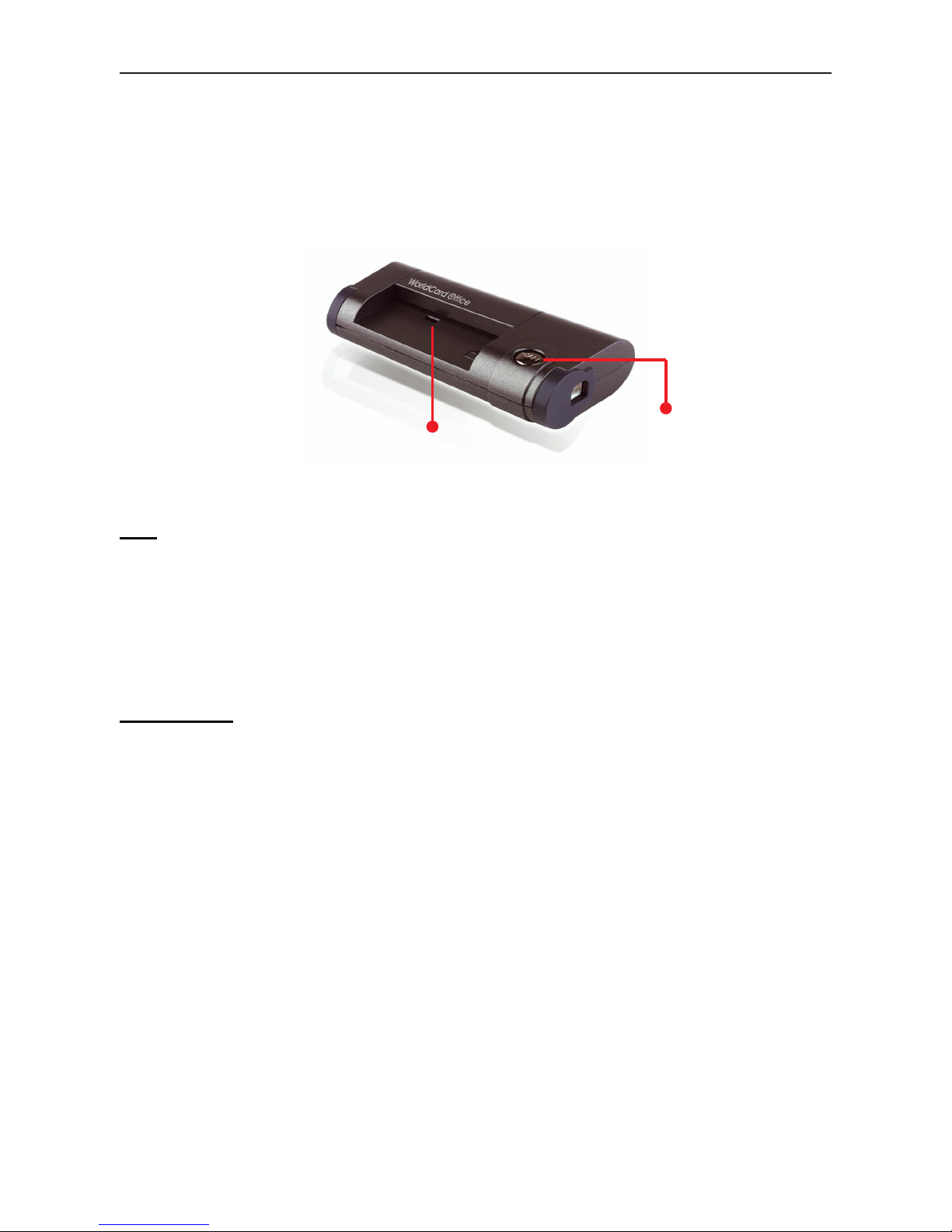
1.1.3 WorldCard Ofce
The A8-sized gray-scale business card scanner leverages PENPOWER’s kernel technol-
ogy of character recognition to identiy data on a business card, inputs them into the cor-
responding eld, and creates les for management within 5 seconds.
Tips
• Insert a Business Card Here: Insert a card with the information side facing down and
make sure the card placed against to the right- hand side.
• Scan Button: When running the WorldCard application, press the Scan button to launch
the Scan Wizard. Then insert a business card and press Scan Button again to scan it.
Specication
• Dimensions: 106x53x27mm
• Weight: 73g
• Resolution: 600 dpi
• Interface: USB
• Image: Gray-scale
Insert a Business Card Here
Scan Button
Table of contents
Other Penpower Scanner manuals

Penpower
Penpower WorldCard duet User manual

Penpower
Penpower WorldCard Color User manual

Penpower
Penpower WorldocScan X User manual

Penpower
Penpower WorldocScan 400 User manual

Penpower
Penpower WorldocScan Pro User manual

Penpower
Penpower WorldocScan X User manual

Penpower
Penpower WorldCard Mac User manual

Penpower
Penpower mini ScanEYE User manual

Penpower
Penpower WorldPenScan Pro User manual

Penpower
Penpower WorldCard Color User manual