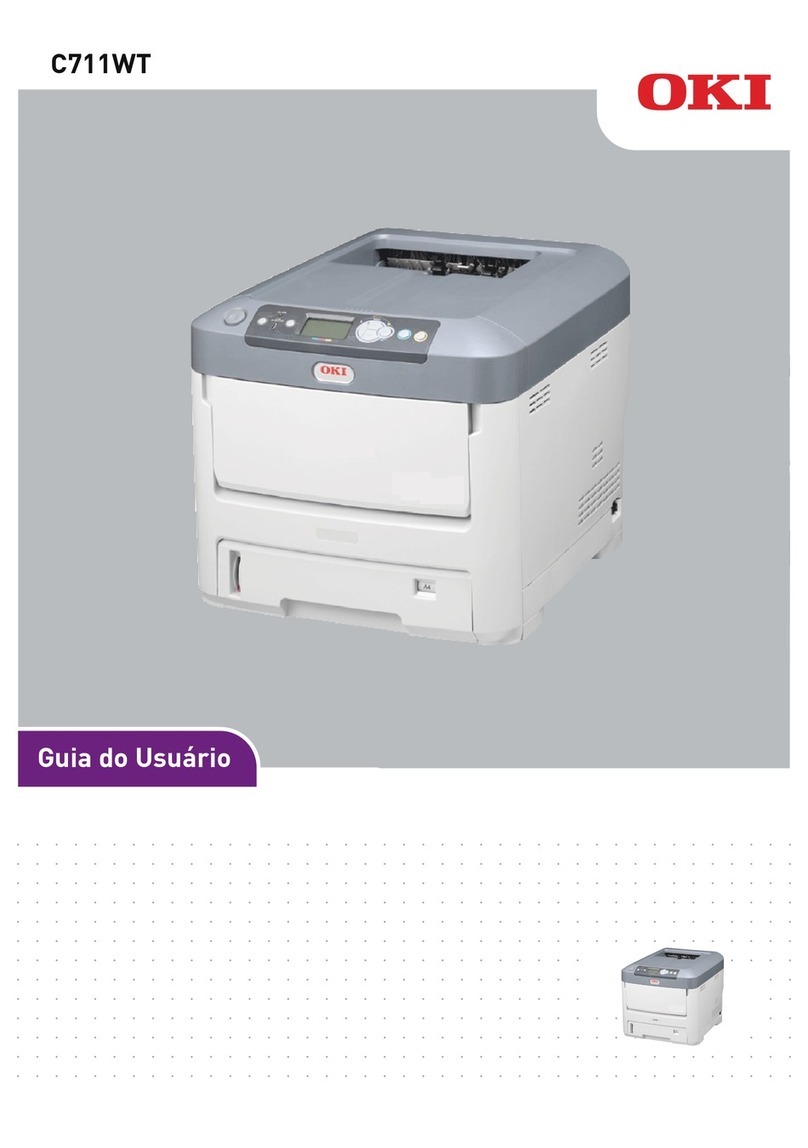
Oki ML690 User manual

User's Guide
59101601 my.okidata.com
RT322
ML690/ML691

ML690/ML691 User’s Guide 2
ML690/ML691 User’s Guide
P/N 59101601, Revision 1.2
September, 2010
Every effort has been made to ensure that the information in this document
is complete, accurate, and up-to-date. Oki Data assumes no responsibility
for the results of errors beyond its control. Oki Data also cannot guarantee
that changes in software and equipment made by other manufacturers and
referred to in this guide will not affect the applicability of the information in
it. Mention of software products manufactured by other companies does not
necessarily constitute endorsement by Oki Data.
Copyright 2010 by Oki Data. All rights reserved.
Trademark Information
OKI and MICROLINE are registered trademarks of Oki Electric Industry
Company, Ltd.
Epson is a registered trademark of Epson America, In.
IBM is a registered trademark of International Business Machines
Corp.
Microsoft and Windows are either registered trademarks or trademarks
of Microsoft Corporation in the United States and other countries.

ML690/ML691 User’s Guide 3
Chapter 1: Introduction................................................................. 5
Printer Features.....................................................................................5
Oki Data on the Internet...........................................................5
Parts Identication: Front View ...........................................................6
Parts Identication: Rear View.............................................................7
Parts Identication: Inside View .........................................................7
The Control Panel..................................................................................8
Print Mode Key Functions.........................................................12
Chapter 2: Paper Handling ......................................................... 14
Loading Continuous Forms Paper ....................................................15
Rear Feed.................................................................................16
Front Feed ................................................................................19
Bottom Feed (optional pull tractor) ...........................................21
Tearing Off Continuous Forms Paper.......................................22
Aligning the Tear-Off Perforations ............................................22
Removing Continuous Forms Paper.........................................23
Loading Cut Sheet Paper ...................................................................23
Cut Sheet Paper, Top and Front Feed .....................................23
Ejecting Cut Sheet Paper .........................................................25
Notes on Different Types of Paper ...........................................26
Top of Form (TOF)...............................................................................27
Top of Form (TOF) and Forms Tear-Off ...................................27
Determining if Forms Tear-Off is Off or On...............................28
To print the Menu:..................................................................28
To use the TEAR key:............................................................28
Setting Top of Form (TOF): ......................................................29
Temporarily Changing the Top of Form Position......................30
Resetting Top of Form to the Factory Default...........................30
Forms Tear-Off Feature ......................................................................31
Potential Problems with Software Packages ............................31
Changing the Forms Tear-Off Setting.......................................32
Manual Forms Tear Off.............................................................32
Paper Park............................................................................................33
Setting the Paper Thickness Lever....................................................33
Paper Type Table ..................................................................34
Chapter 3: Print Settings ............................................................ 35
Print Quality.........................................................................................36
Draft: the default ....................................................................36
HSD: High Speed Draft..........................................................36
LQ: Letter Quality...................................................................36
Character Pitch....................................................................................37
Print Speed ..........................................................................................38
Printer Reset........................................................................................38
Emulations...........................................................................................39
Changing Emulations................................................................39
Chapter 4: Menu Mode................................................................ 40
Menu Mode Keys......................................................................40
Menu Mode Keys and Functions ..............................................41
Entering and Exiting Menu Mode..............................................42
Resetting the Menu to the Factory Defaults .............................42
Printing the Menu Settings........................................................43
Printing the Current Menu Settings........................................43
Printing All Menu Settings......................................................43
Changing the Menu Settings ....................................................43
Menu Settings Table.................................................................44

ML690/ML691 User’s Guide 4
Chapter 5: Maintenance.............................................................. 70
Replacing the Ribbon Cartridge ........................................................70
Ribbon Cartridge Handling ....................................................70
If ribbon should contact the eyes: ..........................................73
If ribbon should contact the skin ............................................73
For more information .............................................................73
Clearing Paper Jams...........................................................................74
Continuous Feed Paper Jams ..................................................74
Cut Sheet Paper Jams..............................................................75
Cleaning the Printer ............................................................................77
Printer Exterior..........................................................................77
Printer Interior ...........................................................................77
Testing the Printer...............................................................................78
Font Sample Test .....................................................................78
Rolling ASCII Test ....................................................................79
Hexadecimal Dump Mode ........................................................80
Chapter 6: Troubleshooting ....................................................... 81
General Information ............................................................................81
Responding to Alarm Conditions ......................................................82
Problems / Solutions............................................................................83
Appendix A: Parts & Accessories.............................................. 89
Purchasing Parts & Accessories.......................................................89
Consumables.......................................................................................90
Accessories .........................................................................................90
Appendix B: Printer Control Codes........................................... 91
IBM Proprinter Commands.................................................................91
Epson FX Commands .........................................................................94
Appendix C: Specications........................................................ 96
Print Method .............................................................................96
Printhead ..................................................................................96
Interfaces ..................................................................................96
Receive Buffer Size ..................................................................96
Printhead Life.........................................................................96
Reliability ..................................................................................96
Ribbon Life.............................................................................96
Emulations (co-resident)...........................................................96
Physical Specications .............................................................96
ML690....................................................................................96
ML691....................................................................................96
Print Speed ...............................................................................97
Characters per Line (cpl) ..........................................................97
Graphics Resolution .................................................................97
Resident Fonts..........................................................................97
Bar Codes.................................................................................98
Paper Thickness: Tractor Feed ................................................98
Environmental Requirements ...................................................98
Temperature ..........................................................................98
Humidity.................................................................................98
Electrical Requirements............................................................98
Paper Specications .................................................................99

ML690/ML691 User’s Guide 5
Chapter 1:
Introduction
Printer Features
Super reliable, durable operation: 25,000 hours
Mean Time Between Failures (MTBF) at 25% duty
cycle and 35% page density
Advanced paper handling, with built-in rear push
tractor and zero-tear forms capability.
Blazing print speeds, in characters per second:
High Speed Draft (HSD) Mode: 480/576 cps
Draft Mode: 360/540 cps
Letter Quality (LQ) Mode: 120 cps
This rugged 24 pin printer can meet the needs of
harsh and demanding environments.
Five methods of loading paper and printing:
Continuous Forms Rear Feed (Push), Continuous
Forms Front Feed (Push), Continuous Forms
Bottom Feed (Pull), Cut Sheet (Top), Cut Sheet
(Front)
Oki Data on the Internet
The Oki Data Web Sites provide the most current
information available on your printer.
On-line documents are available for viewing and
downloading via Oki Data’s Web Sites.
You may reach Oki Data via the Internet at:
www.okiprintingsolutions.com
my.okidata.com

ML690/ML691 User’s Guide 6
Parts Identication: Front View
Sheet Guide, Rear
Paper Type Lever
Platen Knob
Sheet Guide, Front (open to t the front feed
paper tray or the tractor)
Control Panel
On-Off Switch
Access Cover
1.
2.
3.
4.
5.
6.
7.
1
2
3
5
6
7
4

ML690/ML691 User’s Guide 7
Parts Identication: Rear View
USB connector
Parallel connector
Optional Serial/Network connector
Ventilation
Power Connector
Optional Cut Sheet Feeder/Roll Paper Stand
connector
Note: The serial number of your printer is on a label on
the back, beside “S/N.”
1.
2.
3.
4.
5.
6.
Parts Identication: Inside View
Paper Thickness Lever
Ribbon Cartridge
Print Head
Pull-up Guide Assembly
1.
2.
3.
4.
4
1
2
3
56
1
2
3
4

ML690/ML691 User’s Guide 8
The Control Panel
Keys work differently according to which “mode” is active.
Hold down the CHR PITCH key and press the PRINT SPEED key to
enter Menu mode; repeat the sequence to exit Menu mode. In Menu
mode use the purple text labels underneath the keys to identify the
function of each key.
The lights above these key labels show which option in the list is
active. For example, if both of the CHR PITCH lights are lit, then 15
CPI is the current character pitch; if both lights are ashing, then
PROP (proportional) is the current pitch.
The 7 keys function
differently, depending
on which printer
mode is active
The SEL light
indicates if
the printer is
online
The ALARM light
indicates an
alarm condition
The MICROFEED keys advance
() or retract () the paper in
small increments
The lines above
the square
indicate a
ashing light

ML690/ML691 User’s Guide 9
Control Panel Indicator Light Functions
Indicator Light Color Status Explanation
ALARM Red ON The paper is at its end; i.e., no paper present.
OFF Paper is present.
Flashing When ashing with SEL: unrecoverable status alarm. Turn the
power OFF, verify that the carriage moves properly, then turn
power ON again. May indicate: a paper jam, media alarm,
thermal alarm (head/space/feed)
When ashing together with the TEAR light, indicates high
temperature alarm status.
SEL (Select) Green ON Printer is online; ready to receive data and print.
OFF Printer is ofine; not ready to receive data and print.
Flashing When ashing with ALARM: unrecoverable status alarm. Turn
the power OFF, verify that the carriage moves properly, then
turn power ON again.
When ashing together with the TEAR light, indicates the Top
Cover is open.
TEAR Green ON Printer is in Menu mode.
OFF Printer is in Tear down position.
Flashing Printer is in Tear up position.

ML690/ML691 User’s Guide 10
Control Panel Indicator Light Functions
Indicator Light Color Status Explanation
PRINT QUALITY Green ON
> LED 1
> LED 2
> LED 1 and 2
With ALARM light ashing:
> Indicates paper park/eject jam.
> Indicates paper loading jam.
> Indicates incorrect media setting.
ON
> LED 3
> LED 2
> LED 2 and 3
> LED 1
> LED 1 and 3
> LED 1 and 2
> LED 1, 2 and 3
> Indicates HSD is selected.
> Indicates DRAFT is selected.
> Indicates COURIER is selected.
> Indicates ROMAN is selected.
> Indicates SWISS is selected.
> Indicates SWISS-B is selected.
> Indicates ORATOR is selected.
Flashing
> LED 3
> LED 2
> LED 2 and 3
> LED 1
> Indicates GOTHIC is selected.
> Indicates PRESTIGE is selected.
> Indicates OCR-A is selected.
> Indicates OCR-B is selected.
Flashing
> LED 2
With ALARM light ashing:
> Indicates an incorrect Paper Lever setting.
Other manuals for ML690
3
This manual suits for next models
1
Table of contents
Other Oki Printer manuals

Oki
Oki Microline 186 User manual

Oki
Oki B410D User manual

Oki
Oki C6100 Series User manual

Oki
Oki C8800 series Service manual

Oki
Oki C6100 Series User manual

Oki
Oki MPS711c Service manual

Oki
Oki LED Printer User manual

Oki
Oki C9800hdn Configuration guide

Oki
Oki ES9455 User manual

Oki
Oki B 4350N Use and care manual

Oki
Oki C6000dn User manual

Oki
Oki proColor pro900DP User manual

Oki
Oki proColor Pro510DW Configuration guide

Oki
Oki PACEMARK 4410 User manual

Oki
Oki OKIPAGE 14e User manual

Oki
Oki Teriostar LP-1040-MF User manual

Oki
Oki C9600hdn Configuration guide

Oki
Oki ML320 Turbo User manual

Oki
Oki LE810DT Owner's manual

Oki
Oki Microline 182 User manual