Oce ColorWave 900 User manual

Operation guide
Océ ColorWave 900
User Manual

Copyright and Trademarks
Copyright
Copyright 2017 Océ.
Illustrations and specifications do not necessarily apply to products and services offered in each
local market. No part of this publication may be reproduced, copied, adapted or transmitted,
transcribed, stored in a retrieval system, or translated into any language or computer language in
any form or by any means, electronic, mechanical, optical, chemical, manual, or otherwise,
without the prior written permission of Océ.
OCÉ MAKES NO WARRANTY OF ANY KIND WITH REGARD TO THE CONTENTS OF THIS
PUBLICATION, EITHER EXPRESS OR IMPLIED, EXCEPT AS PROVIDED HEREIN, INCLUDING
WITHOUT LIMITATION, THEREOF, WARRANTIES AS TO MARKETABILITY, MERCHANTABILITY,
FITNESS FOR A PARTICULAR PURPOSE OF USE OR NON-INFRINGEMENT. OCÉ SHALL NOT BE
LIABLE FOR ANY DIRECT, INCIDENTAL, OR CONSEQUENTIAL DAMAGES OF ANY NATURE, OR
LOSSES OR EXPENSES RESULTING FROM THE USE OF THE CONTENTS OF THIS PUBLICATION.
Océ reserves the right to revise this publication and to make changes from time to time in the
content hereof without obligation to notify any person of such revision or changes.
Language
Translation of the original instructions that are in British English.
Trademarks
Océ, Océ ColorWave, Océ PlotWave are registered trademarks of Océ-Technologies B.V. Océ is a
Canon company.
Adobe, PostScript, and the Adobe logos are either registered trademarks or trademarks of Adobe
Systems Incorporated in the United States and/or other countries.
Excel, Internet Explorer, Microsoft are trademarks or registered trademarks of Microsoft Corp.
incorporated in the United States and/or other countries.
All other trademarks are the property of their respective owners.
Edition 2017-04
Software version 1.3 US

Contents
Chapter 1
Introduction.........................................................................................................................7
About the product............................................................................................................................................ 8
About the users................................................................................................................................................ 9
Notes for the readerfor hardware products................................................................................................. 10
Available documentation...............................................................................................................................12
Chapter 2
Explore the print system..................................................................................................15
Printer working area (footprint).....................................................................................................................16
Main hardware parts......................................................................................................................................20
The Océ ColorWave 900.......................................................................................................................... 20
Front view...........................................................................................................................................20
Rear view............................................................................................................................................21
Top view.............................................................................................................................................22
Print surface....................................................................................................................................... 23
User panel.......................................................................................................................................... 25
Optional finishing devices.......................................................................................................................26
Océ Dual Tray High Capacity Stacker.............................................................................................. 26
Folding devices..................................................................................................................................28
Océ Delivery Tray.............................................................................................................................. 29
Ease of operation............................................................................................................................................30
About Océ Express WebTools.......................................................................................................................34
Consumables.................................................................................................................................................. 35
Status of the printer....................................................................................................................................... 36
Chapter 3
Getting started..................................................................................................................41
Connect mains supply and network............................................................................................................. 42
Switch on and start up...................................................................................................................................44
Shut down and switch off..............................................................................................................................47
Restart the print system.................................................................................................................................50
Define the network settings...........................................................................................................................53
Move the printer ............................................................................................................................................55
Chapter 4
Media handling................................................................................................................. 57
Media drawers................................................................................................................................................58
Load weight and ergonomic advice..............................................................................................................59
Remove a media roll...................................................................................................................................... 61
Unpack a media roll....................................................................................................................................... 64
Load a media roll............................................................................................................................................66
Overview of media related settings .............................................................................................................72
Define media types and sizes........................................................................................................................73
Install media profiles .....................................................................................................................................74
Configure the media request time-out ........................................................................................................ 76
Check the media compatibility with folding devices...................................................................................77
Contents
3

Chapter 5
Configure the print system.............................................................................................. 79
Introducing Océ Express WebTools..............................................................................................................80
Set another language for Océ Express WebTools.......................................................................................82
Change the language settings in Internet Explorer..................................................................................... 83
Change the language settings in Mozilla Firefox.........................................................................................84
Change the language settings in Google Chrome.......................................................................................85
Change the value of a setting........................................................................................................................86
Log in as an authorized user......................................................................................................................... 87
Change the password for authorized users................................................................................................. 88
Configure the network and security settings............................................................................................... 89
Configure the network settings in Océ Express WebTools.................................................................. 89
Set the security settings for Microsoft Internet Explorer .....................................................................90
Set the security settings for Mozilla Firefox.......................................................................................... 91
Set the link speed and duplex mode......................................................................................................92
Remote security....................................................................................................................................... 93
Generate a new CA-signed certificate....................................................................................................94
Import a CA-signed certificate: Import the root certificate ..................................................................96
Import a CA-signed certificate: Import the intermediate certificate.................................................... 97
Import a CA-signed certificate................................................................................................................ 98
Import a CA-signed certificate: Check and import the root certificate................................................ 99
Define default printer and print settings.................................................................................................... 100
Introduction............................................................................................................................................ 100
The [Preferences] - [System] settings............................................................................................100
The [Preferences] - [Connectivity] settings....................................................................................102
The [Preferences] - [Print job defaults] settings............................................................................103
The [Preferences] - [PDF] settings..................................................................................................104
The [Preferences] - [PostScript] settings....................................................................................... 105
The [Preferences] - [Other file formats] settings...........................................................................106
The [Preferences] - [Fold] settings................................................................................................. 107
View and check the settings .................................................................................................................108
Save the settings in a file...................................................................................................................... 109
Load the settings from a file................................................................................................................. 110
Restore the factory default settings .....................................................................................................111
Configure the finishing settings.................................................................................................................. 112
Select the type of finishing device........................................................................................................112
Define the options for the folding device.............................................................................................113
Embedded fold templates..................................................................................................................... 114
Create a new template...........................................................................................................................117
Fold settings for custom fold templates.............................................................................................. 118
Fold settings for embedded fold templates.........................................................................................121
Manage your licenses.................................................................................................................................. 122
Introduction to license management................................................................................................... 122
Check your licenses............................................................................................................................... 123
Save the currently active licenses ....................................................................................................... 124
Get a new license file.............................................................................................................................125
Activate a new license........................................................................................................................... 126
Configure the Accounting Settings.............................................................................................................127
Counters for total media and ink usage...............................................................................................127
Counters for media and ink usage per job...........................................................................................128
Exchange accounting data via Océ Wave............................................................................................130
Account management........................................................................................................................... 131
An overview of Océ Account Center..............................................................................................131
Océ Account Console ®.................................................................................................................. 132
Chapter 6
Plan jobs.......................................................................................................................... 137
The Smart Inbox and the queue concept................................................................................................... 138
Contents
4

The Smart Inbox in the Jobs tab.................................................................................................................139
Create and open a Smart Inbox.................................................................................................................. 141
Close or delete a Smart Inbox.....................................................................................................................143
The job states................................................................................................................................................144
Configure the job management settings....................................................................................................145
Change the job priority at the user panel...................................................................................................146
Pause or resume print jobs at the user panel............................................................................................ 148
Chapter 7
Print jobs..........................................................................................................................149
Use Océ Publisher Express to send a print job..........................................................................................150
Use the Smart Inbox to send a print job.................................................................................................... 152
Use Océ Publisher Select 2 to send a print job..........................................................................................153
Use the Océ PostScript® 3 Driver to send a print job............................................................................... 154
Use Onyx ThriveTM to send a print job..................................................................................................... 155
Use Repro Desk to send a print job............................................................................................................ 157
Use FTP to send a print job......................................................................................................................... 158
Use LPR/LPD to send a print job................................................................................................................. 159
Change the job settings at the user panel..................................................................................................160
Chapter 8
Adjust the print quality and print productivity............................................................163
Set the print quality......................................................................................................................................164
Set the automatic roll switch.......................................................................................................................165
Set the spool threshold................................................................................................................................166
Set the rotation mode.................................................................................................................................. 167
Set the alignment mode ............................................................................................................................. 168
Set the PDF settings..................................................................................................................................... 169
Set the line thickening for PostScript files................................................................................................. 171
Optimize the print productivity................................................................................................................... 172
Define the color management settings...................................................................................................... 173
Chapter 9
Maintain the print system..............................................................................................175
Required cleaning materials........................................................................................................................176
Perform daily maintenance......................................................................................................................... 177
Keep the print quality high.......................................................................................................................... 178
Print cleaning sheets..............................................................................................................................178
Align printheads.....................................................................................................................................181
[Align printheads] - [Automatic].....................................................................................................181
Identify the printhead transitions that need manual printhead alignment (horizontal)............ 185
[Align printheads] - [Manual (horizontal)]..................................................................................... 187
Maintain printheads...............................................................................................................................191
Maintain wiper rollers............................................................................................................................194
Clean wiper roller compartments.........................................................................................................196
Clean the print surface and the vacuum holes....................................................................................203
Refill the ink tubes..................................................................................................................................212
Clean the media output section of the printer.....................................................................................214
Clean the media input section of the stacker.......................................................................................216
Clean the media input section of the folding device...........................................................................218
Replace ink tanks..........................................................................................................................................220
Replace printheads.......................................................................................................................................227
Replace wiper rollers....................................................................................................................................241
Replace the maintenance tray.....................................................................................................................248
Update your system.....................................................................................................................................254
Update the system software on the user panel...................................................................................254
Update the system software in Océ Express WebTools.....................................................................256
Install the system security patches in Océ Express WebTools.......................................................... 257
Contents
5

Chapter 10
Troubleshooting..............................................................................................................259
Solve problems with jobs............................................................................................................................260
Solve print quality issues.............................................................................................................................261
Multiple thin lines with missing colors................................................................................................ 261
Thick band with missing colors (20 mm).............................................................................................263
Missing colors in paper feed direction.................................................................................................264
Lines with missing colors followed by a large spot............................................................................266
Bands of polluted colors in paper feed direction................................................................................ 268
Patterns in area fills (herringbones)..................................................................................................... 269
Differences in optical density in paper feed direction........................................................................ 270
Thin white or dark lines corresponding with printhead boundaries................................................. 271
Broken lines in cross paper feed direction...........................................................................................273
Scuff marks on the media..................................................................................................................... 274
Ink pollution on the side edges of the media...................................................................................... 275
Ink pollution (lines) on the back of the media..................................................................................... 276
Ink pollution (droplets) on the back of the media............................................................................... 277
Ink pollution on the leading and trailing edge of the media.............................................................. 278
Solve printhead alignment failures.............................................................................................................279
Solve problems with job storage................................................................................................................ 282
Clear the system...........................................................................................................................................283
Solve problems with the Océ Delivery Tray...............................................................................................285
Solve problems with the folding device.....................................................................................................286
Chapter 11
Support............................................................................................................................ 287
Get Remote Service......................................................................................................................................288
Remote Service: configure the proxy......................................................................................................... 289
Remote Service: check the connection.......................................................................................................290
Remote Service: allow remote assistance..................................................................................................291
Download job data for diagnostics............................................................................................................. 292
Downloads and support for your product..................................................................................................293
Chapter 12
References....................................................................................................................... 295
Overview of the states icons....................................................................................................................... 296
Overview supported media types...............................................................................................................299
About color management............................................................................................................................302
What is color management?................................................................................................................. 302
What is an input profile / standardization? ......................................................................................... 303
What is color feel?..................................................................................................................................306
What are rendering intents?..................................................................................................................307
Definition of rendering intents....................................................................................................... 307
Rendering intent: Perceptual (photo) ............................................................................................308
Rendering intent: Saturation (business graphics)........................................................................ 309
Rendering intent: Relative colorimetric ........................................................................................ 310
Rendering intent: Absolute colorimetric........................................................................................311
What is an output profile?.....................................................................................................................312
Index.................................................................................................................................313
Contents
6

Chapter 1
Introduction

About the product
The Océ ColorWave 900 is a productive large format single-pass color inkjet printer.
The main components of the Océ ColorWave 900 print system
Component Description / Function
The Océ ColorWave 900 The Océ ColorWave 900 creates the printed output.
Océ Express WebTools Océ Express WebTools provide multiple users a remote view
on the system and control on the system's workflow, without
any need to install software.
The [System administrator] or the [Key operator] can also use
Océ Express WebTools to configure the system and fine-tune
the system to optimally fit the customer's company workflow
and processes.
About the product
8Chapter 1 - Introduction

About the users
Introduction
The settings in Océ Express WebTools can be configured and managed to enable the optimal
performance of the Océ ColorWave 900.
You can view all the settings in Océ Express WebTools but when you want to change the value of
a setting, a message appears. This message indicates that the setting is password protected. You
must log in with a password to change a setting.
IMPORTANT
Handle and store all passwords securely and with care. In case of forgotten passwords, a service
technician can reset the passwords only when his rights have been enabled ([Preferences] -
[Connectivity] - [Allow Service technician to reset passwords]). Otherwise the system software
has to be reinstalled.
NOTE
You do not need a password for daily use of the system.
Overview of user roles and authorizations
The table below displays the different user roles and the authorizations that belong to the role.
User role Description
[Key operator] Besides the normal use of the system, the Key operator takes care of
the daily maintenance.
To change the value of specific Key operator settings in Océ Express
WebTools you must log in as a Key operator.
[System administra-
tor]
The System administrator takes care of the integration of the system
into the IT-infrastructure of the customer.
To change the value of specific System administrator settings in Océ
Express WebTools you must log in as a System administrator.
[Power user] The Power user is authorized to access all functionality of Océ Express
WebTools except the Service settings.
The [Océ service] role is mainly used for the printer installation and to configure the Service
settings.
About the users
Chapter 1 - Introduction 9

Notes for the reader
Typography
This manual uses the following typography to indicate elements that are part of the user
interface.
Typography Indicates
[Text between square brackets] Name of a button, tile, setting, value, or other
option of the user interface
<Text between angle brackets> • Name of a key on a keyboard
• Name of a variable: item that varies accord-
ing to the context
Text displayed in courier font • File path
• Command Prompt comment
[Text]→[displayed in]→[menucascade] Names of options to be used in a fixed order
Safety symbols
Before you use this product, make sure you read and understand the safety information that
belongs to the product. Find the safety information on
http://downloads.oce.com
. Also be sure to
follow all warnings and instructions marked on the product.
This manual uses the following safety symbols to indicate hazards and precautions.
Symbol Type of symbol Indicates
WARNING Indicates a warning concerning operations that may lead to
death or injury to persons if not performed correctly. To use
the machine safely, always pay attention to these warnings.
CAUTION Indicates a caution concerning operations that may lead to in-
jury to persons if not performed correctly. To use the ma-
chine safely, always pay attention to these cautions.
This indication can concern hazards that have a specific CAU-
TION symbol. The 'hot surface', 'electric shock', 'moving
parts' and 'laser beam' cautions are listed below.
CAUTION Hot surface
Indicates a caution concerning operations that may lead to in-
jury to persons if not performed correctly. To use the ma-
chine safely, always pay attention to these cautions.
CAUTION Electric shock
Indicates a caution concerning operations that may lead to in-
jury to persons if not performed correctly. To use the ma-
chine safely, always pay attention to these cautions.
CAUTION Moving parts
Indicates a caution concerning operations that may lead to in-
jury to persons if not performed correctly. To use the ma-
chine safely, always pay attention to these cautions. 4
Notes for the reader
10 Chapter 1 - Introduction
Other manuals for ColorWave 900
1
Table of contents
Other Oce Printer manuals

Oce
Oce WP20 User manual

Oce
Oce VarioLink 5022 User manual

Oce
Oce CS620 Pro Instruction Manual

Oce
Oce CS171 User manual

Oce
Oce VarioPrint 4110 User manual
Oce
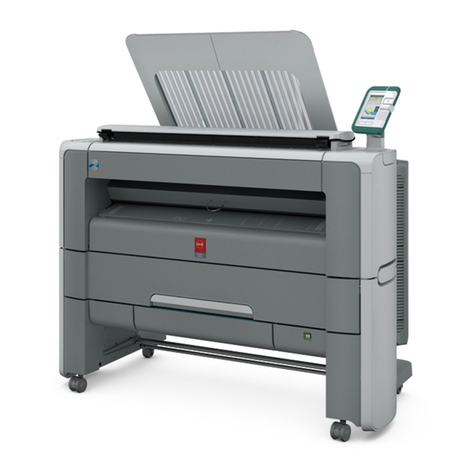
Oce PlotWave 350 User manual

Oce
Oce CS6410 Assembly instructions

Oce
Oce CS6407 Assembly instructions

Oce
Oce Arizona 360 GT User manual

Oce
Oce TDS100 User manual

Oce
Oce CS9065 User manual

Oce
Oce Arizona 200 GT User manual
Oce
Oce 9800 User manual

Oce
Oce TDS700 User manual

Oce
Oce Oce TDS800 User manual

Oce
Oce CS2136 User manual
Oce
Oce PlotWave 750 Installation and operating manual

Oce
Oce Arizona T220UV User manual

Oce
Oce VarioLink 3550pd User manual

Oce
Oce im4511 User manual