Nokia 5 User manual

Nokia 5
User Guide
Issue 2023-04-17 en-CA

Nokia 5 User Guide
Table of Contents
1 About this user guide 5
2 Get started 6
Keysandparts.......................................... 6
Insert or remove SIM and memory card . . . . . . . . . . . . . . . . . . . . . . . . . . . . 7
Chargeyourphone ....................................... 8
Switchonandsetupyourphone................................ 9
DualSIMsettings ........................................ 9
SettingupfingerprintID .................................... 10
Lockorunlockyourphone ................................... 10
Usethetouchscreen ...................................... 11
3 Basics 14
Personalizeyourphone..................................... 14
Openandcloseanapp ..................................... 14
Notifications ........................................... 15
Controlvolume.......................................... 15
Screenshots ........................................... 16
Batterylife ............................................ 16
Saveondataroamingcosts .................................. 17
Writetext............................................. 18
Dateandtime .......................................... 19
Clockandalarm ......................................... 20
Calculator............................................. 21
Accessibility ........................................... 21
4 Connect with your friends and family 23
Calls................................................ 23
Contacts ............................................. 23
Sendandreceivemessages .................................. 24
Mail ................................................ 25
Getsocial............................................. 26
© 2023 HMD Global Oy. All rights reserved. 2

Nokia 5 User Guide
5 Camera 27
Camerabasics .......................................... 27
Useyourcameralikeapro ................................... 27
Save your photos and videos to a memory card . . . . . . . . . . . . . . . . . . . . . . . 28
Yourphotosandvideos..................................... 28
6 Internet and connections 30
ActivateWi-Fi........................................... 30
Useacellulardataconnection ................................. 30
Browsetheweb ......................................... 31
Closeaconnection........................................ 33
Bluetooth............................................. 33
NFC ................................................ 35
VPN ................................................ 37
7 Music and videos 38
Music ............................................... 38
Videos............................................... 38
FMRadio ............................................. 39
8 Organize your day 41
Calendar ............................................. 41
Notes ............................................... 42
9 Maps 43
Findplacesandgetdirections ................................. 43
Downloadandupdatemaps .................................. 44
Uselocationservices ...................................... 44
10 Apps and services 46
GooglePlay............................................ 46
© 2023 HMD Global Oy. All rights reserved. 3

Nokia 5 User Guide
11 Software updates and backups 48
Updateyourphonesoftware.................................. 48
Backupyourdata ........................................ 48
Restore original settings and remove private content from your phone . . . . . . . . . . 48
Storage.............................................. 49
12 Protect your phone 51
Protect your phone with your fingerprint . . . . . . . . . . . . . . . . . . . . . . . . . . . 51
ChangeyourSIMPINcode ................................... 51
Accesscodes........................................... 52
13 Product and safety information 54
Foryoursafety.......................................... 54
Networkservicesandcosts................................... 57
Emergencycalls ......................................... 57
Takecareofyourdevice .................................... 58
Recycle .............................................. 58
Crossed-out wheelie bin symbol . . . . . . . . . . . . . . . . . . . . . . . . . . . . . . . . 59
Battery and charger information . . . . . . . . . . . . . . . . . . . . . . . . . . . . . . . . 59
Smallchildren .......................................... 60
Medicaldevices ......................................... 60
Implantedmedicaldevices ................................... 61
Hearing .............................................. 61
Protect your device from harmful content . . . . . . . . . . . . . . . . . . . . . . . . . . 61
Vehicles.............................................. 62
Potentially explosive environments . . . . . . . . . . . . . . . . . . . . . . . . . . . . . . 62
Certification information (SAR) . . . . . . . . . . . . . . . . . . . . . . . . . . . . . . . . 62
About Digital Rights Management . . . . . . . . . . . . . . . . . . . . . . . . . . . . . . . 63
Copyrightsandnotices ..................................... 63
© 2023 HMD Global Oy. All rights reserved. 4

Nokia 5 User Guide
1 About this user guide
Important: For important information on the safe use of your device and battery, read
“Product and safety information” before you take the device into use. To find out how to
get started with your new device, read the user guide.
© 2023 HMD Global Oy. All rights reserved. 5

Nokia 5 User Guide
2 Get started
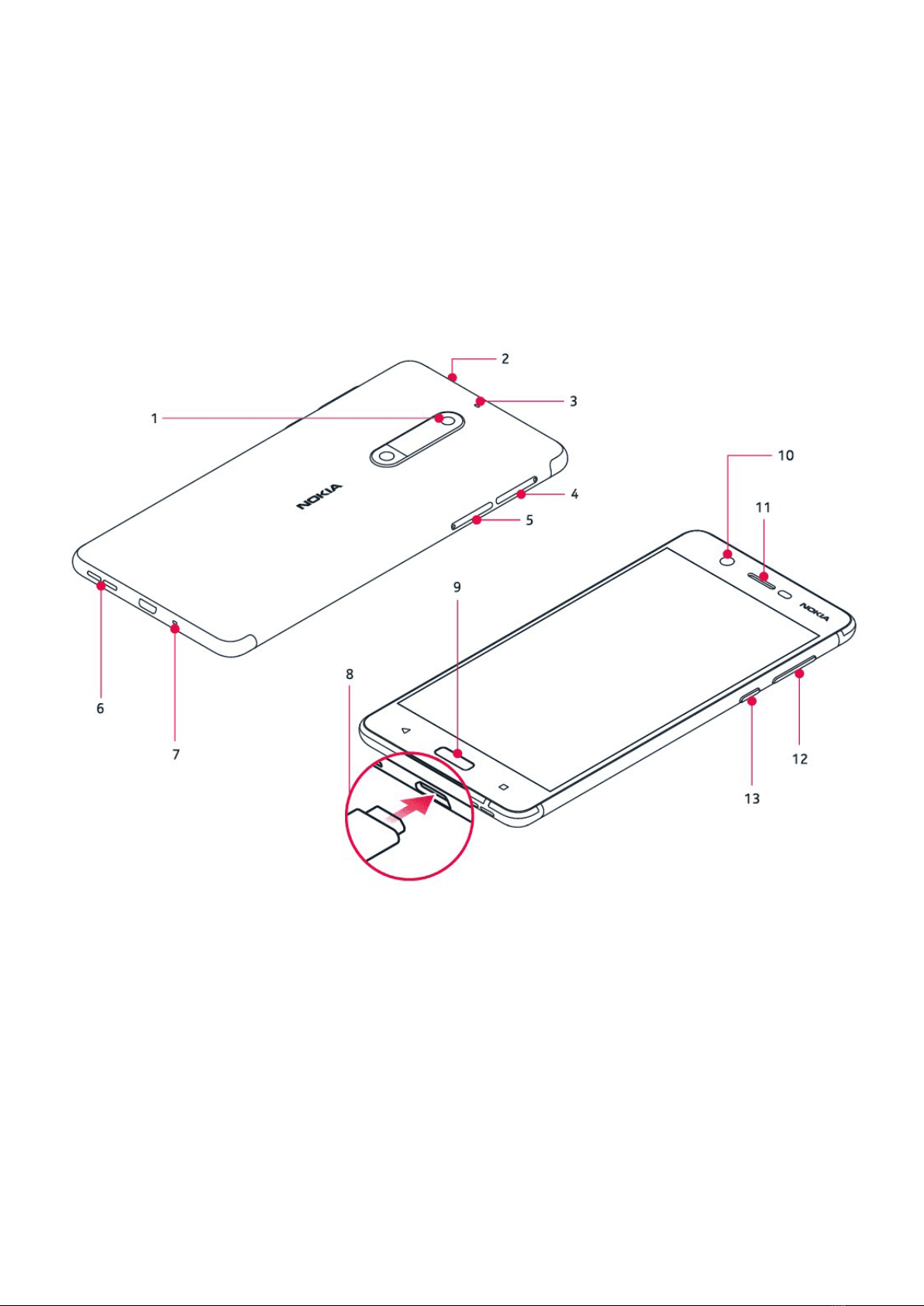
KEYS AND PARTS
Explore the keys and parts of your new phone.
Your phone
1. Main camera
2. Audio connector
3. Microphone
4. SIM cards
5. Micro SD card
6. Loudspeaker
7. Microphone
8. Charger connector
9. Fingerprint sensor/Home
10. Front camera
11. Earpiece
12. Volume keys
13. Power/Lock key
© 2023 HMD Global Oy. All rights reserved. 6

Nokia 5 User Guide
Avoid touching the antenna area while the antenna is in use. Contact with antennas affects the
communication quality and may reduce battery life due to higher power level during operation.
Do not connect to products that create an output signal, as this may damage the device. Do
not connect any voltage source to the audio connector. If you connect an external device
or headset, other than those approved for use with this device, to the audio connector, pay
special attention to volume levels.
Parts of the device are magnetic. Metallic materials may be attracted to the device. Do not
place credit cards or other magnetic stripe cards near the device for extended periods of time,
since the cards may be damaged.
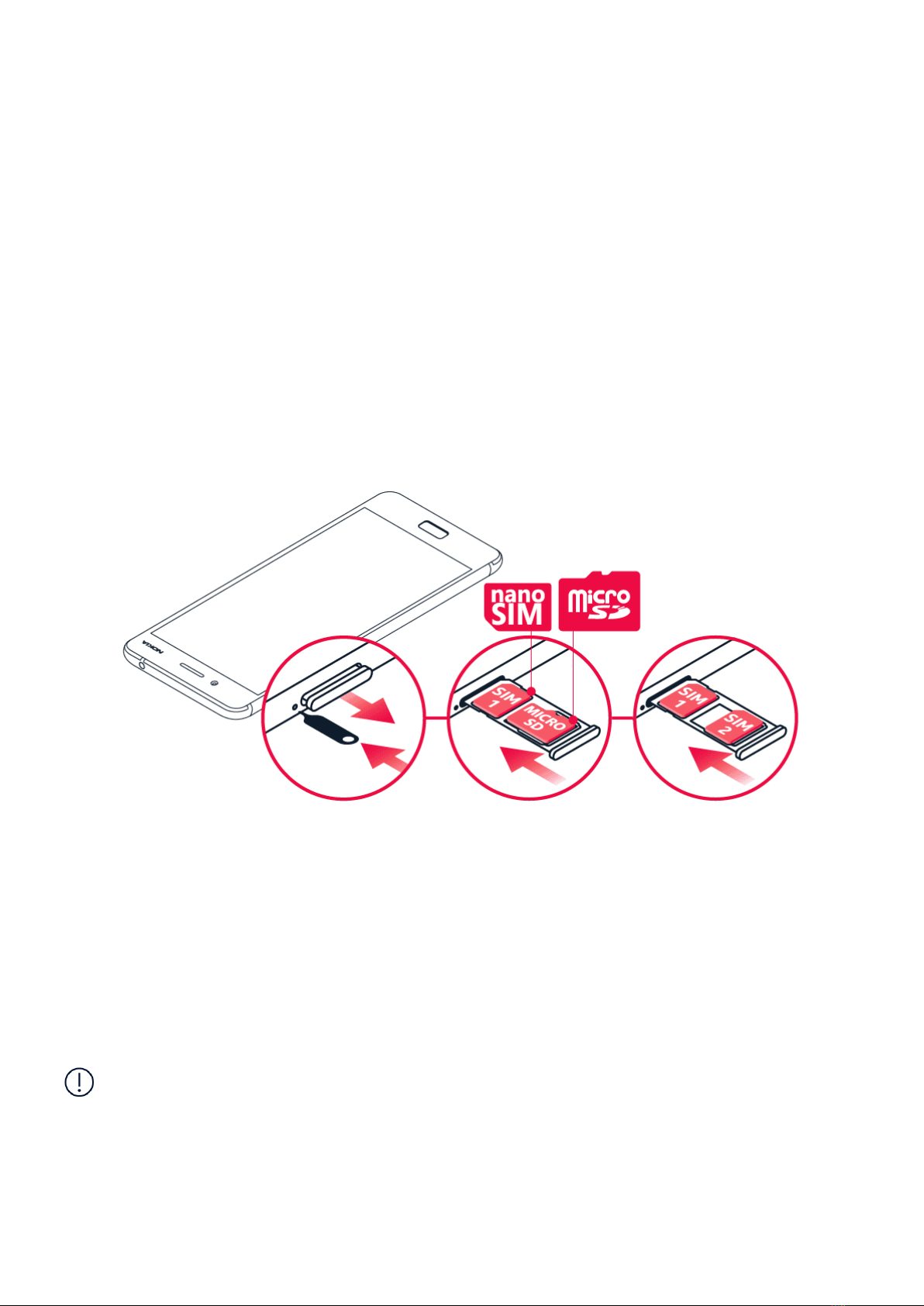
INSERT OR REMOVE SIM AND MEMORY CARD
Insert SIM and memory card
1. Open the SIM tray and memory card tray by putting the provided tray opener into the holes
next to the trays.
2. Put the nano-SIM into slot 1 located on the tray with the contact area face down. If you have
a dual SIM variant, you can either put a second SIM or a memory card into slot 2. If you have
a single SIM variant, you can only put a memory card into slot 2.
3. Slide the SIM and memory card tray back into place.1
Note: If you have a dual SIM phone with only one SIM tray, you cannot use two SIM cards and a
memory card at the same time.
© 2023 HMD Global Oy. All rights reserved. 7

Nokia 5 User Guide
Remove SIM and memory card
Open the SIM and memory card trays, remove the cards, and slide trays back into their
respective slots.
1Use only original nano-SIM cards. Use of incompatible SIM cards may damage the card or the device,
and may corrupt data stored on the card.
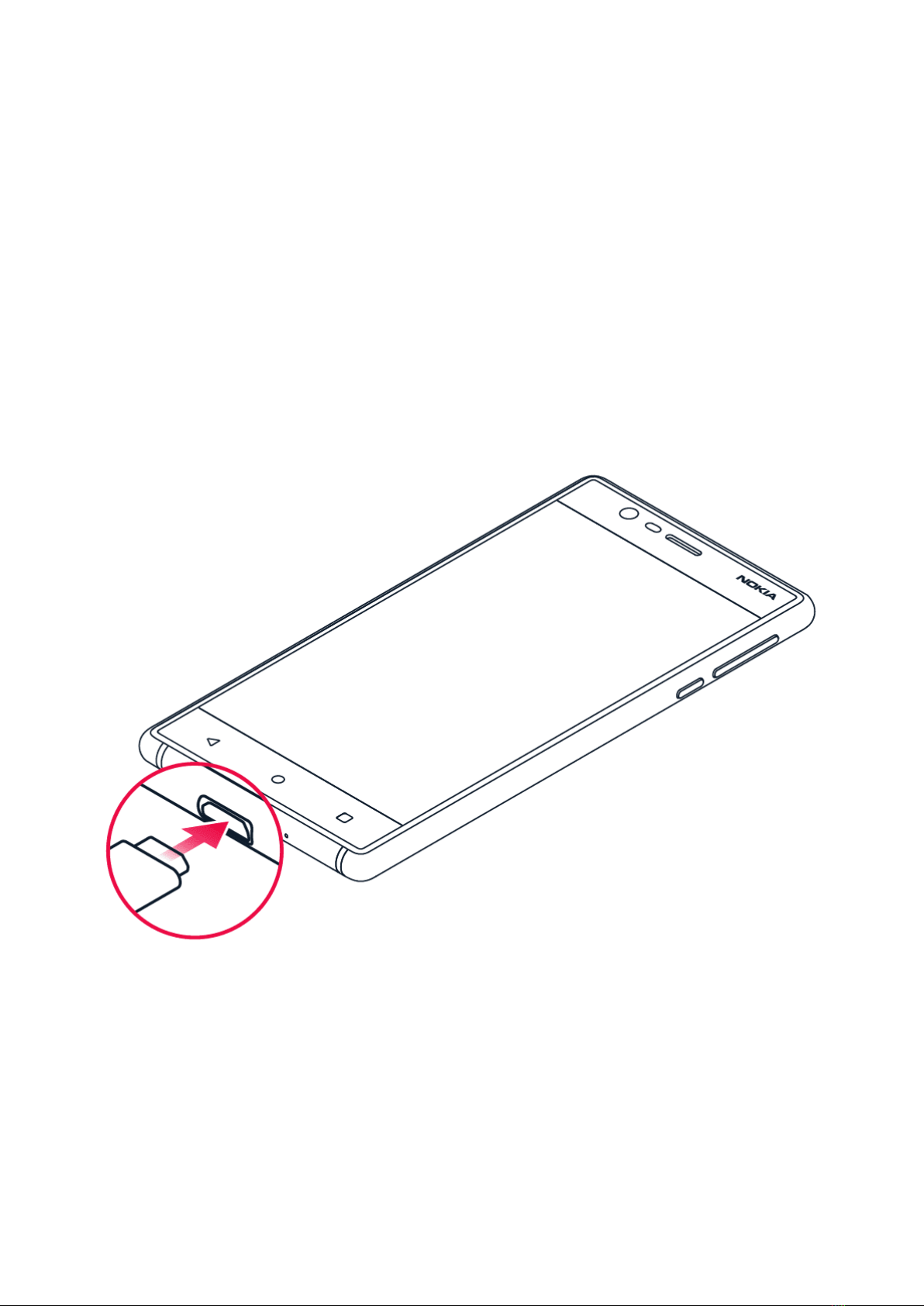
CHARGE YOUR PHONE
Charge the battery
1. Plug a compatible charger into a wall outlet.
2. Connect the cable to your phone.
Your phone supports the USB micro-B cable. You can also charge your phone from a computer
with a USB cable, but it may take a longer time.
© 2023 HMD Global Oy. All rights reserved. 8

Nokia 5 User Guide
If the battery is completely discharged, it may take several minutes before the charging
indicator is displayed.
SWITCH ON AND SET UP YOUR PHONE
When you switch your phone on for the first time, your phone guides you to set up your
network connections and phone settings.
Switch on your phone
1. To switch on your phone, press and hold the power key until the phone vibrates.
2. When the phone is switched on, choose your language and region.
3. Follow the instructions shown on your phone.
Transfer data from your previous phone
You can transfer data from a previous device to your device via your Google account.
To back up data on your old phone to Google account , refer to your old phone’s user guide.
1. Tap Settings > Accounts > Add account > Google .
2. Select which data you want to be restored on your phone. The sync will start automatically
once your phone is connected to the internet.
Restore app settings from your previous Android phone
If your previous device was an Android , and back up to Google account is enabled on it, you
can restore app settings and Wi-Fi passwords.
1. Tap Settings > Backup & reset .
2. Switch Automatic restore to On .
DUAL SIM SETTINGS
If you have a dual SIM variant, you can have 2 SIMs in your phone, for example, one for your
work and one for your personal use.
Note: On dual SIM capable devices, both SIM1 and SIM2 slots support 4G networks. However,
if your SIM1 and SIM2 are both LTE SIM cards, the primary SIM supports 4G/3G/2G networks,
while the secondary SIM can only support 3G/2G. For more information on your SIM cards,
contact your service provider.
© 2023 HMD Global Oy. All rights reserved. 9

Nokia 5 User Guide
Choose which SIM to use
When, for example, making a call, you can choose which SIM to use by tapping the
corresponding SIM 1 or SIM 2 button after you dial the number.
Your phone shows the network status for both SIMs separately. Both SIM cards are available
at the same time when the device is not being used, but while one SIM card is active, when, for
example, making a call, the other may be unavailable.
Manage your SIMs
Don’t want work to interfere with your free time? Or do you have a cheaper data connection on
one SIM? You can decide which SIM you want to use.
Tap Settings > SIM Cards .
Rename a SIM card
Tap the SIM you want to rename, and type in the name you want.
Select which SIM to use for calls or data connection
Under Preferred SIM for , tap the setting you want to change and select the SIM.
SETTING UP FINGERPRINT ID
You can unlock your phone with just a touch of your finger. Set up your fingerprint ID for extra
security.
Add a fingerprint
1. Tap Settings > Security > Fingerprint . If you don’t have screen lock set up on your
phone, tap SET UP SCREEN LOCK .
2. Select which backup unlocking method you want to use for the lock screen and follow the
instructions shown on your phone.
LOCK OR UNLOCK YOUR PHONE
Lock your phone
If you want to avoid accidentally making a call when your phone is in your pocket or bag, you
can lock your keys and screen.
To lock your keys and screen, press the power key.
© 2023 HMD Global Oy. All rights reserved. 10
Other manuals for 5
4
Table of contents
Other Nokia Cell Phone manuals

Nokia
Nokia C2-01 User manual

Nokia
Nokia 6233 - Cell Phone 6 MB User manual

Nokia
Nokia 110 User manual

Nokia
Nokia 1600 - Cell Phone 4 MB User manual

Nokia
Nokia N95 User manual

Nokia
Nokia 2330 Classic User manual

Nokia
Nokia RM-349 User manual

Nokia
Nokia N77 User manual

Nokia
Nokia NPD-4 Series Guide

Nokia
Nokia N85 N85 User manual

Nokia
Nokia 8887 User manual

Nokia
Nokia 6585 - Cell Phone - CDMA2000 1X User manual

Nokia
Nokia TA-1057 Specification sheet

Nokia
Nokia Lumia 735 User manual

Nokia
Nokia 6630 RM-1 Quick start guide

Nokia
Nokia RH-6 Series Guide

Nokia
Nokia 6085 - Cell Phone 4 MB User manual

Nokia
Nokia 5610 Xpress Music Quick start guide

Nokia
Nokia 2.3 User manual

Nokia
Nokia E70 User manual