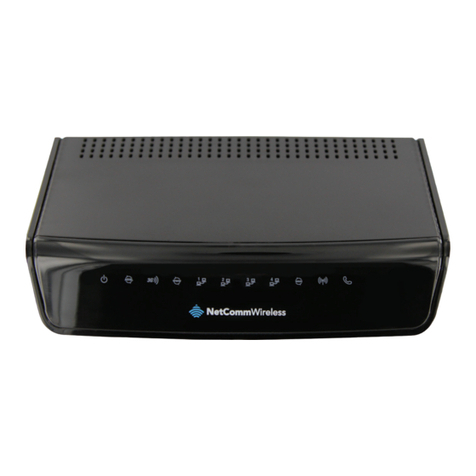
NetComm ROADSTER 56K User manual

User Guide
NETCOMM ROADSTER SERIES
56K USB Modem

NetComm Roadster Series 56K USB Modem YML5067YML50675067
2 www.netcomm.com.au
Preface
This manual provides information related to the installation, operation, and application of this device. The individual reading this manual is
presumed to have a basic understanding of telecommunications terminology and concepts.
If you nd the product to be broken or malfunctioning, please contact technical support for immediate service by email at
For product update, new product release, manual revision, or software upgrades, please visit our website at
www.Netcomm.com.au
Important Safety Instructions
With reference to unpacking, installation, use and maintenance of your electronic device, the following basic guidelines are recommended:
• Do not use or install this product near water, to avoid re or shock hazard. For example, near a bathtub, kitchen sink or laundry tub,
or near a swimming pool. Also, do not expose the equipment to rain or damp areas (e.g. a wet basement).
• Do not connect the power supply cord on elevated surfaces. Allow it to lie freely. There should be no obstructions in its path and no
heavy items should be placed on the cord. In addition, do not walk on, step on or mistreat the cord.
• Use only the power cord and adapter that are shipped with this device.
• To safeguard the equipment against overheating, make sure that all openings in the unit that offer exposure to air are not blocked.
• Avoid using a telephone (other than a cordless type) during an electrical storm. There may be a remote risk of electric shock from
lightening. Also, do not use the telephone to report a gas leak in the vicinity of the leak.
• Never install telephone wiring during stormy weather conditions.
WARNING
• Disconnect the power line from the device before servicing.
Copyright
Copyright©2009 NetComm Limited. All rights reserved. The information contained herein is proprietary to NetComm Limited. No part of
this document may be translated, transcribed, reproduced, in any form, or by any means without prior written consent of NetComm Limited
NOTE:This document is subject to change without notice.
Save Our Environment
When this equipment has reached the end of its useful life, it must be taken to a recycling centre and processed separate from domestic
waste.
The cardboard box, the plastic contained in the packaging, and the parts that make up this router can be recycled in accordance with
regionally established regulations. Never dispose of this electronic equipment along with your household waste. You may be subject to
penalties or sanctions under the law. Instead, ask for disposal instructions from your municipal government.
Please be responsible and protect our environment.
Table of Contents
INTRODUCTION .........................................................................................................................................................................................4
SYSTEM REQUIREMENTS ........................................................................................................................................................................5
PACKAGE INCLUDES.......................................................................................................................................................................................................5
HARDWARE SETUP .........................................................................................................................................................................................................6
COMMANDS...............................................................................................................................................................................................9
TROUBLESHOOTING...............................................................................................................................................................................14
APPENDIX A: ...........................................................................................................................................................................................16
APPENDIX B: ...........................................................................................................................................................................................17

INTRODUCTION
Please allow me to introduce myself

NetComm Roadster Series 56K USB Modem YML5067YML50675067
4 www.netcomm.com.au
Introduction
The AM5067 - 56Kbps Voice/Fax/Data USB Modem connects your computer to the Internet, all kinds of BBS, and other fax modems. This
manual describes the features, and AT Commands
USB
Telephone
(Optional)
Features & Specications:
General Description
•AGERE Olympia SV92U2 / 1040 chipset solution
•USB bus powered/ system powered
•USB 1.1
•USB 2.0 supported with Windows XP/ Windows 2000/ Windows 2003 server/Vista/7.
• Works with Windows 98, 2000, ME, XP, 2003, Vista, 7 operating systems
• Pentium Host-based Controller/ CPU required
•V.92 and V.90 technology present. Receiving Data Rate up to 56Kbps, from a digitally connected central site modem.
• Modem on Hook (MoH), Fast connection, PCM upstream 48Kbps supported.
• Fax Class 1 modem supported, up to 14.4Kbps Data transmission/ Receiving rate.
• Telephone Answering Machine (TAM) Functional via Audio Sound device
•V.42 LAPM and MNP error correction.
•V.44, V.42, V.42bis and MNP 5 data Compression
•AT command set compatible
DATA Modem
•V.92, V.90, V.34bis, V.34, V.32bis, V.32, V.22bis, V.22 A/B, V.23, V.21, Bell 212A, and Bell 103.
• Received data from a digital source using V.92 or V.90 compatible central site modem over the digital telephone network portion of
the PSTN at line speed up to 56Kbps with automatic fall-back depends on line condition.
FAX Modem
•ITU-T V.17, V.29, V.27ter and 21 channel 2.

YML5067 NetComm Roadster Series 56K USB Modem5067 NetComm Roadster Series 56K USB ModemNetComm Roadster Series 56K USB ModemNetComm Roadster Series 56K USB Modem
www.netcomm.com.au 5
NetComm Roadster Series 56K USB Modem
• TIA/EIA 578 Class 1 FAX send and receive speeds of 14400, 12000, 9600, 7200, 4800 or 2400bps.
VOICE/ Audio Mode
• TAM through the microphone / speaker interface on Audio Sound card
ERROR Correction
•Support V.42 LAMP, MNP 2-4
DATA Compression
•Support V.44,V.42bis and MNP 5
DAA Line interface Capabilities
• DTMF Tone Dial/ accurate make-break ratio Pulse Dial
•Proprietary transformer-based isolation barrier
•Programmable even detect for Caller-ID reception and Power Ring detection
• Programmable AC/DC impedance termination for Return-Loss / Specic Countries homologations
FLOW Control
• Both transmit and receive fax data are buffered. Data transmission over DTE is ow controlled by XON/XOFF and RTS/CTS.
System Requirements
•Computer with Pentium 200 MMX or higher processor.
• Windows 98/98SE/ME/2000/XP/Vista or 7 Operating System.
• 20 MB Hard Disk free space or above
•Sound card for voice features
•1 available USB port.
•CD-ROM drive.
Package Includes
The box contains the following items:
•One 56Kbps USB Modem
•One RJ11 Phone Line Cable
•One USB cable
•One Utility CD with Drivers and User Manual
• One Quick Installation Guide
If any of these items are missing or damaged, please contact your dealer or sales representative for assistance.

NetComm Roadster Series 56K USB Modem YML5067YML50675067
6 www.netcomm.com.au
Hardware Setup
This chapter contains detailed instructions on how to install and congure the 56Kbps USB modem, as well as how to verify if your
installation is correct. We recommend that you follow the steps accordingly to avoid future problems.
Installing the 56Kbps USB Modem
1. Turn off your PC and unplug the AC power supply from the system.
2. Please connect the USB modem and PC with USB cable.
3. Please connect the 56Kbps USB modem to the telephone line and telephone set, as per the following steps.
a. Locate an available RJ-11 modular jack telephone outlet.
b. Insert one end of the modular cord that came with your USB 56Kbps modem into the RJ-11 modular jack marked “LINE” on the
modem. Then plug the other end into the modular jack on wall outlet. See below Figure.
c. Plug the RJ-11 jack of the telephone set into the RJ-11 jack marked “PHONE” on the modem, if required. See below gure.
USB
Telephone
(Optional)
d. If the telephone set is connected to the 56Kbps USB modem via a telephone cord, lift the telephone handset, and check for a
dial tone.

YML5067 NetComm Roadster Series 56K USB Modem5067 NetComm Roadster Series 56K USB ModemNetComm Roadster Series 56K USB ModemNetComm Roadster Series 56K USB Modem
www.netcomm.com.au 7
NetComm Roadster Series 56K USB Modem
Congure the Modem on Win9X/WinME/Win2000/WinXP/Vista/7
1. Please turn on your computer.
2. As Windows 98SE/2000/ME/XP/Vista/7 starts, it will detect a new hardware has been plugged in or added, and it will start the
“Add New Hardware Wizard”. Click on Cancel.
3. Please insert the USB 56Kbps modem Utility CD into your CD-ROM driver.
4. The CD should auto-start, displaying the following windows. If it does not start properly, please click on Start – Run and type in
CD:\autorun.exe (where CD is as the location of the CD-ROM driver) .
5. Please select “ Install Modem Driver”
6. Please select “OK”.
7. Click “Continue Anyway“ to nish the installation. (98SE/ME/2000/Vista/7 users, please skip this step)

COMMANDS
This is where you take control

YML5067 NetComm Roadster Series 56K USB Modem5067 NetComm Roadster Series 56K USB ModemNetComm Roadster Series 56K USB ModemNetComm Roadster Series 56K USB Modem
www.netcomm.com.au 9
NetComm Roadster Series 56K USB Modem
Commands
Most people use the communication software programs to tell modems what to do. Therefore, you may not use the commands in this
chapter. However, if you prefer to communicate with your modem directly, you can type the commands described below.
Here describes how to work in the terminal mode.
Typing Commands
• Use the BACKSPACE key to delete typing errors.
• Every command (except A/ and +++) must begin with the AT or at prex and be entered by pressing the <Enter> key.
• When you see an n, replace the n with one of the letter or numeric options listed for that command. For example, for the En
command, you might type ATE1.
Basic AT Command Guide
+++Escape Sequence
An escape sequence allows the modem to exit data mode and enter on-line command mode. While in on-line command mode, AT
commands are sent directly to the modem. Use the return to on-line data mode command
(see O<value>—Return to On-Line Data Mode) to return to data mode.
Place a pause before and after the escape sequence to prevent the modem from interpreting the escape sequence as data. The length of
the pause is set by register S12 (see S12—Escape Guard Time), the escape guard time. Register S2 (see S2—AT Escape Character (User-
Dened)) identies the escape sequence character.
A/—Repeat Last Command
Use this command to repeat the last AT command. The modem repeats the command currently in the command buffer. Do not use the AT
prex with this command. Do not conclude the commands with a terminating character such as enter.
A—Answer
This command instructs the soft modem to go off-hook and answer an incoming call.
E<value>—Command Echo
Use this command to instruct the modem to echo characters sent to it. When the echo feature is selected, characters sent to the modem
are sent back to the host and displayed on the monitor.
Result codes:
_ OK if <value> = 0—1.
_ ERROR if <value> 0—1.
Command Function
E0 Disables echo command.
E1 Enables echo command (default).

NetComm Roadster Series 56K USB Modem YML5067YML50675067
10 www.netcomm.com.au
B<value>—Communication Standard Setting
Use this command to select the communication standard used by the soft modem.
Result codes:
_ OK if <value> = 0—3, 15, 16.
_ ERROR if <value> 0—3, 15, 16.
Command Function
B0 Selects CCITT V.22 mode when the modem is at 1200 bits/s.
B1 Selects Bell 212A when the modem is at 1200 bits/s (default).
B2 Deselects V.23 reverse channel (same as B3).
B3 Deselects V.23 reverse channel (same as B2).
B15 Selects V.21 when the modem is at 300 bits/s.
B16 Selects Bell 103J when the modem is at 300 bits/s (default).
C<value>—Carrier Control
This command is supported to ensure compatibility with communications software that issues the C1 command.
However, this modem does not support the C0 command. The C0 command instructs some modems not to send carrier (i.e., it puts them
in receive-only mode).
Result codes:
_ OK if <value> = 1.
_ ERROR if <value> 1.
Command Function
C1 Normal transmit carrier switching (default).
D<dial string>—Dial
This command instructs the soft modem to go off-hook and begin the dialing sequence. The dial string (<dial string>, including modiers
and the telephone number) is entered after the D command.
A dial string can be up to sixty characters long. Any digit or symbol may be dialed as touchtone digits. Characters such as spaces,
hyphens, and parentheses are ignored by the modem and may be included in the dial string to enhance readability.
I<value>—Request ID Information
Use this command to display product information about the modem. In each case the information is transmitted to the host system
followed by a nal result code.
Result codes:
_ As described in Table 8 if <value> = 0—9, 11.
_ ERROR if <value> 0—9, 11.
I<value>—Request ID Information
Use this command to display product information about the modem. In each case the information is transmitted to the host system
followed by a nal result code.
Result codes:
_ As described in Table 8 if <value> = 0—9, 11.
_ ERROR if <value> 0—9, 11.
Command Function
L0 Low volume.
L1 Low volume.
L2 Medium volume (default).
L3 High volume.
Table of contents
Other NetComm Modem manuals

NetComm
NetComm NB3 User manual

NetComm
NetComm NB2 User manual

NetComm
NetComm NB1300 Plus 4 User manual

NetComm
NetComm NB1300 User manual

NetComm
NetComm NB3 Use and care manual

NetComm
NetComm NTC-100 User manual

NetComm
NetComm CD2004 Mega-i-Modem User manual

NetComm
NetComm api 13 User manual

NetComm
NetComm AM5698 User manual

NetComm
NetComm AM5066 User manual

NetComm
NetComm IG6000 User manual

NetComm
NetComm NB5580W User manual

NetComm
NetComm NF15ACV User manual

NetComm
NetComm NB14WN User manual

NetComm
NetComm NP7042 User manual

NetComm
NetComm NTC-3000 Series User manual

NetComm
NetComm NF4V User manual

NetComm
NetComm NB16WV Installation guide

NetComm
NetComm N3GS003 User manual

NetComm
NetComm NB2 User manual