Mitel 112 User manual

© Copyright 2015, Mitel Networks Corporation. All Rights Reserved.
The Mitel word and logo are trademarks of Mitel Networks Corporation.
Any reference to third party trademarks are for reference only and Mitel makes no representation of the ownership of these marks.
QUICK REFERENCE GUIDE
Mitel
112 DECT PHONE (UNIVERSAL)
The Mitel®112 DECT Phone (Universal) and the RFP 12 Single Cell Base Station provide MiVoice
Business SIP call processing features on a cordless handset. The base station also provides
conferencing, call transfer, and other basic features between handsets.
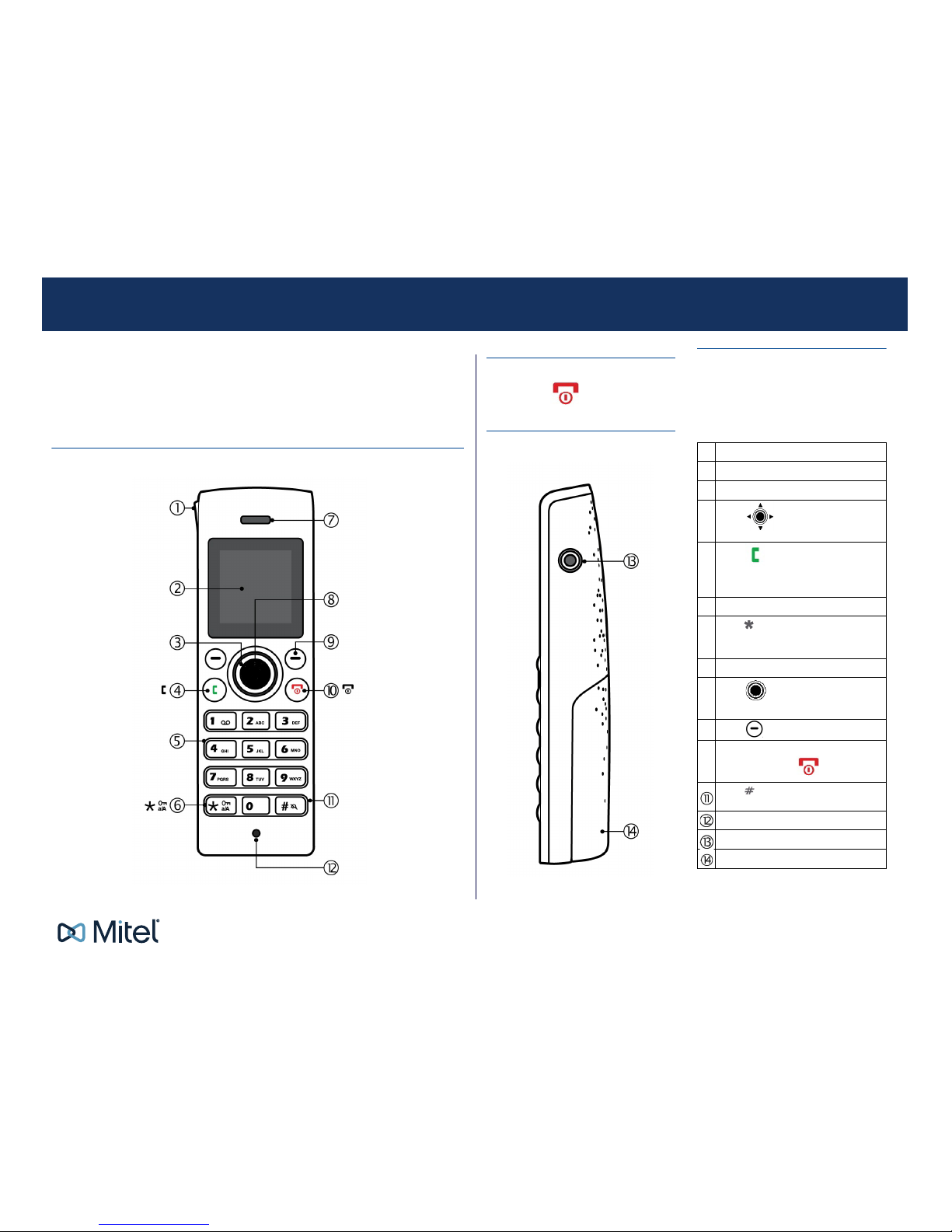
Handset - Front View
Turn Handset On or Off
Press and hold key.
Handset - Side View
Signal Range
The cordless handset has an indoor signal
range of up to 50 meters (150 feet) from the IP
DECT stand. This range can be limited by
concrete or metal barriers. If you go out of
range, the handset will display “Searching”.
#Front View - Description
Ringer lamp indicator
Color display
Press to select items
Press to answer calls
Press while in idle mode to display a history
of your calls.
Use keypad to enter numbers and letters
Press in the name editor to switch be-
tween capital letters, lowercase letters, and
numbers.
Speaker
Press to enter main menu
and select and confirm options
Press to select a softkey or item.
To hang up, exit a menu, or turn the hand-
set on or off, press .
Press to send a flash signal before en-
tering a Feature Access Code
Microphone
Headset jack connector (2.5 mm)
Battery cover

QUICK REFERENCE GUIDE
© Copyright 2015, Mitel Networks Corporation. All Rights Reserved.
The Mitel word and logo are trademarks of Mitel Networks Corporation.
Any reference to third party trademarks are for reference only and Mitel makes no representation of the ownership of these marks.
QUICK REFERENCE GUIDE
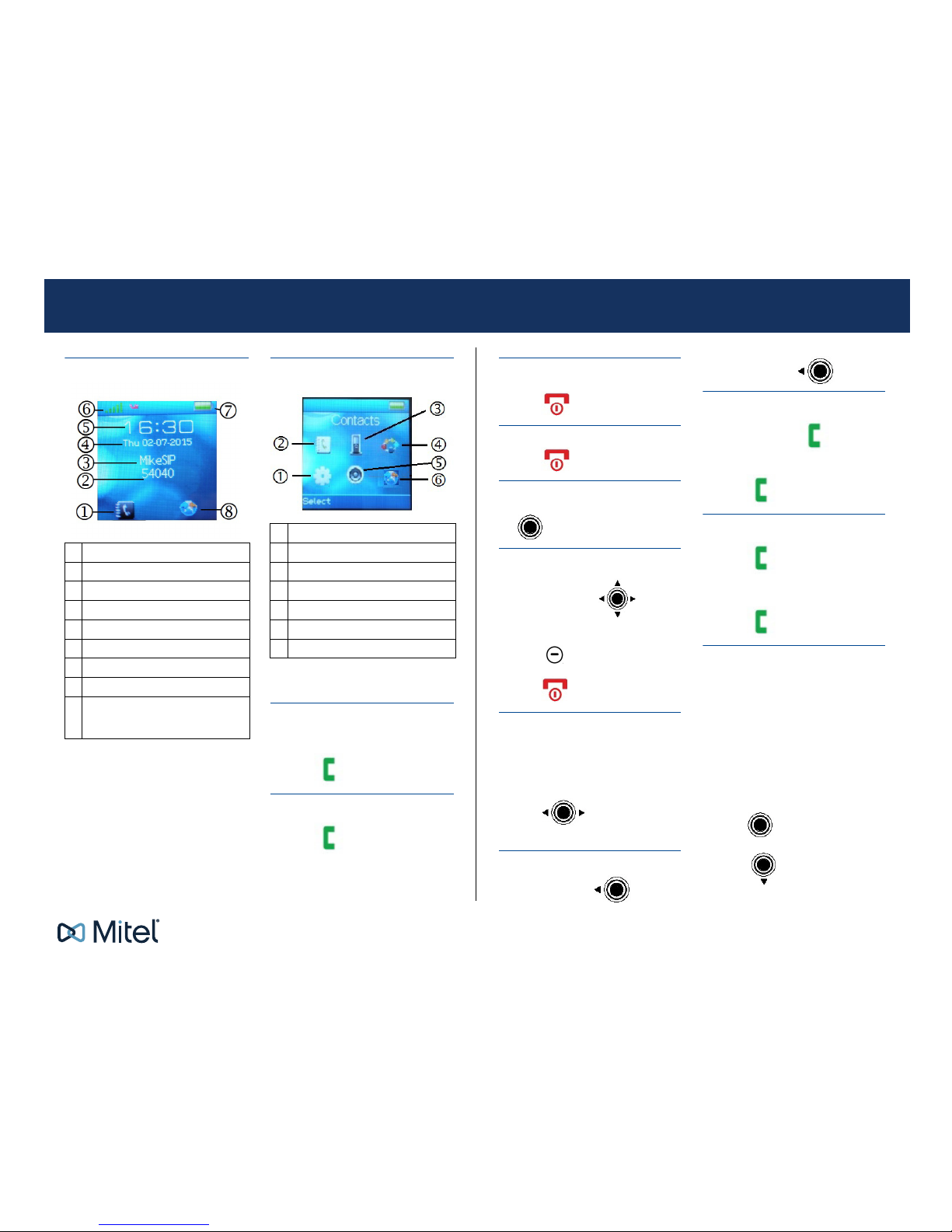
Handset Display - Idle Mode Handset Display Main Menu
Note: Optional features may not be available
on your handset.
Make a Call
• From Idle mode, enter phone number.
•Press .
Answer a Call
•Press .
#Idle Mode - Description
Contacts
Handset Extension
Name
Day and Date
Time
Signal Strength
Battery Life
Central Directory of contacts. The
directory is shared among the handsets
that are configured on a base station.
#Main Menu - Description
Settings
Contacts
Calls
Connectivity
Audio Settings
Central Directory
End a Call
•Press .
Reject a Call
• Press or REJECT.
Enter Main Menu
• From Idle mode, press the center button
.
Selecting Menu Options
• Press the outer ring to select
an item from the display or menu list.
• Press to select a softkey.
• Press to exit a menu.
Adjust Volume
• From the main menu, select AUDIO
SETTINGS.
• Select RING VOLUME.
• Press SELECT.
• Press to set the volume.
•PressOK.
Mute the Microphone
• During a call, press .
• To reactivate press again.
Use Speakerphone
• During a call, press to activate
the speaker.
• Press to turn speakerphone off.
Redial a Call
•Press
• Select the number from the list.
•Press .
Add a Contact
• From the main menu, select CONTACTS.
•PressMORE.
• Select ADD CONTACT.
• Press EDIT.
• Enter a NAME using the keypad as a text
editor. Press * to switch between
uppercase letters, lowercase letters, and
numbers when working the text editor.
•Press .
• Press to select WORK.
• Press EDIT and enter a number.

QUICK REFERENCE GUIDE
© Copyright 2015, Mitel Networks Corporation. All Rights Reserved.
The Mitel word and logo are trademarks of Mitel Networks Corporation.
Any reference to third party trademarks are for reference only and Mitel makes no representation of the ownership of these marks.
QUICK REFERENCE GUIDE
• Press SAVE.
• Press. to select RINGTONE.
• Press EDIT.
• Press. to highlight a Melody
• Press SELECT
• Press SAVE
• Press YES.
Call a Contact (Optional)
• Select CONTACTS.
• Select the contact that you want to call.
• Press .
Call Hold
• While on a call, press HOLD.
• To retrieve a call from hold, press RETRIEVE.
Form a Conference
To form a three-party Conference when a two-party call is already in place:
• Press HOLD. The current call is placed on hold.
• Enter the number of the second party and press .
• After the second party answers, press CONF.
Call Swap
Call swap lets you alternate between the two calls. Each call is private; neither person can overhear your
conversation with the other.
• While in a call, press HOLD.
• Enter the number of the second party that you want to call and press .
After speaking with the second party, press to switch between the two parties.
Change the Ringer Melody
• Press to enter the main menu.
• Select AUDIO SETTINGS.
• Press SELECT.
• Select RING MELODY.
• Press SELECT.
• Select a MELODY.
• Press PLAY to hear the MELODY
• Press SELECT.
Change Handset Language
• Press to enter the main menu.
• Select SETTINGS.
• Press SELECT.
• Select LANGUAGE.
• Select the desired language and press SELECT.

QUICK REFERENCE GUIDE
© Copyright 2015, Mitel Networks Corporation. All Rights Reserved.
The Mitel word and logo are trademarks of Mitel Networks Corporation.
Any reference to third party trademarks are for reference only and Mitel makes no representation of the ownership of these marks.
QUICK REFERENCE GUIDE
Transfer a Call - Unsupervised
• While on a call, press TRANSFER. The current call is placed on hold.
• Dial the extension of the transfer destination.
• Press TRANSFER.
Transfer a Call - Supervised
• While on a call, press TRANSFER. The current call is placed on hold.
• Dial the extension of the transfer destination.
• Press .
• Wait until the called party answers, announce the transfer.
• Press TRANSFER.
Check Calls
• From idle mode, press .
• Select CALLS.
• Select the call (missed, incoming, and outgoing calls are listed).
• Select VIEW to see call details.
Do Not Disturb
Do Not Disturb (DND) stops calls from ringing your handset. DND returns busy tone to the caller. DND does
not affect your ability to make calls.
• Press to enter the main menu.
• Select SETTINGS.
• Press SELECT.
• Select DO NOT DISTURB.
• Press SELECT.
• Select ENABLED or DISABLED
• Press SELECT.
About Feature Access Codes
You can dial codes to activate Call Forwarding features and Do Not Disturb. The feature access codes
provided in this guide are the default system codes.Your system may be programmed with different codes.
Contact your System Administrator to obtain the codes assigned for your system.
Note that when your handset is programmed in a personal ring group (that is, twinned to your desktop
phone) Call Forwarding feature access codes are not supported from your handset.Forward a Call
Note that when call forwarding active, there is nothing on the handset that indicates it is enabled. To
program and activate Call Forward:
•Press .
• Dial the appropriate Call Forward Feature Access code followed by the destination number. Note that
the following are default codes. Your system may use different codes. Contact your System
Administrator for a list.
-Always:∗64
-Busy:∗61
-NoAnswer:∗68
•Press .
To cancel Call Forwarding:
•Press .
• Dial the Cancel All Forwarding code (Default ∗70)
•Press .

QUICK REFERENCE GUIDE
© Copyright 2015, Mitel Networks Corporation. All Rights Reserved.
The Mitel word and logo are trademarks of Mitel Networks Corporation.
Any reference to third party trademarks are for reference only and Mitel makes no representation of the ownership of these marks.
QUICK REFERENCE GUIDE
Call Handoff
If your handset is twinned to your desktop phone via a personal ring group, you can use the call handoff
feature. This feature allows you to “push” an active call from your desktop phone to your handset, or “pull”
an active call from your handset to your desktop phone. You active call handoff by pressing a Handoff
feature key on your desktop phone. To program a Handoff feature key, refer to your phone’s user guide for
instructions.
To push a call to your handset
• While on a call at your desktop phone, press the Handoff key. The call is transferred to your handset.
• Press to continue the call on your handset.
To pull a call to your desktop phone
• While on a call on your handset, press the Handoff key on your desktop phone.
• The call is presented on your desktop phone in handsfree mode. Lift the desktop phone handset to
continue the call using your desktop phone.
Troubleshooting
Symptom Possible Cause Corrective Action
Handset display is black. Handset is in power saving mode. Press any key.
Batteries drained. Put handset in charging cradle to re-
charge.
Handset does not charge. Power to handset charging cradle is
not connected.
Ensure that power cable is connect-
ed to wall outlet.
Batteries are not inserted correctly. Check that the batteries are inserted
correctly.
Battery life is exceeded and they no
longer accept charge.
Obtain replacement batteries and re-
place.
Cannot enable features
using Feature Access
Codes.
Feature is not enabled for your
handset.
Contact your System Administrator
and ask to have the feature enabled
for your handset.
System does not use default Fea-
ture Access Codes.
Contact your System Administrator
for a list of the supported Feature Ac-
cess Codes for your system.
Calls are not ringing the
handset.
A feature such as Call Forwarding
Always is enabled that prevents
your handset from receiving calls.
Enter the Clear All Features Access
Code (Default Code is ∗77)

QUICK REFERENCE GUIDE
© Copyright 2015, Mitel Networks Corporation. All Rights Reserved.
The Mitel word and logo are trademarks of Mitel Networks Corporation.
Any reference to third party trademarks are for reference only and Mitel makes no representation of the ownership of these marks.
QUICK REFERENCE GUIDE
Other manuals for 112
4
Table of contents
Other Mitel IP Phone manuals

Mitel
Mitel 6869i User manual

Mitel
Mitel MiVoice 5360 User manual

Mitel
Mitel MIVOICE OFFICE 250 User manual

Mitel
Mitel 5320 User manual

Mitel
Mitel 6863i User manual

Mitel
Mitel Mitel 5330 User manual

Mitel
Mitel OfficeConnect 5340 User manual

Mitel
Mitel MiVoice 5360 User manual

Mitel
Mitel 5207 User manual

Mitel
Mitel 5020 User manual

Mitel
Mitel MiVoice 5360 User manual

Mitel
Mitel MiVoice 6910 User manual

Mitel
Mitel Aastra 6739i User manual

Mitel
Mitel OfficeConnect 5340 User manual

Mitel
Mitel networks 5240 User manual

Mitel
Mitel SUPERSET 401 User manual

Mitel
Mitel MiVoice Office 5320e User manual

Mitel
Mitel 5613 User manual

Mitel
Mitel 6865i User manual

Mitel
Mitel 7433 User manual