Mitel DT690 User manual

Quick Reference Guide
DT690
Cordless Telephone
Including Safety Instructions

Display Icons
Signal strength
Battery status
Voice mail
Microphone off
Loudspeaker on
Loudspeaker off
Sound off
Headset connected
Bluetooth headset connected
Bluetooth
New message
Read message
Missed call
Incoming call
Outgoing call
System connection
Key lock
Phone lock
Display
Volume buttons
Soft keys
Off-hook key
Five-way Navigation
key
Alphanumeric keys
K
ey lock and
U
pper/lower case
Shows time and icon
s
Shows date and icons
Current mode etc.
Sound off button
Shows the soft key
function
Microphone
Multifunction button
On/Off, On-hook key
Space
Headset connector
LED
V
oice mail
Confirmation button

The cordless telephone is a feature-rich handset with colour
display, telephony, messaging, and bluetooth as optional. It is
designed to be used in medium demanding environment such
as hospital environment, but also office environment.
It is suitable for users dependent of being reachable and/or
having a need for mobile voice and messaging features, which
makes it ideal for applications where the user needs either
one way messaging or to be able to interact with other users.
The colour display enhances and simplifies the use of the
cordless telephone.
* System dependent
Note: Your unit may have more functions than described
here; see
User Manual, DT690 Cordless Telephone.
Product presentation
Functions DT690
Local phonebook (250 contacts) X
Central phonebook X*
Vibrator X
Headset connector X
Microphone on/off during call X
Loudspeaking function X
SMS (Short Message Service) X*
Voice mail access X*
Conference call X*
Centralized management X*
Bluetooth (optional) X
Switch the telephone on/off
Press and hold the On-Hook key .
Make a call
Dialling can be made in the following ways:
• Dial the number and press the Off-hook key .
• Press the Off-hook key and select number from the
Call list.
• Press a pre-programmed Hot key* or Soft key.
• Dial a number from the local phonebook. Enter the
Contacts menu, select “Call contact” and select the name
from the list, press “Call” or the Off-hook key .
• Dial a number from the Central phonebook. Enter the
Contacts menu, select Central phonebook > search by
name/number/last result, and press search. Press Off-hook
key .
*
The alpha-numeric keys can be programmed with a
telephone number.
Answer/End a call
When the ring signal sounds; press the Off-hook key to
answer.
To end the call, press the On-hook key . The total call
time is shown in the display.
Turn loudspeaking function on/off
During a call, press the left Soft key to turn the loudspeaking
function on/off.
Basic functions

Turn audio signals on/off
In stand-by mode a long press on the Sound off key
changes between audio signals on/off. The “Sound off” icon
indicates a completely silenced telephone.
• A short press on the Sound off key before answering
a call, silences the ring signal.
Lock/Unlock the keypad manually
Press the -key to lock/unlock and then Soft key "Lock/
Yes”. The “Locked keypad” icon indicates a locked
keypad.
Change the volume during a call
Press the Volume button upwards to increase the volume,
downwards to decrease the volume. Or, use the Navigation
key to adjust the volume.
Charge the battery
Charging is done in a desktop charger or in a charging rack.
Charging is indicated by orange LED. When the battery is fully
charged the LED is green and a fully charged “Battery” icon
is displayed.
While in a desktop charger the telephone is fully operational.
The battery can also be charged in a separate battery pack
charger.
Note: Charging below 5°C will harm the battery and shorten
the lifetime.
Remove the battery
Switch off the telephone before removing the battery. Make
sure the display is blank (telephone is switched off) before
removing the battery.
Correct battery
The battery type should be Li-polymer/Li-Ion Battery.

•
Receive a text message
When a text message is received, the LED starts flashing and a
message tone sounds. If the message is received during a call,
the user is notified by a beep. A pop-up “New message(s):1
View now?” is displayed and the Soft keys “Yes”/”No” to
read the message now or later. The message is then stored in
the message list. The “New message“ icon is shown in
the display.
To accept messages with request for answer; see
User
Manual, DT690 Cordless Telephone.
Read/Delete a stored message
Open the Message list, either from the messaging menu or by
pressing the Navigation key . Use the Navigation key to
navigate in the Message list. Select message and press the
soft key “View” to read the message.
To delete a message, select message and press the soft key
“More”, select Delete, and press the soft key “Yes”.
Send message
Open the Messaging menu , and select “Write new
message”. Enter text, press the soft key “Send”, and then
enter a number. Press “Send”.
Check voice mail
A new voice mail is indicated by a pop-up and the icon.
Only one voice mail at the time will be displayed in the
message list.
Open the Messaging menu, select Inbox, select , press the
soft key “View”, and press “Call”.
Messaging
.
For descriptions of all functions; see User Manual, DT690
Cordless Telephone.
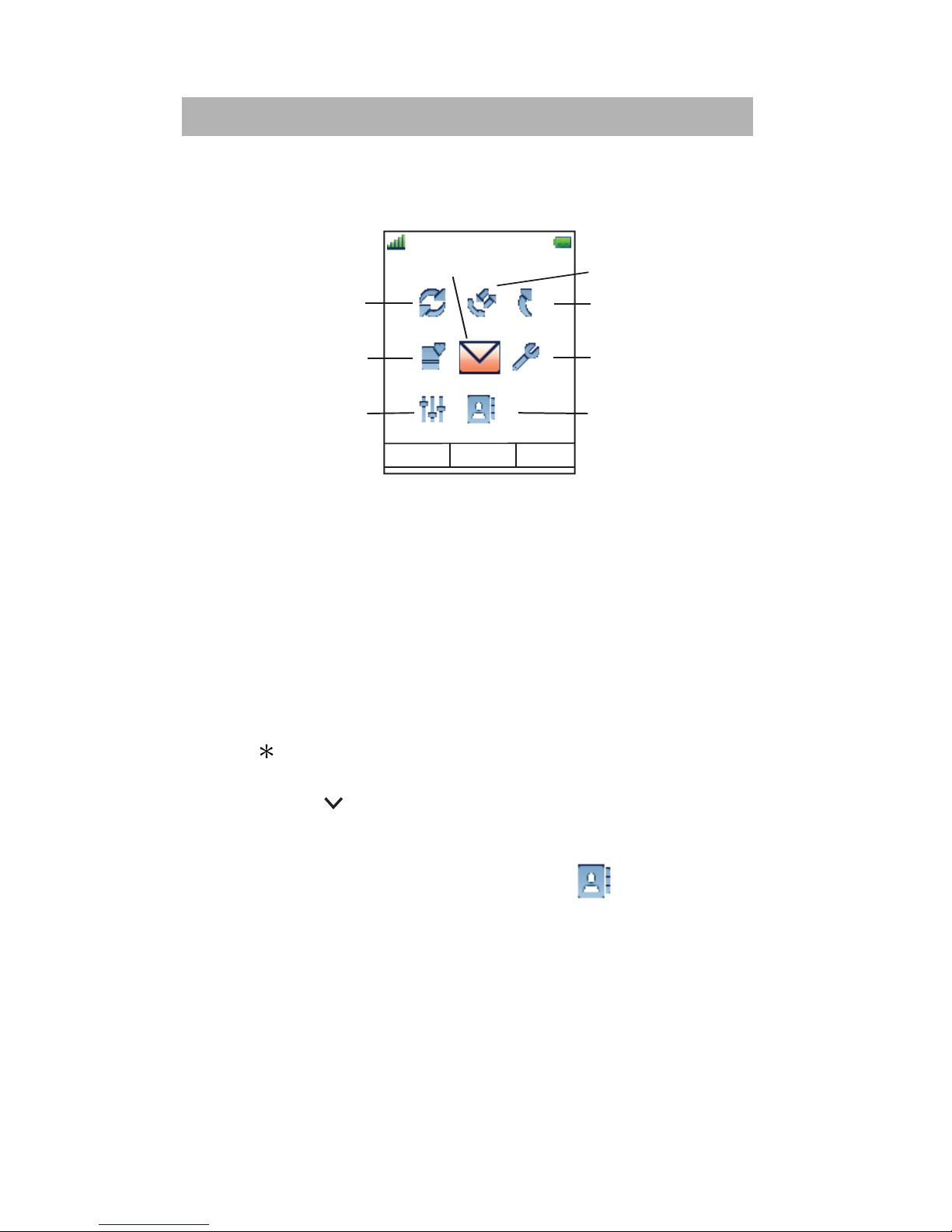
Navigate the menu
Use the Navigation key to move around in the menu structure.
The menus are; “Connections”, “Calls”, Short cuts”, My
favourites”, “Messaging”, “Settings”, “Profiles”, and
“Contacts”.
The three Soft keys below the display are used for choices in
the menu. The function of each Soft key is explained by text in
the soft key field in the display.
Use the -key to switch between capital and small letters
when entering text, and move to the next row by pressing the
Navigation key .
Use the local phonebook
To find and call a name: Enter “Contacts” , step to “Call
contact” and press “Select”. Enter the first letter in the name
or the whole name (will be displayed in Search field while
entering text), or step in the contact list. Select the name and
press “Call”.
To edit the contact: Select “Edit contact”, select the name
and press “Edit”. Make your changes, press “OK” and then
press “Save”.
Menu
13:00
Messaging
select Back
Connections
My favourites
Profiles Contacts
Settings
Short cuts
Calls

To add a contact, select “Add contact”, select “New” or
“From call list”. Press “Add”, enter the name and press “OK”.
Select “Number”, enter the number, press “OK” and press
“Save”.
To delete a contact: select ”Delete contact”, select the name,
press “Delete”, and then press “Yes”.
Use the central phonebook
Enter “Contacts” , and select “Central phonebook”.
Select “Search by name”, “Search by number”, or “Last
result”. Enter the first letter(s) in the first name, and/or the
first letter(s) in the family name. Press “Search”. The Central
phonebook will be searched and a list of matching names will
be displayed. You can step to the next entry in alphabetic
order by pressing the Navigation key. Press “More” to add
contact, or press “Call” or the Call key to make the call.
Soft keys, Hot keys and Multifunction button
The three Soft keys below the display can be defined for
specific functions such as dialling a specific number etc.
A Hot key can have the same function as a Soft key and any
key “0, “2” - “9” can be programmed as a Hot key. The
Multifunction button can also be programmed for different
functions with the use of long press and double press.
For more information about Soft keys, Hot keys and
Multifunction button, see
User Manual, DT690 Cordless
Telephone.
Turn the automatic keypad lock on/off
Enter “Settings” , and step to “Locks”. Select
“Automatic key lock Off/On”, select “On/Off”, and press
“Back”. A locked keypad is indicated by the “Key lock” icon
.
To unlock,press the -key, and then the Softkey "Yes”.

Safety Instructions
For safe and efficient operation of the handset, observe the
guidelines given in this Quick Reference Guide and all
necessary safety precautions when using the handset. Follow
the operating instructions and adhere to all warnings and
safety precautions located on the product, and the User
Manual.
This product shall only be used with the following batteries:
Art.No.: 660190 Battery
Single chargers shall only be connected with power adapters
supplied by the manufacturer.
Available power adapters (Suppliers Designation) are:
• Art.No.DC3: 130160 Power supply unit AC/5V DC/0.65A -
Europe
• Art.No.DC3: 130166 Power supply unit AC/5V DC/1A -
USA, Canada, AUS, and UK
• Art.No.DC4: 130161 Power supply unit AC/5V DC/2A
Regulatory Compliance Statements (EU/EFTA only)
This equipment is intended to be used in the whole EU &
EFTA.
This equipment is in compliance with the essential
requirements and other relevant provisions of R&TTE Directive
1999/51/EC. The Declaration of Conformity may be
consulted at:
http://www.ascom-ws.com/doc/
The handset is marked with the label

Regulatory Compliance Statements (USA and Canada only)
• FCC ID: BXZDH4
• IC: 3724B-DH4
• US: 9FVW4NANDDH4
FCC compliance statements
This equipment has been tested and found to comply with
the limits for a Class B digital device, pursuant to part 15 of
the FCC Rules. These limits are designed to provide
reasonable protection against harmful interference in a
residential installation. This equipment generates, uses and
can radiate radio frequency energy and, if not installed and
used in accordance with the instructions, may cause harmful
interference to radio communications. However, there is no
guarantee that interference will not occur in a particular
installation. If this equipment does cause harmful
interference to radio or television reception, which can be
determined by turning the equipment off and on, the user is
encouraged to try to correct the interference by one or more
of the following measures:
• Reorient or relocate the receiving antenna.
• Increase the separation between the equipment and
receiver.
• Connect the equipment into an outlet on a circuit different
from that to which the receiver is connected.
• Consult the dealer or an experienced radio/TV technician
for help.
Privacy of communications may not be ensured when using
this handset.
Other manuals for DT690
3
Table of contents
Other Mitel Cordless Telephone manuals

Mitel
Mitel DT690 User manual

Mitel
Mitel Superset 4150 User manual

Mitel
Mitel 5614 User manual

Mitel
Mitel 600 User manual

Mitel
Mitel Superset 4090 User manual

Mitel
Mitel IP480G User manual

Mitel
Mitel 5610 IP Dect Stand Instruction Manual

Mitel
Mitel MiVoice Office 5370 User manual

Mitel
Mitel 700 User manual

Mitel
Mitel Superset 4090 User manual

Mitel
Mitel MiVoice Business 5624 User manual

Mitel
Mitel 930D Instruction manual

Mitel
Mitel 650 DECT User manual

Mitel
Mitel DT4X3 User manual

Mitel
Mitel DT690 User manual

Mitel
Mitel 700 User manual

Mitel
Mitel DT4X3 User manual

Mitel
Mitel INT1400 User manual

Mitel
Mitel DT692 User manual

Mitel
Mitel Symbol User manual