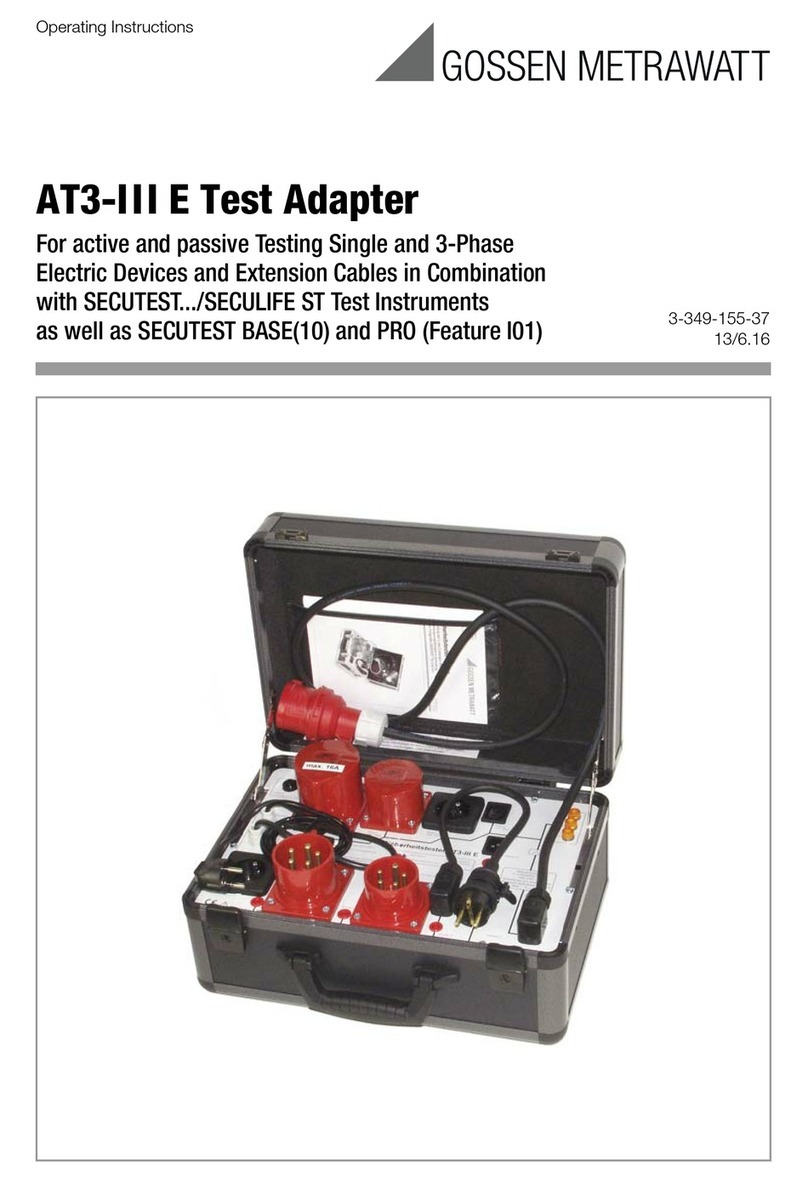
Medialink MWN-CB54G User manual

User Guide MWN-CB54G 802.11 b/g Wireless Cardbus Adapter
2.4GHz Rev:1.0.0

COPYRIGHT & TRADEMARKS
Specifications are subject to change without notice. is a registered
trademark of MEDIALINK PRODUCTS, LLC. Other brands and product names are trademarks
or registered trademarks of their respective holders.
No part of the specifications may be reproduced in any form or by any means or used to make
any derivative such as translation, transformation, or adaptation without permission from
MEDIALINK PRODUCTS, LLC. Copyright © 2008 MEDIALINK PRODUCTS, LLC. All rights
reserved.
http://www.medialinkproducts.com
FCC STATEMENT
This equipment has been tested and found to comply with the limits for a Class B digital device,
pursuant to part 15 of the FCC Rules. These limits are designed to provide reasonable
protection against harmful interference in a residential installation. This equipment generates,
uses and can radiate radio frequency energy and, if not installed and used in accordance with
the instructions, may cause harmful interference to radio communications. However, there is no
guarantee that interference will not occur in a particular installation. If this equipment does
cause harmful interference to radio or television reception, which can be determined by turning
the equipment off and on, the user is encouraged to try to correct the interference by one or
more of the following measures:
Reorient or relocate the receiving antenna.
Increase the separation between the equipment and receiver.
Connect the equipment into an outlet on a circuit different from that to which the
receiver is connected.
Consult the dealer or an experienced radio/ TV technician for help.
This device complies with part 15 of the FCC Rules. Operation is subject to the following two
conditions:
1) This device may not cause harmful interference.
2) This device must accept any interference received, including interference that may cause
undesired operation.
Any changes or modifications not expressly approved by the party responsible for compliance
could void the user’s authority to operate the equipment.
FCC Radiation Exposure Statement
This device has been tested for compliance with FCC RF Exposure (SAR) limits in the typical
laptop computer configuration and this device can be used in desktop or laptop computers with
side mounted PCMCIA slots. This device cannot be used with handheld PDAs (personal digital
assistants). This device and its antenna must not be co-located or operated in conjunction with
any other antenna or transmitter.
CE Mark Warning
This is a class B product. In a domestic environment, this product may cause radio interference,
in which case the user may be required to take adequate measures.

National Restrictions
2400.0-2483.5 MHz
Country Restriction Reason/remark
Bulgaria General authorization required for outdoor use and
public service
France
Outdoor use limited to 10
mW e.i.r.p. within the band
2454-2483.5 MHz
Military Radiolocation use. Refarming of the 2.4 GHz
band has been ongoing in recent years to allow current
relaxed regulation. Full implementation planned 2012
Italy If used outside of own premises, general authorization is
required
Luxembourg None General authorization required for network and service
supply(not for spectrum)
Norway Implemented This subsection does not apply for the geographical area
within a radius of 20 km from the centre of Ny-Ålesund
Russian Federation Only for indoor applications
Note: Please don’t use the product outdoors in France.

CONTENTS
Package Contents ......................................................................................................1
Chapter1 Introduction .............................................................................................2
1.1 Overview of the Product .......................................................................................... 2
1.2 Features .................................................................................................................. 2
1.3 LED Status............................................................................................................... 2
Chapter2 Installation Guide....................................................................................3
2.1 Hardware Installation ............................................................................................... 3
2.2 Software Installation................................................................................................. 3
2.2.1 Overview ................................................................................................... 3
2.2.2 Installation for Windows 2000 and XP ....................................................... 3
2.2.3 Software Installation for Windows Vista..................................................... 7
Chapter3 Configuration.........................................................................................11
3.1 Current Status........................................................................................................ 12
3.2 Profile Management............................................................................................... 13
3.2.1 Add or Modify a Configuration Profile...................................................... 14
3.2.2 Remove a profile ..................................................................................... 19
3.2.3 Switch another Profile.............................................................................. 19
3.2.4 Export a Profile........................................................................................ 19
3.2.5 Import a Profile ........................................................................................ 20
3.2.6 Scan Available Networks ......................................................................... 20
3.2.7 Auto Profile Selection Management ........................................................ 21
3.3 Diagnostics ............................................................................................................ 22
3.3.1 Check Driver Information......................................................................... 22
3.3.2 Check Receiving and Transmitting Statistical Information ....................... 23
Chapter4 Configuration for Windows Vista ........................................................24
Chapter5 Appendix A: Specifications..................................................................27
Chapter6 Appendix B: Glossary ..........................................................................28

1
Package Contents
The following items should be found in your package:
One MWN-CB54G Wireless Adapter
Quick Installation Guide
One Resource CD for MWN-CB54G, including:
MEDIALINK Wireless Client Utility (MWCU) and Drivers
User Guide
Other Helpful Information
Note:
If any of the listed contents are damaged or missing, please contact the retailer from whom you
purchased the MWN-CB54G Wireless Adapter for assistance.

MWN-CB54G 54M Wireless Adapter User Guide
- 2 -
Chapter1 Introduction
Thank you for choosing the MWN-CB54G 54M Wireless Adapter!
1.1 Overview of the Product
The adapter gives you the flexibility to install your notebook PC in the most convenient location
available, without the cost of running network cables.
The adapter's auto-sensing capability allows a high packet transfer rate of up to 54Mbps for
maximum throughput, or dynamic range shifting to lower speeds due to distance or operating
limitations in an environment with a lot of electromagnetic interference. It can also interoperate
with all 11Mbps wireless (802.11b) products. Your wireless communications are protected by up
to 152-bit WEP and WPA encryption for high security.
1.2 Features
Complies with IEEE 802.11g, IEEE 802.11b standards
Supports WPA/WPA2 data security, IEEE 802.1x authentication, TKIP/AES encryption,
64/128/152-bit WEP encryption
Supports 54/48/36/24/18/12/9/6Mbps or 11/5.5/2/1Mbps wireless LAN data transfer rates
Provides 32-bit CardBus interface
Supports Ad-Hoc and Infrastructure modes
Supports roaming between access points when configured in Infrastructure mode
Ease to configure and provides monitoring information
Supports Windows 2000, XP86, Vista32, Vista64
Internal Antenna
1.3 LED Status
LED Indications MWN-CB54G Working Status
Status Green Not lit
Disable Radio
Activity Green Lit
Status Green Lit The adapter is trying to scan a networking
connection.
Activity Green Intermittently
Status Green Lit The adapter is transmitting or receiving
data.
Activity Green Flashing

MWN-CB54G 54M Wireless Adapter User Guide
- 3 -
Chapter2 Installation Guide
2.1 Hardware Installation
To install the adapter, follow these steps listed below:
1. Locate an available CardBus slot on your laptop.
2. With the connector pin end facing the CardBus slot and the label facing up, slide the Adapter
into the CardBus slot until it locks in place.
3. The promoted Found New Hardware Wizard screen will pop up when the adapter is
installed correctly.
2.2 Software Installation
2.2.1 Overview
The Setup Wizard will quickly and easily guide you through the installation of your Wireless
Cardbus Adapter. For Windows 2000 and XP, please see section 2.2.2 below. For Vista
installations, please see section 2.2.3 on page 7 of this user guide.
2.2.2 Installation for Windows 2000 and XP
1. Insert the Resource CD into your CD-ROM drive. If autorun is enabled on your computer,
the welcome page (Figure 2-1) should appear automatically. If the welcome page does
not appear automatically, navigate to the drive containing the CD and double click the drive
that contains the resource CD named “MC001CD”, then double click the folder named
“MWN-CB54G”. Next, double click the executable file named “SETUP.exe”.
2. Click Install Software to start the Utility and Driver installation.
Figure 2-1

MWN-CB54G 54M Wireless Adapter User Guide
- 4 -
3. The MWN-CB54G Wireless Client Utility screen will appear (Figure 2-2). Wait seconds to
continue.
Figure 2-2
4. In the following screen (Figure 2-3), click “Next” to continue.

MWN-CB54G 54M Wireless Adapter User Guide
- 5 -
Figure 2-3
5. The MWN-CB54G Wireless Client Utility – Setup Type screen will appear (Figure 2-4).
Make sure “Install Client Utilities and Driver” is highlighted, then click “Next” to continue.
Figure 2-4
6. The MWN-CB54G Wireless Client Utility – Choose Destination Location screen will appear
(Figure 2-5). Click “Next” to continue.
Table of contents
Other Medialink Adapter manuals