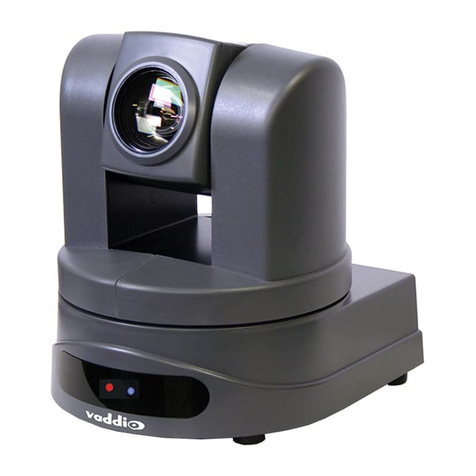
Mazi E series User manual

NetworkCamera
UserManual
(for Windows XP/2003/Win7/Vista)
v1.0

Document edition:V1.0
Editions suit for IPC: Box IP camera, Infrared box IP camera, Dome IP camera,
Speed dome IP camera
Foreword
Thank you for using our IP camera products. This series of products are all-in-one IP
cameras designed for network video surveillance, including box IP camera, infrared box IP
camera, dome IP camera, speed dome IP camera, etc. The products adopt high performance
and powerful single SOC chip media processor to integrate audio and video capture,
compression and transmission. Standard H.264 Baseline and Main Profile coding algorithm
ensures clearer and smoother video transmission effect. Built-in Web Server allows users to
easily perform real-time monitoring and remote control over front-end cameras via IE browser.
This series of IP cameras is suitable for small and medium-sized enterprises, families,
and other environments that require remote network video transmission and monitoring. It is
easy to install and operate.

User Manual of Network Camera (IE Browser)
3
Statement:
zContents in this manual may be different from the edition that you are using. Should any
unsolved problem occur given that the product is used according to this manual, please
contact our technical support department or your product suppliers.
zThe content of this manual may be updated at irregular intervals without prior notice.
Readership:
This manual is suitable for engineers as follow:
zSystem planning person
zSupport and maintenance person
zAdministrator
zUser
Notes:
z“IP Camera” mentioned in this manual refers to network camera, including box IP
camera, dome IP camera, infrared box IP camera, speed dome IP camera,etc.
zClick: Press the left mouse button once.
zDouble-click: Press the left mouse button twice.
z“[ ]”:Window name, menu name and data sheet.

User Manual of Network Camera (IE Browser)
4
Modify record:
Recording the corresponding update, the latest document include all of the content in previous
editions.
Modify date Edition Explanation

User Manual of Network Camera (IE Browser)
5
Table of Contents
1 Download and install ActiveX......................................................................................................................... 6
2 Login.................................................................................................................................................................. 9
3 Live Preview..................................................................................................................................................... 9
4 Replay............................................................................................................................................................. 11
5 Set System Parameters................................................................................................................................ 13
5.1 Local config........................................................................................................................................... 13
5.2 Audio Setting......................................................................................................................................... 14
5.3Video Settings......................................................................................................................................... 15
5.3.1 Text Overlay............................................................................................................................. 15
5.3.2 Video Coding........................................................................................................................... 16
5.3.3 Video Mask.............................................................................................................................. 18
5.3.4 Video Parameter..................................................................................................................... 19
5.3.5 Picture Parameter................................................................................................................... 22
5.4 Network Settings................................................................................................................................... 22
5.4.1 Basic Setting............................................................................................................................ 22
5.4.2 LAN Setting.............................................................................................................................. 23
5.4.3 Wireless Setting...................................................................................................................... 24
5.4.4 PPPOE Setting........................................................................................................................ 27
5.4.5UPNP setting ............................................................................................................................ 28
5.4.6 Email setting............................................................................................................................ 29
5.4.7 FTP setting............................................................................................................................... 31
5.4.8 DDNS setting........................................................................................................................... 32
5.4.9 VPN setting.............................................................................................................................. 33
5.4.10 RTSP setting.......................................................................................................................... 34
5.4.11 Public IP noticed by email.................................................................................................... 35
5.4.12 Connect setting..................................................................................................................... 35
5.5 Storage Settings..................................................................................................................................... 36
5.5.1 Device Setting ......................................................................................................................... 36
5.5.2 Record Setting......................................................................................................................... 38
5.5.3 Snap Setting............................................................................................................................ 38
5.6 Alarm Settings ....................................................................................................................................... 39
5.6.1 Motion detection...................................................................................................................... 39
5.6.2 Sensor Detection..................................................................................................................... 41
5.6.3 Network Detection................................................................................................................... 43
5.7 COM Setting.......................................................................................................................................... 44
5.8 System Setting....................................................................................................................................... 45
5.8.1 System Info.............................................................................................................................. 45
5.8.2 System Time............................................................................................................................ 46
5.8.3 User Manage........................................................................................................................... 47
5.8.4 Upgrade.................................................................................................................................... 48
5.8.5 PTZ Upgrade........................................................................................................................... 49
5.8.6 Restore..................................................................................................................................... 50
5.8.7 Reboot...................................................................................................................................... 50
5.8.8 System log ............................................................................................................................... 51
Appendix 1 Network Interface of IP Camera................................................................................................ 52
Appendix 2 Default Network Parameters...................................................................................................... 52
Appendix 3 FAQs.............................................................................................................................................. 52

User Manual of Network Camera (IE Browser)
6
1Download and install ActiveX
You need to install ActiveX Control when you visit IP camera for the first time through
IE browser.
ActiveX installing method:
Download installation
Input the IP address of IP camera in Internet Explore to enter into login page (see
Figure 1),
Click [File] to download the ActiveX:
Figure 1
You can download the ActiveX manually or just input the password, then download
the file as system prompt.(see Figure 2)
Figure 2
File download dialogue box pops up, click [Run] or [Save] to download ActiveX, after
download it , double-click the downloaded file “WebCMS.exe” and choose the language,
then install it.
NOTE: Abnormal phenomenon when install ActiveX and the solutions:
1: when install theActiveX, it pops up the window as Figure 3:

User Manual of Network Camera (IE Browser)
7
Figure 3
please change the security level of IE, IE tools-> Internet options->Security->Custom level as
Figure 4, and change the parameters as Figure 5, Figure 6:
Figure 4

User Manual of Network Camera (IE Browser)
8
Figure 5
Figure 6
2: when install theActiveX,it pops up the window as follow, please close the IE and
CMS,then click “retry”.

User Manual of Network Camera (IE Browser)
9
2 Login
Reopen Internet Explorer after ActiveX installation completes, input IP address of the
IP camera to turn to login page, enter username and password (default setting is
admin/admin), click login to enter into main interface(see Figure 7):
Figure 7
3 Live Preview
See Figure 8 for the interface of “Live Preview”:

User Manual of Network Camera (IE Browser)
10
Figure 8
In the Live view interface, users can do operations like Snapping, Recording,
Playback, Call, Listen, Clear Alarm, Log Search, Local Zoom of Image, Full-screen
Viewing, PTZ and Lens Control.
[Main Stream] Call the main stream of camera to get the best quality.
[Sub Stream] Call the sub stream of camera, with low resolution,suit for bad network or Internet.
[Snap]: click “Snap”, snap the current image and save it in .JPG format automatically to
the storage directory of snapped images.
[Record]: Manual image recording, automatically record current images and save them
in .264 format to the storage directory of recorded images after the recording function
turned on.
Displayed status after recording starts:
[Call]: After turn on the audio talkback switch, the talkback between PC and IP camera can
be performed given that audio talkback device is installed to the IP camera. The
displayed status after audio turns on:
[Listen]: After switch on the monitoring switch, PC can monitor the sound at the device
end. The displayed status after monitoring starts :
[Zoom]: This feature allows the manual drag and drop of video display area to realize
partial zoom in.
Table of contents
Other Mazi Security Camera manuals