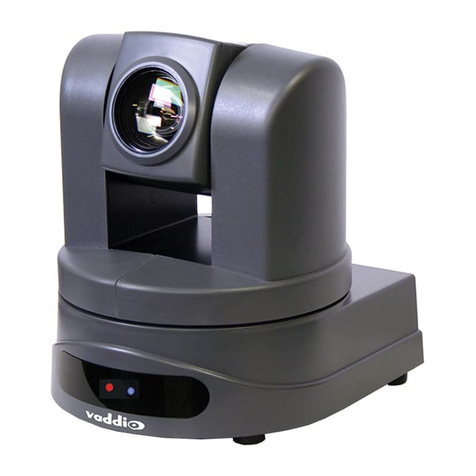
Leadtek NSC 3622 User manual

Network Surveillance Camera
NSC 3615 / NSC 3621 / NSC 3622
User Manual

- Page 2 -
Date Version Description Author
2006.09.25 1.0.0 Standard Operation 1450
2006.11.08 1.1.0 1. Installation Process Enhanced
2. Webs Enhanced with :
¾System
Privacy password
¾Network
DIDO
DDNS
RTP port
¾Camera
Encode type
1450
2006.11.09 1.1.1 MD sensitivity modification 1450
2006.12.06 1.2.0 1. PTZ feature enhanced
2. Add in FAQs 1450
2006.12.13 1.2.1 1. 1. Correct wording / omit FAQ 0946
2007.01.10 1.2.2 1. Add Quick Installation
2. Password authentication 0946
2007.01.24 2.0.0 1. Package Contents
2. How to connect
3. Hardware Installation
4. Software Installation
5. Using Camera with a Router
6. Frequently Asked Questions
0946
2007.04.06 2.1.0 1. Update index
2. Update new web features
3. New Netcam SMC Operation
1052

- Page 3 -
No part of this document may be copied or reproduced in any form or by any means
without the prior written consent of Leadtek Research Inc.
Leadtek makes no warranties with respect to this documentation and disclaims any
implied warranties of merchantability, quality, or fitness for any particular purpose.
The information in this document is subject to change without notice. Leadtek
reserves the right to make revisions to this publication without obligation to notify
any person or entity of any such changes.
Trademarks or brand names mentioned herein are trademarks or registered trademarks
of their respective owners.
Copyright 2006 Leadtek Research Inc. All rights reserved
International Headquarters
18th Fl., 166, Chien-Yi Rd., Chung Ho, Taipei Hsien, Taiwan (235)
Phone: +886 (0)2 8226 5800 Fax: +886 (0)2 8226 5801
http://www.leadtek.com.tw
For business
For Technical Services
Please also visit the following link for the latest news about our video surveillance
products.
http://www.leadtek.com.tw/eng/

- Page 4 -
Index
Package Contents ..................................................... 6
Introduction ................................................................ 9
Key Features ........................................................... 11
How to Connect? .................................................... 12
System Requirement ............................................... 15
Hardware Installation ............................................... 15
Software Installation ................................................ 16
Restore to factory default ......................................... 25
Installing Scan Utility ................................................ 26
Administrating from Webs ........................................ 30
Login....................................................................................................................30
Download ActiveX Control.........................................................................31
Overlook ......................................................................................................32
System..................................................................................................................33
System..........................................................................................................33
SIP................................................................................................................34
Others...........................................................................................................35
DIDO............................................................................................................36
Surveillance Password.........................................................................37
Network Control ..................................................................................................38
IP..................................................................................................................38
FTP...............................................................................................................39
SMTP...........................................................................................................40
DDNS...........................................................................................................41
RTP Port.......................................................................................................42
Camera.................................................................................................................43
Camera.........................................................................................................43
Encode Type ................................................................................................44
Call to...........................................................................................................45
User Management Control...................................................................................46
System Info..........................................................................................................47
System Log ..........................................................................................................48

- Page 5 -
Use Windows Client for IP Cam ............................... 49
Install Netcam SMC.............................................................................................49
Quick Launch.......................................................................................................53
Overview..............................................................................................................57
Add camera..........................................................................................................58
Add one more group. ...........................................................................................60
Modify camera’s connection setting....................................................................60
Camera Connection Wizard.................................................................................61
Channel management...........................................................................................65
Change channel layout.........................................................................................66
PTZ control..........................................................................................................67
Navigation....................................................................................................67
Preset............................................................................................................68
Cruise...........................................................................................................69
Auto Pan.......................................................................................................70
Device setting.......................................................................................................71
Image Setting.......................................................................................................72
Network Setting...................................................................................................73
Motion Detect Setting..........................................................................................74
DIDO Setting.......................................................................................................75
Camera Information.............................................................................................76
Preset Setting .......................................................................................................77
Cruise Setting.......................................................................................................78
Trigger DO...........................................................................................................79
Open record files..................................................................................................80
Using Camera with a Router .................................... 81
Firmware Upgrade ................................................... 87
Frequently Asked Questions .................................... 8 8
Network Configuration........................................................................................88
SIP Configuration ................................................................................................92
Motion Detection.................................................................................................93
Video Quality Setting ..........................................................................................96
Bandwidth Usage...............................................................................................104
Dynamic Domain Name Service .......................................................................106
Factory Default Setting......................................................................................108
Version Information...........................................................................................109
ActiveX Control Download...............................................................................110
Remove Old ActiveX Controls..........................................................................112
Bandwidth Configuration...................................................................................116
SIP Connection Mode........................................................................................117
Codec Select.......................................................................................................118

Package Contents
Contents
- NSC3615- -NSC3621-
Leadtek Surveillance Camera
-NSC3615- -NSC3621-
Accessories
Software CD:

- Page 7 -
Ethernet cable: -NSC3615- / -NSC3621
Power Adaptor:
-NSC3615-
-NSC3621-

- Page 8 -
SPK-MIC-PWR 3-in-1 cable -NSC3621-
Mounting Rack:
-NSC3615-

- Page 9 -
Please unpack the product package with caution; inspect
the Items closely. If you find any damaged item, please
contact your local distributor immediately.Also, please keep
the box and packing material for future use in the event of
future shipments.
Introduction
High-quality, high efficiency video & audio transmission via IP network
The network surveillance camera allows you to view live video over internet. Your
control center can be set up anywhere with internet access without being
restricted by locations. Surveillance video is processed by the most up-to date
compression technology and transmitted in MPEG-4 compression format, whose
transmission efficiency and video quality remain uncompromised by the network,
minimizing the lagging of live surveillance video. In addition, wireless LAN is also
supported. The wireless model makes the network usage more handy without the
hassle of cable installation.
Great usability in every surveillance aspect
The network surveillance camera’s ease of use begins with its web-based user
interface, using Microsoft Internet Explorer to browse the live video or the
provided Windows client Surveillance Management Center(SMC) that offers many
additional benefits: its user interface can display video up to 9 camera servers at
the same time. Recording can also be done simultaneously and you can use it to
view recorded video from the archive and backup your recorded file with audio.

- Page 10 -
Unparalleled surveillance functions where nothing slips through your
watch
The network surveillance camera’s motion detection function sends out the alarm
when any movement of any object occurring on the scene is detected, which
makes it ideal for home and after-hour facility security. 16 preset positions can be
programmed and the auto-cruise function will make the tour accordingly as if you
were taking the patrol rounds in person.
You can also program the cameras to take snapshots or record video when the
alarm is triggered by the event. These snapshots can be transmitted via FTP or
email. Event recording is done by a client PC on the network as the camera sends
snapshot in JPEG format as part of the responses to the triggered event.
Optional centralized management software for large scale surveillance
services
The software suite performs as a central control station on a client PC that controls,
manages, and monitors up to 9 network surveillance camera server units over the
network at the same time. You can talk to your surveillance camera just by a click on
the managed camera to start 2-way audio conversation. The flexible and diversified
SMC offer you handy surveillance solution on Windows platform.
Table of contents
Other Leadtek Security Camera manuals