IGA ODP 100 User manual

User Manual ODP 100
October 2004

IGA Manufactures Association User Manual ODP 100
10/2004 2

IGA Manufactures Association User Manual ODP 100
1General................................................................................................................4
1.1 Introduction .................................................................................................. 4
1.1.1 Front View............................................................................................. 4
1.1.2 User Buttons and Status-LED ............................................................... 5
1.1.3 Rear View ............................................................................................. 6
1.2 Installation .................................................................................................... 6
1.2.1 Driver Installation .................................................................................. 7
1.2.2 Uninstall .............................................................................................. 10
1.2.3 Driver update....................................................................................... 12
1.3 Software ODP Manager ............................................................................. 15
1.4 Printer Calibration....................................................................................... 16
1.5 Printer Driver .............................................................................................. 17
1.5.1 Menu Window ..................................................................................... 17
1.5.2 Menu Print Setups............................................................................... 18
1.5.3 Information for Print Quality and Media type settings.......................... 19
2Maintenance and Cleaning ..............................................................................21
2.1 Lubrication Of Shafts.................................................................................. 21
2.2 Maintenance ODP 100 – Ink Debree Exhaust System.............................. 22
2.2.1 Required Parts and Tools: .................................................................. 22
2.2.2 Description Filter Pad Replacement:................................................... 22
2.3 Maintenance ODP 100 Ink Fleece.............................................................. 26
2.3.1 Required Parts and Tools ................................................................... 26
2.3.2 Description Ink Fleece Replacement................................................... 26
3Troubleshooting ...............................................................................................32
3.1 The HP 6122 print engine shows an error.................................................. 32
3.2 No Serial Connection With COM Port (Line doesn’t rotate)........................ 33
3.3 Printer-LED’s are on or flashing ................................................................. 34
3.3.1 Functions Of LED’s ............................................................................. 34
3.3.2 Print Cartridge-Status LED on or flashing ........................................... 34
3.3.3 Resume-LED flashing ......................................................................... 34
3.3.4 Power-LED flashing ............................................................................ 35
3.3.5 All LED’s are flashing .......................................................................... 35
4Ink Cartridges ...................................................................................................35
4.1 Checking Print Cartridge Status ................................................................. 35
4.1.1 The Print Cartridge Status - LED......................................................... 35
4.2 Ink Cartridges............................................................................................. 37
4.2.1 Print Cartridge Selection ..................................................................... 37
4.3 Replacing Print Cartridges ......................................................................... 38
4.4 Maintaining Print Cartridges ....................................................................... 39
4.5 Refilling of Print Cartridges......................................................................... 39
5Maintaining The Printer Body..........................................................................40
5.1 Printer Case Exterior .................................................................................. 40
5.2 Printer Interior ............................................................................................ 40
5.3 Printer Cradle Rod...................................................................................... 40
5.4 Handling And Storage ................................................................................ 40
6Technical Data ..................................................................................................41
10/2004 3

IGA Manufactures Association User Manual ODP 100
1 General
Description:
The ODP 100 is an CD/DVD ink jet printer based on the HP DeskJet 6122 paper
printer.
The ODP 100 processes printable CDs or DVDs coated for ink jet color.
The ODP 100 can be used as a manual system as well as an integrated system
inline with various autoloading systems like the IGA Gamma, the IGA Delta and
others.
System Requirements:
The PC that runs the ODP needs to USB ports (USB 1.1 or USB 2.0). If only one
USB port is available, a USB-hub is required.
The ODP 100 operates with Windows 2000 or Windows XP
Important !!!
Due to the inkjet – technology used in this printer, debree from ink and aerosol is
travels through the interior of the system. The ODP100 uses an advanced exhaust
system to keep the debree away from the mechanical parts and guide it to a
removable filter. This filter has to be replaced every 6 printer cartridges. Additional
frequent maintenance like lubricating the tray shafts & cleaning the interior of the
printer as well as cleaning of the decoder wheel and the decoder strip is required.
System Requirements:
The PC that runs the ODP needs to USB ports (USB 1.1 or USB 2.0). If only one
USB port is available, a USB-hub is required.
The ODP 100 operates with Windows 2000 or Windows XP
1.1 Introduction
1.1.1 Front View
Front cover to
access cartridges and
printer mechanics
User Buttons and
Status-LED
Media Tray
10/2004 4

IGA Manufactures Association User Manual ODP 100
1.1.2 User Buttons and Status-LED
With the user buttons the ODO100 can be switched on and off and a print job can be
aborted or restarted. The Status-LED’s indicate the status of power, ink level, etc.
Cancel Button
Cartridge Status - LED
Resume Button and LED
Power Button and LED
Cancel Button
By pressing the Cancel Button you Stop the current print job.
Print Cartridge Status - LED
The Print Cartridge Status LED blinks when a cartridge needs to be replaced or
requires maintenance as well as when the front cover is open.
Resume Button and - LED
The Resume Button blinks in case of a general error.
Power Button and - LED
With the Power Button you can switch the printer on and off. After pressing it takes a
couple of seconds until the printer becomes ready. The Power LED blinks when print
data is being processed.
10/2004 5

IGA Manufactures Association User Manual ODP 100
1.1.3 Rear View
Power Connector
Exhaust System
Cover,
Filter Access
USB-Connector
1.2 Installation
Operation:
The ODP is connected to is PC with a USB cable.
To operate the ODP a special software is required, which needs to be active
permanently .
This software, called ‘ODP Manager’ controls all the mechanical functions of the
ODP, like the opening and closing of the tray.
How to connect the ODP 100 to the PC:
Connect the ODP to 220V (110V) with the power cable.
Connect USB connector with the USB cable to the PC’s USB port.
The Plug&Play function of Windows recognises automatically the new printer.
The driver file (‘lsg6122.inf’) is available on the printer’s driver CD and can be
installed by loading this CD into the PC’s CD-drive.
The Plug&Play function of Windows recognises automatically the new USB device.
The driver file (‘ftdiport.inf’ and ‚ftdibus.inf’) is available on the printer’s driver CD and
can be installed by loading this CD into the PC’s CD-drive.
The driver installs a new serial COM port to the PC. The additional electronic board
inside the ODP is controlled by this serial port.
10/2004 6

IGA Manufactures Association User Manual ODP 100
1.2.1 Driver Installation
After connecting the printer, you have to open the Printer Dialog with
Start ⇒Settings ⇒Printers.
Double click on „Add Printer“
10/2004 7

IGA Manufactures Association User Manual ODP 100
Press onto the „Next“ button
Now, choose „Local Printer“ and click onto the „Next“ button.
10/2004 8

IGA Manufactures Association User Manual ODP 100
Choose a free USB port and press the „Next“ button.
USB001 Virtual printer port
Select „Have Disk“, search for the driver path, continue with “Next” and “Finish” the
Installation.
Please reboot your PC,
to make sure that the installation will be finished!
10/2004 9
IGA Manufactures Association User Manual ODP 100
1.2.2 Uninstall
Before Uninstall, you must reboot your PC,
to make sure that the Operating System will not hold and block any
of the files, which are used by the driver.
Blocked files can not be deleted and will produce errors, if a install a new driver.
All programs have to be closed, also the ODP Manager.
Close the ODP Manger, when he will start automatically after reboot.
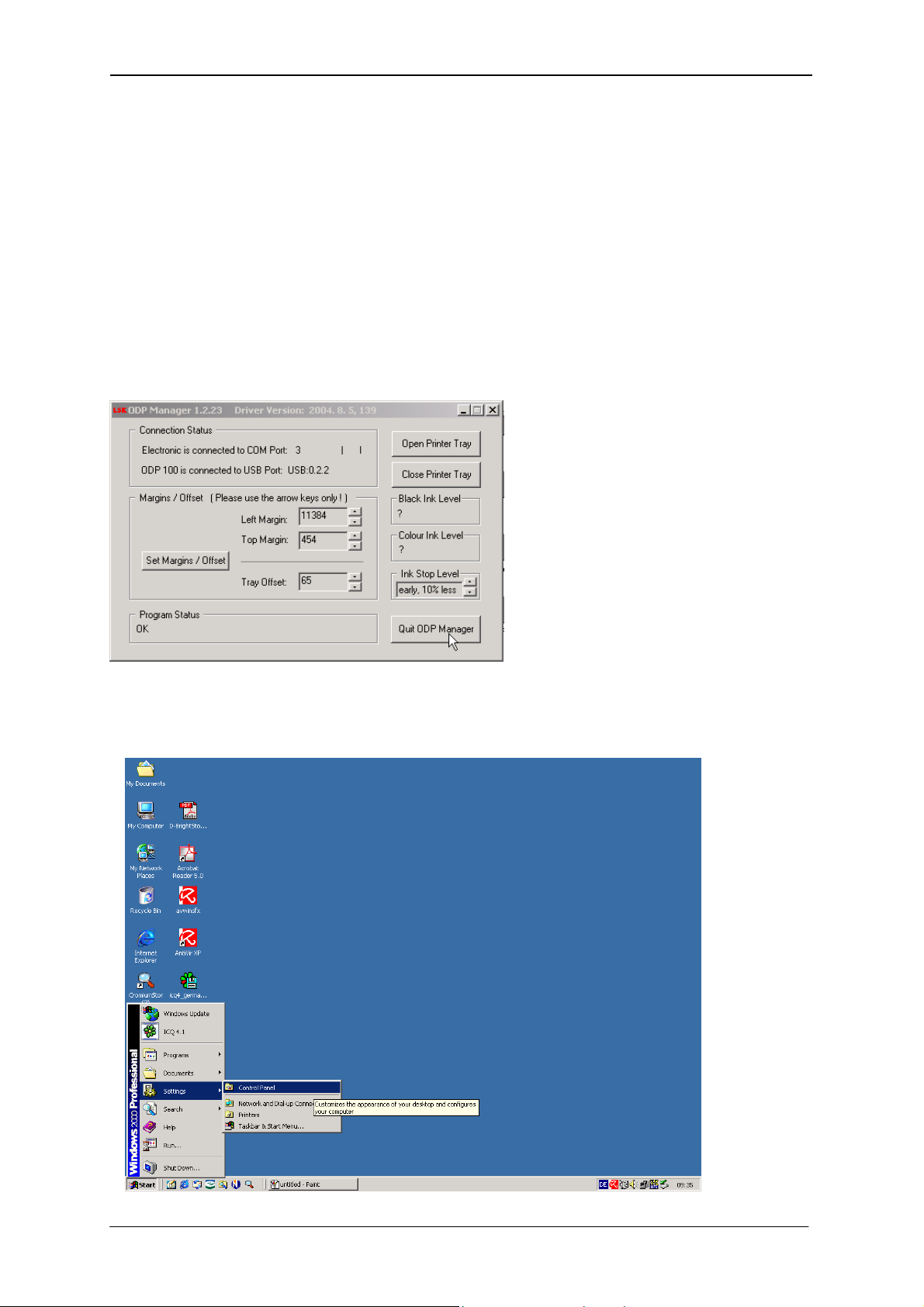
First, open the Control Panel with Start ⇒Settings ⇒Control Panel.
10/2004 10
Table of contents