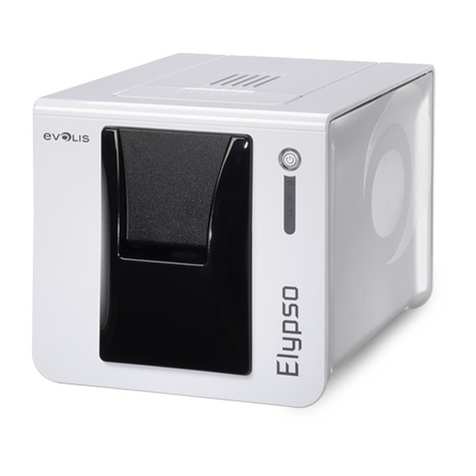
iColor 500 User manual

iColor®500 Digital Color + White Transfer Media
Printer User Manual

2
UniNet 3232 W. El Segundo Blvd., Hawthorne, California 90250 | [email protected]
www.icolorprint.com
Table of Contents
iColor®500ModelSummaryPage3
InstallingConsumables Page4‐8
PrinterSoftwareInstallationInstructions–USBconnection Page8‐11
PrinterSoftwareInstallationInstructions–Networkconnection Page12‐14
iColor®TransferRIPInformationPage15‐16
PrintingwithFluorescentColorsPage17
iColor®500ConsumablesPage17
ReplacingtoneranddrumcartridgesPage18
PrinterSettingsforiColor®PremiumTransferMediaPage19‐21
WhiteprintInstructions(withoutiColor®TransferRIP)Page22
MultipurposetraysettingsPage23‐28
iColor®500PrintingTipsPage29‐30
iColor®500PrinterSpecSheetPage31
RefertotheincludedFlashDriveorCDwithyourprinterforindepthinstructions.iColor®TransferRIPlicensecodewill
alsobeprovidedondriveorCD(ifpurchased).
January2017Edition–Anewerversionofthismanualmaybeavailableatwww.icolorprint.com/support

3
UniNet 3232 W. El Segundo Blvd., Hawthorne, California 90250 | [email protected]
www.icolorprint.com
iColor®500 Digital Color + White Transfer Media Printer
TheiColor®500printerhasbeendevelopedtoproducehigh‐qualityconventionalcolorprintswiththeoutof
theboxfunctionalityofprintinginwhite.
Pleasefollowtheenclosedquicksetupguidetogetstarted.TheiColor®500comescompletewith4toner
cartridgesforfullcolorandblackprinting(CMYK),aswellasourexclusivefluorescentwhiteprintingkit(toner
anddrumcombination).Justquicklyswaptheblackforwhitewhenyouwanttoaddwhiteasaspotcolor,or
toprintawhiteunderprintoroverprintinconcertwiththeiColor®TransferRIPsoftware.Blackcanthenbe
producedusingcompositeblack(madefromCMY),oriftrueblackandwhiteisneededatthesametime,just
passtheprintthoughtheprinterasecondtime.Ourregistrationsystemwillensuretheprintsarelinedup
perfectly.
Youwillalsohavetheoptiontoaddourfullfluorescentkitwhichcomescompletewith3[CMY]toner
cartridgesandmatchingdrumunits.Thissystemrequiresnoadditionalsoftwareorexpertisetoprint
conventionalCMYKimagesinvividfluorescentcolor.Inaddition,addexclusiveiColorsecurityandcleartoner
optionsatanytime.
Pleasenotethatvectorandlineartimages,includingtext,arelikelytoproducethebestresults.Forexciting
designideasandsuggestionsforusingtheiColor®500formaximumeffect,pleasevisitourwebsiteat
www.icolorprint.com.
iColor®PremiumTransfermediahasbeenoptimizedtoprovidequalityresultswhenusedwiththeprinter,
enablingtheusertoproduceeye‐catchingdesignswhichmaybeappliedtoavarietyoftextilesandsurfaces.

4
UniNet 3232 W. El Segundo Blvd., Hawthorne, California 90250 | [email protected]
www.icolorprint.com
Installing Consumables

5
UniNet 3232 W. El Segundo Blvd., Hawthorne, California 90250 | [email protected]
www.icolorprint.com
RemovesecuritytapeandpackingmaterialandreinstallMPTTray
Pressbutton‘a’andliftcover‘b’

6
UniNet 3232 W. El Segundo Blvd., Hawthorne, California 90250 | [email protected]
www.icolorprint.com
Removethecartridges.Notethatthetoneranddrumcartridgescomeoutasaset.
Carefullyremovetheprotectivecoveringfromeachcartridge

7
UniNet 3232 W. El Segundo Blvd., Hawthorne, California 90250 | [email protected]
www.icolorprint.com
Replaceeachcartridgeintheproperslotandslidetheblueleverforwardtoengageeach
cartridge.Makesurethehandlesarecompletelyforward.NOTE:Thewhitecartridgethat
camepreinstalledinyourmachineisalreadyinthelockedposition.Justremovetheprotective
coveringbutdonotmovethebluehandle!
Removefuserlock

8
UniNet 3232 W. El Segundo Blvd., Hawthorne, California 90250 | [email protected]
www.icolorprint.com
Closecover
Installing iColor®500 printer on a PC
ThesefollowinginstructionsareforWindows7,8,and10viaUSBandNetwork.Youmusthave
Administratorprivilegesonthecomputertoproceed.
USBSetup:
1. UnpacktheprinteraccordingtotheSet‐upGuide.DonotturnonorconnectyouriColor®printer
tothecomputeruntiltheinstallprogramasksyoutodoso.Doingsocancauseerrorsduring
installation.
2. LocatetheinstallationfileontheUSBdriveorCDthatwasshippedwithyourprinteranddoubleclickto
launchthesetupprogram.

9
UniNet 3232 W. El Segundo Blvd., Hawthorne, California 90250 | [email protected]
www.icolorprint.com
3. Clickcontinuetoinstallthe
iColor®500driver.
4. Select‘Localprinter’and
clicknext

10
UniNet 3232 W. El Segundo Blvd., Hawthorne, California 90250 | [email protected]
www.icolorprint.com
5. Highlight‘USB’underthe
portsettingsandclicknext.
Highlighttheprinter
(identifiedasC711),andclick
next.
Other manuals for 500
1
Table of contents
Other iColor Printer manuals