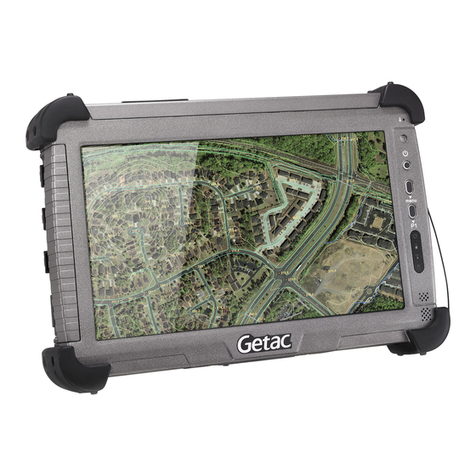
Getac F110 User manual

Rugged Mobile Computing Solutions
F110
USER MANUAL

March 2015
TRADEMARKS
All brand and product names are trademarks or registered trademarks of
their respective companies.
NOTE
The information in this manual is subject to change without notice.
For the latest version of the manual, please visit the Getac website
at www.getac.com.

i
Table of Contents
Chapter 1 Getting Started.................................................................1
Getting the Tablet PC Running................................................. 2
Unpacking .............................................................................. 2
Installing the SIM Card (Optional) and Battery Packs......... 3
Connecting to AC Power....................................................... 5
Using the Tether .................................................................... 6
Turning On and Off the Tablet PC ....................................... 7
Taking a Look at the Tablet PC................................................. 8
Front Components................................................................. 8
Rear Components ................................................................ 11
Left-Side Components ......................................................... 12
Top Components.................................................................. 13
Bottom Components ........................................................... 14
Chapter 2 Operating Your Tablet PC ..............................................15
Navigating on the Screen........................................................ 16
Using the Touchscreen ........................................................ 16
Using the Dual Mode Display (Optional) ........................... 18
Using the Network Features.................................................... 19
Using the LAN (Optional).................................................... 19
Using the WLAN................................................................... 19
Using the BT Feature ............................................................... 21
Turning On/Off the BT Radio.............................................. 21
Connecting to another BT Device....................................... 22
Using the WWAN Feature (Optional)..................................... 23
Turning On/Off the WWAN Radio...................................... 23
Setting up a WWAN Connection........................................ 24
Using the Fingerprint Scanner (Optional).............................. 25
Chapter 3 Managing Power ............................................................27
AC Adapter............................................................................... 28
Battery Pack.............................................................................. 29
Charging the Battery Pack .................................................. 29

ii
Initializing the Battery Pack................................................ 30
Checking the Battery Level ................................................. 30
Battery Low Signals and Actions ........................................ 31
Replacing the Battery Pack ................................................. 31
Power-Saving Tips .................................................................... 34
Chapter 4 Expanding Your Tablet PC .............................................35
Connecting a USB Device......................................................... 36
Connecting an Audio Device................................................... 37
Connecting an HDMI Display Monitor ................................... 38
Connecting a Serial Device (Optional).................................... 39
Using Smart Cards (Optional).................................................. 40
Using MicroSD Cards (Optional) ............................................. 41
Chapter 5 Using BIOS Setup............................................................42
When and How to Use............................................................. 43
Menu Descriptions ................................................................... 44
Information Menu ............................................................... 44
Main Menu........................................................................... 44
Advanced Menu................................................................... 45
Security Menu ...................................................................... 46
Boot Menu ........................................................................... 47
Exit Menu ............................................................................. 47
Chapter 6 Using Getac Software ....................................................48
OSD Control Panel ................................................................... 49
G-Manager ............................................................................... 50
Getac Camera (Optional)......................................................... 52
Getac Smart Tag (Optional)..................................................... 53
Using the Barcode Reader (Optional)..................................... 54
Chapter 7 Caring for the Tablet PC ................................................56
Protecting the Tablet PC.......................................................... 57
Using an Anti-Virus Strategy............................................... 57
Using the Cable Lock ........................................................... 57
Taking Care of the Tablet PC .................................................. 58
Location Guidelines ............................................................. 58
General Guidelines .............................................................. 58
Cleaning Guidelines............................................................. 59
Battery Pack Guidelines....................................................... 59
Touchscreen Guidelines....................................................... 61
When Traveling........................................................................ 62

iii
Chapter 8 Troubleshooting .............................................................63
Preliminary Checklist................................................................ 64
Solving Common Problems...................................................... 65
Battery Problems ................................................................. 65
BT Wireless Transmission Problems .................................... 65
Display Problems.................................................................. 66
Hardware Device Problems ................................................. 66
Power Management Problems ........................................... 67
Sensor Problems (for Windows 8 Models Only) ................ 67
Software Problems .............................................................. 68
Sound Problems ................................................................... 68
Startup Problems ................................................................. 69
WLAN Problems ................................................................... 69
Other Problems.................................................................... 71
Resetting the Tablet PC ........................................................... 72
System Recovery....................................................................... 73
System Restore, Refresh, or Reset (for Windows 8
Models)................................................................................. 73
System Recovery (a Tool for Windows 7 Models).............. 74
Using the Driver Disc................................................................ 76
Appendix A Specifications .................................................................77
Appendix B Regulatory Information.................................................79
On the Use of the System........................................................ 80
Class B Regulations .............................................................. 80
ANSI Warning....................................................................... 81
Safety Notices....................................................................... 82
On the Use of the RF Device.................................................... 84
USA and Canada Safety Requirements and Notices.......... 84
European Union CE Marking and Compliance Notices..... 85
User Notification of Take-back Service................................... 87
ENERGY STAR ........................................................................... 88
Battery Recycling...................................................................... 90

1
Chapter 1
Getting Started
Congratulations on purchasing this rugged Tablet PC.
This chapter first tells you step by step how to get the Tablet PC up and
running. Then, you will find a section briefly introducing the external
components of the Tablet PC.

2
Getting the Tablet PC Running
Unpacking
After unpacking the shipping carton, you should find these standard items:
F110 Tablet PC
AC adapter
AC power cord
Battery pack x 2
Screen cleaning cloth
Stylus
Driver disc Tether
Document(s)
Inspect all the items. If any item is damage or missing, notify your dealer
immediately.

3
Installing the SIM Card (Optional) and
Battery Packs
1. Locate the battery cover. Slide the two small locks outward to the
unlocked position ( ) () and then release the latch ( ) () to open
the battery cover.
2. Select models only:
With the SIM card’s chip side facing up and the beveled corner pointing
to the slot, insert the card all the way into the slot.
NOTE: To remove the SIM card, just push in the SIM card to pop-out and
remove the card.

4
3. Note the orientation of the battery pack. Hold the battery pack at an
angle and insert its small tabs to the corresponding notches in the
battery compartment. Then, lift the yellow protection sheet in the
battery compartment and plug the battery connector.
4. Proceed with the other battery pack.
5. Hold the battery cover at an angle and insert the cover’s small tabs to the
corresponding notches on the Tablet PC; then close the cover. Press the
four small dots () so that the cover clicks into place. Engage the cover
latch ( ) () and slide the two small locks inward to the locked position
( ) ().
Battery 1
Battery 2

5
Connecting to AC Power
It is suggested that you use AC power when starting up the Tablet PC for the
very first time.
1. Plug the DC cord of the AC adapter to the power connector of the Tablet
PC ().
2. Plug the female end of the AC power cord to the AC adapter and the
male end to an electrical outlet ().
3. Power is being supplied from the electrical outlet to the AC adapter and
onto your Tablet PC. Now, you are ready to turn on the Tablet PC.
CAUTION: Use only the AC adapter included with your Tablet PC. Using
other AC adapters may damage the Tablet PC.
NOTE: When the AC adapter is connected, it also charges the battery pack.
For information on using battery power, see Chapter 3.
Other manuals for F110
7
Table of contents
Other Getac Tablet manuals
Popular Tablet manuals by other brands

Laser
Laser MID-1060 Quick operation guide

MUNBYN
MUNBYN IRT09J Easy setup guide

Motorola
Motorola MC3090R - Win CE 5.0 Professional 520 MHz quick start guide

Dell
Dell Latitude ST Setup and features information

Lenovo
Lenovo IdeaTab S6000L Hardware Maintenance Manual

Venturer
Venturer WT9L11 quick start guide