
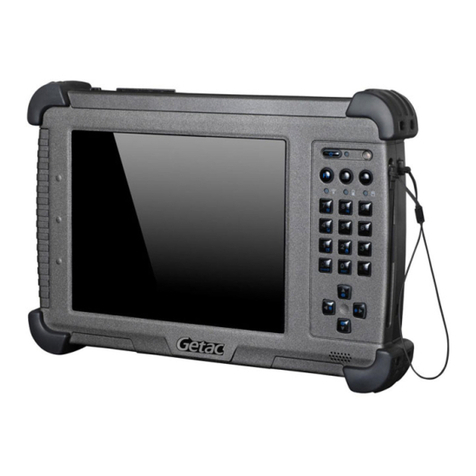
Getac RC11 User manual

RC
11
USER MANUAL

Rugged Mobile Computing Solutions
January 2018
TRADEMARKS
TRADEMARKSTRADEMARKS
TRADEMARKS
All brand and product names are trademarks or reg stered trademarks of the r
respect ve compan es.
NOTE
NOTENOTE
NOTE
The nformat on n th s manual s subject to change w thout not ce.
For the latest vers on of the manual, please v s t the Getac webs te at
www.getac.com.

i
Table of Contents
Table of ContentsTable of Contents
Table of Contents
Chapter 1 Getting Started .............................................................. 1
Gett ng the Tablet PC Runn ng ..................................................... 2
Unpack ng ............................................................................... 2
Install ng the SIM Card (Opt onal) and Battery Packs ................ 3
Connect ng to AC Power .......................................................... 4
Us ng the Tether ....................................................................... 5
Turn ng On and Off the Tablet PC ............................................ 6
Tak ng a Look at the Tablet PC ..................................................... 8
Front Components .................................................................... 8
Rear Components ................................................................... 10
Left-S de Components ............................................................ 11
Top Components .................................................................... 12
Bottom Components .............................................................. 12
Chapter 2 Operating Your Tablet PC ............................................. 13
Nav gat ng on the Screen ............................................................ 14
Us ng the Touchscreen ........................................................... 14
Us ng the Dual Mode D splay (Opt onal) ............................... 17
Us ng Network and W reless Connect ons .................................. 18
Us ng the LAN (Opt onal) ....................................................... 18
Us ng the WLAN .................................................................... 18
Us ng the BT Feature .............................................................. 19
Us ng the WWAN Feature (Opt onal) ..................................... 20
Chapter 3 Managing Power .......................................................... 21
AC Adapter ................................................................................. 22
Battery Pack ................................................................................ 23
Charg ng the Battery Pack ...................................................... 23
In t al z ng the Battery Pack .................................................... 24
Check ng the Battery Level ..................................................... 24
Battery Low S gnals and Act ons ............................................. 25
Replac ng the Battery Pack ..................................................... 25

ii
Power-Sav ng T ps ...................................................................... 28
Chapter 4 Using Options and Peripherals ...................................... 2
Us ng the F ngerpr nt Scanner (Opt onal) .................................... 30
Us ng the Barcode Reader (Opt onal).......................................... 32
Connect ng Per pheral Dev ces ................................................... 34
Connect ng a USB Dev ce ...................................................... 34
Connect ng an Aud o Dev ce ................................................. 35
Connect ng an HDMI D splay Mon tor ................................... 35
Us ng Var ous Card Readers ....................................................... 37
Us ng Smart Cards (Opt onal) ................................................. 37
Us ng the NFC/RFID Reader (Opt onal) .................................. 38
Read ng Magnet c Str pe Cards (Opt onal) .............................. 39
Chapter 5 Using BIOS Setup ......................................................... 40
When and How to Use ............................................................... 41
Menu Descr pt ons ..................................................................... 42
Informat on Menu .................................................................. 42
Ma n Menu ............................................................................ 42
Advanced Menu ..................................................................... 42
Secur ty Menu ........................................................................ 44
Boot Menu ............................................................................. 45
Ex t Menu ............................................................................... 45
Chapter 6 Using Getac Software ................................................... 47
OSD Control Panel ..................................................................... 48
G-Manager ................................................................................. 49
G-Camera (Opt onal) .................................................................. 51
Chapter 7 Care and Maintenance .................................................. 52
Protect ng the Tablet PC ............................................................. 53
Us ng an Ant -V rus Strategy ................................................... 53
Us ng the Cable Lock ............................................................. 53
Tak ng Care of the Tablet PC ...................................................... 54
Locat on Gu del nes ............................................................... 54
General Gu del nes ................................................................ 54
Clean ng Gu del nes ............................................................... 55
Battery Pack Gu del nes ......................................................... 55
Touchscreen Gu del nes ......................................................... 56
When Travel ng .......................................................................... 58
Chapter 8 Troubleshooting .......................................................... 5
Prel m nary Checkl st .................................................................. 60

iii
Solv ng Common Problems ........................................................ 61
Battery Problems .................................................................... 61
BT W reless Transm ss on Problems ....................................... 61
D splay Problems ................................................................... 62
Hardware Dev ce Problems .................................................... 62
Power Management Problems ................................................ 63
Sensor Problems ..................................................................... 63
Software Problems.................................................................. 64
Sound Problems ..................................................................... 64
Startup Problems .................................................................... 65
WLAN Problems .................................................................... 65
Other Problems ...................................................................... 66
Resett ng the Tablet PC ............................................................... 68
System Recovery ........................................................................ 69
Us ng W ndows RE ................................................................ 69
Us ng Recovery Part t on ........................................................ 70
Us ng the Dr ver D sc (Opt onal) ................................................ 71
Appendix A Specifications .............................................................. 72
Appendix B Regulatory Information................................................ 74
On the Use of the System ........................................................... 75
Class B Regulat ons ................................................................ 75
ANSI Warn ng ........................................................................ 76
Safety Not ces ........................................................................ 77
On the Use of the RF Dev ce ...................................................... 79
USA and Canada Safety Requ rements and Not ces ................ 79
European Un on CE Mark ng and Compl ance Not ces ........... 81
User Not f cat on of Take-back Serv ce ....................................... 83
ENERGY STAR 6.1 ...................................................................... 84
Battery Recycl ng ........................................................................ 86

1
Chapter 1
Chapter 1Chapter 1
Chapter 1
Getting Started
Getting StartedGetting Started
Getting Started
Th s chapter f rst tells you step by step how to get the Tablet PC up and runn ng.
Then, you w ll f nd a sect on br efly ntroduc ng the external components of the
Tablet PC.

2
Getting the
Getting the Getting the
Getting the Tablet C
Tablet CTablet C
Tablet C
Running
RunningRunning
Running
Unpacking
UnpackingUnpacking
Unpacking
After unpack ng the sh pp ng carton, you should f nd these standard tems:
RC11 Tablet PC
AC adapter
AC power cord
Battery pack x 2
Screen clean ng cloth
Stylus
Document(s) Tether
Dr ver d sc (opt onal)
Inspect all the tems. If any tem s damage or m ss ng, not fy your dealer
mmed ately.

3
Installing the
Installing the Installing the
Installing the SIM Card
SIM CardSIM Card
SIM Card
(Optional) and
(Optional) and (Optional) and
(Optional) and Battery
Battery Battery
Battery
ack
ackack
acks
ss
s
1. Locate the battery cover. Sl de the two small locks outward to the unlocked
pos t on ( ) () and then release the latch ( ) () to open the battery cover.
2. Select models only:
W th the SIM card’s ch p s de fac ng up and the beveled corner po nt ng to the
slot, nsert the card all the way nto the slot.
NOTE: To remove the SIM card, just push in the SIM card to pop-out
and remove the card.
3. Note the or entat on of the battery pack. Hold the battery pack at an angle and
nsert ts small tabs to the correspond ng notches n the battery compartment.

4
Then, l ft the yellow protect on sheet n the battery compartment and plug the
battery connector.
4. Proceed w th the other battery pack.
5. Hold the battery cover at an angle and nsert the cover’s small tabs to the
correspond ng notches on the Tablet PC; then close the cover. Press the four
small dots () so that the cover cl cks nto place. Engage the cover latch ( ) ()
and sl de the two small locks nward to the locked pos t on ( ) ().
Connecting to AC ower
Connecting to AC owerConnecting to AC ower
Connecting to AC ower
CAUTION: Use only the AC adapter included with your Tablet PC.
Using other AC adapters may damage the Tablet PC.
Battery 1
Battery 2

5
NOTE:
The battery pack is shipped to you in power saving mode that
protects it from charging/discharging. It will get out of
the mode to be ready for use when you install the battery
pack and connect AC power to the Tablet PC for the very first
time.
When the AC adapter is connected, it also charges the battery
pack. For information on using battery power, see Chapter
3.
You must use AC power when start ng up the Tablet PC for the very f rst t me.
1. Plug the DC cord of the AC adapter to the power connector of the Tablet PC ().
2. Plug the female end of the AC power cord to the AC adapter and the male end to
an electr cal outlet ().
3. Power s be ng suppl ed from the electr cal outlet to the AC adapter and onto
your Tablet PC. Now, you are ready to turn on the Tablet PC.
Using the Te
Using the TeUsing the Te
Using the Tether
therther
ther
A tether s prov ded for attach ng the stylus to your Tablet PC.
Table of contents
Other Getac Tablet manuals





Popular Tablet manuals by other brands

Laser
Laser MID-1060 Quick operation guide

MUNBYN
MUNBYN IRT09J Easy setup guide

Motorola
Motorola MC3090R - Win CE 5.0 Professional 520 MHz quick start guide

Dell
Dell Latitude ST Setup and features information

Lenovo
Lenovo IdeaTab S6000L Hardware Maintenance Manual

Venturer
Venturer WT9L11 quick start guide





