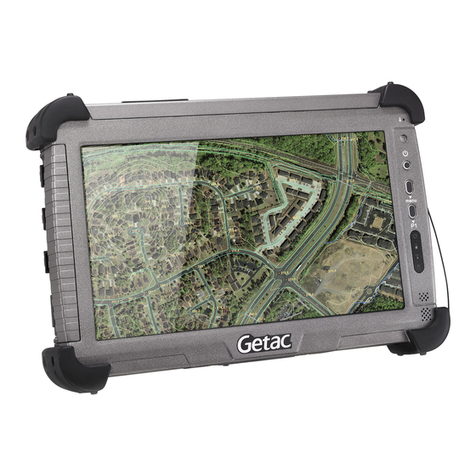
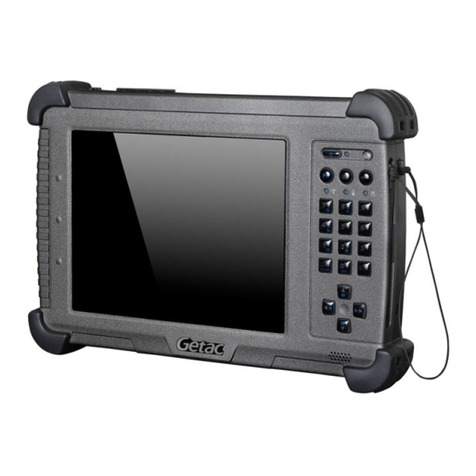
Getac ZX70 User manual

Rugged Mobile Computing Solution
ZX70 Series
USER MANUAL

May 2020
Trademarks
Comes with the Google™ app and Google Chrome™
Google, Android and Gboard are trademarks of Google LLC.
The Bluetooth word mark and logos are owned by the Bluetooth SIG, Inc.
All other brand and product names are trademarks or registered trademarks
of their respective companies.
Disclaimer
Specifications and manuals are subject to change without notice. Getac
assumes no liability for damage incurred directly or indirectly from errors,
omissions, or discrepancies between the device and the manuals.
Notes
Depending on the specific model you purchased, the color and look of your
model may not exactly match the graphics shown in this document.
The screenshots and other presentations shown in this document are for
reference only. They may differ from the actual screens and presentations
generated by the actual product.
Your device is based on Android™ 9 operating system, with additions by
Getac.
For the latest version of the manual, please visit the Getac website at
www.getac.com.

i
Table of Contents
Chapter 1 Getting Started.................................................................1
Identifying Hardware Components .......................................... 1
Front Components................................................................. 1
Back Components .................................................................. 3
Top Components.................................................................... 4
Bottom Components ............................................................. 5
Left-Side Components ........................................................... 6
Getting Your Device Ready for Use ........................................... 7
Installing the SIM Card (Select Models Only)....................... 7
Connecting to AC Power and Charging the Battery........... 8
Performing the Initial Startup .............................................. 9
Chapter 2 Operating Basics.............................................................10
Waking Up and Shutting Down.............................................. 10
Waking Up ........................................................................... 10
Shutting Down..................................................................... 10
Navigating on the Screen........................................................ 11
Touch Mode ......................................................................... 12
Auto Rotate.......................................................................... 12
Home Screen ............................................................................ 12
Using Applications ................................................................... 13
Navigation Bar ......................................................................... 13
Status Bar.................................................................................. 14
Quick Settings and Notifications Panel .................................. 14
Entering Information............................................................... 15
Quick QR Code Scanning (Select Models Only)...................... 16
Chapter 3 Getting Connected .........................................................17
Wireless Connections ............................................................... 17
Using WWAN (Select Models Only).................................... 17
Using Wi-Fi Networks .......................................................... 17
Using the Bluetooth Function............................................. 18
External Connections ............................................................... 19

ii
Connecting to a Computer via USB.................................... 19
Using a MicroSD Card.......................................................... 20
Chapter 4 Getac Applications .........................................................22
Getac Camera ........................................................................... 22
Taking Photos ...................................................................... 23
Recording Videos................................................................. 24
Control Buttons.................................................................... 25
Camera Settings................................................................... 27
File Browser .............................................................................. 29
Viewing Files/Folders ........................................................... 30
Managing Files/Folders........................................................ 31
Opening a File...................................................................... 34
File Browser Settings ........................................................... 35
GetacIME................................................................................... 36
Using the Text Scanner........................................................ 37
Using the Barcode Scanner ................................................. 38
GetacIME Settings................................................................ 40
NFC Reader (Select Models Only)............................................ 42
Chapter 5 Managing Your Device ..................................................43
Managing Power...................................................................... 43
Low Battery Signals and Actions ........................................ 43
Power-Saving Tips................................................................ 44
Battery Guidelines ............................................................... 44
Customizing Your Device ........................................................ 45
Settings................................................................................. 45
Getac Settings ...................................................................... 45
Chapter 6 Care and Maintenance....................................................48
Restart or Hard Reboot............................................................ 48
Restart .................................................................................. 48
Hard Reboot......................................................................... 48
Update Center.......................................................................... 49
Updating the OS .................................................................. 49
Updating Getac Apps .......................................................... 50
Update Center Settings ....................................................... 51
Update Center Scan............................................................. 52
Caring for Your Device ............................................................ 52
Chapter 7 Regulatory Information.................................................54
Regulations Statements........................................................... 54
USA Class B Regulations ...................................................... 54
Industry Canada Statement ................................................ 55

iii
European Union CE Marking and Compliance Notices..... 57
Safety Precautions.................................................................... 59
About Charging ................................................................... 59
About the AC Adapter ........................................................ 59
About the Battery................................................................ 60
Heat Related Concerns ........................................................ 61
User Notification of Take-back Service................................... 62
ENERGY STAR ........................................................................... 63
California Proposition 65......................................................... 65

1
Chapter 1
Getting Started
This chapter introduces you to the external components of your device and
guides you through the process of setting up your device for use.
Identifying Hardware Components
Front Components
Ref
Component Description
Camera lens Allows you to use the camera function. The front lens
supports 8 MP with fixed focus.
Light sensor Senses the ambient light for automatic adjustments of
the display backlight.

2
Ref
Component Description
Indicators
PowerLights blue when the device is turned on.
Blinks blue when the device is in Suspend mode.
Suspend mode is a deep sleep mode that saves more
battery power. The device automatically enters
Suspend mode after remaining idle in Sleep mode for
some time. The device will wake up upon an external
event (such as a button press or an alarm).
RF (Radio
Frequency)
Blinks blue when the RF radio of any RF feature
(WLAN/Bluetooth/WWAN) is on.
Battery
Charge
Lights amber when the battery is being charged.
Lights green when battery charging is completed.
Blinks green to indicate the battery’s built-in high
temperature protection mechanism is activated.
Blinks red when the battery’s capacity is below 10%.
Blinks amber when the battery charging is in an
abnormal state. Replace the battery in case this happens.
Microphone Receives sound and voice.
Touchscreen Displays and receives information for the device.

3
Back Components
Ref
Component Description
Flash Provides extra light in certain applications.
Camera lens Allows you to use the camera function. The rear lens
supports 12 MP with auto focus.
Fingerprint
scanner
(optional)
Serves as the fingerprint verification, preventing
unauthorized access to your device.
Speaker Plays music, sounds and voices.

4
Top Components
Ref
Component Description
Barcode scanner
lens (optional)
Scans barcodes.
Power button Short
press
Goes into or wakes up from sleep mode.
Long
press
Starts up the device from the power off
state.
Opens a menu with Power off option
when the device power is on.
A press longer than 8 seconds brings
different results. (See “Restart or Hard
Reboot” in Chapter 6 for information.)
Minus button Decreases the sound volume (default setting). The
type of sound adjusted depends on the current
operation.
Plus button Increases the sound volume (default setting). The
type of sound adjusted depends on the current
operation.
Fn (Function)
button
Depending on your model, the default function is
one of the below.
Trigger Functions as the trigger button for the
barcode scanner.
Shutter Functions as the shutter button for the
camera.
NOTE: The hardware buttons (except the power button) can be re-defined using
Getac Settings.

5
Bottom Components
Ref
Component Description
WWAN pass-
through connector
(optional)
Connects the external antenna for WWAN (wireless
wide area network) connectivity.
GPS pass-through
connector
(optional)
Connects the external antenna for GPS signal
reception.
Docking
connector
Connects to the office or vehicle dock (purchased
separately).
Micro USB client
connector
Connects to a computer via USB cable for data
transfer.
USB host
connector
Connects to a USB device.
Other manuals for ZX70
3
Table of contents
Other Getac Tablet manuals
Popular Tablet manuals by other brands

Laser
Laser MID-1060 Quick operation guide

MUNBYN
MUNBYN IRT09J Easy setup guide

Motorola
Motorola MC3090R - Win CE 5.0 Professional 520 MHz quick start guide

Dell
Dell Latitude ST Setup and features information

Lenovo
Lenovo IdeaTab S6000L Hardware Maintenance Manual

Venturer
Venturer WT9L11 quick start guide