
Ezviz C3N User manual
Scan the QR code with the EZVIZ App
to add the device to your account.
Please keep it for further reference.

COPYRIGHT © Hangzhou EZVIZ Software Co., Ltd.. ALL RIGHTS RESERVED.
Any and all information, including, among others, wordings, pictures, graphs are the
properties of Hangzhou EZVIZ Software Co., Ltd. (hereinafter referred to as “EZVIZ”).
This user manual (hereinafter referred to as “the Manual”) cannot be reproduced,
changed, translated, or distributed, partially or wholly, by any means, without the
prior written permission of EZVIZ. Unless otherwise stipulated, EZVIZ does not make
any warranties, guarantees or representations, express or implied, regarding to the
Manual.
About this Manual
The Manual includes instructions for using and managing the product. Pictures,
charts, images and all other information hereinafter are for description and
explanation only. The information contained in the Manual is subject to change,
without notice, due to rmware updates or other reasons. Please nd the latest
version in the ™ website (http://www.ezvizlife.com).
Revision Record
New release – January, 2019
Trademarks Acknowledgement
™, ™, and other EZVIZ’s trademarks and logos are the properties of
EZVIZ in various jurisdictions. Other trademarks and logos mentioned below are the
properties of their respective owners.
Legal Disclaimer
TO THE MAXIMUM EXTENT PERMITTED BY APPLICABLE LAW, THE PRODUCT
DESCRIBED, WITH ITS HARDWARE, SOFTWARE AND FIRMWARE, IS PROVIDED
“AS IS”, WITH ALL FAULTS AND ERRORS, AND EZVIZ MAKES NO WARRANTIES,
EXPRESS OR IMPLIED, INCLUDING WITHOUT LIMITATION, MERCHANTABILITY,
SATISFACTORY QUALITY, FITNESS FOR A PARTICULAR PURPOSE, AND NON-
INFRINGEMENT OF THIRD PARTY. IN NO EVENT WILL EZVIZ, ITS DIRECTORS,
OFFICERS, EMPLOYEES, OR AGENTS BE LIABLE TO YOU FOR ANY SPECIAL,
CONSEQUENTIAL, INCIDENTAL, OR INDIRECT DAMAGES, INCLUDING, AMONG
OTHERS, DAMAGES FOR LOSS OF BUSINESS PROFITS, BUSINESS INTERRUPTION,
OR LOSS OF DATA OR DOCUMENTATION, IN CONNECTION WITH THE USE OF THIS
PRODUCT, EVEN IF EZVIZ HAS BEEN ADVISED OF THE POSSIBILITY OF SUCH
DAMAGES.
TO THE MAXIMUM EXTENT PERMITTED BY APPLICABLE LAW, IN NO EVENT SHALL
EZVIZ’S TOTAL LIABILITY FOR ALL DAMAGES EXCEED THE ORIGINAL PURCHASE
PRICE OF THE PRODUCT.
EZVIZ DOES NOT UNDERTAKE ANY LIABILITY FOR PERSONAL INJURY OR
PROPERTY DAMAGE AS THE RESULT OF PRODUCT INTERRUPTION OR SERVICE
TERMINATION CAUSED BY: A) IMPROPER INSTALLATION OR USAGE OTHER THAN
AS REQUESTED; B) THE PROTECTION OF NATIONAL OR PUBLIC INTERESTS;
C) FORCE MAJEURE; D) YOURSELF OR THE THIRD PARTY, INCLUDING WITHOUT
LIMITATION, USING ANY THIRD PARTY’S PRODUCTS, SOFTWARE, APPLICATIONS,
AND AMONG OTHERS.
REGARDING TO THE PRODUCT WITH INTERNET ACCESS, THE USE OF
PRODUCT SHALL BE WHOLLY AT YOUR OWN RISKS. EZVIZ SHALL NOT TAKE

ANY RESPONSIBILITES FOR ABNORMAL OPERATION, PRIVACY LEAKAGE OR
OTHER DAMAGES RESULTING FROM CYBER ATTACK, HACKER ATTACK, VIRUS
INSPECTION, OR OTHER INTERNET SECURITY RISKS; HOWEVER, EZVIZ WILL
PROVIDE TIMELY TECHNICAL SUPPORT IF REQUIRED. SURVEILLANCE LAWS AND
DATA PROTECTION LAWS VARY BY JURISDICTION. PLEASE CHECK ALL RELEVANT
LAWS IN YOUR JURISDICTION BEFORE USING THIS PRODUCT IN ORDER TO
ENSURE THAT YOUR USE CONFORMS TO THE APPLICABLE LAW. EZVIZ SHALL
NOT BE LIABLE IN THE EVENT THAT THIS PRODUCT IS USED WITH ILLEGITIMATE
PURPOSES.
IN THE EVENT OF ANY CONFLICTS BETWEEN THE ABOVE AND THE APPLICABLE
LAW, THE LATTER PREVAILS.
Regulatory Information
FCC Information
This device complies with Part 15 of the FCC Rules. Operation is subject to the
following two conditions:
(1) This device may not cause harmful interference, and
(2) This device must accept any interference received, including interference that
may cause undesired operation.
Note: This product has been tested and found to comply with the limits for a Class
B digital device, pursuant to Part 15 of the FCC Rules. These limits are designed
to provide reasonable protection against harmful interference in a residential
installation. This product generates, uses, and can radiate radio frequency energy
and, if not installed and used in accordance with the instructions, may cause
harmful interference to radio communications. However, there is no guarantee that
interference will not occur in a particular installation. If this product does cause
harmful interference to radio or television reception, which can be determined
by turning the equipment off and on, the user is encouraged to try to correct the
interference by one or more of the following measures:
—Reorient or relocate the receiving antenna.
—Increase the separation between the equipment and receiver.
—Connect the equipment into an outlet on a circuit different from that to which the
receiver is connected.
—Consult the dealer or an experienced radio/TV technician for help.
Please take attention that changes or modication not expressly approved by the
party responsible for compliance could void the user’s authority to operate the
equipment.
This equipment should be installed and operated with a minimum distance 20cm
between the radiator and your body.
This device complies with Industry Canada licence-exempt RSS standard(s).
Operation is subject to the following two conditions:
(1) this device may not cause interference, and
(2) this device must accept any interference, including interference that may cause
undesired operation of the device.
Under Industry Canada regulations, this radio transmitter may only operate using
an antenna of a type and maximum (or lesser) gain approved for the transmitter by
Industry Canada. To reduce potential radio interference to other users, the antenna
type and its gain should be so chosen that the equivalent isotropically radiated
power (e.i.r.p.) is not more than that necessary for successful communication.
EU Conformity Statement
This product and - if applicable - the supplied accessories too are
marked with "CE" and comply therefore with the applicable harmonized
European standards listed under the Radio Equipment Directive
2014/53/EU, the EMC Directive 2014/30/EU, the RoHS Directive
2011/65/EU.
2012/19/EU (WEEE directive): Products marked with this symbol
cannot be disposed of as unsorted municipal waste in the European
Union. For proper recycling, return this product to your local supplier
upon the purchase of equivalent new equipment, or dispose of
it at designated collection points. For more information see:
www.recyclethis.info.
2006/66/EC and its amendment 2013/56/EU (battery directive):
This product contains a battery that cannot be disposed of as
unsorted municipal waste in the European Union. See the product
documentation for specic battery information. The battery is marked
with this symbol, which may include lettering to indicate cadmium (Cd),
lead (Pb), or mercury (Hg). For proper recycling, return the battery to
your supplier or to a designated collection point. For more information
see: www.recyclethis.info.
EC DECLARATION OF CONFORMITY
Hereby, Hangzhou EZVIZ Software Co., Ltd. declares that the radio equipment type
[CS-C3N, CS-C3W, CS-C3Wi, CS-C3WN, CS-C3C, CS-C3HC, CS-C3HN, CS-C3HW, CS-
C3HWi] is in compliance with Directive 2014/53/EU.
The full text of the EC DECLARATION OF CONFORMITY is available at the following
web link:
http://www.ezvizlife.com/declaration-of-conformity.
Safety Instruction
CAUTION: RISK OF EXPLOSION IF BATTERY IS REPLACED BY AN INCORRECT TYPE.
DISPOSE OF USED BATTERIES ACCORDING TO THE INSTRUCTIONS.
BATTERY IS NOT USER REPLACEABLE.
Due to the product shape and dimension, the name and address of the importer/
manufacturer are printed on the package.
Customer Service
For more information, please visit www.ezvizlife.com.
Need help? Please visit “www.ezvizlife.com/inter/page/contact-us” for our local
contact details.
1
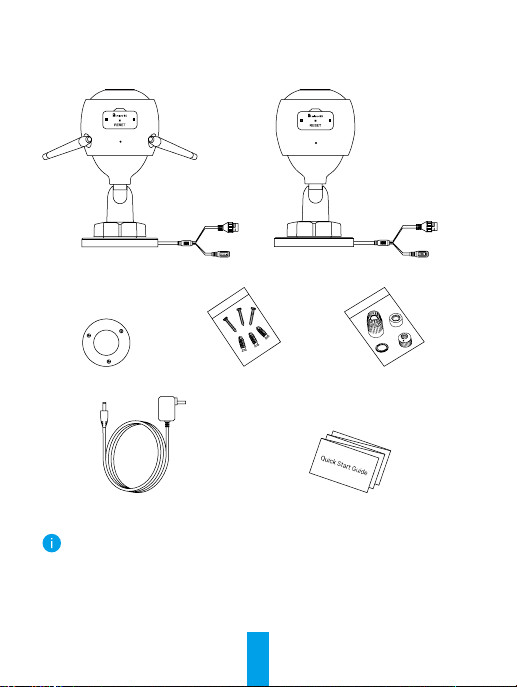
Package Contents
or
Wi-Fi Camera PoE Camera
Drill Template Screw Kit Waterproof Kit
Power Adapter Quick Start Guide
• The camera appearance is subject to the actual model you have
purchased.
• Power adapter is not included with the PoE camera model.
2
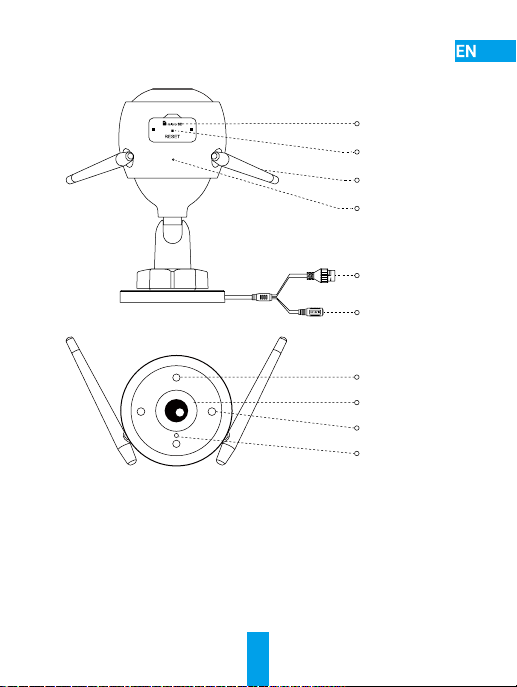
Basics
Wi-Fi Camera
Micro SD Card Slot
(Behind the cover)
Reset Button
MIC
Ethernet Port
Power Port
Antenna
LED Indicator
Lens
Spotlight
IR Light
Name Description
LED Indicator • Solid Red: Camera starting up.
• Slow-ashing Red: Wi-Fi connection failed.
• Fast-ashing Red: Camera exception (e.g. Micro SD
card error).
• Solid Blue: Video being viewed in the EZVIZ app.
• Slow-ashing Blue: Camera running properly.
• Fast-ashing Blue: Camera ready for Wi-Fi connection.
3
Basics
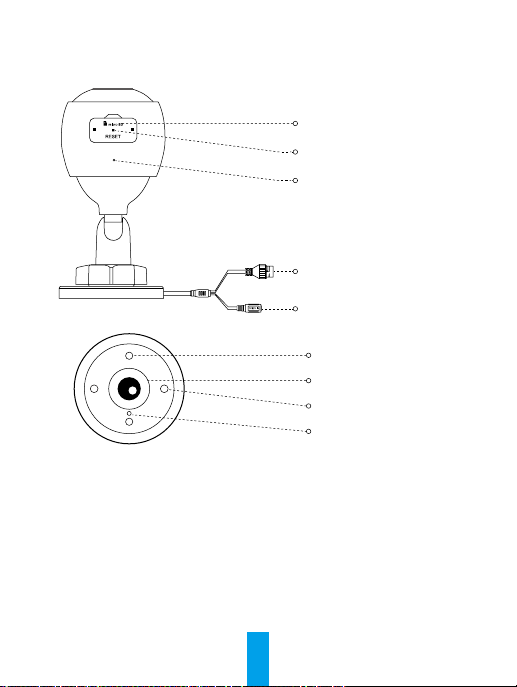
PoE (Power over Ethernet) Camera
Micro SD Card Slot
(Behind the cover)
Reset Button
MIC
PoE Port
Power Port
LED Indicator
Lens
Spotlight
IR Light
Name Description
LED Indicator • Solid Red: Camera starting up.
• Slow-ashing Red: Network connection failed.
• Fast-ashing Red: Camera exception (e.g. Micro SD
card error).
• Solid Blue: Video being viewed in the EZVIZ app.
• Slow-ashing Blue: Camera running properly.
4
Get the EZVIZ App
1. Connect your mobile phone to Wi-Fi using your 2.4GHz network.
2. Search for “EZVIZ” in App Store or Google PlayTM.
3. Download and install the EZVIZ app.
4. Launch the app, and register an EZVIZ user account.
Setup
Follow the steps to set your camera:
1. Power on your camera.
2. Log in to your EZVIZ app user account.
3. Connect your camera to the Internet.
4. Add your camera to your EZVIZ account.
How to Set Your Wi-Fi Camera?
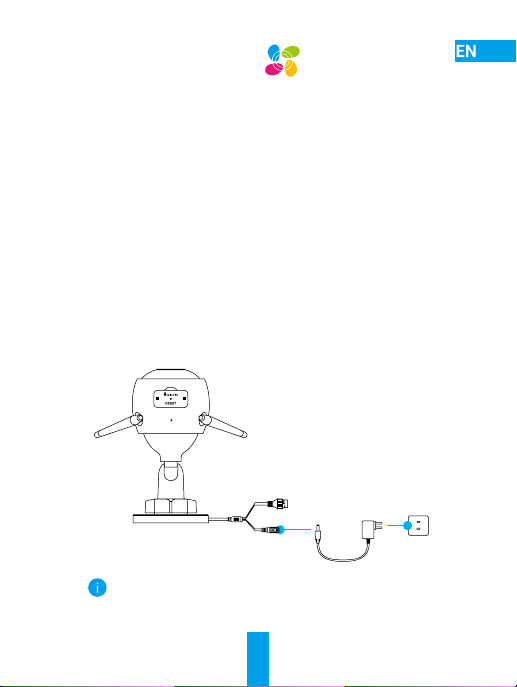
1 Power-on
Steps:
1. Connect the power adapter cable to the camera's power port.
2. Plug the power adapter into an electrical outlet.
Power Outlet
Power Adapter
The LED turning fast-ashing blue indicates that the camera is powered
on and ready for network conguration.
5
2 Connect to the Internet
• Wireless Connection: Connect the camera to Wi-Fi. Refer to Option 1.
• Wired Connection: Connect the camera to a router. Refer to Option 2.
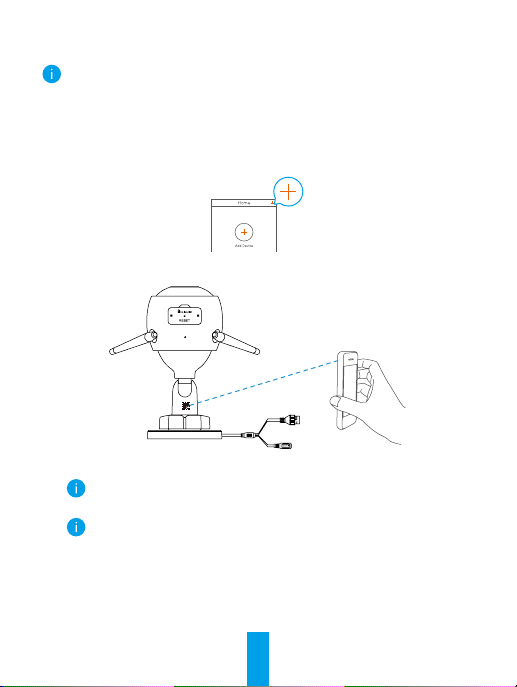
Option 1: Use the EZVIZ app to congure Wi-Fi.
Steps:
1. Log in to your account using the EZVIZ app.
2. On the Home screen, tap “+” on the upper-right corner to go to the
Scan QR Code interface.
3. Scan the QR code on the Quick Start Guide cover or on the body of
the camera.
4. Follow the EZVIZ app wizard to nish Wi-Fi conguration.
Please choose to connect your camera to the Wi-Fi to which your
mobile phone has connected.
Hold the reset button for 5s to restart and set all parameters to
default.
Hold the reset button for 5s in any of the following cases:
• The camera fails to connect to your Wi-Fi network.
• You want to change to another Wi-Fi network.
Other manuals for C3N
3
Table of contents
Languages:
Other Ezviz Security Camera manuals


Ezviz
Ezviz CSC3W1H2 User manual

Ezviz
Ezviz H4 User manual

Ezviz
Ezviz CSC3N1H2 User manual

Ezviz
Ezviz CS-CV206 User manual

Ezviz
Ezviz CS-C2C User manual

Ezviz
Ezviz Bullet Cloud Camera User manual

Ezviz
Ezviz C4W User manual

Ezviz
Ezviz H6 User manual

Ezviz
Ezviz CSC1HC1E2 User manual

Ezviz
Ezviz CS-CVXXX-31 Series User manual








