Exibel S-KW256SB User manual

Bluetooth-tangentbord med ställ
Bluetooth-tastatur med stativ
Bluetooth-näppäimistö ja teline
Bluetooth-Tastatur mit Ständer
Ver. 20140408
English 3
Svenska 9
Norsk 15
Suomi 21
Deutsch 27
Bluetooth Keyboard with
Built-in Tablet Stand
Art.no. Model
18-8407 S-KW256SB
38-2885 S-KW256SB

2

3
English
1
2
3
456
7
8
9
10
11
Bluetooth Keyboard with Built-in
Tablet Stand
Art.no 18-8407 Model S-KW256SB
38-2885 S-KW256SB
Please read theentire instruction manual before using theproduct and save it
for future reference. We reserve theright for any errors in text or images and any
necessary changes made to technical data. If you have any questions concerning
technical problems please contact our Customer Services.
Description
1. Leftmouse button
2. Scrollwheel
3. Rightmouse button
4. [Fn] Activate extra functions
5. [ ] Open Media Center Edition
6. Shows battery charge status, shines blue when charging is in progress
7. Indicator light, flashes when Bluetooth/[Caps Lock] is activated
8. TheFn indicator light shines for about 10 seconds when extra functions are
activated using the[Fn] button.
9. [ ] Pressing this button switches thetrackball on andoff
10. Trackball
11. Function buttons
4
English
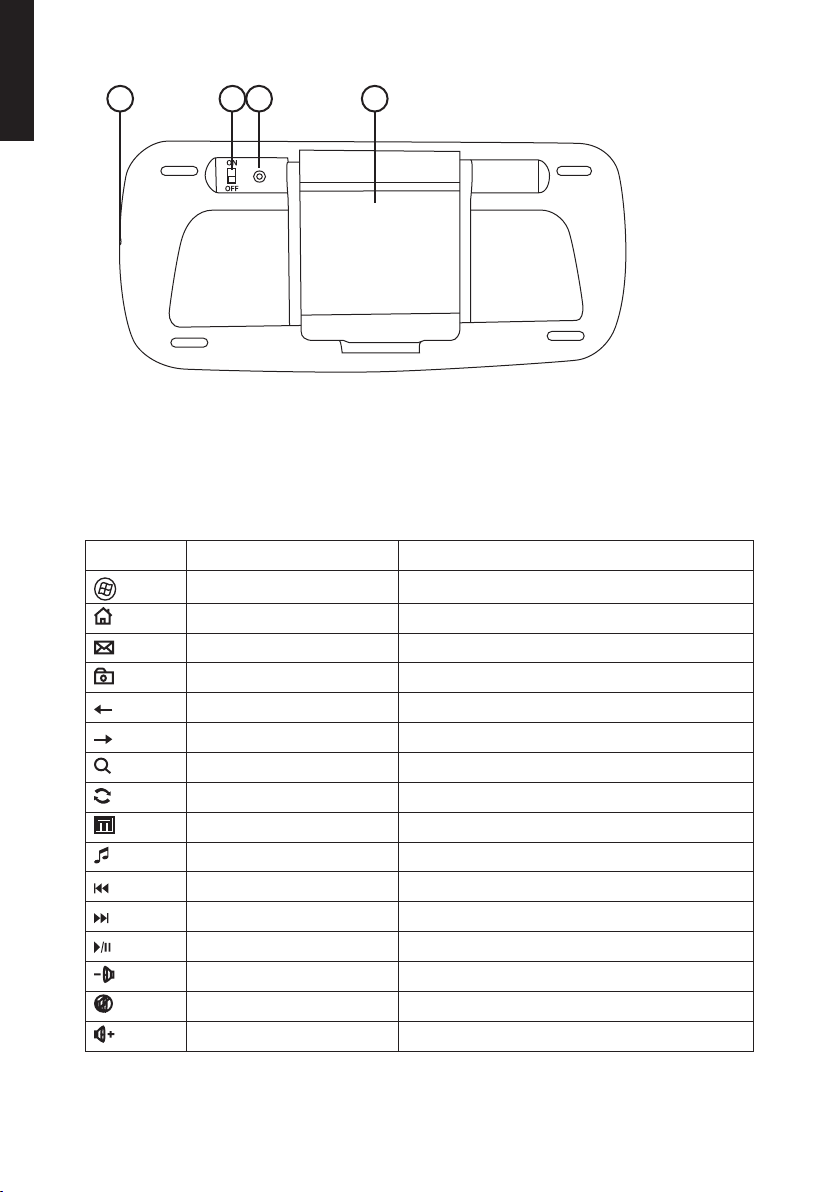
12 13 14 15
12. Charging socket
13. [ON–OFF] Power switch
14. Bluetooth connect (pairing) button
15. Folding tablet stand
Standard functions
Picture Designation Description of function
Start Open Media Center Edition
Home Go to/open theweb browser homepage
E-mail Start thee-mail program
Favourites Open thefavourites folder
Backwards Return to previous
Forwards Go tonext
Search Search function
Refresh Refresh function
Calculator Calculator function
Media Start Media Player
Previous track Return to theprevious track
Nexttrack Advance to thenexttrack
Play/pause Start playback/pause playback
V- Decrease volume
Mute Temporarily turn thesoundoff
V+ Increase volume

5
English
Extra functions
Controlled by the[Fn] button (4).
Bild Designation Description of function
F1: MyMusic Open My Music (Media Center Edition)
F2: MyVideo Open My Video (Media Center Edition)
F3: MyPictures Open My Pictures (Media Center Edition)
F4: MyTV Open My TV (Media Center Edition)
F5: MyRadio Open My Radio (Media Center Edition)
F6: DVD Open DVD (Media Center Edition)
F7: Close Close program (Media Center Edition)
F8: Winselect Browse programs/windows
F9: Zoomin Enlarge picture
F10: Zoomout Diminish picture
F11: Gadget Open agadget application
F12: Flip3D Open Flip 3D function (Windows 7)
Installation/Getting started
Charging
1. Connect theprovided USB cable between thekeyboard charging socket (12) and
aUSB port on thecomputer.
2. Theblue indicator light (6) will come on when thekeyboard is being charged.
3. Theindicator light goes off as soon as thekeyboard has stopped charging.
4. Theblue indicator light (6) flashes when thebattery needs charging.
Bluetooth connection
Please read theinstruction manual of thedevice you wish to connect thekeyboard to
before beginning.
1. Activate theBluetooth mode on thedevice that you want to connect thekeyboard to.
2. Startsearching for Bluetooth devices.
3. Presstheconnect button (14). TheBluetooth indicator light (7) will flash slowly.

6
English
4. Thekeyboard will be recognised
by thedevice being connected
to and appear as anicon on its
display screen called “Bluetooth
keyboard”. Double-click on theicon.
Note:Thepictures are just anexample
and depict installation in Windows XP.
5. SelectChoose apasskey for me
and then click onNext.
6. A“passkey” will appear on your
screen. Enterthepasskey on your
keyboard and then press [ENTER].
Thetwo devices will now connect
(pair) with eachother.
7. Whentheconnection has been
established, thekeyboard will appear
on theControl Panel of your device
listed under Bluetooth Devices.
Operating instructions
Trackball
1. Press[ ] (9) in order to switch thetrackball on andoff.
2. Holdin theleft (1) and right (3) mouse buttons for 3 seconds repeatedly to alter
theresolution of thetrackball. Settings: 1000–1200–1600 DPI. 1000 DPI is
thedefault setting.

7
English
A
B
C
Folding out the tablet/smartphone stand
1. Gripthestand at point Aas shown in
thepicture and flip thestandup.
2. Lifttheback support up and insert therear strut into theslot at pointB.
3. Placethekeyboard in work mode and adjust theangle of thestand at pointC.

8
English
4. Placeyour smartphone or tablet PC
onto thestand.
Troubleshooting
Å, Ä, Ö, Æ, Ø characters do not work.
If the Å, Ä, Ö, Æ, Ø characters do not seem to work when using the keyboard, it
means that the settings in your smartphone or tablet are not correctly set.
Samsung
Keyboard language settings are listed under Settings/(My device)/Language and input.
Press the gear icon to the right of Samsung Keyboard/input language.
iPhone/iPad
Keyboard language settings are listed under Settings/General/Keyboard/Keyboard/.
The current language will be displayed. Click on the desired language to change.
Care and maintenance
Clean theproduct using asoft, moist cloth. Useamild detergent and never use solvents
or strong, abrasive cleaning agents for cleaning as these can damage theproduct.
Disposal
This product should be disposed of in accordance with local regulations.
Ifyou are unsure how to proceed, contact your local authority.
Specifications
Trackball resolution 1000/1200/1600DPI
Range Up to 10m
Power supply Charged via aUSB port on acomputer
or USB charger via thesupplied cable
Size 272×122×24 mm
Weight 322g

9
Svenska
1
2
3
456
7
8
9
10
11
Bluetooth-tangentbord med ställ
Art.nr 18-8407 Modell S-KW256SB
38-2885 S-KW256SB
Läs igenom hela bruksanvisningen före användning och spara den sedan för fram-
tida bruk. Vireserverar oss för ev. text- och bildfel samt ändringar av tekniska data.
Vidtekniska problem eller andra frågor, kontakta vår kundtjänst (se adressuppgifter
påbaksidan).
Beskrivning
1. Vänster musknapp
2. Scrollhjul
3. Höger musknapp
4. [Fn] Aktivera utökade funktioner
5. [ ] Öppna Media Center Edition
6. Visar batteristatus, lyser blått när laddning pågår
7. Indikatorlampa, blinkar när Bluetooth/[Caps Lock] är aktiverat
8. Indikatorlampan vid ”Fn” lyser ica 10 sekunder när utökade funktioner aktiveras
med [Fn]-knappen
9. [ ] Tryck för att aktivera eller stänga av trackball
10. Trackball
11. Funktionsknappar

10
Svenska
12 13 14 15
12. Laddningsanslutning
13. [ON–OFF] Strömbrytare på/av
14. Anslutningsknapp för Bluetooth
15. Utfällbart ställ
Standardfunktioner
Bild Benämning Funktionsbeskrivning
Start Öppna Media Center Edition
Hem Gå till webbläsarens startsida
E-post Starta e-postprogrammet
Favoriter Öppna mappen Favoriter
Bakåt Gå till föregående
Framåt Gå tillnästa
Sök Sök
Uppdatera Uppdatera
Kalkylator Kalkylator
Media Starta Media Player
Föregående spår Gå till föregåendespår
Nästaspår Gå till nästaspår
Play/pause Starta uppspelning/gör paus iuppspelning
V- Sänk volymen
Mute Stäng av ljudet tillfälligt
V+ Höj volymen
Table of contents
Languages:
Other Exibel Keyboard manuals