Epomaker TH100 User manual


Other manuals for TH100
1
Table of contents
Other Epomaker Keyboard manuals

Epomaker
Epomaker EP84 User manual

Epomaker
Epomaker TK68 User manual

Epomaker
Epomaker RT100 User manual

Epomaker
Epomaker RT100 User manual

Epomaker
Epomaker MINI CAT68 User manual

Epomaker
Epomaker TH80 PRO User manual

Epomaker
Epomaker EP84 PLUS User manual

Epomaker
Epomaker TH66 PRO User manual

Epomaker
Epomaker EP87 User manual

Epomaker
Epomaker EP64 User manual

Epomaker
Epomaker 680 GASKET KIT User manual

Epomaker
Epomaker TH80 User manual

Epomaker
Epomaker GK96S Service manual

Epomaker
Epomaker EP75 User manual

Epomaker
Epomaker EP84 User manual

Epomaker
Epomaker EP84 Service manual

Epomaker
Epomaker TH96 PRO User manual
Epomaker
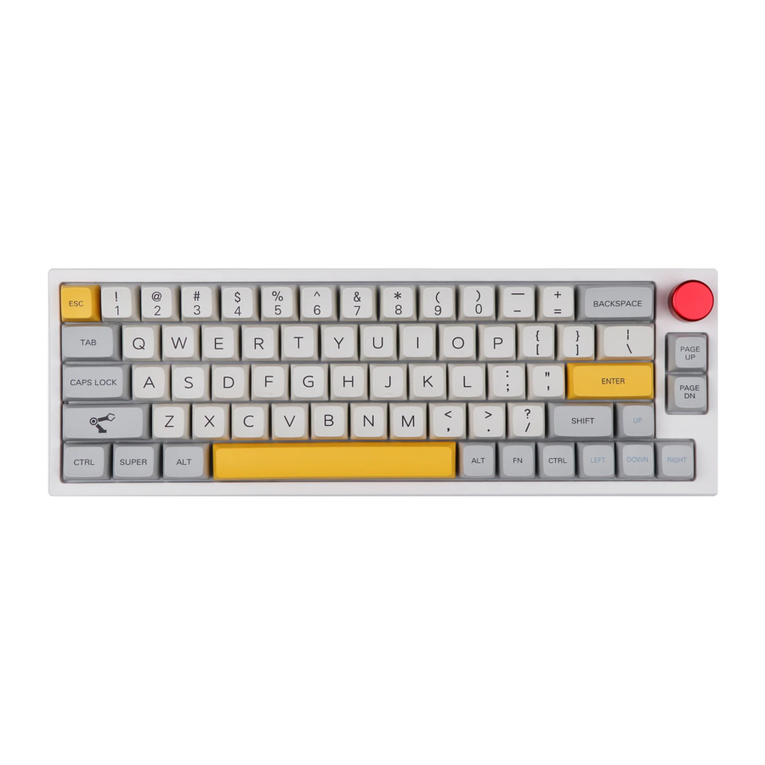
Epomaker TH66 PRO User manual
Epomaker
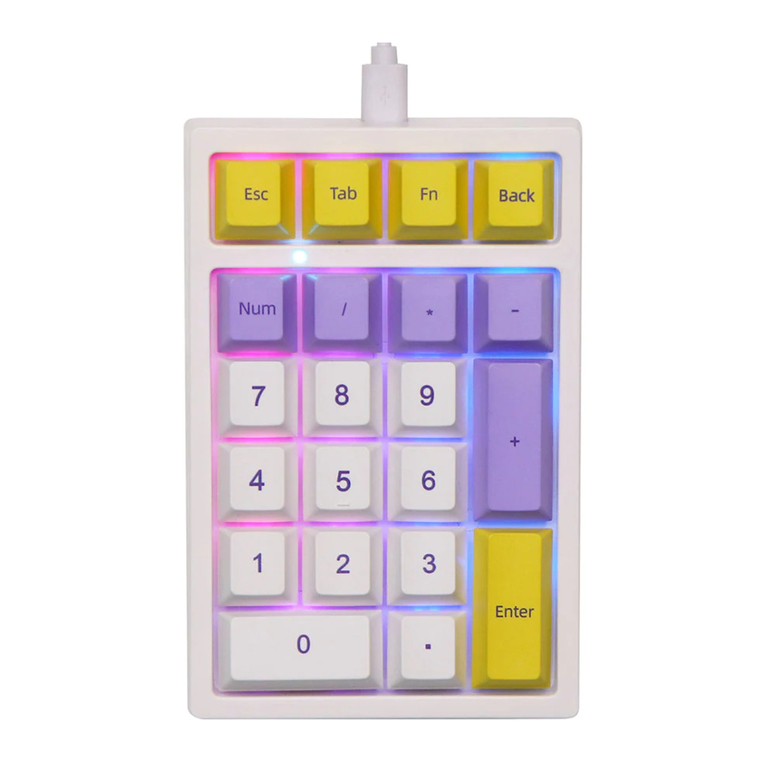
Epomaker TH21 User manual

Epomaker
Epomaker EK68 VIA User manual