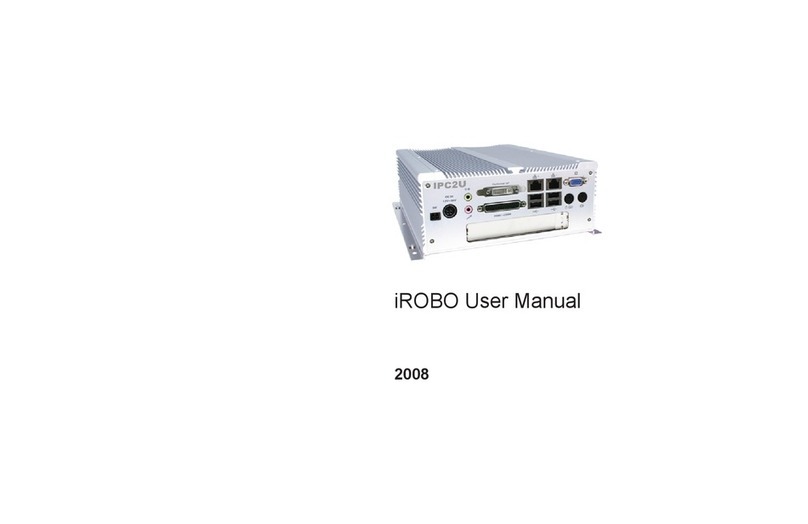
Enlight SR2042 User manual

1
2U Server Barebone
Quick Start Guide
www.enlightcorp.com

2
Index
1System Overview...................................................................................3
1.1 Front View..................................................................................................... 3
1.2 Back View..................................................................................................... 3
2Hardware Installation.............................................................................4
2.1 Remove Chassis Cover ................................................................................ 4
2.2 Server System Layout................................................................................... 4
2.3 Install Processor and Heat sink..................................................................... 5
2.3.1 To install the processor......................................................................................................5
2.3.2 To install the heat sink.......................................................................................................6
2.4 Install System Memory.................................................................................. 7
2.5 Install HDD.................................................................................................... 8
2.6 Install Power supply(Option)......................................................................... 9
3Raid Function Step ................................................................................9
3.1 SATA............................................................................................................. 9
3.1.1 Setup....................................................................................................................................9
3.1.2 To install the BC4000 Series RAID controller drivers in Windows 2003.................13
3.2 SCSI ........................................................................................................... 14
3.2.1 Setup..................................................................................................................................14
3.2.2 Install the Driver When You Install Windows...............................................................18
4OS Pre Installation Steps.....................................................................19
4.1 Speedy-In CD-Title Introduction.................................................................. 19
4.2 Windows install........................................................................................... 19
5Troubleshooting...................................................................................27
5.1 Power Supply.............................................................................................. 27
5.2 System Fans............................................................................................... 28

3
1
1
S
Sy
ys
st
te
em
m
O
Ov
ve
er
rv
vi
ie
ew
w
1
1.
.1
1
F
Fr
ro
on
nt
t
V
Vi
ie
ew
w
Figure 1-1 Front View
HDD Trays Floppy Disk Drive
HDD LEDs CD-ROM Drive
LEDs and Button Panel
1
1.
.2
2
B
Ba
ac
ck
k
V
Vi
ie
ew
w
Figure 1-2 Back View
Dual USB Port NIC1 Connector (RJ45)
PS/2 Mouse Port Serial Port
NIC2 Connector (RJ45) VGA Port
PS/2 Keyboard Port AC Power Connector

4
2
2
H
Ha
ar
rd
dw
wa
ar
re
e
I
In
ns
st
ta
al
ll
la
at
ti
io
on
n
2
2.
.1
1
R
Re
em
mo
ov
ve
e
C
Ch
ha
as
ss
si
is
s
C
Co
ov
ve
er
r
To remove the top cover:
Loosen the screw on the top of the
cover.
Press down the button as the arrow
shows.
Slide the cover toward the rear of
side horizontally as the arrow shows to
the back panel.
Figure 2-1 Lifting the cover from the chassis
2
2.
.2
2
S
Se
er
rv
ve
er
r
S
Sy
ys
st
te
em
m
L
La
ay
yo
ou
ut
t
Figure 2-2 System Top View

5
DIMM slots CD-ROM(Option)
Processors HDD Trays
System Fans Power Supply
Floppy Disk Expansion Slots
2
2.
.3
3
I
In
ns
st
ta
al
ll
l
P
Pr
ro
oc
ce
es
ss
so
or
r
a
an
nd
d
H
He
ea
at
t
s
si
in
nk
k
2.3.1 To install the processor
The location of the processor on the motherboard is shown as below:
Figure 2-3 Processor Location
Processor 1
Processor 2
If SINGLE processor is intended, always install the processor on the processor 1 socket
and for the location of processor 1 and processor 2, please refer to the above figure.
Unlock the socket by pressing the
lever sideways and lift it up to a
90°-100° angle.
Figure 2-4 Pressing the lever sideways

6
Carefully insert the processor into
the socket until it fits in place with the
marked corner matches the socket
corner near the end of the lever, while
making sure that the processor is
parallel to the socket.
Lock the socket by pushing down the
lever.
Figure 2-5 Inserting the processor into the socket
2.3.2 To install the heat sink
Rotate and pull up the two levers.
Figure 2-6 Pulling up the two levers
Place the heat sink on the top of the
installed processor.
Push down the levers.
Rotate them back until the clips click
on the heat sink indicating that it is
locked.
Figure 2-7 Placing the heat sink on top of the processor

7
2
2.
.4
4
I
In
ns
st
ta
al
ll
l
S
Sy
ys
st
te
em
m
M
Me
em
mo
or
ry
y
When you insert the DIMM(s), you have to always start with DIMM B3, A3. Please refer to
the following table:
DIMM A1 B1 A2 B2 A3 B3
2 - - - - V V
4 - - V V V V
6 V V V V V V
Table 2-1 DIMM Installation Option
Unlock a DIMM socket by pressing
the retaining clips outward.
Figure 2-8 Pressing the retaining clips outward
Carefully insert the DIMM into the
socket until the retaining clips snap
back in place.
Figure 2-9 Inserting the DIMM into the socket
B3 A3 B2 A2 B1 A1

8
2
2.
.5
5
I
In
ns
st
ta
al
ll
l
H
HD
DD
D
To open the HDD tray:
Turn the lock counterclockwise to
release the lever from the HDD.
Slide the released button to the
direction of the arrow, and the lever will
be lifted automatically.
Figure 2-10 Pressing the released button Slide the HDD assembly out of the
drive bay.
Figure 2-11 Sliding the HDD assembly out of the drive bay
To install the HDD:
Place the HDD to the HDD tray and
secure it with four screws as shown.
Figure 2-12 Securing the HDD to the HDD tray
Carefully insert the HDD assembly
into the bay with the lever lifted until it
completely enters the bay.
Figure 2-13 Inserting the HDD assembly into the bay

9
Push the levers back in place.
Turn the lock on the lever clockwise
to secure the HDD.
Figure 2-14 Pushing the levers back in place
2
2.
.6
6
I
In
ns
st
ta
al
ll
l
P
Po
ow
we
er
r
s
su
up
pp
pl
ly
y(
(O
Op
pt
ti
io
on
n)
)
To install the power supply:
Push the power supply right into the
tray until it completely enters the tray.
Figure 2-15 Putting the power supply into the tray
3
3
R
Ra
ai
id
d
F
Fu
un
nc
ct
ti
io
on
n
S
St
te
ep
p
3
3.
.1
1
S
SA
AT
TA
A
3.1.1 Setup
Step 1:To enter the BIOS Configuration Utility:

10
Turn on your computer to start
booting.
When prompted, type <CTRL+R>
to access the RAIDCore BIOS Array
Configuration Utility.
Step 2:To initialize disks from the BIOS:
Use the arrow keys to select
Initialize Disk(s) from the Main menu.
Press Enter.
Use the arrow keys to highlight a
disk, and then press the Insert key to
select the disk or choose all selectable
disks by pressing A.
Press Enter to initialize the selected
disks.
Press C to continue with initialization.
Step 3:To create an array:
Table of contents