Encore ENMUV-2 User manual

ENMUV-2
External USB Video Adapter (DVI/VGA)
User Manual

ENMUV-2 – User’s Manual
2
Important Notice:
This manual is provided “as is” without warranty of any kind, either express or implied,
including but not limited to the implied warranties or conditions of merchantability or
fitness for a particular purpose. In no event shall we, its directors, officers, employees or
agents be liable for any indirect, special, incidental, or consequential damages (including
damages for loss of profits, loss of business, loss of use or data, interruption of business),
even if we have been advised of the possibility of such damages arising from any defect
or error in this manual or product.
Specifications and information contained in this manual are furnished for information use
only, and are subject to change at any time without notice, and should not be construed
as a commitment by us. We assume no responsibility or liability for any errors or
inaccuracies that may appear in this manual, including the products and software
described in it.
No part of this manual, including the products and software described in it, may be
reproduced, transmitted, transcribed, stored in a retrieval system, or translated into any
language in any form or by any means, except documentation kept by the purchaser for
backup purposes, without the express written permission of us.
Product warranty or service will not be extended if:
zThe product is repaired, modified or altered, unless such repair, modification of
alteration is authorized in writing by us.
zThe serial number of the product is defaced or missing.
Products and corporate names appearing in this manual may or may not be registered
trademarks or copyrights of their respective companies, and are used only for
identification or explanation and to the owners’ benefit, without intent to infringe.
zWindows, MS-DOS, and DirectX are registered trademarks of Microsoft
Corporation.
zAdobe and Acrobat are registered trademarks ofAdobe Systems Incorporated.
The product name and revision number are both printed on the product itself. Manual
revisions are released for each product design represented by the digit before and after
the period of the manual revision number. Manual updates are represented by the third
digit in the manual revision number.
Copyright © 2010 ENCORE ELECTRONICS, INC. All Rights Reserved.

ENMUV-2 – User’s Manual
3
Contents:
Chapter 1: Introduction....................................................................4
1.1 Applications........................................................................................5
1.2 Features.............................................................................................5
1.3 Package Contents..............................................................................6
1.4 Requirements.....................................................................................6
1.5 Specifications.....................................................................................7
Chapter 2: Installation .....................................................................9
2.1 Installation..........................................................................................9
2.2 Connected to the ENMUV-2 and monitor.........................................11
Chapter 3: Getting Started ............................................................13
3.1 Display Modes..................................................................................13
3.1.1 Extend Mode (Default) ..................................................................14
3.1.2 Mirror Mode...................................................................................17
3.1.3 To Be The Primary Display Monitor...............................................19
3.2 Adjusting Resolution, Color Depth and Refresh Rate......................20
3.3 Standby and Hibernate, Shut Down and Restart .............................24
3.4 Disconnecting the ENMUV-2............................................................24
3.5 Using Dual ENMUV-2.......................................................................24
3.6 Verifying the Driver Installation.........................................................26
3.7 Uninstall the ENMUV-2 and Driver...................................................27
Chapter 4: Q&A.............................................................................28
Chapter 5: Regulatory Compliance...............................................30

ENMUV-2 – User’s Manual
4
Chapter 1: Introduction
This ENMUV-2 enables you to connect one more monitor, LCD or projector to a
computer with a USB 2.0 port. For desktop users adding an extra monitor via USB
connection is easier than ever without having to open the computer chassis to install an
internal video card. Once the installation is done, the USB-attached monitor soon wakes
up. No function key hassle to swap a second monitor.
With this ENMUV-2, you can enjoy many benefits brought by an add-on monitor. The
most obvious one is that you get more desktop area to have more applications visible at
one time. For example, you may work on one monitor while your family watching video
on the other. No more stacking windows within the confines of a single display. Or you
may span an application, e.g. spreadsheets, across two sides of displays. What’s more,
ENMUV-2 is hot pluggable. If you are not using the extra monitor, just unplug the
ENMUV-2 at any time; no reboot needed.
System performance is an important issue when using multiple monitors.Another benefit
of this ENMUV-2 is that it uses little computer resource; ensuring users get quality
display without comprising computer performance.
VGA or DVI monitor
USB-enabled computer

ENMUV-2 – User’s Manual
5
1.1 Applications
• Office workstation
1. View your large spreadsheets across two screens with display continuity
2. Multitask more effectively without overlapping windows
3. Edit on one screen while surfing the Internet information on the other
• On the road
1. Do multiple screen presentations without bringing another computer
2. Easily provide multiple screen exhibitions in a trade show
• Graphics workstation
1. Use second display for palettes/tools
2. Get a panoramic view of large documents
• Editing workstation
1. Type documents on one screen while viewing reference material on the other
2. Compare two documents simultaneously across two screens
• Financial analysis
1. Have one monitor per data stream
2. View charts and live data at the same time
• Entertainment
1. View videos/TV on one screen and reviews on the other
2. Get additional perspectives when playing games
1.2 Features
• Easy to Install: No need to open computer cases
• Makes Multi-tasking Easier : ideal for users who work with multiple programs and
windows at the same time
• Connects up to 6 Additional Monitors
• Resolution up to 1920x1080
• Cost Effective Digital Signage Solution Ready
• Add-on monitor, LCD or projector through a single USB 2.0 port
• Extend and Mirror mode support
• Video streaming is supported up to 1080p

ENMUV-2 – User’s Manual
6
1.3 Package Contents
Before installation, please check the items in the package. The package should contain
the following items:
• 1 - ENMUV-2
• 1 - USB Cable
• 1 - DVI to VGA Adapter Connector
• 1 - Quick Installation Guide
• 1 - Driver CD (Driver Utility and User Manual)
1.4 Requirements
Minimum PC computer requirements:
• Minimum CPU: Intel Pentium®/Celeron® 1.2GHz; AMD®K6®/Athlon™/Duron™ 1.2
GHz; or higher
• 512 MB RAM
• 1x USB2.0 port for each USB Video Adapter
• 30 MB free disk space
• Windows®7 / XP (SP2)/ 2000 (SP4), Windows Vista®(SP1).
• Super VGA (800 x 600) or higher resolution monitor
To play DVD on the ENMUV-2-connected monitor, in addition to the requirements above,
the following requirements should also be met:
• With dual core CPU at 2.0 GHz or faster
• The screen resolution is set to 800x600 with 16 bit color
In addition to the following processor and RAM configurations (base on usage model):
For 1-2 monitors, business usage, productivity target.
This may not provide full frame rate DVD playback at full screen.
1.2 GHz Single Core CPU
512 MB RAM

ENMUV-2 – User’s Manual
7
For 3 monitors, where 1 could run DVD video while also targeting productivity
and business applications.
Supports only 1 video of DVD resolution at full screen:.
1.8 GHz CPU
1 GB RAM
For 6 screen where 1 screen can run full screen DVD video:
1.6 GHz Core Duo
1 GB RAM
1.5 Specifications
Device Interface USB 2.0
Video Output VGA or DVI-I (Adapter included)
Connectors Video output:
1. VGA HDDE 15 pin Female Connector
2. DVI HDDE 29 pin Female Connector
Host upstream link: USB Mini-B Type Female Connector
Connectivity Up to 6 additional Monitors (Each monitor needs an individual
ENMUV-2 and USB port)
RAM 8 MB x 16 DDR Synchronous DRAM (SDRAM)
Power Mode Bus powered
Power Consumption 430 mA
Operation System Support Windows®7 / XP (SP2)/ 2000 (SP4), Windows Vista®(SP1)
Supported Modes Extended Desktop (Default), Mirrored Desktop, Primary Display

ENMUV-2 – User’s Manual
8
Resolutions, Refresh rate
and color depth Color
Depth
Resolution
Name
Refresh rates
at 16 bit color
quality
Refresh rates
at 32 bit color
quality
640x480 VGA 60 72 75 85 60 72 75 85
800x600 SVGA 56 60 72 75 85 56 60 72 75 85
1024x768 XGA 60 70 75 85 60 70 75 85
1280x720 720p 60 60
1280x768 WXGA+ 60 75 85 60 75 85
1280x800 WXGA 60 60
1280x1024 SXGA 60 75 85 60 75
1366x768 WXGA+ 60 60
1400x1050 SXGA+ 60 75 85 60 75 85
1600x1200 UXGA 60 60
1680x1050 WSXGA+ 60 60
1920x1080 1080p 60 60
*Note that interlaced modes and reduced blanking modes are not supported.
Housing ABS Plastic
Dimensions 84.5 (L) x 55.5 (W) x18 (H) mm
USB Cable zSeparated from the body
zType: USB A -Type Male to 5pin Mini USB B-Type Male
zLength: 1M
Operating Temperature 10°C~40°C
Storage Temperature -5°C~50°C
Operating Humidity 0%~80% RH, non-condensing

ENMUV-2 – User’s Manual
9
Chapter2: Installation
2.1 Installation
Do not connect the ENMUV-2 to the USB port at this point. You will be asked to do so
later on in this installation procedure.
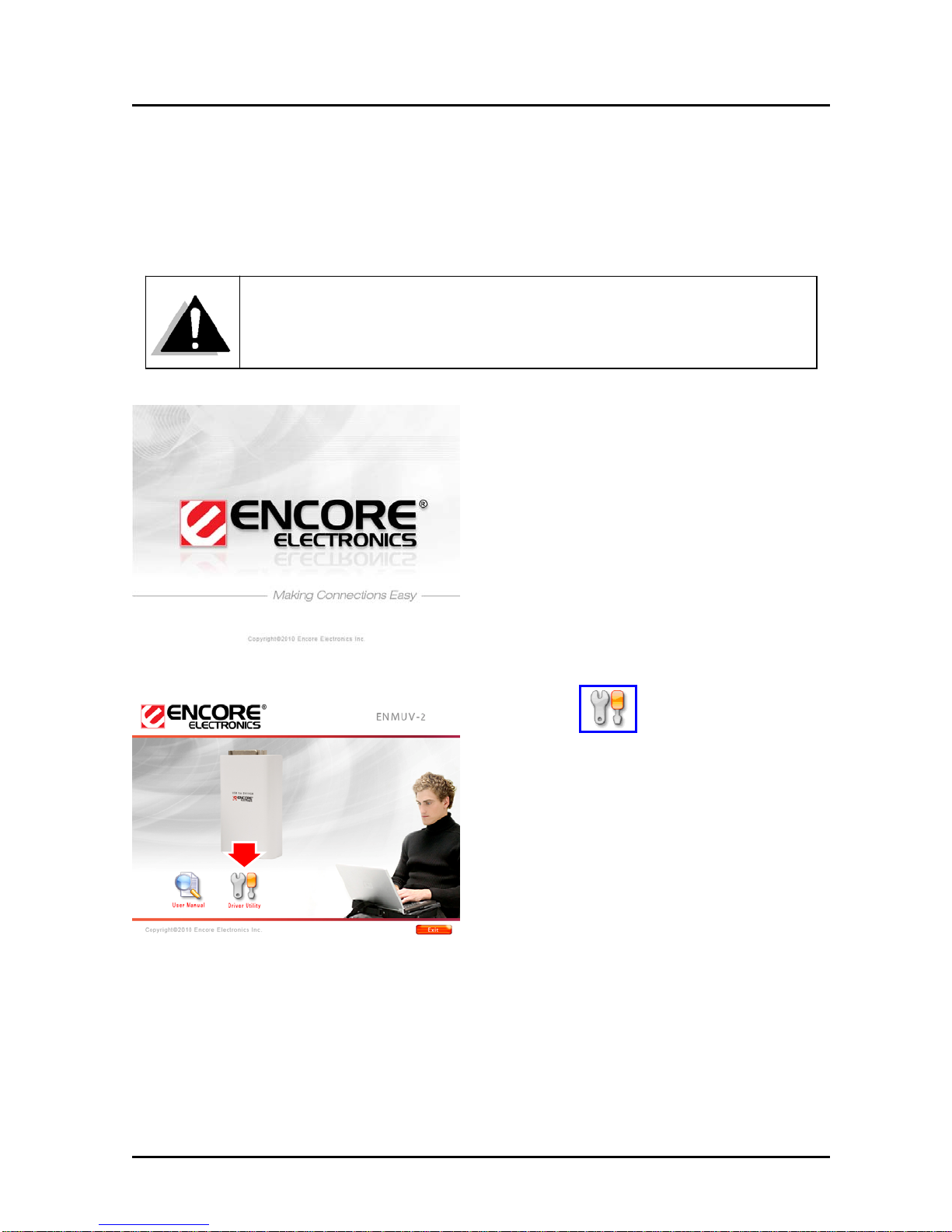
1. Insert the provided CD into the CD-ROM
drive. The setup screen should
automatically appear.
2. Click the Driver Utility icon.

ENMUV-2 – User’s Manual
10
3. Please read the License Agreement and
click “ I Accept ”button.
4. Please wait while Windows configures
DisplayLink Core Software. Your
screens may temporarily go black or flash
during this process.
5. Click Yes to restart the computer. We
recommend you to reboot the computer
after driver installation. If the reboot
prompt doesn’t appear, make sure to
manually reboot your computer.
6. When finished, the installation screen will
disappear and you will return to your
desktop
Other manuals for ENMUV-2
1
Table of contents
Other Encore Adapter manuals

Encore
Encore ENPWI-SG User manual

Encore
Encore ENLUH-302 User manual

Encore
Encore ENUWI-G2 User manual

Encore
Encore ENXUS User manual

Encore
Encore ENU-WI-G User manual

Encore
Encore ENMUV - User manual

Encore
Encore ENUWI-G2 User manual

Encore
Encore ENCA-MDVP User manual

Encore
Encore ENCA-MDHP User manual

Encore
Encore ENUWI--XAN3 User manual

Encore
Encore ENUWI-2XN4x User manual

Encore
Encore ENPWI-SG User manual

Encore
Encore ENLUH-302 User manual

Encore
Encore ENXUS User manual

Encore
Encore ENUTV User manual

Encore
Encore ENUBT-C2E User manual

Encore
Encore ENLWI-G2 User manual

Encore
Encore N300 Series ENLWI-NX2 User manual

Encore
Encore ENUWI--XAN3 User manual

Encore
Encore ENCA-MDDP User manual