ELAC Discovery Connect DS-C101W-G User manual

Discovery Connect DS-C101W-G OPERATING INSTRUCTIONS

ELAC Discovery Connect | www.elac.com | Page 1
Important Safety Instructions
1. General information
• Please read and follow these safety instructions.
• Keep them safe for future reference.
• Observe all warnings on the unit and in the manual. Please check the speaker for damage before use.
The unit must be in perfect working condition. Damaged parts may lead to personal injury.
2. Use only as directed
• Connect the unit according to the instructions in the manual.
3. Location
• Install the unit on a level surface only
• When choosing the location for this device do not place them in locations that are:
• In direct sunlight
• Very humid
• Prone to vibrations
• Exceptionally hot or cold
Do not block any ventilation openings. Install in accordance with the manufacturer’s instructions.
• Do not install this device in a closed rack or in a closed cupboard.
• Do not put burning candles on or near the device.
• Do not install the device near transformers because electromagnetic stray fields can cause hum
noise on woofers.
4. Service
DANGER! Do not open the cabinet because the components and conductors may carry dangerous levels
electricity! Servicing to be carried out by qualified service personnel only.
Servicing is required when the loudspeaker has been damaged in any way, such as damage to
the power supply cord or the plug, or when liquid has been spilled or objects have fallen into the
loudspeaker, the speaker has been exposed to rain or moisture, does not operate normally, or has been
dropped. To reduce the risk of electric shock, do not open the loudspeaker. Servicing to be carried out
by qualified service personnel only.

ELAC Discovery Connect | www.elac.com | Page 2
5. Cleaning
NOTE: Clean only with soft, smooth cloth or with dust brush. Do not use scouring agents, alcohol,
benzene, furniture polish or other agents for cleaning! Modern furniture is often coated with multiple
varnishes and plastics which can be treated with chemical agents. Some of these agents contain
substances which degrade or soften the rubber feet.
6. Disposal
The packaging is made from recyclable materials. Dispose of this in an environmentally friendly manner.
At end of life do not dispose the speaker with the standard household waste. The speaker must be
recycled in accordance with local legislation. Ask your local government for further information on
recycling as the device contains valuable raw materials. Disable the speaker before disposal.
7. Power
This unit is only intended to be connected to voltages that are listed on the rear panel of the cabinet.
Connection to any other voltage may cause irreversible damage to the subwoofer and will void the
warranty. Use of plug adapters is not recommended because they may allow connection to voltages
other than those printed on the back of this subwoofer.
8. Compliance Information for the Wireless Transmitter
The term “IC:” before the radio certification number only signifies that Industry Canada technical
specifications were met. This equipment complies with FCC and IC radiation exposure limits set forth for
an uncontrolled environment. This equipment should be installed and operated with minimum distance
20cm between the radiator and your body. This transmitter must not be co-located or operating in
conjunction with any other antenna or transmitter.
Operation is subject to the following two conditions: (1) this device may not cause interference, and (2)
this device must accept any interference, including interference that may cause undesired operation of
the device.
To reduce potential radio interference to other users, the antenna type and its gain should be so
chosen that the equivalent isotopically radiated power is not more than that permitted for successful
communication.

ELAC Discovery Connect | www.elac.com | Page 3
Philosophy
Thank you for purchasing this ELAC product.
Since the time we started (1926), ELAC has always striven to achieve the very best.
Your new ELAC speakers are built to the highest standards using high-quality components that are carefully
constructed to deliver the best-in-class sound quality. They are developed by a passionate group of individuals
whose soul purpose is to bring a new dimension of sound quality into your home. Enjoy!

Controls and Indicators
1. Multi-Function LED—This LED is used to show the current status of the Discovery Connect.
• The brightness of this LED can be changed using the free iOS/Android App or web interface.
• Please refer to separate sections of this manual for further explanations of the LED status
2. Power Input— Used for providing power to the unit from the included AC power supply.
3. Output 1—Provides native digital output from the Discovery Music Server and Roon Cores.
4. Ethernet Input—Use this when connecting the Discovery Connect to your wired home network (Best solution).
See page 5 for how to connect to a wireless network.
5. Bluetooth Pair/Reset Button— Used to begin the Bluetooth Pairing Process for audio devices.
6. Wireless Pair Button—This button is used to pair the Discovery Connect with other AirX products.—See
Page 11 for pairing instructions
7. Output 2—Provides analog and digital outputs from the Discovery Music Server, Roon Cores, Spotify Connect,
AirPlay, and Bluetooth. The output is fixed at 96Khz 24-Bit
1
2
3 4 7
6
5
ELAC Discovery Connect | www.elac.com | Page 4

ELAC Discovery Connect | www.elac.com | Page 5
Connecting to your Home Network
Wired Connection
1. Connect an Ethernet cable (Not provided) to an available LAN port on your router or switch to the Ethernet
input on the back of the Discovery Connect.
2. Apply power to the Discovery Connect by connecting the power cord to an available outlet and to the power
input on the Connect.
3. The status LED will begin flashing during the power on phase and will go solid once it has connected to the
network and is ready to play music.
Wi-Fi Connection
1. Download the Discovery Connect App from the Google Play store or Apple App Store.
2. Ensure Bluetooth is enabled on your phone/tablet and launch the Discovery Connect Application.
3. The app should find the Discovery Connect as shown in the Fig. 1
4. Select the Discovery Connect and you will be taken to the main menu. Select WiFi Setup from the top.
5. You will be shown a list of all available wireless networks as shown in Fig 2. Find yours and select it. If your
network is password protected please enter the password as shown in Fig. 3 and choose submit. The unit will
reboot and you will connected to your home network.
Fig 1 Fig 2 Fig 3

ELAC Discovery Connect | www.elac.com | Page 6
Connecting the Discovery Connect
Output 1—Native Digital Output
Output 1 –Provides a native digital output from the Discovery Connect. With no sample rate conversion for
content up to 192khz 24-Bit quality. This output does not support AirPlay, Bluetooth or Spotify Connect. Simply
connect the optical/coaxial output from the Discovery Connect to the Optical Input on your integrated amp/
receiver/preamp/DAC.
Output 2—Analog and Digital Output Combined Output
Output 2 –Provides both digital and analog outputs from the Discovery Connect. All content is sample rate
converted to 96kHz 24-Bit unless the AirX2 output is activated. In this case, content is sample rate converted
to 44.1kHz 16-Bit. This output supports Roon Ready, Discovery Ready, Spotify Connect, AirPlay, and Bluetooth
content.

Using with the Discovery Music Server or Roon Core
Enabling the Discovery Connect in Roon/Roon Essentials
After connecting the Discovery Connect to your home network, launch Roon/Roon Essentials on your PC or
tablet. Go to Settings and then Audio. A list of all available audio devices will be listed. Locate the Discovery
Connect and click enable. You can also change the default name for the Connect. Now, the Discovery Connect
will be available in the audio output section of the Roon/Roon Essentials Application.
ELAC Discovery Connect | www.elac.com | Page 7
Using Spotify Connect
Using Spotify Connect
1. If you have already connected the Discovery Connect to your home network, proceed to step 2. If you have
not connected it to your home network please go to page 7 and complete the steps. Then return to step 2 on
this page.
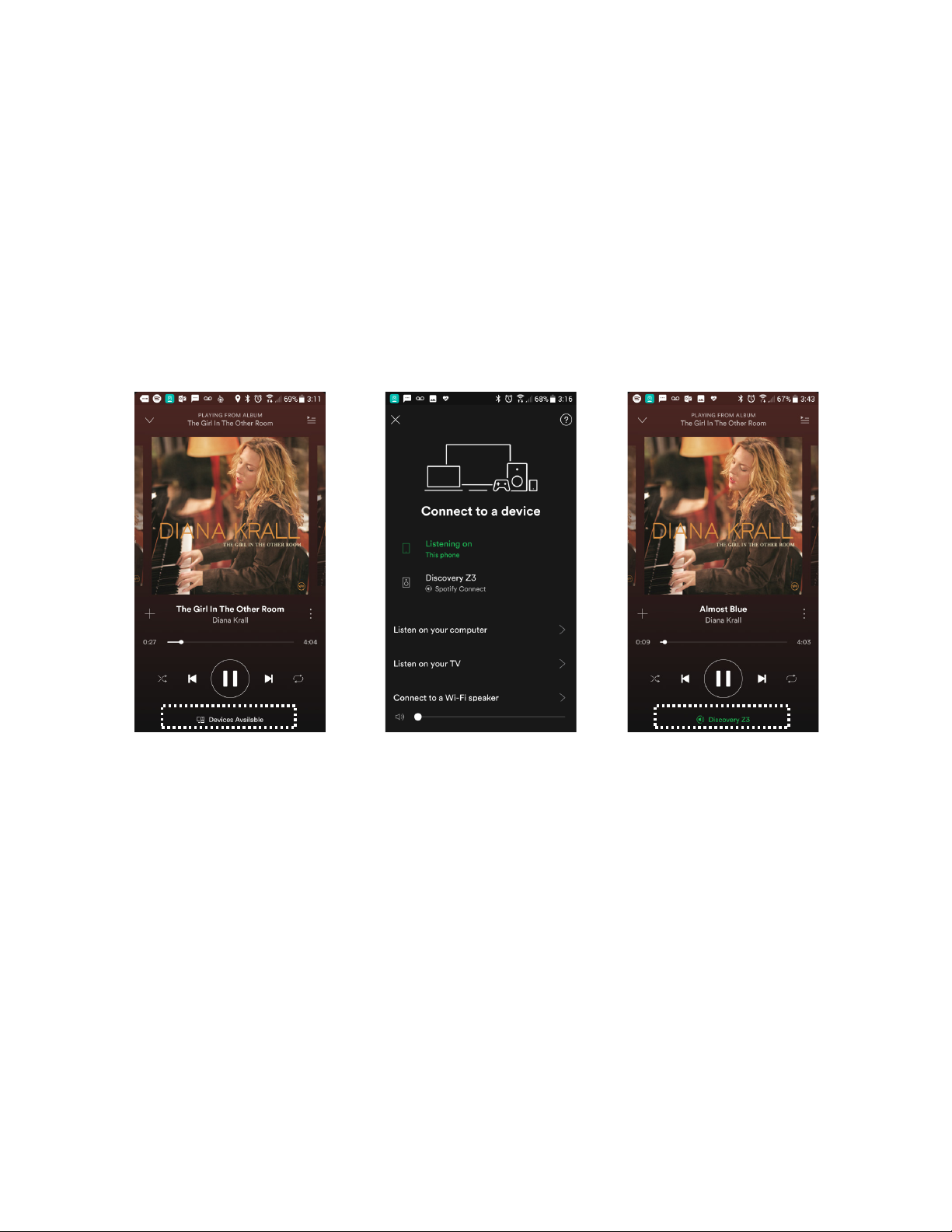
2. Download, install and login to the Spotify App on your phone/tablet/PC. Spotify Connect requires a Premium
subscription to use this feature.
3. Start the Spotify App and you will see “Device Available” text at the bottom of the app. Click on this and you
will be presented will all of the Spotify Connect devices available. Select the Discovery Connect and now
music will start playing on the Discovery Connect.
Note: The volume control on your phone and in the Spotify app will now be linked with the volume control on
the Discovery Connect.
ELAC Discovery Connect | www.elac.com | Page 8

Listening to Bluetooth Audio
Pairing your Bluetooth Smartphone/Tablet for Audio
Note: Please note that this process is only for playing back audio from your Bluetooth device. It is not necessary
to pair your device when using the App.
You can begin the paring process by using the smartphone application or the pairing button on the rear panel.
Rear Panel Pairing Process
1. Press and hold the BT Pair button (Fig 1) for 5 seconds or until the LED status light begins flashing red.
2. Go to the Bluetooth settings section on your smartphone and scan for new devices (Fig 2). Select the
Discovery Connect from the list of available devices. It prompted for a pass code, accept that one that is
displayed on your device and choose pair/connect. All audio from your connected device will now come
from the Discovery Z3. Please note that when using Bluetooth you wil have two volume controls (Phone
and Z3)
App Pairing Process
1. Download and install the Discovery Connect App from the Google Play
Store or Apple App Store
2. Launch the App and select the Discovery Connect from the list of devices
(If this is your first time using the app). On t he Control page activate
the Bluetooth Discoverable On/O selection (Fig 3).
3. Go to the Bluetooth settings section on your smartphone and scan for
new devices (Fig 2). Select the Discovery Connect from the list of
available devices. It prompted for a pass code, accept that one that is
displayed on your device and choose pair/connect.
Fig 3
ELAC Discovery Connect | www.elac.com | Page 9
This manual suits for next models
1
Table of contents
Languages:
Other ELAC Server manuals