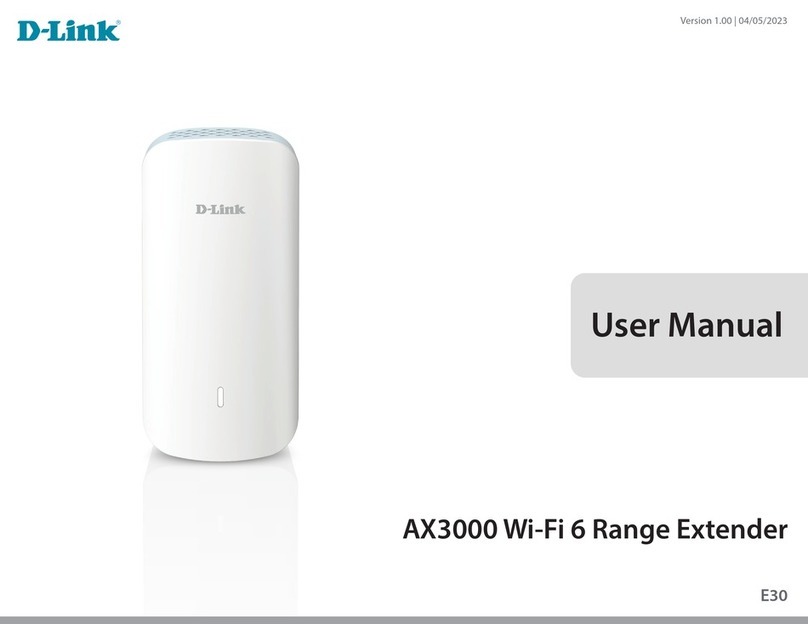
D-Link DHP-W220AV User manual

MINI EXTENSOR WIRELESS N150 POWERLINE
AV 200MBPS
DHP-W220AV
QUICK
INSTALLATION
GUIDE
КРАТКОЕ РУКОВОДСТВО ПО УСТАНОВКЕ
GUÍA DE INSTALACIÓN RÁPIDA
GUIA DE INSTALAÇÃO RÁPIDA
快速安裝指南
PETUNJUK PEMASANGAN CEPAT

DHP-W220AV
2
ENGLISH
CONTENTS OF PACKAGING
MINI EXTENSOR WIRELESS N150 POWERLINE AV 200MBPS
DHP-W220AV
If any of these items are missing from your packaging, contact your
reseller.
CAT5 ETHERNET CABLE
WI-FI CONFIGURATION CARD
CONTAINS THE DEVICE'S DEFAULT WI-FI INFORMATION
• A broadband Internet connection
• An existing Powerline network
• Smartphone, tablet, or computer with Wi-Fi capability
• For access from a web browser:
• Internet Explorer 8, Firefox 12, Chrome 20, or Safari 4 or higher
SYSTEM REQUIREMENTS
Wi-Fi Conguration Note

DHP-W220AV 3
ENGLISH
PRODUCT SETUP
HARDWARE INSTALLATION
Before you can congure your DHP-W220AV for use, make sure the location being extended is on
the same electrical circuit. The diagram below shows an example of a Powerline network:
Step 1
Make sure your existing HomePlug AV device is plugged into a
power outlet near your cable or DSL modem and connected to your
network.
Step 3
Connect the included Ethernet cable to the LAN port on your
DHP-W220AV and to your computer's port. You may also connect
to the DHP-W220AV over Wi-Fi with the information on the Wireless
Conguration Card to proceed to set up your wireless network.
Your computer and DHP-W220AV are now connected. Please refer to “Setup Wizard” on the
next page to connect your DHP-W220AV with your existing Powerline network.
ROOM A
HomePlug AV
Device
ModemInternet
Step 2
In the other room, plug your DHP-W220AV into a wall outlet in a
place you want to extend your network.
ROOM A ROOM B ROOM C
DHP-W220AV DHP-W220AV
HomePlug AV
Device
ModemInternet Notebook Notebook
iPad iPad
ROOM B
DHP-W220AV Notebook
iPad
DHP-W220AV
Notebook

DHP-W220AV
4
ENGLISH
Step 1
Open your web browser and go to http://192.168.0.50.
Step 2
Select admin for the Username and leave the Password blank, then click Login.
Step 3
From the landing page, click SETUP WIZARD and follow the instructions to congure your
DHP-W220AV.
Step 4
When prompted, press the Simple Connect Button for 2 seconds on your existing device to connect
it to the DHP-W220AV.
Note: If you have not previously secured your existing Powerline network, you will need to set up
security for all of your existing Powerline devices. Perform the following steps for each device: press
the Simple Connect Button on the DHP-W220AV, then press the Simple Connect Button on your
existing Powerline device within 2 minutes.
Step 5
Follow the wizard’s steps to set up your Powerline network. Click Save to complete the wizard. For
more detailed support, please refer to the User Manual.
PRODUCT SETUP
SETUP WIZARD

DHP-W220AV 5
ENGLISH
TROUBLESHOOTING
SETUP AND CONFIGURATION PROBLEMS
1. HOW DO I CONFIGURE MY EXTENDER MANUALLY?
- On your PC or mobile device, connect to the extender's wireless network. Locate the Wi-Fi
name (SSID) and password for your device as printed on the included Wi-Fi Conguration Card.
- Open a web browser and enter the address http://192.168.0.50.
- The default password for the "Admin" account should be left blank.
- If you have changed the password and can not remember it, you will need to reset the extender.
2. HOW DO I RESET MY EXTENDER TO FACTORY DEFAULT SETTINGS?
- Ensure the extender is powered on.
- Press and hold the Simple Connect button for 5 seconds or more.
Note: Resetting the extender to factory defaults will erase the current conguration settings.
To recongure your settings, log into the extender as outlined in question 1, then congure the
extender.
3. HOW DO I ADD A NEW WIRELESS CLIENT OR PC IF I HAVE FORGOTTEN MY
WIRELESS NETWORK NAME (SSID) OR WIRELESS ENCRYPTION KEY?
- For every PC that needs to connect to the extender wirelessly, you will need to ensure you use
the correct Wireless Network Name (SSID) and encryption key.
- Use the web based user interface (as described in question 1 above) to check or choose your
wireless settings.
- Make sure you write down these settings so that you can enter them into each wirelessly
connected PC. You will nd a dedicated area on the back of this document to save this important
information for future use.
4. WHY CAN I NOT GET AN INTERNET CONNECTION?
- Please contact your ISP to make sure the Broadband service has been enabled/connected by
your ISP and that your ISP username and password is correct.

DHP-W220AV
6
ENGLISH
TECHNICAL SUPPORT
Australia:
Tel: 1300-766-868
24/7 Technical Support
Web: http://www.dlink.com.au
E-mail: [email protected]
India:
Tel: +91-832-2856000
Toll Free 1800-233-0000
Web: www.dlink.co.in
E-Mail: [email protected]
Singapore, Thailand, Indonesia,
Malaysia, Philippines, Vietnam:
Singapore - www.dlink.com.sg
Thailand - www.dlink.co.th
Indonesia - www.dlink.co.id
Malaysia - www.dlink.com.my
Philippines - www.dlink.com.ph
Vietnam - www.dlink.com.vn
Korea:
Tel : +82-2-2028-1810
Monday to Friday 9:00am to 6:00pm
Web : http://d-link.co.kr
New Zealand:
Tel: 0800-900-900
24/7 Technical Support
Web: http://www.dlink.co.nz
E-mail: [email protected]
South Africa and Sub Sahara
Region:
Tel: +27 12 661 2025
08600 DLINK (for South Africa only)
Monday to Friday 8:30am to 9:00pm South
Africa Time
Web: http://www.d-link.co.za
E-mail: [email protected]
D-Link Middle East - Dubai, U.A.E.
Plot No. S31102,
Jebel Ali Free Zone South,
P.O.Box 18224, Dubai, U.A.E.
Tel: +971-4-8809022
Fax: +971-4-8809066 / 8809069
Technical Support: +971-4-8809033
General Inquiries: [email protected]
Egypt
1, Makram Ebeid Street -
City Light Building - oor 5
Nasrcity - Cairo, Egypt
Tel.: +2 02 23521593 - +2 02 23520852
Technical Support: +2 02 26738470
General Inquiries: [email protected]
Kingdom of Saudi Arabia
Ofce # 84 ,
Al Khaleej Building ( Mujamathu Al-Khaleej)
Opp. King Fahd Road, Olaya
Riyadh - Saudi Arabia
Tel: +966 1121 70008
Technical Support:
+966 1121 70009
General Inquiries: info.sa@ dlinkmea.com
Tech Support: support.sa@ dlinkmea.com
Pakistan
Islamabad Ofce:
61-A, Jinnah Avenue, Blue Area,
Suite # 11, EBC, Saudi Pak Tower,
Islamabad - Pakistan
Tel.: +92-51-2800397, 2800398
Fax: +92-51-2800399
Karachi Ofce:
D-147/1, KDA Scheme # 1,
Opposite Mudassir Park, Karsaz Road,
Karachi – Pakistan
Phone: +92-21-34548158, 34326649
Fax: +92-21-4375727
Technical Support: +92-21-34548310, 34305069
General Inquiries: [email protected]
You can nd software updates and user documentation on the D-Link website.
Tech Support for customers in

DHP-W220AV 7
ENGLISH
TECHNICAL SUPPORT
Iran
Unit 5, 5th Floor, No. 20, 17th Alley , Bokharest
St. , Argentine Sq. ,
Tehran IRAN
Postal Code : 1513833817
Tel: +98-21-88880918,19
+98-21-88706653,54
General Inquiries: [email protected]
Morocco
M.I.T.C
Route de Nouaceur angle RS et CT 1029
Bureau N° 312 ET 337
Casablanca , Maroc
Phone : +212 663 72 73 24
Lebanon RMA center
Dbayeh/Lebanon
PO Box:901589
Tel: +961 4 54 49 71 Ext:14
Fax: +961 4 54 49 71 Ext:12
Email: [email protected]
Bahrain
Technical Support: +973 1 3332904
Kuwait:
Technical Support: + 965 22453939 / +965
22453949
Türkiye
Büyükdere Cad. Ferro Plaza No:155
D: 1 K: 1 Zincirlikuyu / Istanbul
Tel: +90 (212) 289-56-59
Email: [email protected]
לארשי
רטנס ןולטמ
20 םימישגמה 'חר
7060 ד"ת ,49348 ת"פ ,ןולטמ תירק
03-9215173 :לט
073-7962797 :לט
[email protected] :יללכ ל"אוד
[email protected] :הכימת ל"אוד

DHP-W220AV
8
РУССКИЙ
КОМПЛЕКТ ПОСТАВКИ
MINI EXTENSOR WIRELESS N150 POWERLINE AV 200MBPS
DHP-W220AV
Если что-либо из перечисленного отсутствует, обратитесь к
поставщику.
ETHERNET-КАБЕЛЬ 5 КАТЕГОРИИ
КАРТА С НАСТРОЙКАМИ БЕСПРОВОДНОЙ СЕТИ
СОДЕРЖИТ ИНФОРМАЦИЮ О БЕСПРОВОДНОЙ СЕТИ
ПО УМОЛЧАНИЮ
• Широкополосное Интернет-соединение
• Сеть Powerline
• Смартфон, планшетный компьютер или компьютер с Wi-Fi
• Web-браузер:
• Internet Explorer 8, Firefox 12, Chrome 20, Safari 4 или выше
СИСТЕМНЫЕ ТРЕБОВАНИЯ
Wi-Fi Conguration Note

DHP-W220AV 9
РУССКИЙ
УСТАНОВКА
УСТАНОВКА УСТРОЙСТВА
Перед настройкой DHP-W220AV, убедитесь, что все участки создаваемой сети Powerline являются
частью одной электрической цепи. Схема, расположенная ниже, является примером сети Powerline:
Шаг 1
Убедитесь, что устройство HomePlug AV подключено к розетке
питания, находящейся поблизости от кабельного или DSL-модема,
и к сети.
Шаг 3
Подключите входящий в комплект поставки Ethernet-кабель к
порту LAN на DHP-W220AV и к порту компьютера. Также можно
подключиться к DHP-W220AV по беспроводной сети, используя
информацию с карты настройки Wi-Fi.
Теперь Ваш компьютер и DHP-W220AV подключены. Пожалуйста, обратитесь к Мастеру
установки на следующей странице, чтобы подключить DHP-W220AV к существующей сети
Powerline.
КОМНАТА A
Устройство
HomePlug AV
МодемИнтернет
Шаг 2
В другой комнате подключите DHP-W220AV к розетке в том
месте, где необходимо расширить сеть.
КОМНАТА A КОМНАТА B КОМНАТА C
DHP-W220AV DHP-W220AV
Устройство
HomePlug AV
МодемИнтернет Ноутбук Ноутбук
iPad iPad
КОМНАТА B
DHP-W220AV Ноутбук
iPad
DHP-W220AV
Ноутбук

DHP-W220AV
10
РУССКИЙ
Шаг 1
Откройте Web-браузер и перейдите на http://192.168.0.50.
Шаг 2
Выберите admin в качестве Username (Имя пользователя) и оставьте поле Password
(Пароль), затем нажмите Login (Войти).
Шаг 3
Нажмите SETUP WIZARD (Мастер установки) на исходной странице и следуйте инструкциям,
чтобы настроить DHP-W220AV.
Шаг 4
Когда появится запрос, нажмите кнопку Simple Connect на устройстве на 2 секунды, чтобы
подключить его к DHP-W220AV.
Примечание: Если Вы еще не защитили сеть Powerline, то потребуется настроить
безопасность для всех устройств Powerline. Выполните следующие шаги для каждого
устройства: нажмите кнопку Simple Connect на DHP-W220AV, затем нажмите кнопку Simple
Connect на устройстве Powerline в течение 2 минут.
Шаг 5
Следуйте инструкциям Мастера установки, чтобы настроить сеть Powerline. Нажмите Save
(Сохранить), чтобы завершить настройку. Для получения более подробной информации,
пожалуйста, обратитесь к руководству пользователя.
УСТАНОВКА
МАСТЕР УСТАНОВКИ
Table of contents
Languages:
Other D-Link Extender manuals

D-Link
D-Link DAP-1320 User manual

D-Link
D-Link AC1200 User manual

D-Link
D-Link AMPLIFI DAP-1525 User manual

D-Link
D-Link DAP-1860 User manual

D-Link
D-Link DAP-1610-US User manual

D-Link
D-Link DHP-W311AV User manual

D-Link
D-Link N300 DAP-1320 User manual

D-Link
D-Link DAP-1620 User manual

D-Link
D-Link DHP-W312AV User manual

D-Link
D-Link DAP-X1860 User manual

D-Link
D-Link DAP-1530 User manual

D-Link
D-Link DAP-1325 User manual

D-Link
D-Link DHP-W311AV User manual

D-Link
D-Link DAP-1330 User manual

D-Link
D-Link DAP-1325 User manual

D-Link
D-Link AirPlus G DWL-G710 User manual

D-Link
D-Link DAP-1360 User manual

D-Link
D-Link DMG-112A User manual

D-Link
D-Link DAP-1520 User manual

D-Link
D-Link DHP-W307AV User manual