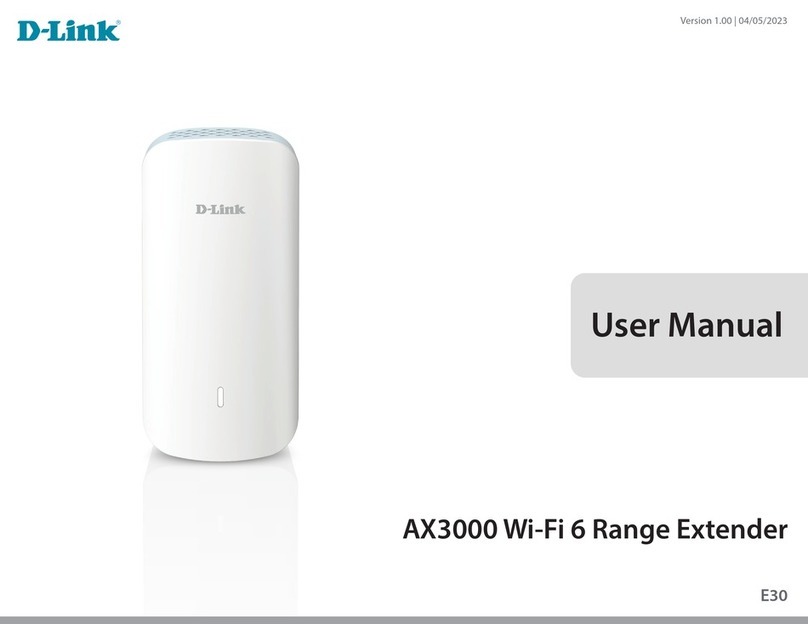
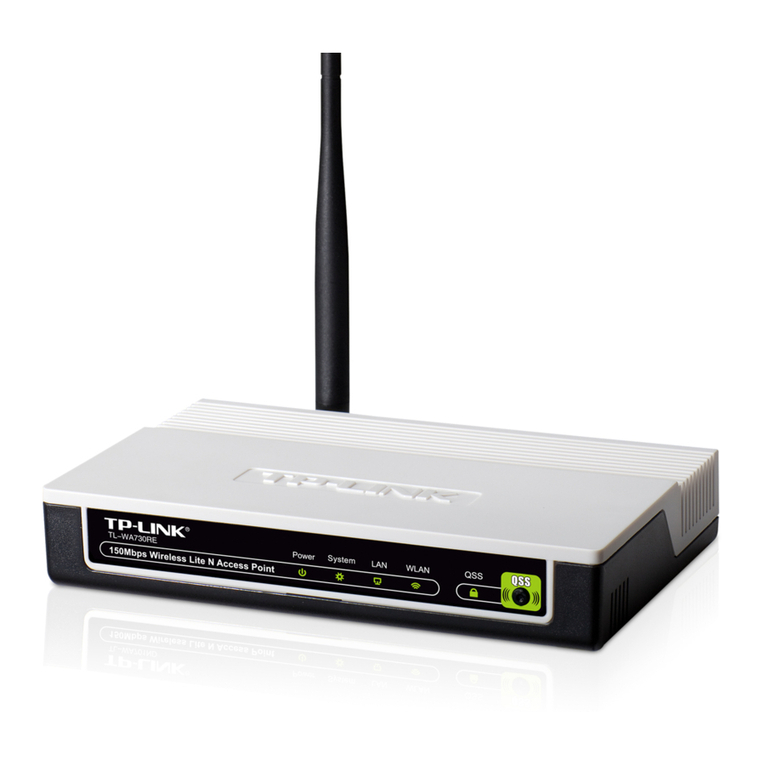
D-Link AMPLIFI DAP-1525 User manual


2D-Link DAP-1525 User Manual
Table of Contents
Product Overview.............................................................. 4
Package Contents......................................................................... 4
System Requirements................................................................. 4
Introduction ................................................................................... 5
Features............................................................................................ 6
Hardware Overview..................................................................... 7
Connections ........................................................................... 7
LEDs ........................................................................................... 8
Front View................................................................................ 9
Installation .......................................................................10
Before you Begin.........................................................................10
Wireless Installation Considerations....................................11
AP/Bridge .........................................................................12
AP Mode ........................................................................................12
Bridge Mode ................................................................................13
Create a Full MediaBand (5GHz wireless)
Network.............................................................................14
One Touch AP Conguration..................................................15
Conguration for AP Mode.............................................16
Web-based Conguration Utility..........................................16
Setup Wizard ................................................................................17
Wireless Setup Wizard.......................................................18
Add Wireless Device With WPS ..............................................20
Manual Conguration...............................................................22
Wireless Settings.................................................................22
LAN Setup..............................................................................24
LAN Setup..............................................................................25
Static IPv6 .........................................................................25
LAN Setup..............................................................................26
Auto-conguration .......................................................26
Advanced ......................................................................................27
MAC Address Filter.............................................................27
Advanced Network ............................................................28
Guest Zone............................................................................29
Schedule ................................................................................30
Tools ................................................................................................31
Admin .....................................................................................31
Time.........................................................................................32
System ....................................................................................33
Language Pack Upgrade..................................................34
Firmware ................................................................................34
System Check.......................................................................36
Status ..............................................................................................37
Device Info ............................................................................37
Wireless ..................................................................................38
Logs .........................................................................................39
Statistics .................................................................................40
IPV6..........................................................................................41
Support ..........................................................................................42
Conguration for Bridge Mode ......................................43
Web-based Conguration Utility..........................................43
Table of Contents

3D-Link DAP-1525 User Manual
Table of Contents
Setup Wizard ........................................................................44
Wireless ..................................................................................49
Wireless MAC Cloning...............................................................49
Lan Setup...............................................................................50
Lan Setup...............................................................................51
Static IPv6 .........................................................................51
Lan Setup...............................................................................52
Auto-conguration .......................................................52
Advanced ......................................................................................53
Schedule ................................................................................53
Tools ................................................................................................54
Admin .....................................................................................54
Time.........................................................................................55
System ....................................................................................56
Language Pack.....................................................................57
Firmware ................................................................................57
System Check.......................................................................59
Status ..............................................................................................60
Device Info ............................................................................60
Logs .........................................................................................61
IPv6 ..........................................................................................62
Support ..........................................................................................63
Wireless Security .............................................................64
What is WPA?................................................................................64
Congure WEP (AP Mode).......................................................65
Congure WPA-Personal (AP Mode)....................................66
Congure WPA-Enterprise (AP Mode).................................67
Congure WEP (Bridge Mode) ...............................................68
Congure WPA-Personal (Bridge Mode) ............................69
Connect to a Wireless Network.......................................70
Using Windows® 7 ......................................................................70
Using Windows Vista® ...............................................................73
Congure Security..............................................................75
Using Windows® XP ...................................................................76
Congure Security..............................................................77
Troubleshooting ..............................................................79
Wireless Basics .................................................................83
What is Wireless?.........................................................................84
Tips...................................................................................................86
Wireless Modes............................................................................87
Networking Basics...........................................................88
Check your IP address...............................................................88
Statically Assign an IP address...............................................89
Technical Specications ..................................................90
Contacting Technical Support ........................................91
Warranty...........................................................................92
Registration .....................................................................98

4D-Link DAP-1525 User Manual
Section 1 - Product Overview
• D-Link DAP-1525 Wi-Fi Booster
• Power Adapter
• CAT5 Ethernet Cable
• CD-ROM with User Manual
System Requirements
• Computers with Windows®, Macintosh®, or Linux-based operating systems with an installed Ethernet adapter
• Internet Explorer Version 6.0 or higher, Firefox 3.0 or higher, Safari 3.0 or higher, or Chrome 2.0 or higher
(for conguration)
Product Overview
Package Contents
Note: Using a power supply with a dierent voltage than the one included
with the DAP-1525 will cause damage and void the warranty for this product.

5D-Link DAP-1525 User Manual
Section 1 - Product Overview
Introduction
TOTAL PERFORMANCE
Combines award winning access point features and 802.11n wireless technology to provide the best wireless performance.
TOTAL SECURITY
The most complete set of security features including WPA2 and MAC Address Control to protect your network against outside intruders.
TOTAL COVERAGE
Provides greater wireless signal rates even at farther distances for best-in-class Whole Home Coverage.
ULTIMATE PERFORMANCE
The D-Link Wi-Fi Booster (DAP-1525) is a 802.11n compliant device that delivers real world performance of up to 650% faster than an
802.11g wireless connection (also faster than a 100Mbps wired Ethernet connection). Create a secure wireless network to share photos,
les, music, video, printers, and network storage throughout your home. Connect the Wi-Fi Booster to router and share your high-speed
Internet access with everyone on the network. In addition, this Wireless Bridge includes a Quality of Service (QoS) engine that keeps
digital phone calls (VoIP) and online gaming smooth and responsive, providing a better Internet experience.
EXTENDED WHOLE HOME COVERAGE
Powered by smart beam technology, this high performanceWireless AP/Bridge provides superiorWhole Home Coverage while reducing
dead spots. The Wi-Fi Booster is designed for use in bigger homes and for users who demand higher performance networking. Add an
Xtreme N® Duo notebook or desktop adapter and stay connected to your network from virtually anywhere in your home.
TOTAL NETWORK SECURITY
TheWi-Fi Booster supports all of the latest wireless security features to prevent unauthorized access, be it from over the wireless network
or from the Internet. Support forWPA andWEP standards ensure that you’ll be able to use the best possible encryption method, regardless
of your client devices.
* Maximum wireless signal rate derived from IEEE Standard 802.11g, 802.11a and 802.11n specications. Actual data throughput will vary. Network conditions and environmental
factors, including volume of network trac, building materials and construction, and network overhead, lower actual data throughput rate. Environmental conditions will
adversely aect wireless signal range.

6D-Link DAP-1525 User Manual
Section 1 - Product Overview
•FasterWirelessNetworking- The DAP-1525 provides up to 300Mbps* wireless connection with other 802.11n wireless
clients. This capability allows users to participate in real-time activities online, such as video streaming, online gaming,
and real-time audio.The performance of this 802.11n wireless access point gives you the freedom of wireless networking
at speeds 650% faster than 802.11g.
•Compatiblewith802.11aand802.11gDevices- The DAP-1525 is still fully compatible with the IEEE 802.11a/g
standard, so it can connect with existing 802.11a/g PCI, USB, and Cardbus adapters.
•AdvancedFirewallFeatures-TheWeb-based user interface displays advanced network management features including
Content Filtering, which allows easily applied content ltering based on MAC Address.
•WPSPBC-(Wi-Fi Protected Setup Push Button Conguration) Push Button Conguration is a button that can be pressed
to add the device to an existing network or to create a new network. A virtual button can be used on the utility while
a physical button is placed on the side of the device.
This easy setup method allows you to form a secured wireless link between the DAP-1525 and another WPS enabled
device. A PC is no longer needed to log into the Web-based interface.
•WPSPIN-(Wi-Fi Protected Setup Personal Identication Number ) A PIN is a unique number that can be used to add
the access point to an existing network or to create a new network. The default PIN may be printed on the bottom of
the access point. For extra security, a new PIN can be generated. You can restore the default PIN at any time. Only the
Administrator (“admin”account) can change or reset the PIN.
•User-friendlySetupWizard-Through its easy-to-use Web-based user interface, the DAP-1525 lets you control what
information is accessible to those on the wireless network, whether from the Internet or from your company’s server.
Congure your access point to your specic settings within minutes.
Features

7D-Link DAP-1525 User Manual
Section 1 - Product Overview
Hardware Overview
Connections
1USB Use this port to connect a USB 2.0 printer or a Storage Device
2Mode Switch Three-way switch used to select Bridge, AP 2.4GHz or AP 5GHz
3LAN Ports (1-4) Connect 10/100/1000 Ethernet devices such as computers, switches, and hubs
4Power Receptor Receptor for the supplied power adapter
1
2
3
4

8D-Link DAP-1525 User Manual
Section 1 - Product Overview
LEDs
1Wireless LED (AP Mode) A solid green light will indicate that AP Mode is ON.
2Wireless LED (Bridge
Mode)
A solid green light indicates a link has been established. A blinking green indicates the device
is fail to connect to the AP.
3WPS Button
Press the WPS button for 1 second to initiate the WPS process. The button will ash green while
a WPS connection is being established. The button will light green for 5 seconds if a successful
WPS connection has been made.
4Power LED A solid light indicates a proper connection to the power supply.
1
2
3
4

9D-Link DAP-1525 User Manual
Section 1 - Product Overview
Front View
1Reset Button Press the button to restore the device to its original factory default settings.
1

10D-Link DAP-1525 User Manual
Section 2 - Installation
Before you Begin
Installation
This section will walk you through the installation process. Placement of the DAP-1525 is very important. Do not place the
DAP-1525 in an enclosed area such as a closet, cabinet, or in the attic or garage.
Please congure the Wireless Bridge with the computer that was last connected directly to your modem. Also, you can only
use the Ethernet port on your modem. If you were using the USB connection before using the Wireless Bridge, then you must
turn o your modem, disconnect the USB cable and connect an Ethernet cable to the Internet port on the Wireless Bridge, and
then turn the modem back on. In some cases, you may need to call your ISP to change connection types (USB to Ethernet).
If you have DSL and are connecting via PPPoE, make sure you disable or uninstall any PPPoE software such as WinPoet, Broadjump,
or Enternet 300 from your computer or you will not be able to connect to the Internet.
Other manuals for AMPLIFI DAP-1525
5
Table of contents
Other D-Link Extender manuals

D-Link
D-Link DRA-2060 Manual

D-Link
D-Link DAP-1320/B1A User manual

D-Link
D-Link DAP-1325-US User manual

D-Link
D-Link DAP-1320 Manual

D-Link
D-Link DAP-1320 User manual

D-Link
D-Link DMG-112A User manual

D-Link
D-Link DHP W310AVB1 User manual

D-Link
D-Link DHP-W312AV User manual

D-Link
D-Link DAP-1320 User manual

D-Link
D-Link DPE-302GE User manual

D-Link
D-Link DAP-1820 User manual

D-Link
D-Link DAP-1650 User manual

D-Link
D-Link DAP-1610 User manual

D-Link
D-Link DAP-1620 User manual

D-Link
D-Link DAP-1330 User manual

D-Link
D-Link DCH-M225 User manual

D-Link
D-Link DCH-M225 User manual

D-Link
D-Link AC1200 User manual

D-Link
D-Link DHP-W311AV User manual

D-Link
D-Link DHP-701AV User manual