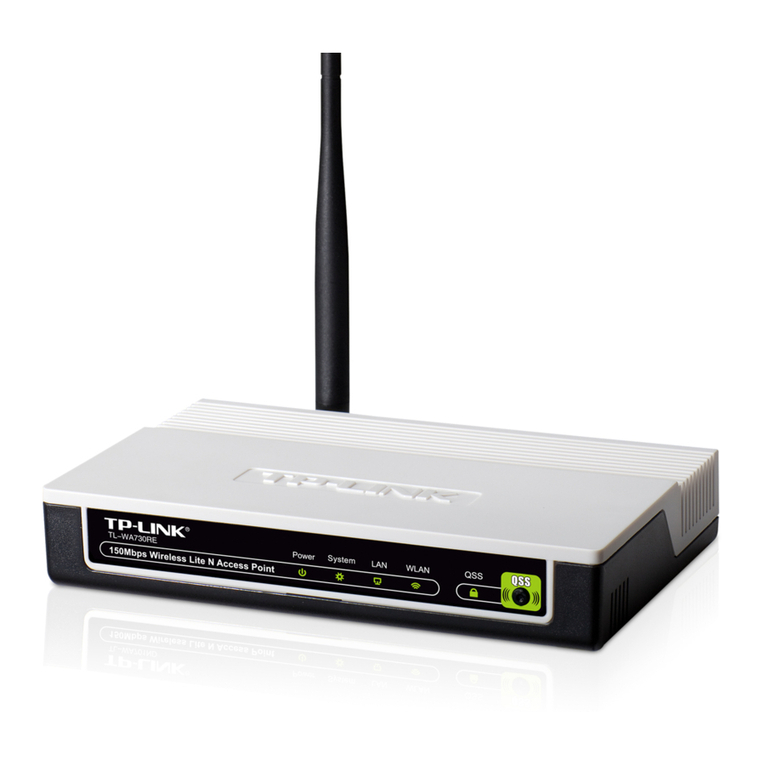
D-Link DAP-1650 User manual

QUICK
INSTALLATION
GUIDE
WIRELESS AC1200 DUAL BAND GIGABIT
RANGE EXTENDER
DAP-1650
КРАТКОЕ РУКОВОДСТВО ПО УСТАНОВКЕ
GUÍA DE INSTALACIÓN RÁPIDA
GUIA DE INSTALAÇÃO RÁPIDA
快速安裝指南
PETUNJUK PEMASANGAN CEPAT

DAP-1650
2
ENGLISH
CONTENTS OF
PACKAGING
POWER ADAPTER
12V / 2A
ETHERNET CABLE (CAT5 UTP)
CONNECT THE RANGE EXTENDER TO YOUR PC DURING
SETUP
If any of these items are missing from your packaging, contact
your reseller.
WI-FI CONFIGURATION NOTE
CONTAINS THE DEFAULT WI-FI INFORMATION
Wi-Fi Conguration Note
WIRELESS AC1200 DUAL BAND GIGABIT RANGE
EXTENDER
DAP-1650
CONTENTS

DAP-1650
3
ENGLISH
PRODUCT SETUP
ADVANCED SETUP (ACCESS VIA IP ADDRESS)
To congure DAP-1650 manually connect your computer to the DAP-1650 using the ethernet cable
provided. Then connect the power cable on the DAP-1650. The power light will display as solid
green.
Then simply open a browser window and enter the IP address in the browser address eld:
IP ADDRESS: http://dlinkap.local or http://192.168.0.50
USERNAME: Admin
PASSWORD:
If you have more than one Access Point, enter http://dlinkapxxxx.local (the xxxx are the last four
digits of the AP’s MAC address which is located on the bottom of the device in the label).
EASY SETUP
CONNECT TO YOUR PC
Use the included Ethernet cable to connect the DAP-1650 to
your desktop or laptop PC. Connect the power adapter to the
DAP-1650. Wait until the Power LED changes from orange to
green.
CONFIGURE THE DAP-1650
Open a web browser and go to http://dlinkap.local (or http://
dlinkapxxxx.local (the last four digits of MAC address)). The
default User name is Admin, and the default Password is blank.
Now you can use the setup wizard to congure AP, MediaBridge
or Repeater mode on your DAP-1650.
POSITION THE RANGE EXTENDER
Place the range extender in an open area of your intended work
area for better wireless coverage.
User Name xxxx
Password
Login

DAP-1650
4
ENGLISH
SET UP DAP-1650 USING Wi-Fi PROTECTED SETUP (WPS)
NOTE: To extend the Wi-Fi network in your home using the DAP-1650 WPS feature
please make sure the source router or AP also features WPS.
NOTE:
The DAP-1650 can be further congured using the web GUI. After you have plugged
the DAP-1650 into a wall outlet and the power LED is solid green, go to the wireless
utility on your computer, select the DAP-1650 network, and enter the password (this
is on your Wi-Fi Conguration Card). Then open a web browser and type
http://dlinkap.local. By default, the username is Admin, and the password eld
should be left blank. Please refer to the product manual for further information on
conguring the DAP-1650 using the web GUI.
PRODUCT SETUP
WPS SETUP
Next, push the WPS button on the DAP-1650. The LED will start to
ash green.
Please allow up to two minutes for the process to nish.
The DAP-1650 is now ready to share the extended
Wi-Fi network with your PCs and mobile devices. Connect to the
DAP-1650 using the network name (SSID) and password printed
on your Wi-Fi Conguration Card.
Plug the DAP-1650 into a wall outlet and wait until the power LED is
solid green. Push the WPS button on the source wireless router or
AP.
The power LED will turn solid green when the DAP-1650 has
connected successfully to the source wireless router or AP.

DAP-1650
5
ENGLISH
PRODUCT USAGE MODES
HOW IT WORKS
You can select to use the 1650 in AP or BRIDGE or REPEATER mode by using the web interface.
ROOM 3
Top Floor
DVR
DAP-1650/Bridge
ROOM 4
ROOM 1 ROOM 2
Bottom Floor
Top Floor
Bottom Floor
TV
DAP-1650/AP 5GHz
TV
DAP-1650/Bridge
Computer
Modem RouterInternet Storage
Adapter
2.4GHz 5GHz
DAP-1650/Repeater

DAP-1650
6
ENGLISH
TROUBLESHOOTING
SETUP AND CONFIGURATION PROBLEMS
1. HOW DO I CONFIGURE MY DAP-1650 AP WITHOUT THE CD, OR CHECK MY WIRELESS
NETWORK NAME (SSID) AND WIRELESS ENCRYPTION KEY?
- Connect your PC to the range extender using an Ethernet cable.
- Open a web browser and enter the address http://dlinkap.local or http://192.168.0.50
- The default username is ‘Admin’. The default password is blank (leave the eld blank).
- If you have changed the password and can not remember it, you will need to reset the AP to
revert the password back to blank (leave the eld blank).
2. HOW DO I RESET MY DAP-1650 AP TO FACTORY DEFAULT SETTINGS?
- Ensure the range extender is powered on.
- Press and hold the reset button on the rear of the device for 5 seconds.
Note: Resetting the range extender to factory default will erase the current conguration
settings. To re-congure your settings, log into the range extender as outlined in question 1, then
run the Setup Wizard.
3. HOW DO I ADD A NEW WIRELESS CLIENT OR PC IF I HAVE FORGOTTEN MY
WIRELESS NETWORK NAME (SSID) OR WIRELESS ENCRYPTION KEY?
- For every PC that needs to connect to the range extender wirelessly, you will need to ensure
you use the correct Wireless Network Name (SSID) and encryption key.
- Use the web based user interface (as described in question 1 above) to check or choose your
wireless settings.
- Make sure you write down these settings so that you can enter them into each wirelessly
connected client. You will nd a dedicated area on the back of this document, this important
information for future use.

DAP-1650
7
ENGLISH
TECHNICAL SUPPORT
You can nd software updates and user documentation on the D-Link website.
Tech Support for customers in
Australia:
Tel: 1300-766-868
24/7 Technical Support
Web: http://www.dlink.com.au
E-mail: [email protected]
India:
Tel: +91-832-2856000
Toll Free 1800-233-0000
Web: www.dlink.co.in
E-Mail: [email protected]
Singapore, Thailand, Indonesia,
Malaysia, Philippines, Vietnam:
Singapore - www.dlink.com.sg
Thailand - www.dlink.co.th
Indonesia - www.dlink.co.id
Malaysia - www.dlink.com.my
Philippines - www.dlink.com.ph
Vietnam - www.dlink.com.vn
Korea:
Tel : +82-2-2028-1810
Monday to Friday 9:00am to 6:00pm
Web : http://d-link.co.kr
E-mail : [email protected]
New Zealand:
Tel: 0800-900-900
24/7 Technical Support
Web: http://www.dlink.co.nz
E-mail: [email protected]
South Africa and Sub Sahara
Region:
Tel: +27 12 661 2025
08600 DLINK (for South Africa only)
Monday to Friday 8:30am to 9:00pm South
Africa Time
Web: http://www.d-link.co.za
E-mail: [email protected]
Saudi Arabia (KSA):
Tel: +966 01 217 0008
Fax: +966 01 217 0009
Saturday to Wednesday 9.30AM to 6.30PM
Thursdays 9.30AM to 2.00 PM
E-mail: [email protected]
D-Link Middle East - Dubai, U.A.E.
Plot No. S31102,
Jebel Ali Free Zone South,
P.O.Box 18224, Dubai, U.A.E.
Tel: +971-4-8809022
Fax: +971-4-8809066 / 8809069
Technical Support: +971-4-8809033
General Inquiries: [email protected]
Tech Support: [email protected]
Egypt
1, Makram Ebeid Street - City Lights Building
Nasrcity - Cairo, Egypt
Floor 6, ofce C2
Tel.: +2 02 26718375 - +2 02 26717280
Technical Support: +2 02 26738470
General Inquiries: [email protected]
Tech Support: [email protected]
Kingdom of Saudi Arabia
Ofce # 84 ,
Al Khaleej Building ( Mujamathu Al-Khaleej)
Opp. King Fahd Road, Olaya
Riyadh - Saudi Arabia
Tel: +966 1 217 0008
Technical Support:
+966 1 2170009 / +966 2 6522951
General Inquiries: [email protected]
Tech Support: [email protected]
Pakistan
Islamabad Ofce:
61-A, Jinnah Avenue, Blue Area,
Suite # 11, EBC, Saudi Pak Tower,
Islamabad - Pakistan
Tel.: +92-51-2800397, 2800398
Fax: +92-51-2800399
Karachi Ofce:
D-147/1, KDA Scheme # 1,
Opposite Mudassir Park, Karsaz Road,
Karachi – Pakistan
Phone: +92-21-34548158, 34326649
Fax: +92-21-4375727
Technical Support: +92-21-34548310, 34305069

General Inquiries: [email protected]
Tech Support: [email protected]

DAP-1650
8
ENGLISH
TECHNICAL SUPPORT
Iran
Unit 5, 5th Floor, No. 20, 17th Alley, Bokharest
St., Argentine Sq.,
Tehran IRAN
Postal Code : 1513833817
Tel: +98-21-88880918,19
+98-21-88706653,54
General Inquiries: [email protected]
Tech Support: [email protected]
Morocco
M.I.T.C
Route de Nouaceur angle RS et CT 1029
Bureau N° 312 ET 337
Casablanca, Maroc
Phone: +212 663 72 73 24
Email: [email protected]
Lebanon RMA center
Dbayeh/Lebanon
PO Box:901589
Tel: +961 4 54 49 71 Ext:14
Fax: +961 4 54 49 71 Ext:12
Email: [email protected]
Bahrain
Technical Support: +973 1 3332904
Kuwait:
Technical Support: + 965 22453939 / +965
22453949
Türkiye Merkez İrtibat Ofisi
Ayazağa Maslak yolu
Erdebil Cevahir İş Merkezi No: 5/A Ayazağa /
Maslak İstanbul
Tel: +90 212 2895659
Ücretsiz Müşteri Destek Hattı: 0 800 211 00 65
W e b : w w w. d l i n k . c o m . t r
Teknik Destek: [email protected]
073-796-2797

DAP-1650
9
PYCCКИЙ
КОМПЛЕКТ
ПОСТАВКИ
АДАПТЕР ПИТАНИЯ
12 В, 2 А
ETHERNET-КАБЕЛЬ (ВИТАЯ ПАРА 5 КАТЕГОРИИ)
ДЛЯ ПОДКЛЮЧЕНИЯ ПОВТОРИТЕЛЯ К ПК И НАСТРОЙКИ
ПАРАМЕТРОВ
Если что-либо из перечисленного отсутствует, обратитесь к
поставщику.
УКАЗАНИЕ ПО НАСТРОЙКЕ WI-FI
СОДЕРЖИТ ИНФОРМАЦИЮ О СЕТИ WI-FI ПО УМОЛЧАНИЮ
Wi-Fi Conguration Note
БЕСПРОВОДНОЙ ДВУХДИАПАЗОННЫЙ ГИГАБИТНЫЙ
ПОВТОРИТЕЛЬ AC1200 ДЛЯ УВЕЛИЧЕНИЯ ЗОНЫ
ДЕЙСТВИЯ СЕТИ
DAP-1650
СОДЕРЖИМОЕ

DAP-1650
10
PYCCКИЙ
УСТАНОВКА
РАСШИРЕННАЯ НАСТРОЙКА (ЧЕРЕЗ WEB-ИНТЕРФЕЙС)
Чтобы настроить DAP-1650 вручную, подключите компьютер к DAP-1650, используя
входящий в комплект поставки Ethernet-кабель. Затем подключите кабель питания к DAP-
1650. Индикатор питания будет постоянно гореть зеленым цветом.
Просто откройте Web-браузер и введите IP-адрес в адресной строке:
IP-АДРЕС: http://dlinkap.local или http://192.168.0.50
USERNAME: Admin
PASSWORD:
Если у Вас несколько точек доступа, введите http://dlinkapxxxx.local (где xxxx – последние
четыре знака MAC-адреса устройства, который указан на этикетке на нижней панели
устройства).
ПРОСТАЯ УСТАНОВКА
ПОДКЛЮЧИТЕ К ПК
Используя входящий в комплект поставки Ethernet-кабель,
подключите DAP-1650 к настольному ПК или ноутбуку.
Подключите адаптер питания к DAP-1650. Подождите до тех
пор, пока индикатор Power не загорится зеленым цветом
вместо оранжевого.
НАСТРОЙТЕ DAP-1650
Откройте Web-браузер и перейдите на http://dlinkap.
local (или http://dlinkapxxxx.local (последние четыре
знака MAC-адреса)). Именем пользователя по умолчанию
является Admin, а поле пароля по умолчанию следует
оставить пустым. Теперь можно воспользоваться Мастером
для настройки DAP-1650 в режиме AP, MediaBridge или
Repeater.
РАСПОЛОЖЕНИЕ ПОВТОРИТЕЛЯ
Разместите данное устройство на открытом пространстве
предполагаемой рабочей области для расширения зоны
покрытия беспроводной сети.
User Name xxxx
Passwor d
Login
Other manuals for DAP-1650
3
Table of contents
Languages:
Other D-Link Extender manuals

D-Link
D-Link DAP-1325 User manual

D-Link
D-Link DAP-1320 User manual

D-Link
D-Link DHP-W306AV User manual

D-Link
D-Link DAP-1360 User manual

D-Link
D-Link DAP-1360 User manual

D-Link
D-Link DAP-X1860 User manual

D-Link
D-Link DIR-505 Manual

D-Link
D-Link DAP-1635 User manual

D-Link
D-Link DWL-G800AP User manual

D-Link
D-Link DAP-1360 User manual

D-Link
D-Link DAP-1325 User manual

D-Link
D-Link DHP-W220AV User manual

D-Link
D-Link DCH-M225/A1A User manual

D-Link
D-Link DAP-1820 User manual

D-Link
D-Link DAP-1860 Manual

D-Link
D-Link EXO AC2000 User manual

D-Link
D-Link DAP-X1860 User manual

D-Link
D-Link DAP-1325 User manual

D-Link
D-Link DAP-1325 User manual

D-Link
D-Link DAP-X1870 User manual