D-Link EXO DRA-1360 User manual

Version 1.00 | 2019/03/06
AC1300 Mesh Range Extender
AC1300
User Manual
DRA-1360
iD-Link DRA-1360 User Manual
D-Link reserves the right to revise this publication and to make changes in the content hereof without obligation to notify any
person or organization of such revisions or changes.
Manual Revisions
Hardware Revision Date Description
A1 v1.00 06 March, 2019 Initial release
Trademarks
D-Link and the D-Link logo are trademarks or registered trademarks of D-Link Corporation or its subsidiaries in the United States or other countries.
All other company or product names mentioned herein are trademarks or registered trademarks of their respective companies.
Apple®, Apple logo®, Safari®, iPhone®, and Macintosh® are trademarks of Apple Inc., registered in the U.S. and other countries. App StoreSM is a service
mark of Apple Inc.
Chrome™ browser, Google Play™ and Android™ are trademarks of Google Inc.
Internet Explorer®, Windows® and the Windows logo are trademarks of the Microsoft group of companies.
Copyright © 2018 by D-Link Corporation. All rights reserved. This publication may not be reproduced, in whole or in part, without prior expressed
written permission from D-Link Corporation.
Preface
Power Usage
ErP Power Usage
This device is an Energy Related Product (ErP) with High Network Availability (HiNA), and automatically switches to a power-saving Network
Standby mode within 1 minute of no packets being transmitted. If it is not needed during certain periods of time, it can be unplugged to save
energy.
Network Standby: 3.7072 watts

iiD-Link DRA-1360 User Manual
Table of Contents
Preface................................................................................. i
Product Overview..............................................................1
Package Contents.........................................................................1
System Requirements.................................................................2
Introduction ................................................................................... 3
Features.................................................................................... 3
What is a Wireless Extender? ............................................4
Hardware Overview..................................................................... 5
Front .......................................................................................... 5
Status/WPS LED Indicator..................................................6
Bottom...................................................................................... 7
Back............................................................................................8
Installation......................................................................... 9
Wireless Installation Considerations......................................9
Hardware Setup ..........................................................................10
Getting Started................................................................11
WPS-PBC Conguration ...........................................................12
Assessing Uplink Signal Strength.........................................13
D-Link Wi-Fi App .........................................................................14
Wireless Setup Wizard...............................................................16
Access Point Mode Settings....................................................23
Conguration...................................................................24
Home ..............................................................................................24
Home - Connected to a Wi-Fi Mesh Router.......................27
Settings ..........................................................................................28
Extender Settings ...............................................................28
Existing Network............................................................29
Smart Connect................................................................30
Network Settings ................................................................32
Management................................................................................34
Time.........................................................................................34
Schedule ................................................................................35
Admin .....................................................................................36
System ....................................................................................37
Upgrade .................................................................................38
Statistics.................................................................................39
Wi-Fi Mesh Setup .............................................................40
Setup Using the D-Link Wi-Fi App........................................41
Setup Using an Ethernet Cable .............................................42
Connecting Wireless Clients to the Extender ................43
WPS Button...................................................................................43
Windows® 10................................................................................44
Windows® 8 - WPA/WPA2.........................................................45
Troubleshooting..............................................................47
Wireless Basics.................................................................49
Tips...................................................................................................50
Technical Specications..................................................51
GPL Code Statement........................................................52
Regulatory Statements ...................................................67
Table of Contents

1D-Link DRA-1360 User Manual
Section 1 - Product Overview
If any of the above items are missing, please contact your reseller.
DRA-1360 AC1300 Mesh Range Extender Simple Setup Guide
Product Overview
Package Contents
Quick Installation Card
QIC

2D-Link DRA-1360 User Manual
Section 1 - Product Overview
Network Requirements
• A wireless router with an active Internet connection.
• IEEE 802.11ac, 802.11n, 802.11g, 802.11b, or 802.11a
wireless clients/devices
Web-based Conguration
Utility Requirements
A Computer or Mobile Device with the following:
•Windows®, Apple® Mac OS®, or Linux-based operating system
• Wireless adapter or Wi-Fi functionality
• An Apple® iOS® or Android™ device
Browser Requirements:
• Internet Explorer® 10 or later
• Firefox® 28 or later
• Safari® 6.0 or later
• Google Chrome™ 28 or later
D-Link Wi-Fi App
Requirements
• iOS® or Android™ device (Please refer to the app’s store page to
check whether your device is compatible.)
System Requirements

3D-Link DRA-1360 User Manual
Section 1 - Product Overview
Introduction
Features
High-speed Wireless Performance With Wireless 802.11ac Technology
Thanks to the latest wireless AC technology, the DRA-1360 provides a wireless connection at up to 1300 Mbps* with other 802.11ac wireless
devices.This feature lets you participate in real-time activities online, such as video streaming, online gaming, and real-time audio with
smooth performance.
Compatibility
The DRA-1360 is fully compatible with the latest 802.11ac standard, but is also backwards compatible with IEEE 802.11n/g/b/a wireless
devices, so you can use your existing devices without sacricing performance.
Compact, Convenient Design
The DRA-1360 is a compact device that is ideal for use at home or a small oce, as it does not take up much space and is ready to use by
simply plugging it in. The bright Signal Indicator LED makes nding a suitable location a cinch. Its diminutive wall-plug design easily saves you
the hassle of dealing with a power cord.
LatestWireless Network Security and Encryption
The DRA-1360 supports wireless security features to prevent unauthorized access from the wireless network. Support for WPA/WPA2
standards ensure that you’ll be able to use the best possible encryption methods with your compatible wireless devices.
Extend and Customize Your High-speed Wireless AC Network with Wi-Fi Mesh
D-Link’s Wi-Fi Mesh is a scalable solution that allows you to easily increase the coverage of your wireless AC network when connected to a
D-Link Wi-Fi Mesh router. Setup is eortless; conguration of multiple DRA-1360’s can be done in minutes as settings can be passed on to
other access points once the rst is congured.
Easy to Set Up, Easy to Use
Setting up the AC1300 Mesh Range Extender is simple. You can use the supported D-Link Wi-Fi app on your compatible iOS or Android device
to utilize the built in set up wizard. The DRA-1360 can also receive automatic over-the-air rmware updates, which ensures the best protection
and the latest features for your device.
* Maximum wireless signal rate derived from standard IEEE specications. Actual data throughput will vary. Network conditions and environmental factors, including volume of network trac,
building materials and construction, and network overhead may lower actual data throughput rate. Environmental conditions will adversely aect wireless signal range.
4D-Link DRA-1360 User Manual
Section 1 - Product Overview
What is a Wireless Extender?
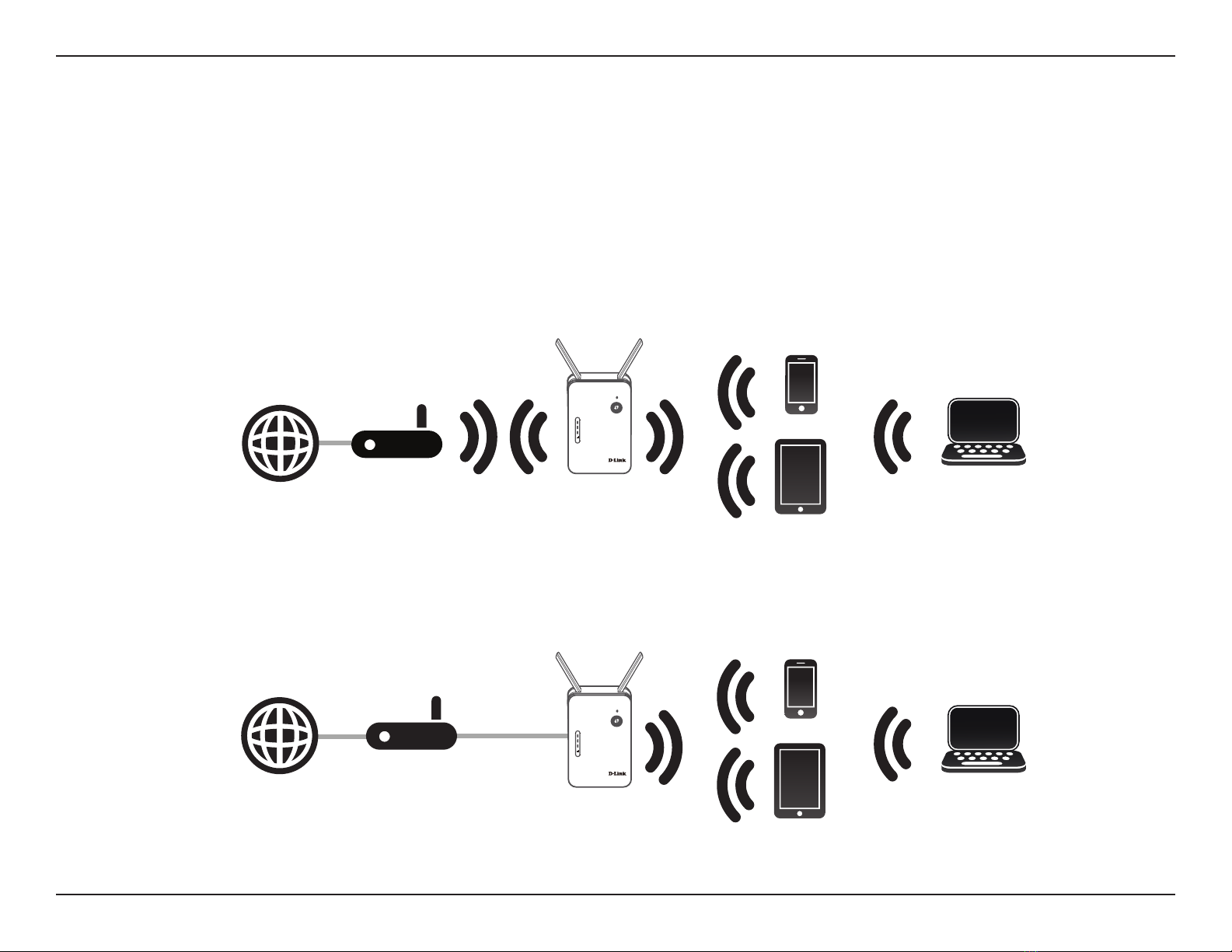
The DRA-1360 acts as a repeater to extend the range of an existing wireless network to provide a better signal for parts of your
home or oce that may have poor or no reception. Your existing wireless signal will be re-broadcast by the DRA-1360, allowing
you to reach the farthest corners of your home or oce. The extended network can simply use the same network credentials as the
existing network, or you can specify a dierent network name and password, giving you the exibility to control network access.
You may also use the DRA-1360 as a wireless access point by connecting an Ethernet cable.
Extend Your Wireless Network using Wi-Fi
Router
Internet DRA-1360
Extender Wireless Devices
Computer
Create a Wireless Network using Ethernet
Router
Internet DRA-1360
Extender Wireless Devices
Computer

5D-Link DRA-1360 User Manual
Section 1 - Product Overview
Hardware Overview
Front
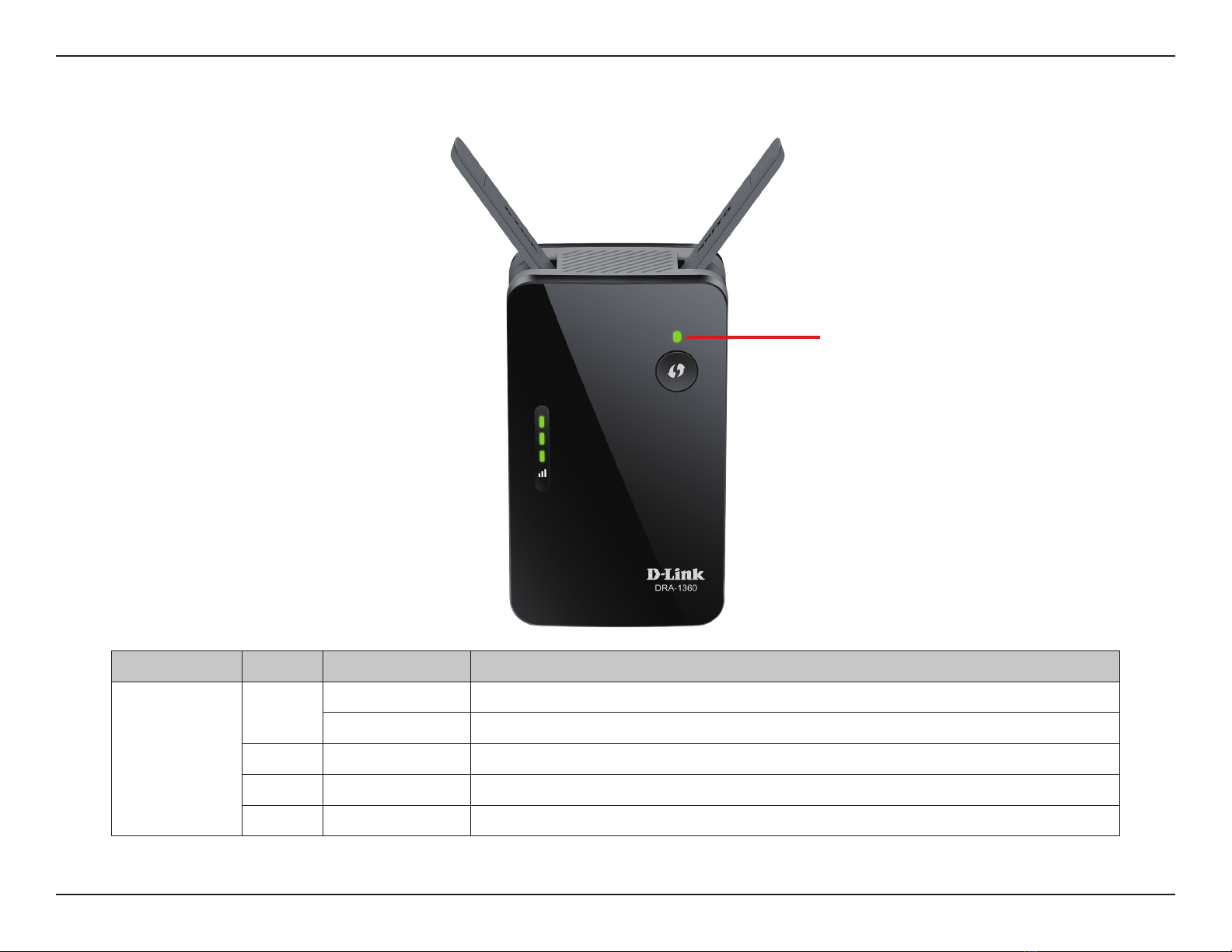
1Status/WPS LED This LED indicates the current status of the DRA-1360, as detailed on the next page.
2WPS Button Press to establish a connection with another WPS compatible device. See page “WPS Button” on page 43
for more information.
3Signal Indicator
LED
The more lit green bars on the Signal Indicator LED, the better the wireless signal to the host network. A
single solid orange LED indcates a weak Wi-Fi signal.
2
1
3
6D-Link DRA-1360 User Manual
Section 1 - Product Overview
LED Indicator Color Status Description
Power/Status
Green Solid The DRA-1360 is receiving power and connected to a host network.
Blinking WPS mode is active and is searching for another WPS device.
Red Solid The DRA-1360 is booting or an error has occurred.
Orange Blinking The DRA-1360 is not connected to a host network.
None O Device is not receiving power. Check the power outlet.
Status/WPS LED Indicator
Status/WPS LED Indicator
7D-Link DRA-1360 User Manual
Section 1 - Product Overview
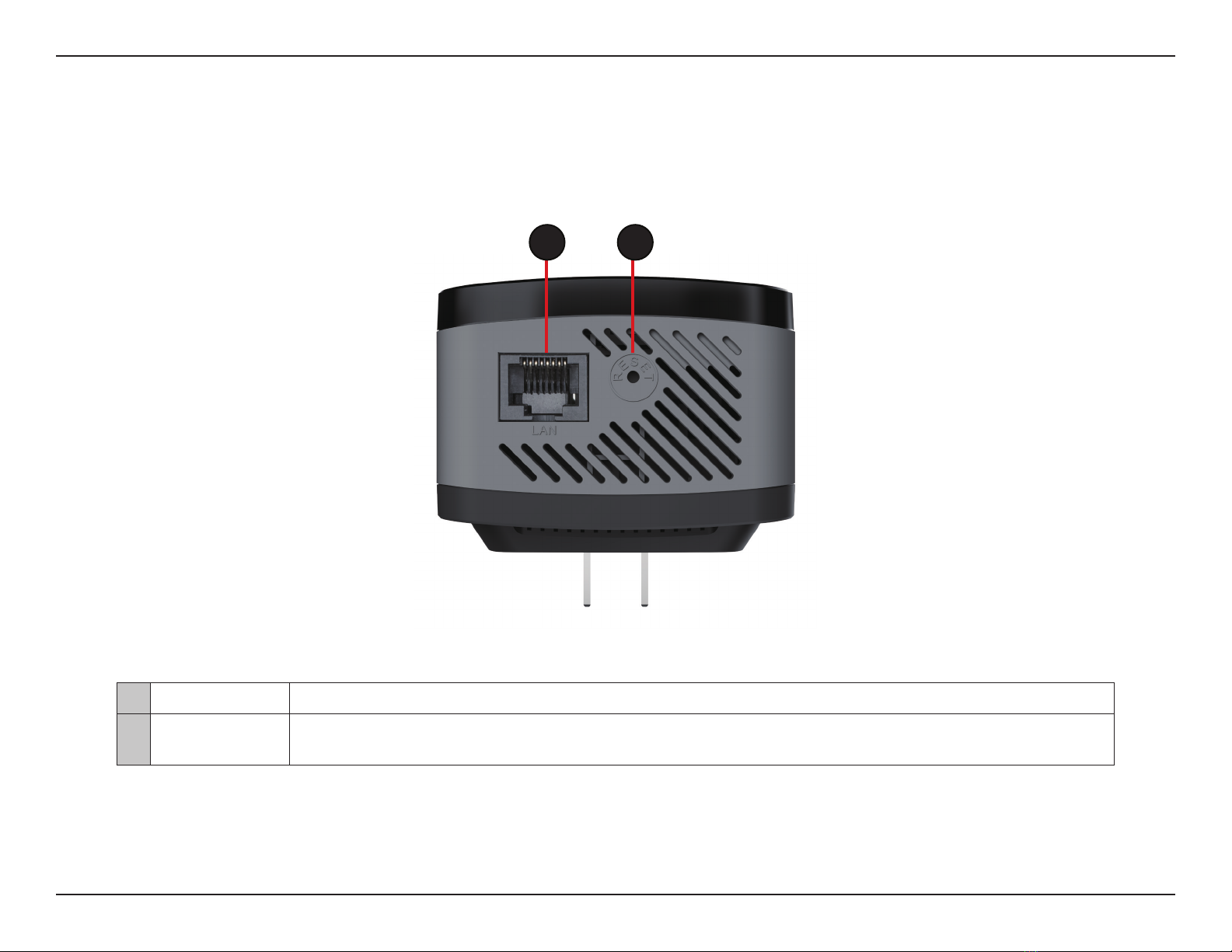
Bottom
1LAN Connect an Ethernet cable if you are adding wireless to wired network.
2Reset Button Use an unfolded paperclip to press and hold the reset button on the bottom of DRA-1360 for 10 seconds
to restore the factory default settings.
21
Table of contents
Other D-Link Extender manuals

D-Link
D-Link DAP-1755 User manual

D-Link
D-Link EXO AC2000 User manual

D-Link
D-Link DAP-1320 User manual

D-Link
D-Link DAP-1650 User manual

D-Link
D-Link DCH-M225 User manual

D-Link
D-Link Covr User manual

D-Link
D-Link DAP-1610 User manual

D-Link
D-Link DAP-1610 User manual

D-Link
D-Link DAP-1320 User manual

D-Link
D-Link DAP-X1860 User manual

D-Link
D-Link DAP-1635 User manual

D-Link
D-Link DAP-1520 User manual

D-Link
D-Link DAP-X1870 User manual

D-Link
D-Link DAP-1330 User manual

D-Link
D-Link DAP-1360 User manual

D-Link
D-Link DAP-1325 User manual

D-Link
D-Link DHP-W306AV User manual

D-Link
D-Link DHP-W306AV User manual

D-Link
D-Link AMPLIFI DAP-1525 User manual

D-Link
D-Link DWL-G800AP User manual