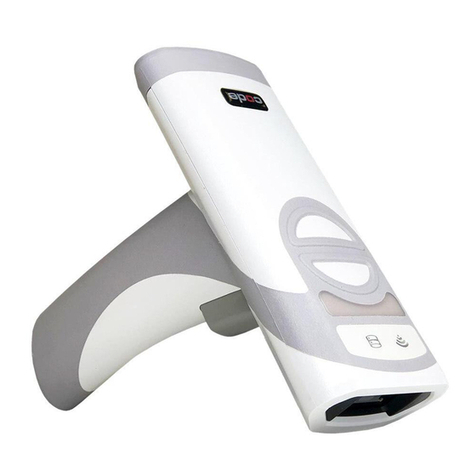
Code 2600 User manual

C007964_01_CR2600_User_Manual
C007964_01_CR2600_UserManual
User Manual
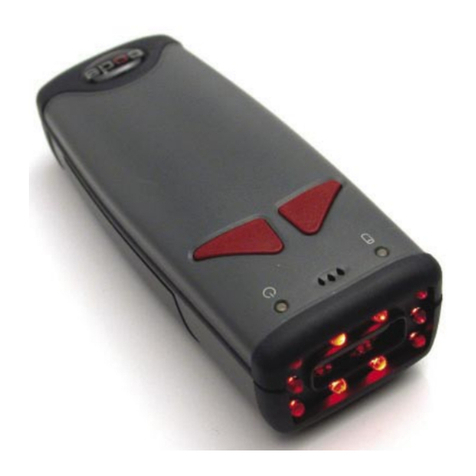
Code Reader™ 2600
Manual Version 01
Release Date: July 2012

C007964_01_CR2600_User_Manual
Statement of Agency Compliance
Code voids product warranty if the hard case has been opened or tampered with in any way.
The CR2600 meets all safety and quality standards in accordance to EN 60950-1:2006/A11:2009/A1:2010.
The Code Reader™ 2600 (CR2600) has been tested for compliance with FCC regulaons and was found to be
compliant with all applicable FCC Rules and Regulaons.
IMPORTANT NOTE: To comply with FCC RF exposure compliance requirements, this device must not be co-
located or operate in conjuncon with any other antenna or transmier.
CAUTION: Changes or modicaons not expressly approved by the party responsible for compliance could void
the user’s authority to operate the equipment.
The CR2600 has been tested for compliance to CE standards and guidelines and was found to conform to
applicable CE standards, specically the EMC requirements EN 55024, ESD EN 61000-4-2, Radiated RF Immunity
EN 61000-4-3, ENV 50204, EFT EN 61000-4-4, Conducted RF Immunity EN 61000-4-6, EN 55022, Class B Radiated
Emissions, and Class B Conducted Emissions.

C007964_01_CR2600_User_Manual
Code Reader™ 2600 User Manual
Copyright © 2012 Code Corporaon.
All Rights Reserved.
The soware described in this manual may only be used in accordance with the terms of its license agreement.
No part of this publicaon may be reproduced in any form or by any means without wrien permission from Code Corporaon. This
includes electronic or mechanical means such as photocopying or recording in informaon storage and retrieval systems.
NO WARRANTY. This technical documentaon is provided AS-IS. Further, the documentaon does not represent a commitment
on the part of Code Corporaon. Code Corporaon does not warrant that it is accurate, complete or error free. Any use of the
technical documentaon is at the risk of the user. Code Corporaon reserves the right to make changes in specicaons and
other informaon contained in this document without prior noce, and the reader should in all cases consult Code Corporaon
to determine whether any such changes have been made. Code Corporaon shall not be liable for technical or editorial errors or
omissions contained herein; nor for incidental or consequenal damages resulng from the furnishing, performance, or use of this
material. Code Corporaon does not assume any product liability arising out of or in connecon with the applicaon or use of any
product or applicaon described herein.
NO LICENSE. No license is granted, either by implicaon, estoppel, or otherwise under any intellectual property rights of Code
Corporaon. Any use of hardware, soware and/or technology of Code Corporaon is governed by its own agreement.
The following are trademarks or registered trademarks of Code Corporaon:
CodeXML®, Maker, QuickMaker, CodeXML® Maker, CodeXML® Maker Pro, CodeXML® Router, CodeXML® Client SDK, CodeXML®
Filter, HyperPage, CodeTrack, GoCard, GoWeb, ShortCode, GoCode®, Code Router, QuickConnect Codes, Rule Runner®, Cortex®,
CortexRM, CortexMobile, Code, Code Reader, CortexAG, CortexStudio, CortexTools, Anity®, and CortexDecoder.
All other product names menoned in this manual may be trademarks of their respecve companies and are hereby acknowledged.
The soware and/or products of Code Corporaon include invenons that are patented or that are the subject of patents pending.
U.S. Patents: 6997387, 6942152, 7014113, 7070091, 7097099, 7353999, 7519239, 7621453, 8001550, 8011584.
The Code Reader soware uses the Mozilla SpiderMonkey JavaScript engine, which is distributed under the terms of the Mozilla
Public License Version 1.1.
The Code Reader soware is based in part on the work of the Independent JPEG Group.
Code Corporaon, 14870 South Pony Express Road, Suite 200, Bludale, UT 84065
www.codecorp.com

C007964_01_CR2600_User_Manual
Table of Contents
1.0 - Unpacking............................................................................................................................................................... 1
2.0 - Baery Installaon and Removal ............................................................................................................................ 1
3.0 - Charging the CR2600............................................................................................................................................... 1
4.0 - Fuel Gauge Status Indicator .................................................................................................................................... 3
5.0 - Powering On/O the Reader................................................................................................................................... 3
6.0 - Establishing a Bluetooth® Connecon ..................................................................................................................... 4
7.0 - Communicang in USB Mode.................................................................................................................................. 4
7.1 - Batch Mode via USB................................................................................................................................................ 5
7.2 - Batch Mode Indicators ............................................................................................................................................ 5
8.0 - Aaching the CodeXML® M3 Modem...................................................................................................................... 6
9.0 - Sux Enter ............................................................................................................................................................. 6
10.0 - Using the CR2600.................................................................................................................................................. 7
11.0 - Reading Ranges..................................................................................................................................................... 7
12.0 - Reader Feedback .................................................................................................................................................. 8
13.0 - Symbologies Default ON ....................................................................................................................................... 8
14.0 - Symbologies Default OFF ...................................................................................................................................... 8
15.0 - Reader ID and Firmware Version ........................................................................................................................... 9
16.0 - CR2600 Dimensions ............................................................................................................................................ 10
16.1 - Charging Staon Dimensions............................................................................................................................... 10
17.0 - CR2600 Maintenence.......................................................................................................................................... 11
18.0 - Warranty ............................................................................................................................................................ 12

C007964_01_CR2600_User_Manual
2.0 - Baery Installaon and Removal
1.0 - Unpacking
Remove the CR2600 from its packing and inspect it for damage. If the reader was damaged during shipping, please call Code at
(801) 495-2200.
1. Plug the barrel side of the USB charge cable or power supply into power jack of the charger.
Place the baery into the reader as shown below. Once in place, the baery will snap and lock to indicate proper installaon. For baery
removal, slide the latch, to unlock and release the baery.
3.0 - Charging the CR2600
1
Based on the kit purchased, a combinaon of the following components will be included with the CR2600:
Charging Staon with
Embedded CodeXML Modem
Charging Staon USB Cable Power SupplyCodeXML® M3 Modem Baery
Latch

C007964_01_CR2600_User_Manual
3.0 - Charging the CR2600 Cont.
2. Plug the USB cable into the computer’s USB port or the power adapter into the wall outlet.
3. Remove the plasc ‘Remove Before Use’ cap, and place the reader into the Charging Staon.
Note: Baeries ships with approximately 50% baery life and should be completely charged before inial use. Approximate me
to charge a depleted baery is 4 hours via USB cable, and 2 1/2 hours via AC power supply.
2

C007964_01_CR2600_User_Manual
Fuel Gauge Buon
4.0 - Fuel Gauge Baery Status Indicators
Check the Baery Life
Press the fuel gauge buon to determine remaining baery life. If the baery has less then 10% capacity, the rst LED will ash
rapidly. For 25% or greater capacity, the LEDs will ash ON for 4 seconds.
3
Fuel Gauge Status Indicator While Charging
If the baery has less then 10% capacity, the rst LED will ash rapidly while charging. For 25% or greater capacity, the LEDs will ash
ON for 4 seconds.
Fuel Gauge Indicators
Baery Life
<10% Rapid Flashing
<25% ON
25-50% ON ON
50-75% ON ON ON
75%+ ON ON ON ON
5.0 - Powering On/O the Reader
Press and hold either the buons or trigger, for one second, to power on reader. The CR2600 will beep, vibrate and the LEDs will ash
to indicate it is on and ready for use.

C007964_01_CR2600_User_Manual
6.0 - Establishing a Bluetooth® Connecon
4
2. Scan the QuickConnect Code located on the front of the Charging Staon with embedded CodeXML® modem or on the external
CodeXML® M3 Modem. For additonal CodeXML® M3 Modem conguraon informaon, please reference the CodeXML® M3
Modem QuickStart Guide.
3. The wireless icon located at the top of the reader will ash as it aempts to make connecon. The blue LED on the charging
staon or CodeXML® M3 Modem will also ash as it aempts to connect. The blue LED will turn on when connecon is estab-
lished, the CR2600 will beep once and the wireless icon will ash every 10 seconds.
Important Note If Using a non-Code Bluetooth Device:
To connect to a Bluetooth device not manufactured by Code, you will need the Bluetooth address (oen referred to as the
BD_ADDR) of that device. The 12-character Bluetooth address can be found on the device near the serial number. Then visit Code’s
website at: hp://www.codecorp.com/bdaddr.php and enter the 12-character address to create the QuickConnect Code.
You will need to locate the Communicaons (COM) Port assigned to the Bluetooth serial port protocol before installing the
Bluetooth Conguraon Manager soware that is included with your Bluetooth adapter (e.g., COM 10). This is the COM Port
through which the CR2600 will connect.
QuickConnect Code
Blue LED
Blue LED Wireless
Icon Storage Icon Good Read
Indicator
1. If establishing a Bluetooth connecon using the Charging Staon with embedded CodeXML® Modem, slide the Communicaon
Mode Switch on the Charger/Modem Staon, to Bluetooth mode (the direcon of the arrow).
Communicaon
Mode Switch
7.0 - Communicang in USB Mode
2. CortexTools™ will need to be installed to your host device for opmal communicaon performance during data transmission.
1. For reader to communicate in USB mode using the charging staon with embedded CodeXML® Modem and CortexTools™, scan
the following USB Downloader Mode conguraon code:

C007964_01_CR2600_User_Manual
7.1 - Batch Mode via USB
2. Scan one of the following communicaon modes to congure the communicaons seng on your reader:
3. To transmit the captured data to CortexTools™ on your host device, place reader into charging staon. The reader will wait 5
seconds before transming data. The 5 second delay allows the host device to prepare to receive the data.
USB Downloader Mode USB Keyboard Mode USB Virtual Comm Mode
1. The CR2600 can be congured for Batch Mode to capture and transmit data over standard USB communicaon modes. Select
and scan one of the following conguraon codes that will best suits data storage needs:
Batch Mode Enable
- Scan and Log
Batch Mode Enable
- Log Only
7.2 - Batch Mode Indicators
When the CR2600 is in batch/storage mode, the storage icon will ash every 10 seconds to indicate data is being stored.
If batch memory is full, the storage icon will ash 5 mes every second. Data will need to be downloaded or deleted to free
memory space.
Storage icon will not ash if there is no data stored.
Wireless
Icon
Storage Icon
Good Read
Indicator
5

C007964_01_CR2600_User_Manual 6
9.0 - Sux Enter
A Sux Enter character is disabled by default. To enable Sux Enter, please scan the following conguraon code:
2. Plug the USB connector into the USB port on the computer, or RS232 (Serial) cable to a serial port on the computer. Once
plugged in, the modem’s blue LED light will ash (reference modem image on page 4, secon 6). Follow steps 1 and 2 of page 4,
secon 6 to establish the Bluetooth connecon.
For more conguraon opons, download the CR2600 Conguraon Guide from www.codecorp.com
USB Cable RS232 Cable
8.0 - Aaching the CodeXML® M3 Modem
1. Aach the 8-pin DIN end of the cable to the CodeXML® M3 Modem.
Included with the CodeXML® M3 Modem is a USB or RS232 cable:
USB Cable RS232 Cable
Other manuals for 2600
11
Table of contents
Other Code Barcode Reader manuals

Code
Code CORTEXJPOS CR2300 User manual
Code
Code CORTEXJPOS CR2300 User manual
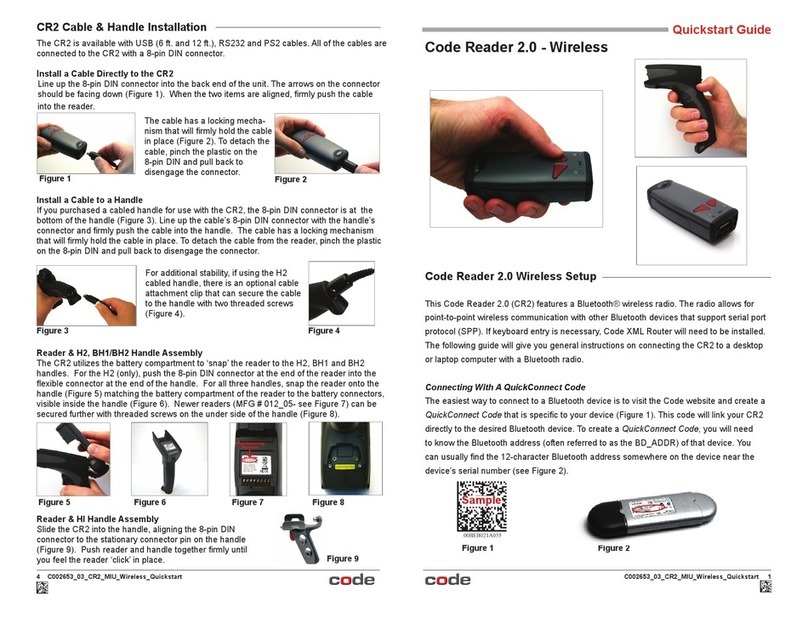
Code
Code Code Reader 2.0 User manual
Code
Code CR4405 User manual

Code
Code CORTEXJPOS CR2300 Quick setup guide
Code
Code CR900FD User manual
Code
Code CR3600 User manual
Code
Code CR1100 User manual
Code
Code 2600 Quick setup guide
Code
Code Code Reader 822 Series Quick setup guide
Code
Code CR3 User manual
Code
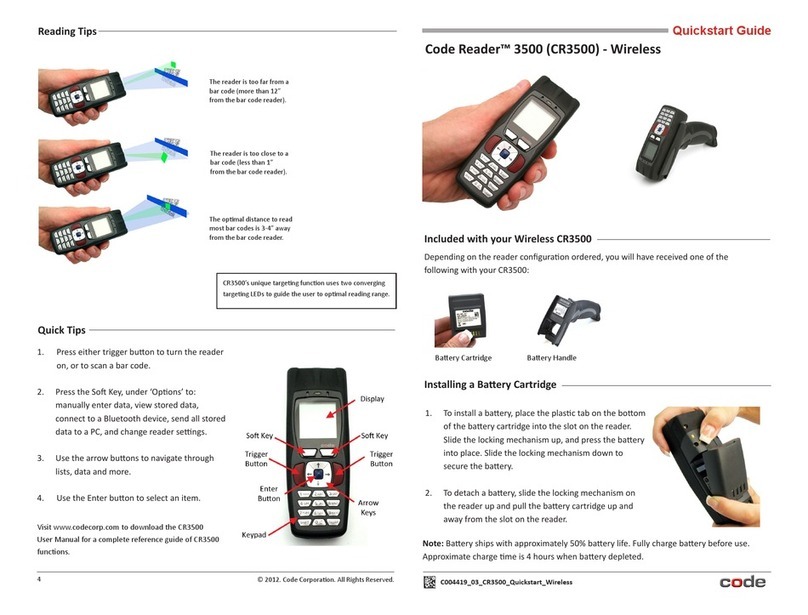
Code Code Reader CR3500 User manual
Code
Code CORTEXJPOS CR5000 User manual
Code
Code CR1500 User manual
Code
Code CR1400 User manual
Code
Code Code Reader 3600 User manual
Code
Code CR950 User manual
Code
Code CR1000 User manual
Code
Code Code Reader CR8000 Quick setup guide
Code
Code Code Reader 2.0 User manual