
CIAAT CMP-3100W Instruction manual
QUICK USER GUIDE
For your safety, please read this guide before using the printer.
Reading this guide will ensure that you use your printer correctly.
Wi Fi
connectivity
High Efficiency
Battery
Bigger Size
Photos
High Resolution
Printing
High Speed
Printing
PRINT AND FEEL SEEART
Free APP Download is Abbaillable at:
Safety Precaution
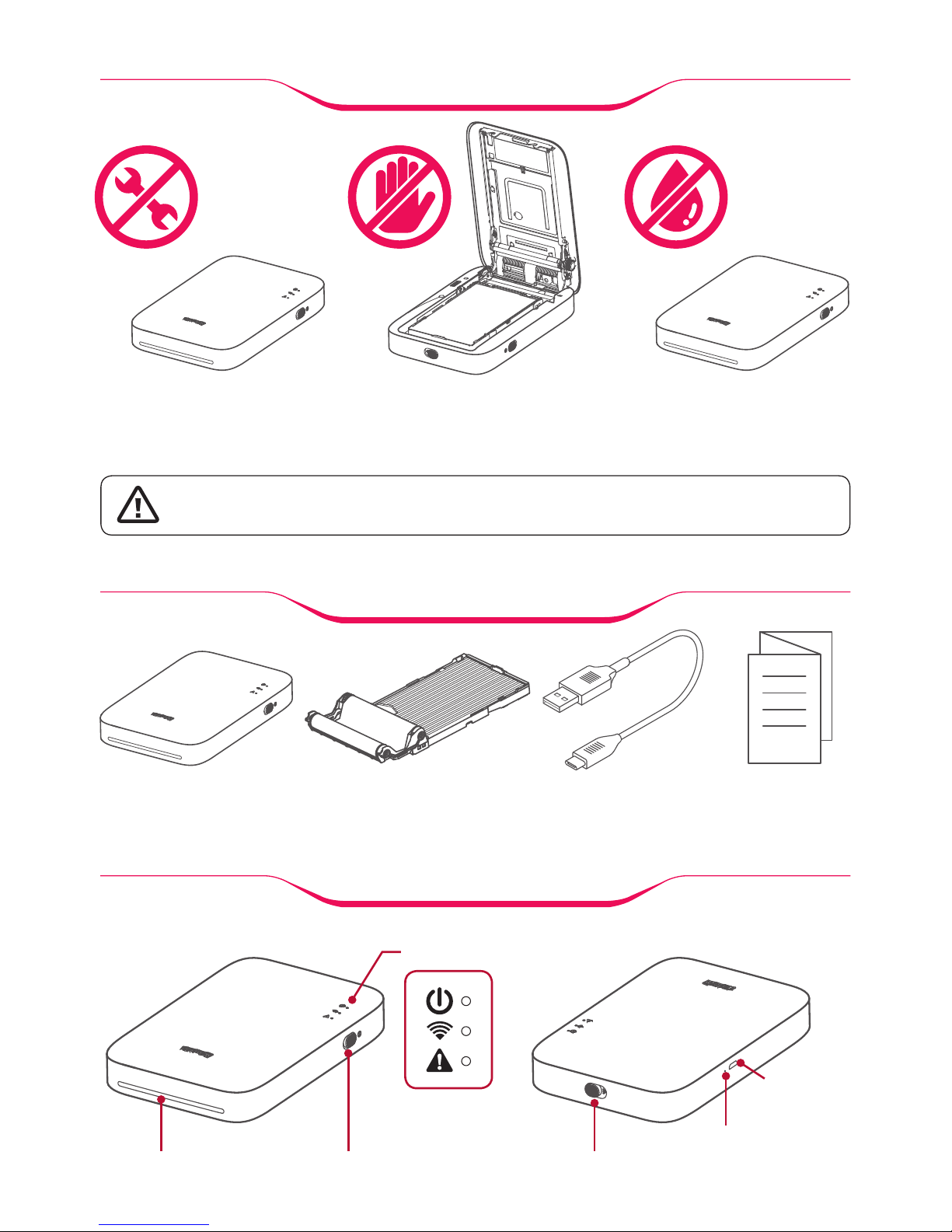
·Do not attempt to disassemble
or alter
·Do not touch the printer head
when opening or closing the
printer cover
·Do not let the product come
into contact with water or other
liquids. Avoid placing or storing
the product in humid places.
Part Names
Reset Button
Charging Port
(Micro USB)
Cartridge Cover Lever
Output Tray
LED Lamp
Power Switch
Package Content
Cartridge(consumable)SEEART Printer USB Charging Cable Quick User Guide
CAUTION Risk of explosion if battery is replaced by an in correct type.
Dispose of used batteries according to the instructions.
● Charge the battery.
- It takes two hours to charge your SEEART fully. It may take longer depending on the
charger adapters you use.
- When the battery charging begins, and the orange lamp lights up. When the charging
is finished, the green lamp will light up.
- A charger adapter is not included. We recommend the use of a 5V 1.0A rated
adapter.
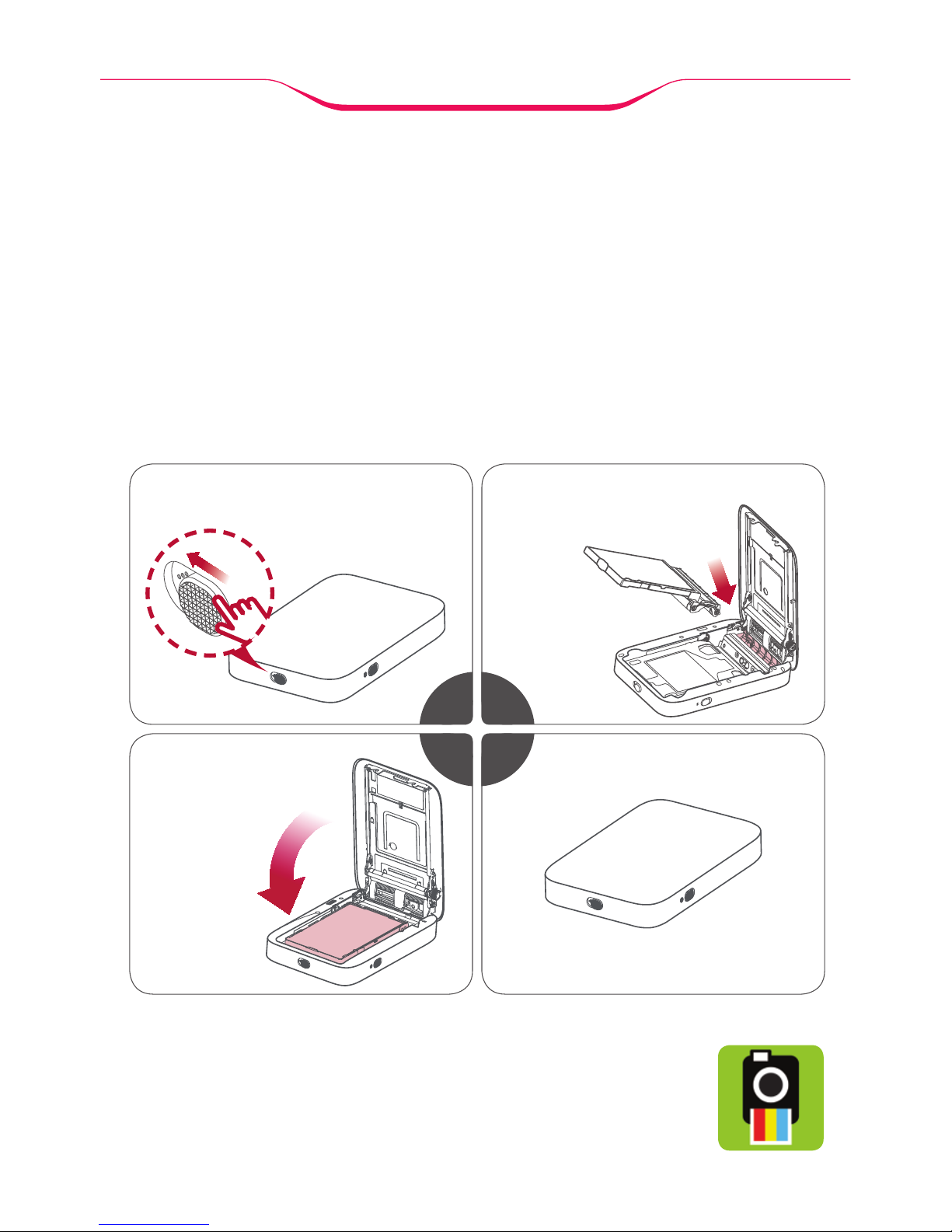
● Insert SEEART exclusive cartridge.
● Install the SEEART application.
- Visit Google Play Store (Android) or the App Store (iOS).
- Type in “SEEART” in the search box.
- Download and install the SEEART app.
Initial Preparations
·Push the lever to open the cartridge cover.
·Close the cover
firmly until it clicks
into place.
·Insert the cartridge like this
1 2
3 4
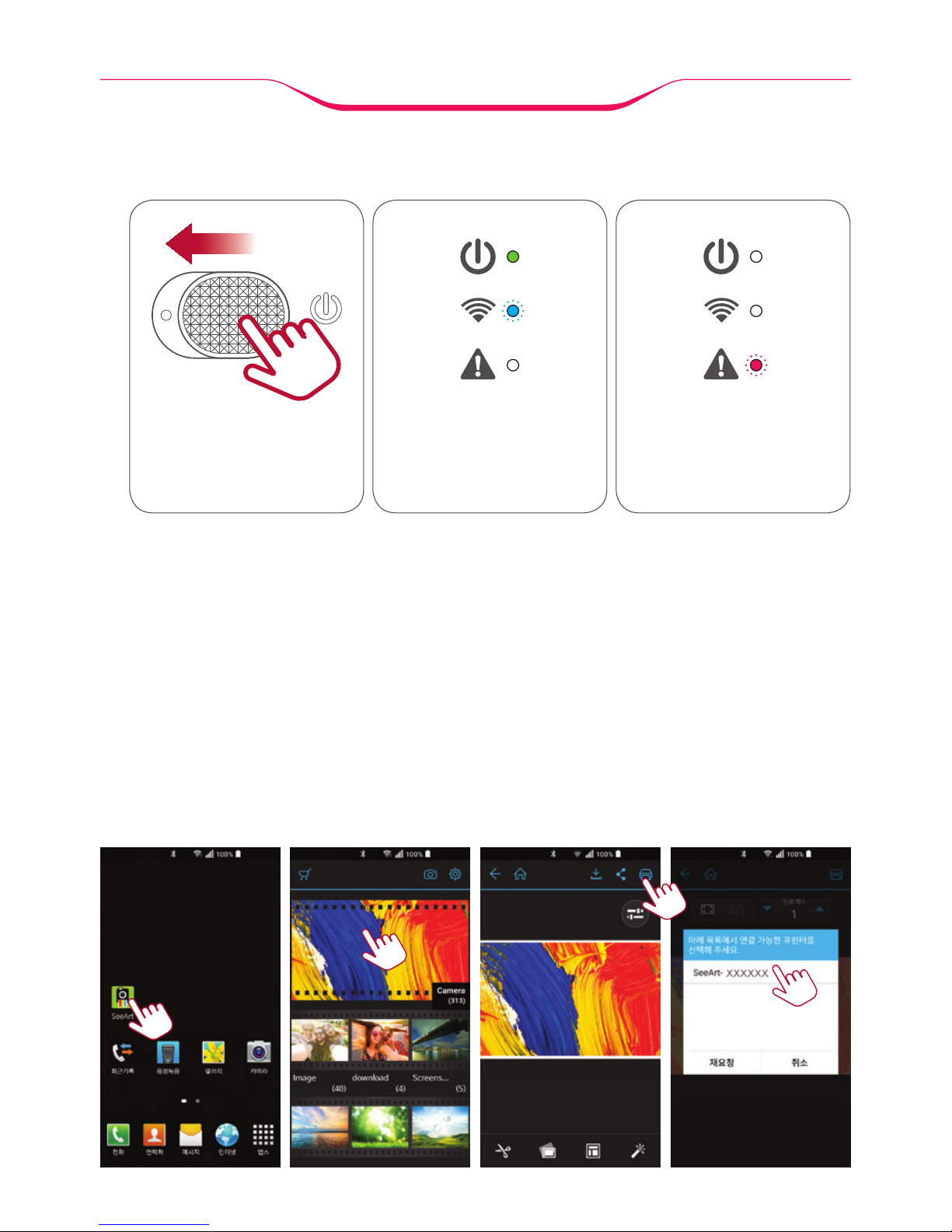
● Turn on the SEEART printer.
● Launch the SEEART application on an Android phone.
● Choose the image to print.
● You have a choice of editing functions.
Tap the ‘Print’ icon after checking the edited image.
● The app searches for the SEEART printer.
● Select the printer named “SeeArt-XXXXXX”
● Your smartphone will connect to your SEEART printer and Wi-Fi.
● Your SEEART will start printing automatically.
Printing from a
Smartphone (Android)
·Turn on the power. ·When the Power LED
is on and the Wi-Fi LED
is blinking, it means that
the printer is ready.
·When there is no
cartridge or there is a
problem, the Red LED is
blinking.
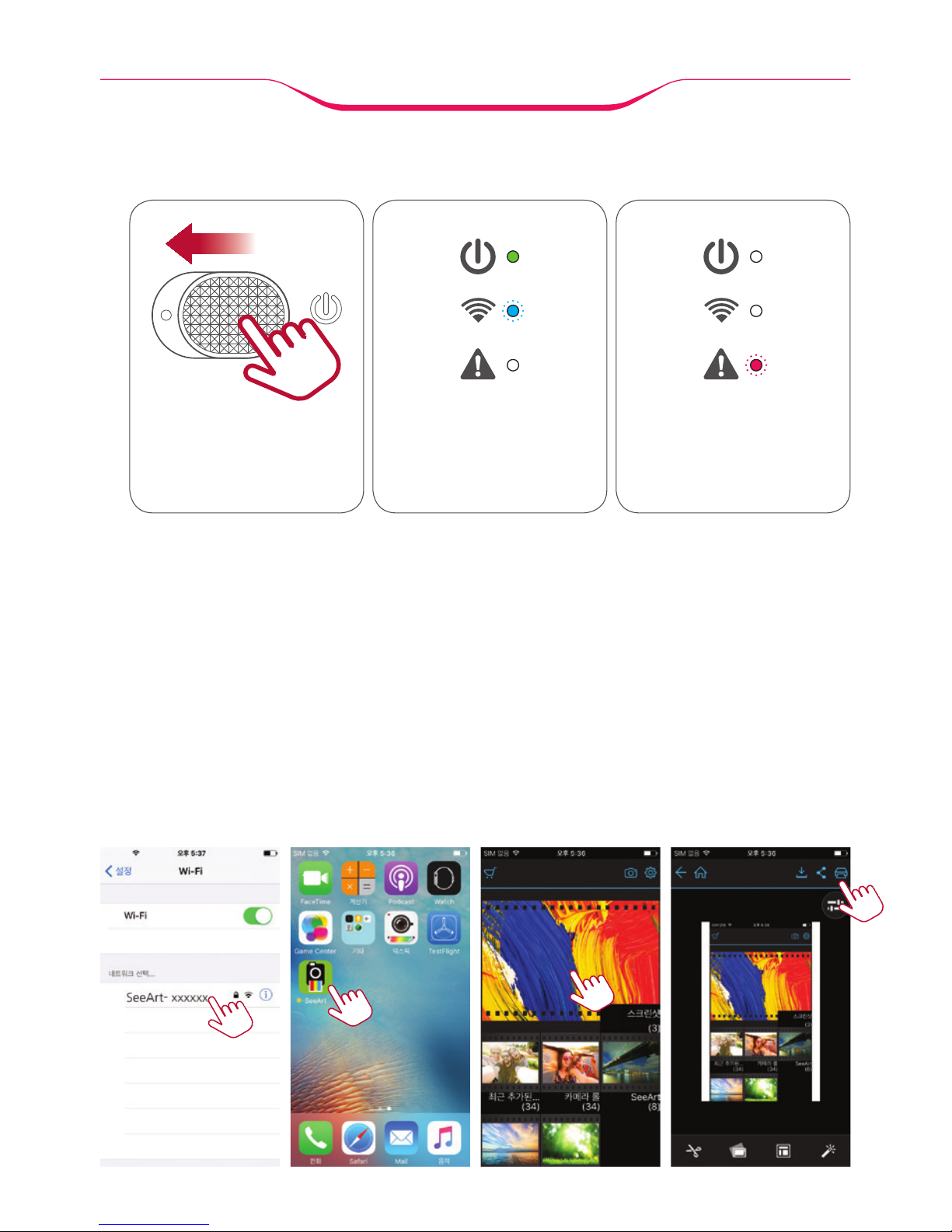
● Turn on the SEEART printer.
● connect by selecting printer named (seeart-xxxxxxx) in the wifi settings
on the smartphone.
● Launch the SEEART application on an iPhone or iPad.
● Choose the image to print.
● You have a choice of editing functions.
● Tap the ‘Print’ icon after editing image.
● After checking the edited image, tap the 'Print' icon and start printing.
·Turn on the power. ·When the Power LED
is on and the Wi-Fi LED
is blinking, it means that
the printer is ready.
·When there is no
cartridge or there is a
problem, the Red LED is
blinking.
Printing from a
Smartphone (iOS)

Off Turn on the power to print
켜켜On
(Green/Blue-blinking) Printer is ready
Wi-Fi connected
(Green/Blue) Printer and Smartphone are connected
Charging needed
(Orange-blinking) Battery power is less than 50%
Charging
(Orange) Battery is charging
Charging Disabled
(Green-blinking/Orange-blinking)
Wait for a minute and try again. If the error
message keeps re-occurring, please contact
our service.
Charging finished
(Green) Battery is fully charged.
Error State
(Red-blinkinig)
Check out status in ‘Setting’ –
‘Printer Information’ in the application.
P
r
i
n
t
i
n
g
Data reception
(Green/Blue-blinking) Receiving data from smartphone
Yellow Print
(Green-blinking) Printing Yellow Color of ribbon
Magenta Print
(Green/Green-blinking) Printing Magenta Color of ribbon
Cyan Print
(Green/Green/Green-blinking) Printing Cyan Color of ribbon
OP Lamination
(Green-blinking/Green-blinking
/Green-blinking)
Laminating printed paper
About LED signs

FCC Information to User
This equipment has been tested and found to comply with the limits for a Class B digital device, pursuant
to Part 15 of the FCC Rules. These limits are designed to provide reasonable protection against harmful
interference in a residential installation. This equipment generates, uses and can radiate radio
frequency energy and, if not installed and used in accordance with the instructions, may cause harmful
interference to radio communications. However, there is no guarantee that interference will not occur in
a particular installation. If this equipment does cause harmful interference to radio or television reception,
which can be determined by turning the equipment off and on, the user is encouraged to try to correct
the interference by one of the following measures:
• Reorient or relocate the receiving antenna.
• Increase the separation between the equipment and receiver.
• Connect the equipment into an outlet on a circuit different from that to which the receiver is con-nected.
• Consult the dealer or an experienced radio/TV technician for help.
Caution
Modifications not expressly approved by the party responsible for compliance could void the user’s
authority to operate the equipment.
FCC Compliance Information : This device complies with Part 15 of the FCC Rules. Operation is
subject to the following two conditions: (1) This device may not cause harmful interference, and (2) this
device must accept any interference received, including interference that may cause undesired
operation.
IMPORTANT NOTE:
FCC RF Radiation Exposure Statement:
This equipment complies with FCC RF radiation exposure limits set forth for an uncontrolled environment.
This equipment should be installed and operated with a minimum distance of 20 centimeters between the
radiator and your body.This transmitter must not be co-located or operating in conjunction with any other
antenna or transmitter.
Table of contents
Other CIAAT Printer manuals










