
Bematech MP-4000 TH User manual

MP-4000 TH
:: Printer, Impresora, Impressora
Druccker, Stapatore, Imprimante


Rev.2.3 :: Cod. - P/N 501.1181.00
3

This Quick Start Guide is a short description of the MP-4000 TH Printer and includes basic information
regarding installation and operation. For detailed information on this product, please check the User's
Manual available at our website "Support" section.
www.bematech.com
MP-4000 TH Quick Start Guide
P/N: 501.1181.00 - Rev.2.3
April 2009
(July 2007 - First edition)
Copyright© by Bematech S.A. Curitiba-PR, Brazil. All rights reserved.
No part of this publication may be copied, reproduced, adapted or translated without the prior written permission of Bematech S.A., except when allowed by patent
rights.
Information in this publication is purely informative, subjected to change without notice and no liability is assumed with respect to its use.
However, as product improvements become available, Bematech S.A. will make every effort to provide updated information for the products described in this
publication. The latest version of this manual can be obtained through Bematech website:
www.bematech.com
Notwithstanding the other exceptions contained in this Manual, the consequences and responsibility are assumed by the Purchaser of this product or third parties as a
result of: (a) intentional use for any improper, unintended or unauthorized applications of this product, including any particular purpose; (b) unauthorized
modifications, repairs, or alterations to this product; (c) use of the product without complying with Bematech S.A. Corporation’s operating and maintenance
instructions; (d) use of the product as component in systems or other applications in which the failure of this could create a situation where personal injury or material
damages may occur. In the events described above, Bematech S.A. and its officers, administrators, employees, subsidiaries, affiliates and dealers shall not be held
responsible or respond by any claim, costs, damages, losses, expenses and any other direct or indirect injury, as well as claims which alleges that Bematech S.A. was
negligent regarding the design or manufacture of the product.
Bematech S.A. shall not be liable against any damages or problems arising from the use of any options or any consumable products other than those designated as
original Bematech products or approved products by Bematech S.A.
Any product names or its logotypes mentioned in this publication may be trademarks of its respective owners and shall be here recognized.
Product warranties are only the ones expressly mentioned in the User’s Manual. Bematech S.A. disclaims any and all implied warranties for the product, including
but not limited to implied warranties of merchantability or fitness for a particular purpose. In addition, Bematech S.A. shall not be responsible or liable for any
special, incidental or consequential damages or lost profits or savings arising from the use of the product by the Purchaser, the User or third parties.
EMC, Safety and Other Standards Applied
WEEE
This product complies with the WEEE 2002/96/EC Directive from the European Community.
RoHS
This product complies with the RoHS 2002/95/EC Directive from the European Community.
México:
Safety: NOM-019-SCFI-1998
North America:
EMI: FCC Class A
Safety: UL 60950
Europe:
CE Marking
Safety: EN 60950
4
ENGLISH

• These item may be different depending on the product configuration.
5
ENGLISH
Installing your Printer
Unpacking
After removing the printer out of its box, verify that the following items are included:
• Printer
• Quick Start Guide
• Communication cable
• Power Supply and power cord
• Thermal Paper roll
• Spacer

Printer Description
Off / On
Power On LED
Paper Cut button
Paper Feedbutton
Info LED
switch
Cover Opening Lever
LED Indication
During printer operation, 2 LEDs are used to indicate the printer status. In case an error occurs, it
will be indicated through the Info LED. The color and number of blinks of the Info LED will
indicate the type of error. The blinks and the pauses are cyclical.
Info LED
Info
GREEN
Ready
LED Status
Ready to print
Ready to print, but near Paper End
Cover Open
No paper
Thermal printhead overheating, will print slowly,
wait to cool down
Cutter error, to recover open the cover (ERS)
Communication error / command ignored
Please refer to the User's Manual for
troubleshooting
On
Blinking
On
Blinking
2 blinks
3 blinks
4 blinks
Meaning
YELLOW
Recoverable error
RED
Unrecoverable error
Power LED
LED Status Meaning
Printer switched off
Printer switched on
(Power Supply OK)
Off
On
6
ENGLISH

Installing
Connect the DC cable of the power supply to the DC connector of the printer as shown below –
note that the arrow in the DC connector must be facing up.
Connect the communication cable to the printer and to the host system (i.e. a PC or other terminal).
To Ethernet interface installation, please consult the User's Manual available at www.bematech.com
DC Connector
Drawer Connector
Communication Port Connector
Serial DB-9
DC Connector
Drawer Connector
Communication Port Connector
USB
DC Connector
Drawer Connector
Communication Port Connector
Bi-directional parallel
DC Con nector
Drawer Connector
Communication Port Connector
Ethernet
7
ENGLISH
DC Connector
Drawer Connector
Communication Port Connector
Serial DB-25

1 - Lift cover lever
Up
3 - Close cover.2 - Drop paper
Observe paper side
as shown above.
Power supply´s
AC connector.
Make sure that the printer is turned off. Connect the power cord to the
power supply‘s AC connector and to an electrical outlet. Also make sure
that the electrical outlet is appropriately grounded.
Turn on the printer using the on / off switch located on the left side of the
printer. Check if the Power On LED is lit. The printer will initialize and
indicate the printer status ( ).
Loading Paper
To load the paper roll, lift the cover lever and open the cover as shown
below. Close the cover holding a slip of paper towards the outside of the
printer. Look if the Info LED is lit. If the Info LED is green, your printer is
ready to use.
8
ENGLISH

Paper width adjustment
To change the paper width simply pull the spacer and insert it in the new paper
width position, as shown below.
The printer must also be programmed to print only in the new paper width.
Please refer to the User's Manual for further details.
The spacer can be used to adjust the roll with widths from 2 up to 3 and a quarter of an inch.
Adjusted for 58mm
Spacer
82.5mm: No Spacer
Adjusted for 76mm Adjusted for 80mm
9
ENGLISH

Self-testing and Help summary
To run a self-test, turn off the printer, press and hold the Paper Feed button and switch the printer on.
When the printer starts printing, release the Feed button. A message will be printed asking you to wait
for the self-test, choose the Configuration Mode or enter in Data Dump Mode. After the self-test the
printer returns to the “Ready” status (green Info LED).
For a Help summary, turn off the printer and turn the printer on while keeping the Cut button pressed.
Usage Environment
The MP-4000 TH should operate placed on a plain and stable surface. Keep the printer unobstructed -
especially the paper exit.
Do not hold or pull the receipts which are being printed.
This product is designed for indoor applications. Avoid using it in environments with high
humidity, subject to dust or intense heat.
CAUTION !
This printer can support different drawer models with a jumper configuration. Please refer to the
User’s Manual before connecting your cash drawer to the printer. Some drawer models may
damage the printer when connected with a wrong jumper configuration.
Drawer Activation
10
ENGLISH
Other manuals for MP-4000 TH
2
Table of contents
Languages:
Other Bematech Printer manuals
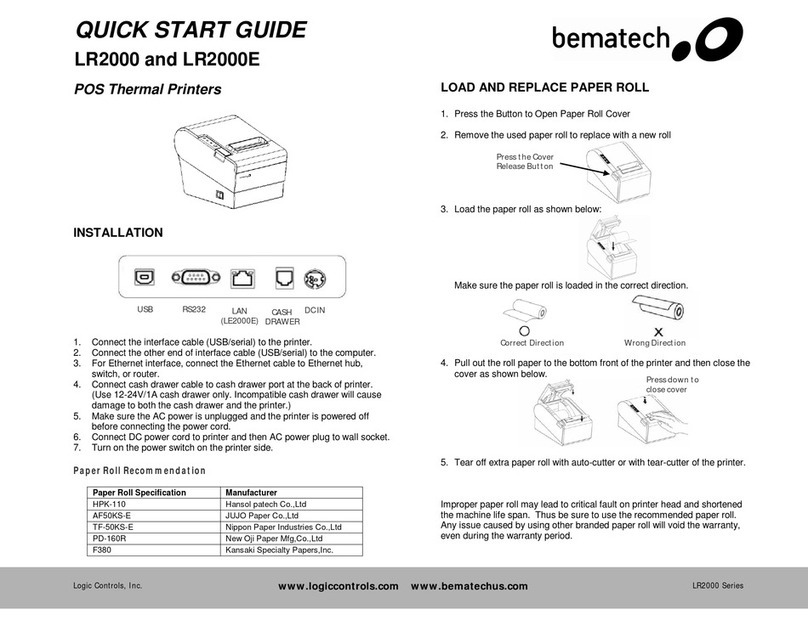
Bematech
Bematech LR2000 User manual
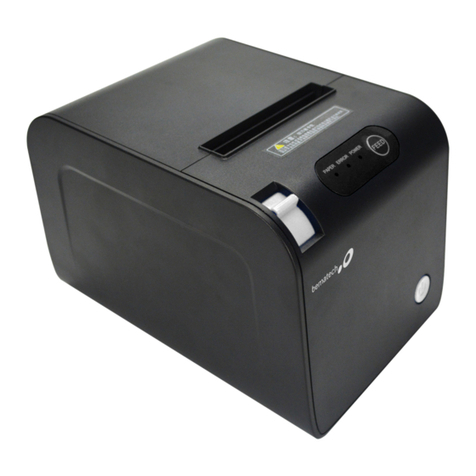
Bematech
Bematech LR1100 Owner's manual

Bematech
Bematech LR2000 Owner's manual

Bematech
Bematech MP200 User manual

Bematech
Bematech LR1100U User manual

Bematech
Bematech LR2000 User manual

Bematech
Bematech MP-4000 TH User manual

Bematech
Bematech MP-4000 TH User manual
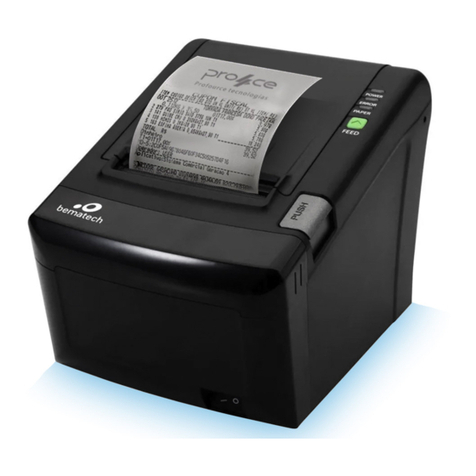
Bematech
Bematech MP-2500 TH User manual
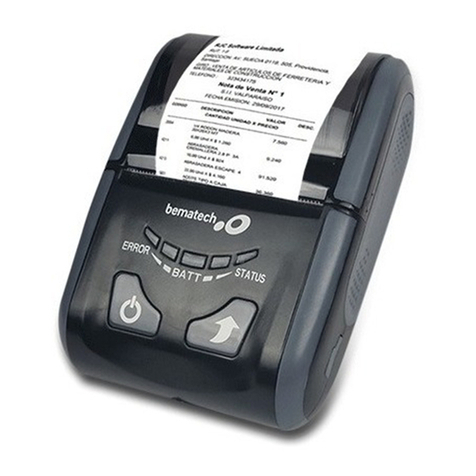
Bematech
Bematech LR200M User manual










