
Bell Novatek Wireless U760 User manual

Getting started guide
3G Turbo Stick
3G Novatel Wireless
U760 USB modem

Thank you for purchasing a 3G Turbo Stick from Bell. This two-in-one
Turbo Stick with memory storage (microSD card sold separately) will
give you access to Canada’s largest 3G network.1
This guide provides an overview of your new Turbo Stick and details
on how to configure your computer for use with this Turbo Stick.
• Gettingstarted
• InstallingtheMobileConnectBasicsoftwareforWindows
• Activatingyour3GTurboStick
• Usingyour3GTurboStick
• UsingaMacintoshwiththe3GTurboStick
• Hardwareoverview
• Insertingandremovingthe3GTurboStickfromyourcomputer
• InsertingandremovingamicroSDcard
• SavinglestomicroSD
• Troubleshooting
Welcome
Getting started
Before activating your Turbo Stick, ensure you have the following:
• ABellwirelessaccountwithaMobileInternetplan.(Ifyoudon’t
haveanaccountoraMobileInternetplan,speakwithaBellaccount
representative to get set up.)
• YourMobileDirectoryNumber(MDN)/
phone number ____________________
• YourMobileStationID(MSID) ____________________
• Yourunlockcode ____________________
• YourElectronicSerialNumber(ESN),
located on the Turbo Stick bar code label ____________________

Operatingsystem Microsoft®WindowsXPorWindowsVista™**
USBports 1typeAUSBport
Communicationports 2freeCOMports
I/Oresources 1IRQ,4,096bytesofI/Ospace
Memory 128MB
Diskspace 20MB
Operatingsystem MacintoshOS10.4orlaterwithIntelCPU
USBports 1typeAUSBport
Communicationports N/A
I/Oresources N/A
Memory 256MB
Diskspace 20MB
sYsteM requireMents
sYsteM requireMents
For PC users. To install and operate your Turbo Stick,
ensure your computer has the following system resources:
For Macintosh users. To install and operate your Turbo Stick,
ensure your computer has the following system resources:
**ForWindowsVista64-bitsupport,pleasevisitourwebsiteatbell.ca/mobileconnectforthe
latestversionofMobileConnectBasic.

Installing the Mobile Connect Basic software
for Windows
MobileConnectBasicfromBellisasoftwareapplicationthatallows
you to manage your wireless connections over the 3G network.
This software is preloaded onto the Turbo Stick and can be installed
onyourcomputer;noCDrequired.Alternativelyyoucandownloadthe
latestsoftwarefromourwebsiteatbell.ca/mobileconnect
Windows Vista: Ensure that “User Account Controls” (UAC) is disabled.
ThissettingisfoundintheUserAccountssectionoftheControlPanel
undertheStartMenu.CheckyourWindowsVistahelplesformore
informationaboutusingthisWindowsVistafeature.
Installation du logiciel Connexion mobile
de base pour Windows
Youmayneedtorestartyourcomputerafterchangingthissetting.
IfyoudonotdisableUserAccountControlsbeforeinsertingtheTurbo
Stick,MobileConnectBasicwillindicatethatnodeviceisattached.
To correct this problem:
•RemovetheTurboStickfromthecomputer
•GotoStart>Programs>Bell>MobileConnectBasicandselectUninstall,
if the program appears in the menu
•FollowtheinstructionsabovetodisableUserAccountControls(UAC)if
you have not already disabled
•Restartthecomputer
•Aftertherestart,ensureUACisdisabledbeforecontinuing
with the installation
UserAccountControlscanbere-enabledafterinstallationiscomplete
and your Turbo Stick is working.
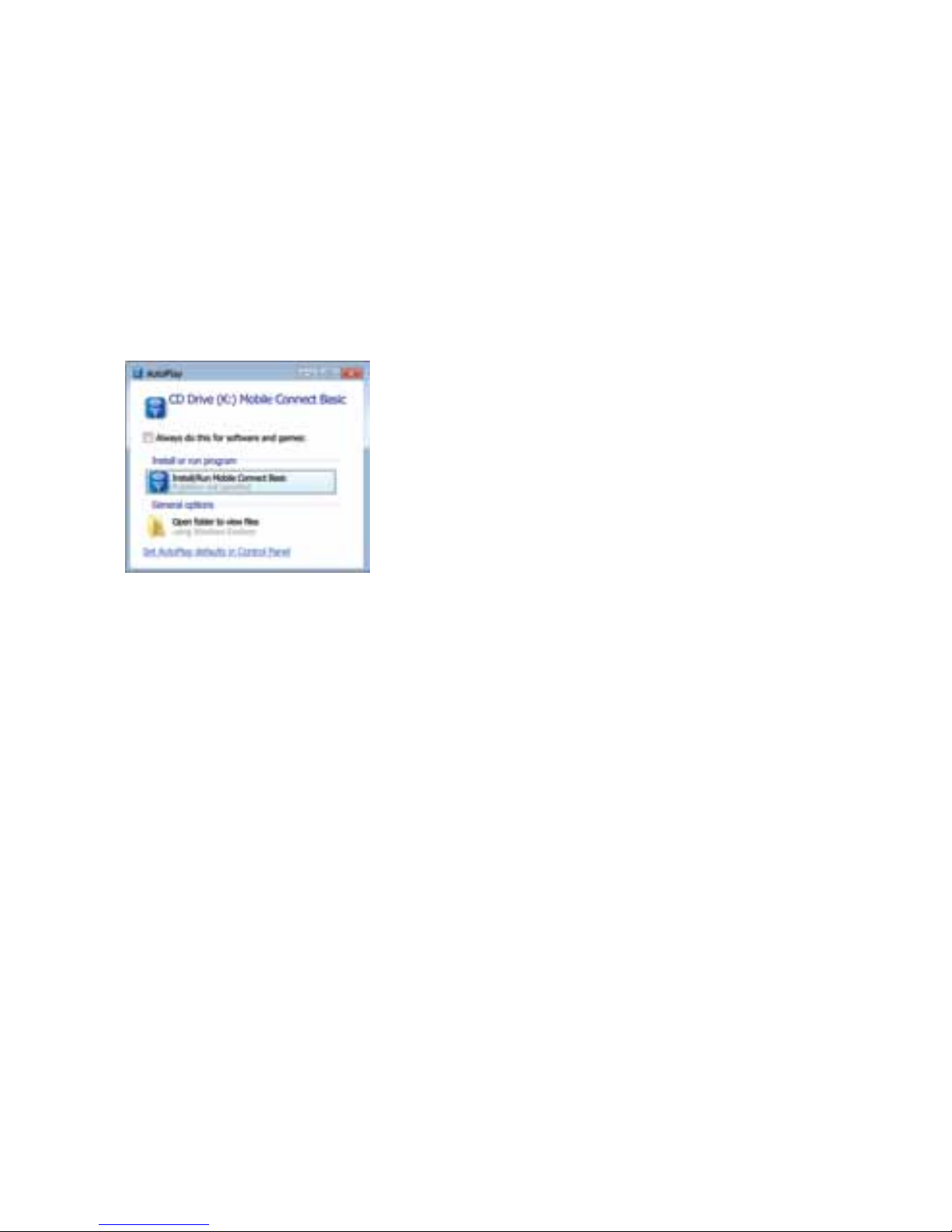
1. InserttheTurboStickintoanavailableUSBportonyourcomputer.
The installation will begin automatically or you will be prompted to
installMobileConnectBasic.
Select Install/Run Mobile Connect Basic.Iftheautoinstallfailstostart,
useanalternateInternetconnectiontodownloadandinstallthe
softwarefromourwebsiteatbell.ca/mobileconnect,oryoucan
manually install the software by:
1. SelectingStart>Run>Browse...
2. Lookin“MyComputer”tondTurboStickdiskdrive
3. Runthele“carrier.exe”
Note: The drive letter assigned to the Turbo Stick by the computer’s
operating system will be the next available drive letter (e:\, f:\, g:\, etc.)

2. FollowtheInstallShield®Wizard.Itwillguideyouthroughtheprocess
ofinstallingtheMobileConnectBasicapplication.UsetheNext and
Back buttons to navigate through the installation. To continue with
the installation, you must click Agree to accept the terms of the
LicenseAgreement.
The installation process may take several minutes to complete with
no progress shown on the progress bar – please be patient.
3. Select Restart or Finish to complete the installation. Once the
installation procedure is complete, you may be required to restart your
computer.Ifarestartisnotrequired,MobileConnectBasicwilllaunch
automatically.Ifyourcomputerrestarts,launchtheMobileConnect
Basic application by clicking on the Mobile Connect Basic icon.

1. WhenMobileConnectBasicrunsitwillcheckifyourTurboStickhas
beenactivated.YourTurboStickmustbeactivatedandyoumust
subscribetoaMobileInternetplanforyourTurboSticktooperate
ontheBellMobilitynetwork.MobileConnectBasicwillbeginthe
automatic activation process.
This process takes several minutes, please be patient.
2. MobileConnectBasicisnowreadytouse.Themainscreen
will appear.
Shouldtheprocessfail,MobileConnectBasicwillpromptyouto
retry the automatic activation or to try manual activation.
Activating your 3G Turbo Stick

For manual activation, you will need the following information:
• YourMobileDirectoryNumber(MDN)/phonenumber
• YourMobileStationID(MSID)(usuallythesameasyourMDN)
• Yourunlockcode(Thedefaultunlockcodeis“111111”)
UsetheActivationWizardundertheToolsmenu(wrenchIcon)toenter
yourunlockcode.Typethesix-digitnumberintotheeldprovidedand
click Next.

MobileConnectBasicwillthenpromptyoutoenteryourMobile
DirectoryNumber(MDN)andMobileStationID(MSID).Enterthesetwo
numbersintotheeldsprovided.
Aftersuccessfulrst-timeactivationthemainscreenwillappear.

To disconnect, click the Disconnect button.
FromtheMobileConnectBasicmainprogramwindow,youcan
establish a network connection and view the status. Some of the key
indicators and buttons include:
ToconnecttotheInternet,clicktheConnectbuttonontheMobile
Connect Basic main program window.
Using your 3G Turbo Stick
Note:TodisableroamingandonlyconnecttotheBellMobilitynetwork,
select Home Only in the Roaming Selection entry in the Tools Menu.
A.Connect/Disconnect
B. Signal strength
C. Status display
D.Usagecounters
E.Minimizebutton
F. Tools menu
G. Roaming indicator
Connect or disconnect from the network
Graphically illustrated network signal status
Indicatestheavailabilityofthenetworkandstatusof
current network connection
Anoverviewofthedatayouhavetransmittedandreceived
MinimizeMobileConnectBasictotheWindows®SystemTray
Selectvariouscongurationoptions,setpreferencesor
reactivate your modem
NoticationthatyournetworkconnectioniswithaBell
partner network (roaming rates will apply)
GE
C
BD
F A
Table of contents
Other Bell Modem manuals


