Avision FS-0913B User manual

Handy Scanner
User’s Manual
Regulatory model: FS-0913B
Avision Inc.

Trademarks
Microsoft is a U.S. registered trademark of Microsoft Corporation.
Windows, Windows XP, Windows Vista, and Windows 7 are either registered trademarks or
trademarks of Microsoft Corporation in the United States and/or other countries.
IBM, IBM PC are registered trademarks of International Business Machines Corp.
Other brands and product names herein are trademarks or registered trademarks of their
respective holders.
Copyright
All rights reserved. No part of this publication may be reproduced, transmitted, transcribed,
stored in a retrieval system, or translated into any language or computer language, in any
form or by any means, electronic, mechanical, magnetic, optical, chemical, manual, or
otherwise, without the prior written permission of Avision Inc.
Material scanned by this product may be protected by governmental laws and other
regulations, such as copyright laws, the customer is solely responsible for complying with all
such laws and regulations.
Warranty
The information contained in this document is subject to change without notice.
Avision makes no warranty of any kind with regard to this material, including, but not
limited to, the implied warranties of fitness for a particular purpose.
Avision shall not be liable for errors contained herein or for incidental or consequential
damages in connection with the furnishing, performance, or use of this material.
Disposal of Waste Equipment by Users in Private Union
This symbol on the product or on its packaging indicates that the product can not be
disposed of with your other household waste. Instead it should be sent to appropriate
facilities for recovery and recycling in an effort to protect human health and the
environment. Fore more information about where you can drop off your waste equipment
for recycling, please contact your local city office, your household waste disposal service or
the shop where you purchased the product.
As an ENERGY STAR®Partner, Avision Inc. has determined that this
product meets the ENERGY STAR guidelines for energy efficiency.
ii

User’s Manual
FCC Radio Frequency Interference Statement
This product has been tested and found to comply with the limits for a class B digital
device, pursuant to Part 15 of the FCC rules. Operation is subject to the following two
conditions: (1) this device may not cause harmful interference, and (2) this device must
accept any interference received, including interference that may cause undesired
operation. The FCC Class B limits are designed to provide reasonable protection
against harmful interference in a residential installation. This equipment generates,
uses, and can radiate radio frequency energy and, if not installed and used in
accordance with the instructions, may cause harmful interference to radio
communications. However, there is no guarantee that interference will not occur in a
particular installation. If this equipment does cause harmful interference to radio or
television reception, which can be determined by turning the equipment off and on, the
user is encouraged to try to correct the interference by one or more of the following
measures:
Reorient or relocate the receiving antenna.
Increase the separation between the equipment and receiver.
Connect the equipment into an outlet on a circuit different from that to which the
receiver is connected.
Consult your point of purchase or service representative for additional suggestions.
European Union Regulatory Notice
Products bearing the CE marking comply with the following EU Directives:
•Low Voltage Directive 2006/95/EC
•EMC Directive 2004/108/EC
CE compliance of this product is valid if powered with the correct CE-marked AC adapter
provided by Avision.
iii

Warning and Precautions of the lithium-ion battery
Warning:
Danger warning to prevent the possibility of the battery from leaking, heating, explosion, please observe the
following precautions:
•Don’t immerse the battery in water and seawater. Please put it in cool and dry environment if no using.
•Do not discard or leave the battery near a heat source as fire or heater
•Being charged, using the battery charger specifically for that purpose
•Don’t reverse the positive and negative terminals
•Don’t connect the battery to an electrical outlet directly.
•Don’t connect the positive and negative terminal directly with metal objects such as wire. Short
terminals of battery is strictly prohibited, it may damage battery.
•Do not transport and store the battery together with metal objects such as necklaces, hairpins.
•Do not strike, throw or trample the battery.
•Do not directly solder the battery and pierce the battery with a nail or other sharp object.
•Do not use lithium ion battery and others different lithium polymer battery model in mixture.
•Prohibition of use of damaged cells.
•Don’t bend or fold sealing edge. Don’t open or deform folding edge. Don’t fillet the end of the folding
edge.
•Don’t fall, hit, bend battery body.
•Battery pack designing and packing Prohibition injury batteries.
•Never disassemble the cells.
•Keep the battery away from babies.
•Any components contacting these two edges, they must be insulated.
Caution:
•Never place batteries or devices on or in heating devices, such as microwave ovens, stoves, or
radiators. Batteries may explode when overheated or its performance will be degenerate and its service
life will be decreased.
•Do not use it in a location where is electrostatic and magnetic greatly, otherwise, the safety devices
may be damaged, causing hidden trouble of safety.
•If the battery leaks, and the electrolyte get into the eyes. Do not wipe eyes, instead, rinse the eyes
with clean running water, and immediately seek medical attention. Otherwise, eyes injury can result.
•If the battery gives off an odor, generates heat, becomes discolored or deformed, or in any way appear
abnormal during use, recharging or storage, immediately remove it from the device or battery charge
and stop using it.
•Avoid charging batteries for more than a week, as overcharging may shorten battery life. Over time,
unused batteries will discharge and must be recharged before use.
•Disconnect chargers from power sources when not in use.
•Use batteries only for their intended purposes.
•Store the battery at 0°C to 40°C.
•Avoid exposing your device and batteries to very cold or very hot temperatures. Extreme temperatures
can cause the deformation of the device and reduce the charging capacity and life of your device and
batteries.
•Prevent batteries from contacting metal objects, as this can create a connection between the + and –
terminals of your batteries and lead to temporary or permanent battery damage.
•In case the battery terminals are dirt, clean the terminals with a dry cloth before use. Otherwise power
failure or charge failure may occur due to the poor connection with the instrument.
•Be aware discharged batteries may cause fire. Follow all local regulations when disposing of used
batteries or devices.
•Never crush or puncture the battery. Avoid exposing the battery to high external pressure, which can
lead to an internal short circuit and overheating.
iv

User’s Manual
v
目錄
1. Overview............................................................................ 1-1
1.1 Introduction ....................................................................................1-1
1.2 Package Contents.............................................................................1-1
1.3 Top View.........................................................................................1-2
1.4 Rear View .......................................................................................1-3
1.5 Bottom View....................................................................................1-3
1.6 LCD Display.....................................................................................1-4
1.7 Scanner Indicator Light.....................................................................1-5
2. Installation and Operation ................................................. 2-1
2.1 Installation......................................................................................2-1
2.1.1 Precautions ......................................................................... 2-1
2.1.2 Install the battery ................................................................ 2-1
2.1.3 Charge the battery............................................................... 2-2
2.1.4 Install micro SD card ............................................................ 2-3
2.2 Operation........................................................................................2-4
2.2.1 Unsuitable original types................................................... 2-4
2.2.2 Turn on the scanner .......................................................... 2-4
2.2.3 Choose your desired scan settings .................................... 2-5
2.2.4 Start scanning your documents......................................... 2-5
2.2.5 View or download the scanned images.............................. 2-6
2.2.6 View or download images (iPad)....................................... 2-8
2.2.7 Using auto rotation ........................................................... 2-8
2.2.8 Using M-PDF...................................................................... 2-9
2.2.9 Turn off your scanner........................................................ 2-9
3. Presto! PageManager 7 ...................................................... 3-1
3.1 Feature...........................................................................................3-1
3.2 Minimum System Requirements .........................................................3-1
3.3 Installing Presto! PageManager ..........................................................3-2
3.4 Starting Software.............................................................................3-3
3.5 Using Optical Character Recognition (OCR) ..........................................3-4
3.6 Using image-enhancement tools.........................................................3-6
3.7 Using the annotation tool ..................................................................3-8
3.8 Removing Presto! PageManager .......................................................3-10
4. Maintenance....................................................................... 4-1
4.1 Calibrate the scanner........................................................................4-1
4.2 Clean the rollers and glass.................................................................4-2
5. Troubleshooting................................................................. 5-1
5.1 Frequently asked questions and answers .............................................5-1
5.2 Error code.......................................................................................5-2
5.3 Information code..............................................................................5-3
6. Specifications..................................................................... 6-1

User’s Manual
1. Overview
1.1 Introduction
Congratulations on your purchase of the portable handheld scanner. With this scanner, you
can scan and store your photos or documents directly to a micro SDTM card without any
computer. Simply turn on the scanner, press the Scan button to start and slide the scanner
on the surface of your photo and document and press the Scan button again to stop. The
scanned image is stored into your micro SD card.
To view or download your scanned images, you can either remove the micro SDTM card and
connect it to a card reader, or connect the scanner to your computer via a USB cable
Before you install and operate the product, please take a few minutes to read through this
manual. It provides proper instructions for you to install, operate and maintain the
product.
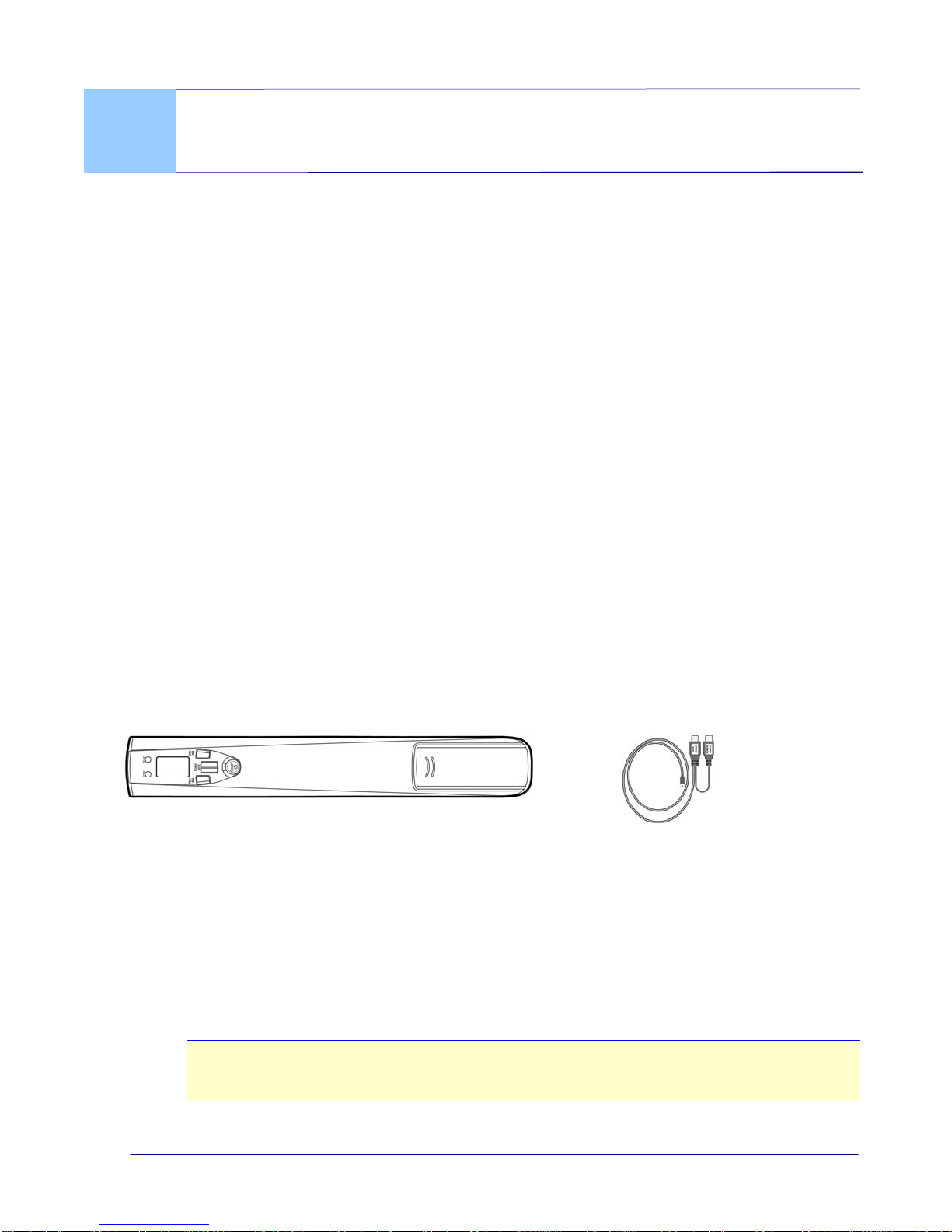
The following figure indicates the package contents. Please check all the items against
your checklist. If you do not receive all the items, please contact your authorized local
dealer immediately.
1.2 Package Contents
Handheld scanner
USB Cable
Accessories:
1. Quick guide
2. micro SD Card
3. Cleaning Cloth
4. Carrying Bag
5. Rechargeable Li-Ion battery (CNP50)
6. Calibration Card
Note:
Retain the scanner box and packing materials in case you may use them for shipping
purposes.
1-1

1.3 Top View
1 2 3
4 5 6 7 8
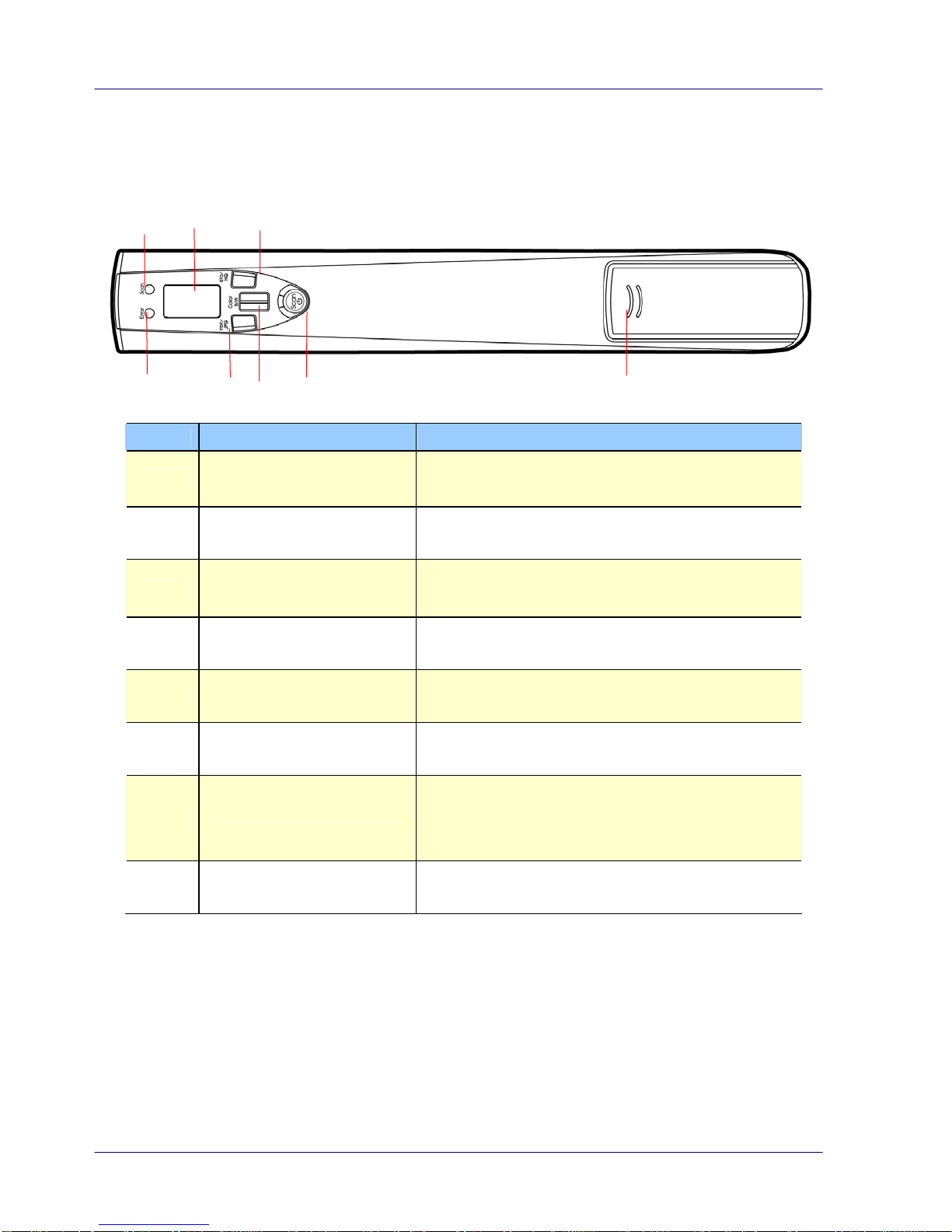
Item Name Description
1[Scan] Ready LED Show ready status or scan in progress.
2 LCD-display Shows scan settings and operating status.
3 [STD HQ] button Press to choose STD(standard, 300 dpi) or HQ
(high quality, 600 dpi) resolution.
4 [Error] LED A red flashing LED indicates error conditions
such as scanning too fast
5 [JPG PDF] button Press to select desired file format, PDF or
JPEG.
6 [Color BW] button Press to select the color of an image, color or
black and white.
7 [Scan/Power] button Hold 2 seconds to power on, press to start
scan and end scan.
Hold 3 seconds to power off.
8 Battery compartment Slide to remove the cover.
1-2

User’s Manual
1.4 Rear View
1 2
3
Item Name Description
1Memory card
slot Used to insert a memory card.
2 USB port Used to plug the mini end of the USB cable to
connect to PC for power charging or images
transferring.
3 Edge of
document
line-up mark
Line up the edge of your document with this mark
and the mark on the left side.
1.5 Bottom View
1
2
Item Name Description
1Sensor
rollers
The rollers are sensors and should only be rolled in
one direction. Do NOT roll back and forth while
scanning, except during calibration.
2Glass While rolling scanner over a document, the optical
sensor in the glass reads and scans the image.
1-3

1-4
1.6 LCD Display
Item Name Description
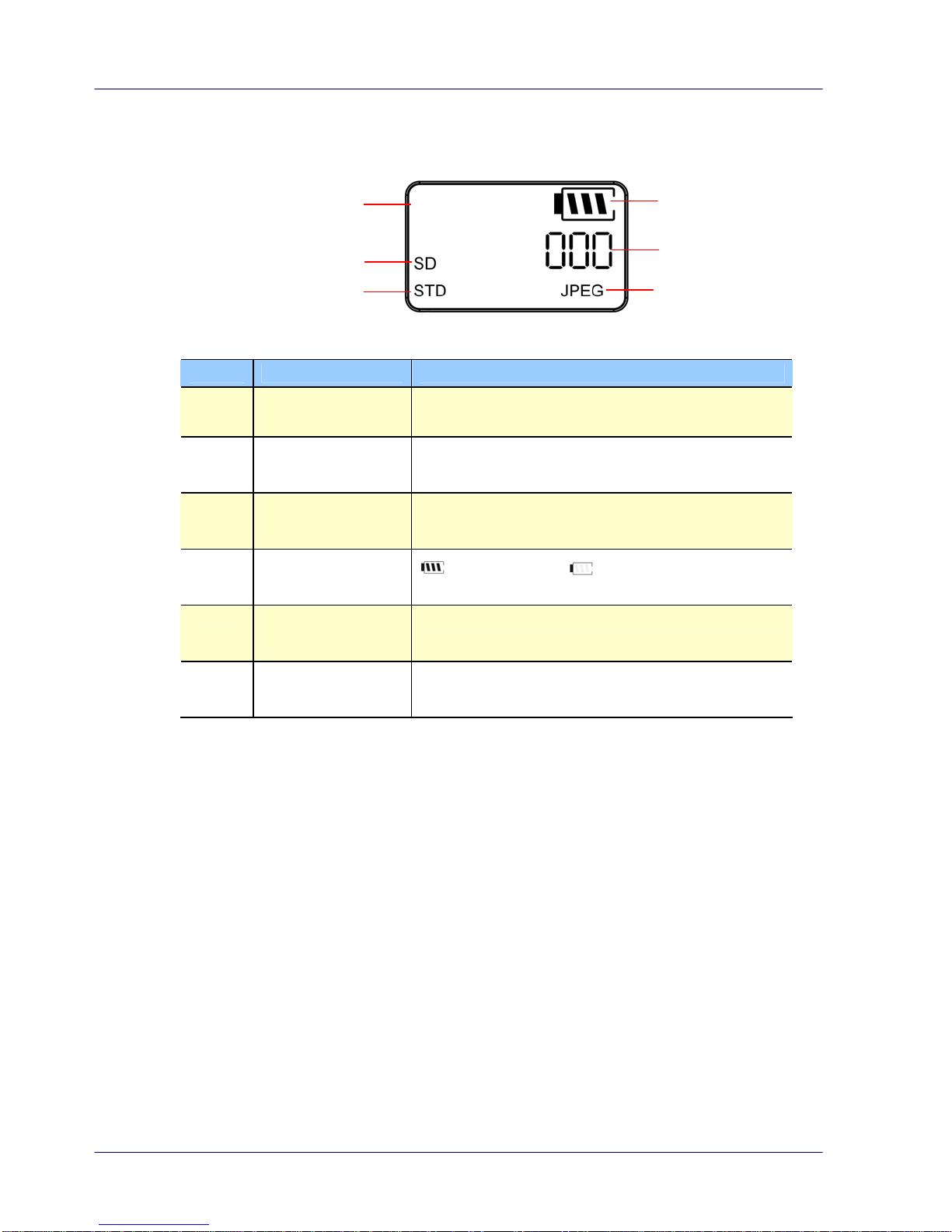
1Image color
selector Press to choose PHOTO(Color) or Black and
white
2SD card indicator Pictures are stored in micro SD card
3 Resolution
indicator STD(300dpi) or HQ(600 dpi)
4 Battery indicator Battery is full,Empty battery
5 Counting
indicator Show scan count
6 File format
indicator JPEG or PDF
1
2
3
4
5
6
COLOR

User’s Manual
1-5
1.7 Scanner Indicator Light
Green light
Red light
Name Description
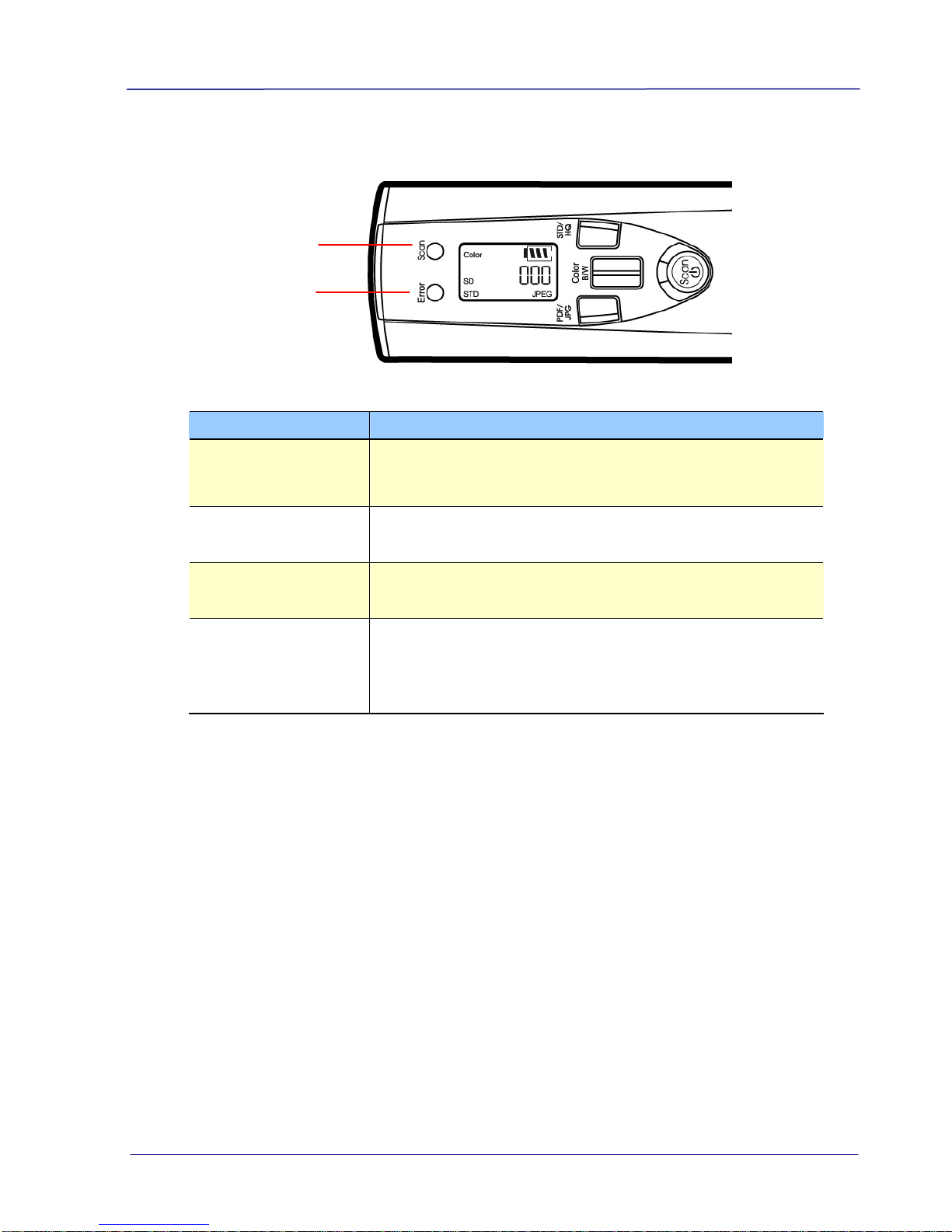
Solid red,blinking
green
Initializing system and memory card; wait until the
initialization process is complete before using the
scanner.
Blinking red Scanning error either because scanning too fast or
scanning back & forth.
Solid red The scanner is charging.
Solid green 1. The scanner battery is fully charged.
2. Ready to scan, press [Scan] button to start and
end scanning.
Table of contents
Other Avision Scanner manuals

Avision
Avision BF-0606H User manual

Avision
Avision AV120 User manual

Avision
Avision AV6240 User manual

Avision
Avision ScanCopier DS300 User manual

Avision
Avision DT-0602S User manual

Avision
Avision AV261C User manual

Avision
Avision BS-1005S User manual

Avision
Avision MiWand 2 Wi-Fi User manual

Avision
Avision FF-2109B User manual

Avision
Avision AD215 User manual

Avision
Avision FL1503B User manual

Avision
Avision DL-2104B User manual

Avision
Avision AD345GL User manual

Avision
Avision FF-2007H User manual

Avision
Avision FL-1202S User manual

Avision
Avision BF-1309B User manual

Avision
Avision AV121 User manual

Avision
Avision FF-0506 User manual

Avision
Avision BT-2202B User manual

Avision
Avision DF-1015S User manual