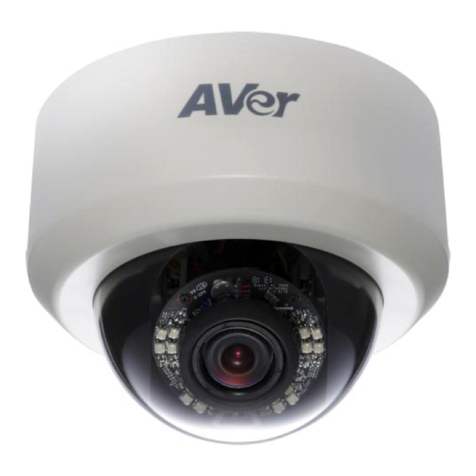
AVer CAM520 User manual

CAM520
User Manual

FCC NOTICE (Class A)
This device complies with Part 15 of the FCC Rules. Operation is subject to the following
two conditions: (1) this device may not cause harmful interference, and (2) this device
must accept any interference received, including interference that may cause undesired
operation.
Federal Communications Commission Statement
NOTE- This equipment has been tested and found to comply with the limits for a ClassAdigital device,
pursuant to Part 15 of the FCC Rules. These limits are designed to provide reasonable protection
against harmful interference in a residential installation. This equipment generates uses and can
radiate radio frequency energy and, if not installed and used in accordance with the instructions, may
cause harmful interference to radio communications. However, there is no guarantee that interference
will not occur in a particular installation. If this equipment does cause harmful interference to radio or
television reception, which can be determined by tuning the equipment off and on, the user is
encouraged to try to correct the interference by one or more of the following measures:
Reorient or relocate the receiving antenna.
Increase the separation between the equipment and receiver.
Connect the equipment into an outlet on a circuit different from that to which the receiver is
connected.
Consult the dealer or an experienced radio/television technician for help.
Class A ITE
Class A ITE is a category of all other ITE which satisfies the class A ITE limits but not the class B ITE
limits. Such equipment should not be restricted in its sale but the following warning shall be included in
the instructions for use:
European Community Compliance Statement (Class A)
This product is herewith confirmed to comply with the requirements set out in the Council
Directives on the Approximation of the laws of the Member States relating to
Electromagnetic Compatibility Directive 2014/30/EU.
Warning -This is a class A product. In a domestic environment this product may cause radio
interference in which case the user may be required to take adequate measures.
DISCLAIMER
No warranty or representation, either expressed or implied, is made with respect to the contents of this
documentation, its quality, performance, merchantability, or fitness for a particular purpose. Information
presented in this documentation has been carefully checked for reliability; however, no responsibility is
assumed for inaccuracies. The information contained in this documentation is subject to change
without notice.
In no event will AVer Information Inc. be liable for direct, indirect, special, incidental, or consequential
damages arising out of the use or inability to use this product or documentation, even if advised of the
possibility of such damages.

3
TRADEMARKS
“AVer” is a trademark owned by AVer Information Inc. Other trademarks used herein for description
purpose only belong to each of their companies.

COPYRIGHT
© 2019 AVer Information Inc. All rights reserved.
All rights of this object belong toAVer Information Inc. Reproduced or transmitted in any form or by any
means without the prior written permission of AVer Information Inc. is prohibited. All information or
specifications are subject to change without prior notice.
NOTICE
SPECIFICATIONS ARE SUBJECT TO CHANGE WITHOUT PRIOR NOTICE. THE INFORMATION
CONTAINED HEREIN IS TO BE CONSIDERED FOR REFERENCE ONLY.
WARNING
TO REDUCE RISK OF FIRE OR ELECTRIC SHOCK, DO NOT EXPOSE THIS APPLIANCE TO RAIN
OR MOISTURE. WARRANTY WILL BE VOID IF ANY UNAUTHORIZED MODIFICATIONS ARE
DONE TO THE PRODUCT.
Remote Control Battery Safety Information
- Store batteries in a cool and dry place.
- Do not throw away used batteries in the trash. Properly dispose used batteries through
specially approved disposal methods.
- Remove the batteries if they are not in use for long periods of time. Battery leakage and
corrosion can damage the remote control. Dispose of batteries safely and through approved
disposal methods.
- Do not use old batteries with new batteries.
- Do not mix and use different types of batteries: alkaline, standard (carbon-zinc) or
rechargeable (nickel-cadmium).
- Do not dispose of batteries in a fire.
- Do not attempt to short circuit the battery terminals.
Contact Information
Headquarters
AVer Information Inc.
www.aver.com
8F, No.157, Da-An Rd., Tucheng Dist.,
New Taipei City
Taiwan
AVer Information Europe B.V.
Westblaak 140, 3012KM, Rotterdam, Netherland
Tel: +31(0)10 7600 550
Technical support: EU.RMA@aver.com
USA
AVer Information Inc.
668 Mission Ct
Fremont, CA 94539
www.averusa.com
Toll-free: 1(877)528-7824
Local: 1(408)263-3828
Support.usa@aver.com

Contents
Package Contents...................................................................................................1
Product Introduction................................................................................................2
Camera ...................................................................................................................2
Remote Control.......................................................................................................3
Setup CAM520........................................................................................................5
Device Connection..................................................................................................5
Wall Mount Installation............................................................................................6
Use CAM520...........................................................................................................9
Make a Video Call...................................................................................................9
LED Indicator ..........................................................................................................9
AVer PTZApp ........................................................................................................10
Install AVer PTZApp ..............................................................................................10
Use AVer PTZApp.................................................................................................10
Select Remote Control..........................................................................................16
Set the Camera Number.......................................................................................17
Hotkey Control ......................................................................................................18

1
Package Contents
1
2
3
4
5
6
7
8
P/N:303AV8U2-A F9
9
AAAAAA
10
1. CAM520 unit
2. L-Mount (mounting screws are included)
3. Power Cord* & Power adapter
4. Remote Controller
5. USB cable
6. Quick Guide
7. Warranty card
8. Drilling paper
9. AAA Batteries (x2)
10. Tripod screw
*The power cord will vary depending on the standard power outlet of the country where it is sold.

2
Product Introduction
Camera
7
6
21 3 4 5
1. IR Sensor
5. Power Jack
2. Power indictor
6. Kensington lock
3. RS232 connection*
7. Screw hole for mounting
4. USB port
* If you need a converter or instructions on how to use RS232,please contact AVer USA.

3
Remote Controller
1
2
3
4
5
6
7
813
12
10
9
11
Name
Function
1. Camera select
One remote can control up to 3 AVer VC/Cam. Please use the
AVer PTZApp to set cameras to buttons 1 to 3. Once set, camera
may be selected by a simple press of the camera select button.
2. Camera direction control
Position of the camera lens may be adjusted through the
direction buttons. Long press of the button allows continuous pan
or tilt of the camera.
3. FaceLumi
Enhance facial features by correcting skin tone and activates
auto focus and auto exposure. This feature may be disabled
when tilting, panning, zooming, or disconnecting camera.
4. OSD menu**
Press to bring out the OSD menu.
5. Zoom in/Zoom out
Press to zoom in or zoom out.

4
Name
Function
6. Preset
This feature allows user to go to a set position.
To save the camera at the desired position, press and hold
the preset button until the "saved message" is displayed.
Select preset position button 0 to 9 to save.
Pressing Preset + Preset Position Button (0 ~ 9) will move
the camera to the saved position.
7. Preset position
Preset position button is used in conjunction with the Preset
button to save positions. There are a total of 0 to 9 saves.
8. Call/answer*
Answer a call or start a call.
9. Enter**
To confirm the selection in the OSD menu.
10. Mute/Unmute
Speakerphone**
Mute/Unmute the speakerphone.
11. Volume up/down**
Adjust volume up or down.
12. Far site camera control***
Press the Far/Near button to control the far site camera for pan,
tilt, or zoom functions.
13. Hang up*
End the call.
* Function requires AVer PTZApp
** Not support for CAM520
*** Future support

5
Setup CAM520
Device Connection
1. Use USB cable to connect the CAM520 to your PC/laptop (refer to diagram above).
2. Connect the power to the CAM520; power indicator will light up and camera head will rotate.
3. InstallAVer PTZApp on laptop or PC that is connected with CAM520. The app can be used to
adjust and setup the parameters of the camera (refer to section of AVer PTZApp)
4. To make a call, run your video application (SkypeTM, Microsoft ®LyncTM, Skype for Business,
Google HangoutsTM, Cisco WebEx®, GoToMeetingTM, WebRTC, and etc.) select CAM520 as your
video device.

6
Wall Mount Installation
1. Paste the drilling paper on the wall where you want to mount the camera. Then, according the
drilling paper to drill the hole on the wall for installing the wall mount bracket on the wall.After
drilling, the drilling paper can tear off.
2. Secure the wall mount bracket on the wall within screws.
Other manuals for CAM520
1
This manual suits for next models
2
Table of contents
Other AVer Security Camera manuals

AVer
AVer SF2012H-D User manual

AVer
AVer MD330U Series User manual

AVer
AVer SF2111H-BR User manual

AVer
AVer FD1020 Instruction manual

AVer
AVer PTZ310 User manual

AVer
AVer FX3000-R User manual

AVer
AVer PTC500S User manual

AVer
AVer PTZ310 User manual

AVer
AVer TR311N User manual

AVer
AVer MD330U Series User manual

AVer
AVer PAPTZ330N User manual

AVer
AVer CAM520 Pro2 User manual

AVer
AVer CAM520 Pro User manual

AVer
AVer PTC300V2 Series User manual

AVer
AVer PTZ330 User manual

AVer
AVer Box type User manual

AVer
AVer FV1306 User manual

AVer
AVer TR311HN User manual

AVer
AVer TR335 User manual

AVer
AVer SF2111H Series Instruction manual