
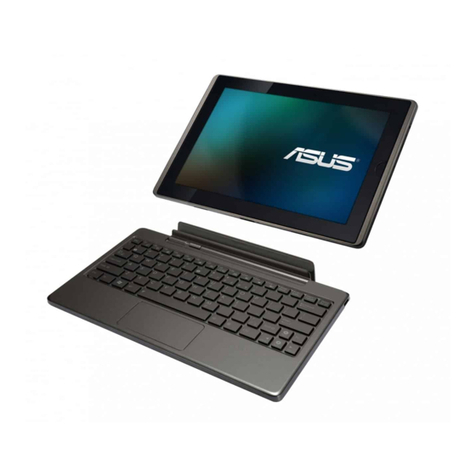
Asus Eee Pad Transformer TF101 User manual

Eee Pad User Manual
TF101/TF101G
E6640
There are three main types of airport security devices: X-ray machines (used
on items placed on conveyor belts), magnetic detectors (used on people
walking through security checks), and magnetic wands
(hand-held devices used on people or individual items). You can send your
Eee Pad through airport X-ray machines. But do not send your Eee Pad
through airport magnetic detectors or expose it to magnetic wands.
Airplane Precautions
Ask an airline personnel if you want to use your Eee Pad onboard an aircraft.
Most airlines have restrictions for using electronic devices. Most airlines allow
electronic use only between and not during takeos and landings.
Charging Your Batteries
If you intend to use battery power, be sure to fully charge your battery pack
before going on long trips. Remember that the power adapter charges the
battery pack as long as it is plugged into the computer and an AC power source.
Be aware that it takes much longer to charge the battery pack when the Eee Pad
is in use.
Remember to fully charge the battery (8 hours or more) before rst use and
whenever it is depleted to prolong battery life. The battery reaches its maximum
capacity after a few full charging and discharging cycles.

Contents
Package Contents .............................................................................................. 4
Your Eee Pad......................................................................................................... 5
Charging the Eee Pad ....................................................................................... 8
Your Eee Pad mobile docking (optional) ................................................... 9
Docking the Eee Pad.......................................................................................12
Charging the Eee Pad on the docking......................................................13
Basic ...................................................................................................................14
Unlock your Eee Pad......................................................................................14
Desktop .............................................................................................................14
ASUS Launcher................................................................................................15
Touch panel control.......................................................................................16
File Manager.....................................................................................................18
Market .............................................................................................................21
Settings................................................................................................................22
Music ...................................................................................................................23
Image ...................................................................................................................24
Gallery .............................................................................................................24
Camera .............................................................................................................27
Mail ...................................................................................................................28
Email .............................................................................................................28
Gmail .............................................................................................................30
Reading................................................................................................................31
MyLibrary...........................................................................................................31
Locating...............................................................................................................34
Places and Maps..............................................................................................34
Documenting ....................................................................................................35
Polaris® Office ..................................................................................................35
Sharing.................................................................................................................38
MyNet .............................................................................................................38
MyCloud.............................................................................................................40
ASUS Eee Pad Manual
2

ASUS Eee Pad Manual
3
Eee Pad PC Suite (on PC)................................................................................47
MyDesktop PC Server....................................................................................47
ASUS Webstorage...........................................................................................47
ASUS Sync .........................................................................................................48
Declarations and Safety Statements .........................................................50
Federal Communications Commission Statement.............................50
RF Exposure Information (SAR)..................................................................50
IC Regulations..................................................................................................51
IC Radiation Exposure Statement.............................................................51
CE Mark Warning.............................................................................................52
Power Safety Requirement .........................................................................52
ASUS Recycling/Takeback Services..........................................................52
Copyright Information ...................................................................................54
Limitation of Liability......................................................................................54
ASUS Eee Pad Manual
4
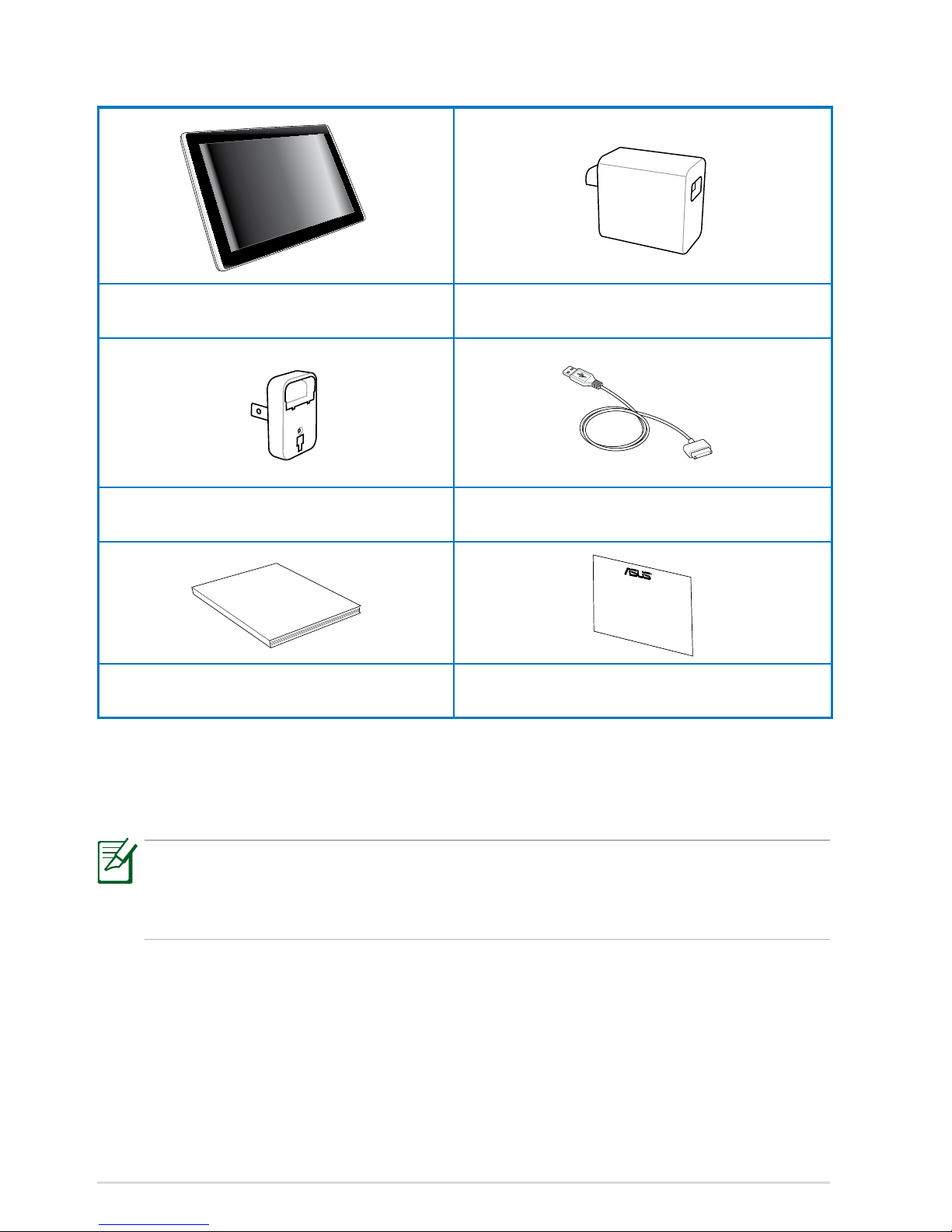
Package Contents
• If any of the items is damaged or missing, contact your retailer.
• The power plug that comes with your Eee Pad may vary depending
on your territory to t the wall outlet.
Eee Pad USB Charger
Power Plug Docking connector to USB cable
User Manual
User Manual Warranty Card
ASUS Eee Pad Manual
5
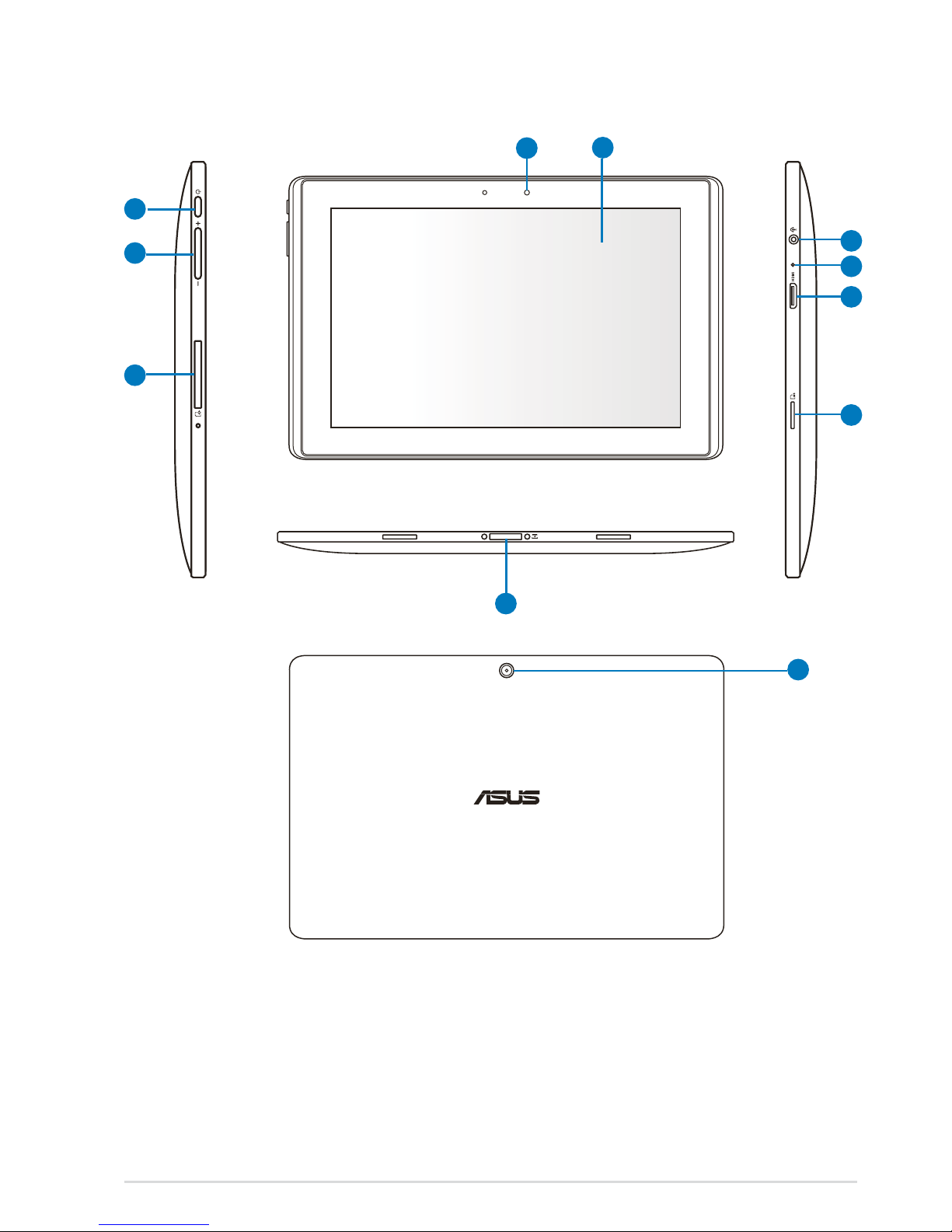
Your Eee Pad
8
1
3
2
4
7
10
5
11
6
9

1
Power button
The power button turns your Eee Pad on/o. Hold the power
button for 2 seconds to power on your Eee Pad. When the Eee Pad
is powered on, press the power button to put the Eee Pad into sleep
mode or wake it up from sleep mode. Hold the power button for 0.5
second to display the shutdown dialog box. If the system becomes
unresponsive, press and hold the power switch to force the Eee Pad
to power o.
Forcing the system to power o may result in data loss. Please
inspect your data to ensure there is no data loss. It is strongly
recommended that important data be backed up regularly.
2
Volume Key
Press this button to increase or decrease the system volume.
3
SIM Card slot (on TF101G)
The SIM card compartment allows insertion of a mobile SIM card for
3G functions.
Use a straightened paper clip to press the opening beside the
SIM card slot to eject the SIM card tray.
4
Built-in front Camera
Use the built-in camera for picture taking, video recording, video
conferencing, and other interactive applications.
5
Touch Screen Panel
The touch screen panel allows you to operate your Eee Pad using
multi-touch up to ten ngers.
6Docking Connector
• Insert the power adapter into this port to supply power to
your Eee Pad and charge the internal battery pack. To prevent
damage to your Eee Pad and battery pack, always use the
bundled power adapter.
• Connect the docking connector to USB cable to the Eee Pad and
another system (notebook or desktop) for data transmission.
• Dock the Eee Pad to the mobile docking for extended functions,
including keyboard, touchpad and USB interface.
ASUS Eee Pad Manual
6

ASUS Eee Pad Manual
7
7
Built-in rear Camera
Use the built-in camera for picture taking, video recording, and other
interactive applications.
8
Headphone Output/Microphone Input Combo Jack
The stereo combo jack (3.5mm) connects the Eee Pad’s audio
out signal to amplied speakers or headphones. Using this jack
automatically disables the built-in speaker.
For microphone input function, the jack supports the headset
microphone ONLY.
9Microphone (Built-in)
The built-in mono microphone can be used for video conferencing,
voice narrations, or simple audio recordings.
10
mini HDMI port
Insert a mini HDMI cable into this port to connect to a high-denition
multimedia interface (HDMI) device.
11
Micro SD Card Slot
Insert Micro SD card into this slot
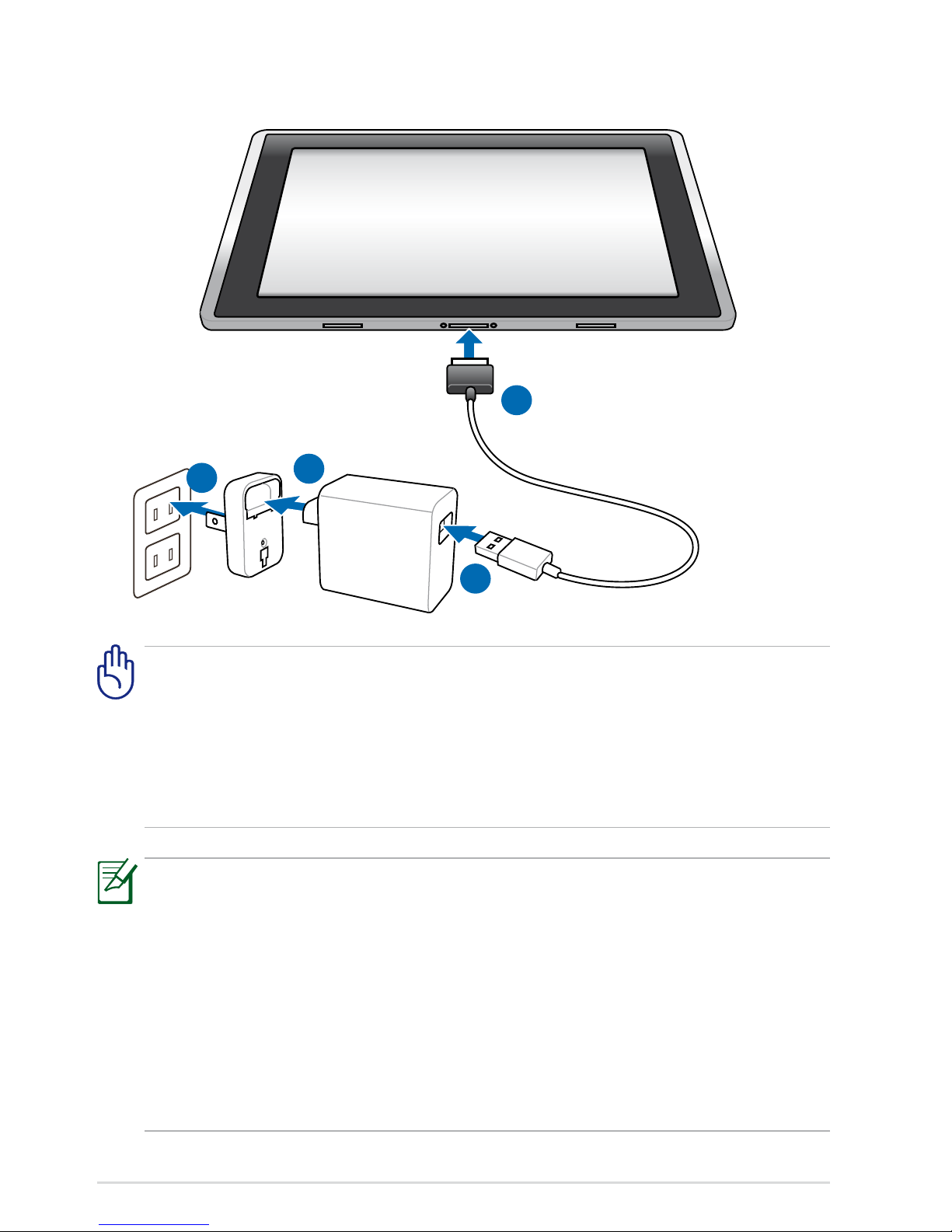
Charging the Eee Pad
41
2
3
• Use only the power adapter that comes with your device. Using a
dierent power adapter may damage your device.
• Using the provided power adapter and USB cord to connect your Eee
Pad to a power outlet is the best way to charge the Eee Pad.
• The input voltage range between the wall outlet and this adapter is
AC 100V–240V, and the output voltage of this adapter is DC 15V, 1.2A.
• To prolong battery life, fully charge the battery for up to 8 hours
when using the Eee Pad for the rst time and whenever the battery
power is fully depleted.
• TF101 can be charged via the USB port on the computer only when
it is in sleep mode (screen o) or powered o.
• Charging through the USB port may take longer time to complete.
• If the computer does not provide enough power for charging Eee
Pad, use the wall outlet instead.
• TF101G CANNOT be charged via the USB port on the computer.
ASUS Eee Pad Manual
8

ASUS Eee Pad Manual
9
Your Eee Pad mobile docking (optional)
The Eee Pad mobile docking is purchased separately.
1 3
4 3
2
Home PgDp
PgUp
End
Enter
Backspace
Tab
Caps Lock
Shift Shift
Ctrl Ctrl
Alt
Fn
Fn
5
76
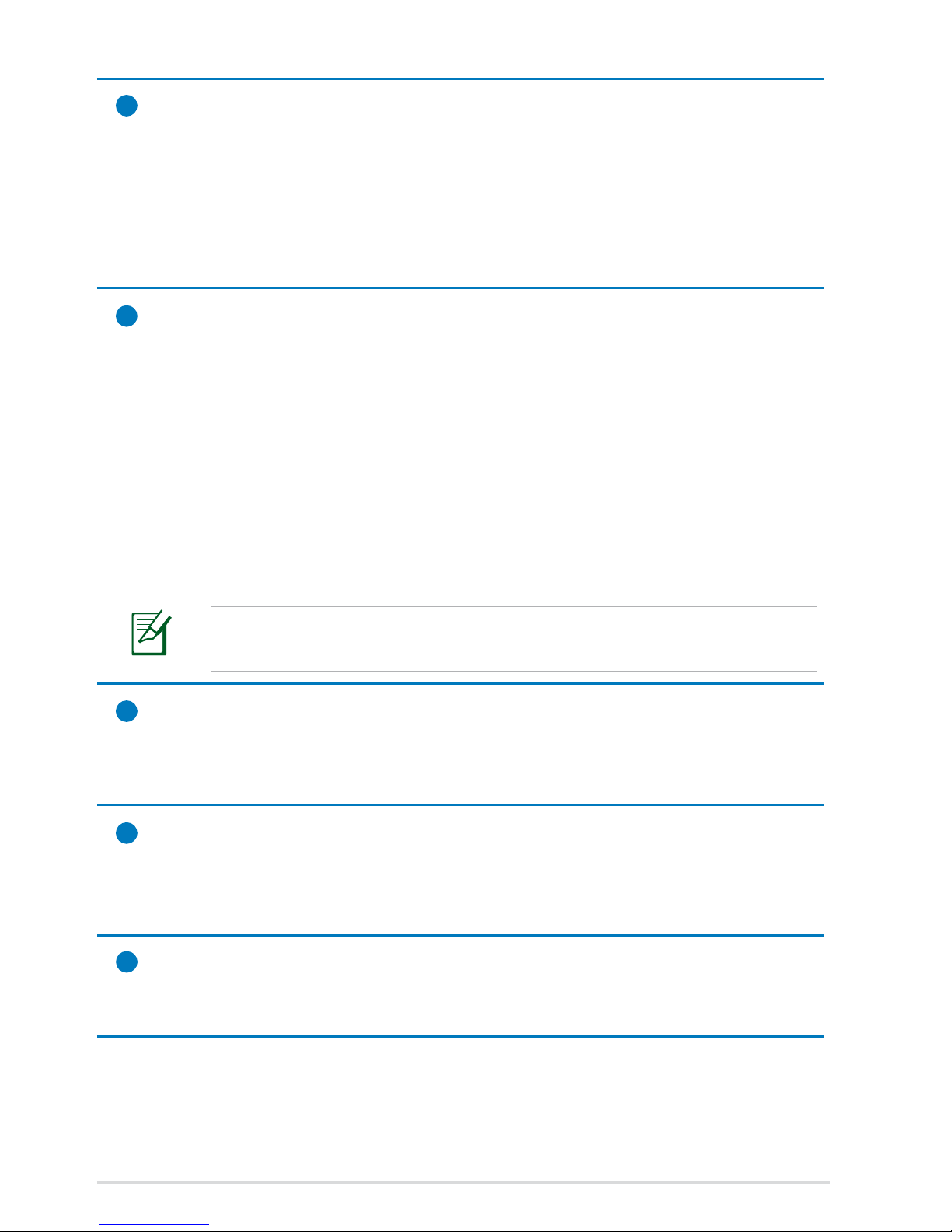
1Docking Connector
• Insert the power adapter into this port to supply power to
your Eee Pad and charge the internal battery pack. To prevent
damage to your Eee Pad and battery pack, always use the
bundled power adapter.
• Connect the docking connector to USB cable to the Eee Pad and
another system (notebook or desktop) for data transmission.
2Battery Charge Indicator (dual-color)
With AC adapter:
Green ON: Battery power is between 95% and 100%.
Orange ON: Battery power is less than 95%.
Orange Blinking: Battery power is less than 10%.
Orange Blinking Quickly: Battery power is less than 3%.
Without AC adapter and with Eee Pad:
Orange Blinking Quickly: Battery power is less than 3%.
Ensure to connect the power charger when the indicator starts
blinking.
3USB Port (2.0)
The USB (Universal Serial Bus) port is compatible with USB 2.0 or USB
1.1 devices such as keyboards, pointing devices, ash disk drive and
hard disk drives.
4Memory Card Slot
This Eee Pad mobile docking has a built-in high-speed memory
card reader that can conveniently read from and write to many ash
memory cards.
5
Mobile docking latch
Move the mobile docking latch to the left to release the Eee Pad from
the mobile docking.
ASUS Eee Pad Manual
10
Other manuals for Eee Pad Transformer TF101
2
This manual suits for next models
3
Table of contents
Other Asus Tablet manuals


Asus
Asus TF502T User manual

Asus
Asus Eee Pad ME370T User manual

Asus
Asus E8711 User manual

Asus
Asus Eee Pad TF101 User manual

Asus
Asus (VIVO RT) TF600T-C1-GR User manual

Asus
Asus ZenPad 7.0 Guide

Asus
Asus K017 User manual

Asus
Asus K01G User manual

Asus
Asus Eee Pad Transformer TF101 User manual

Asus
Asus Padfone 2 Station User manual


Popular Tablet manuals by other brands

Laser
Laser MID-1060 Quick operation guide

MUNBYN
MUNBYN IRT09J Easy setup guide

Motorola
Motorola MC3090R - Win CE 5.0 Professional 520 MHz quick start guide

Dell
Dell Latitude ST Setup and features information

Lenovo
Lenovo IdeaTab S6000L Hardware Maintenance Manual

Venturer
Venturer WT9L11 quick start guide






