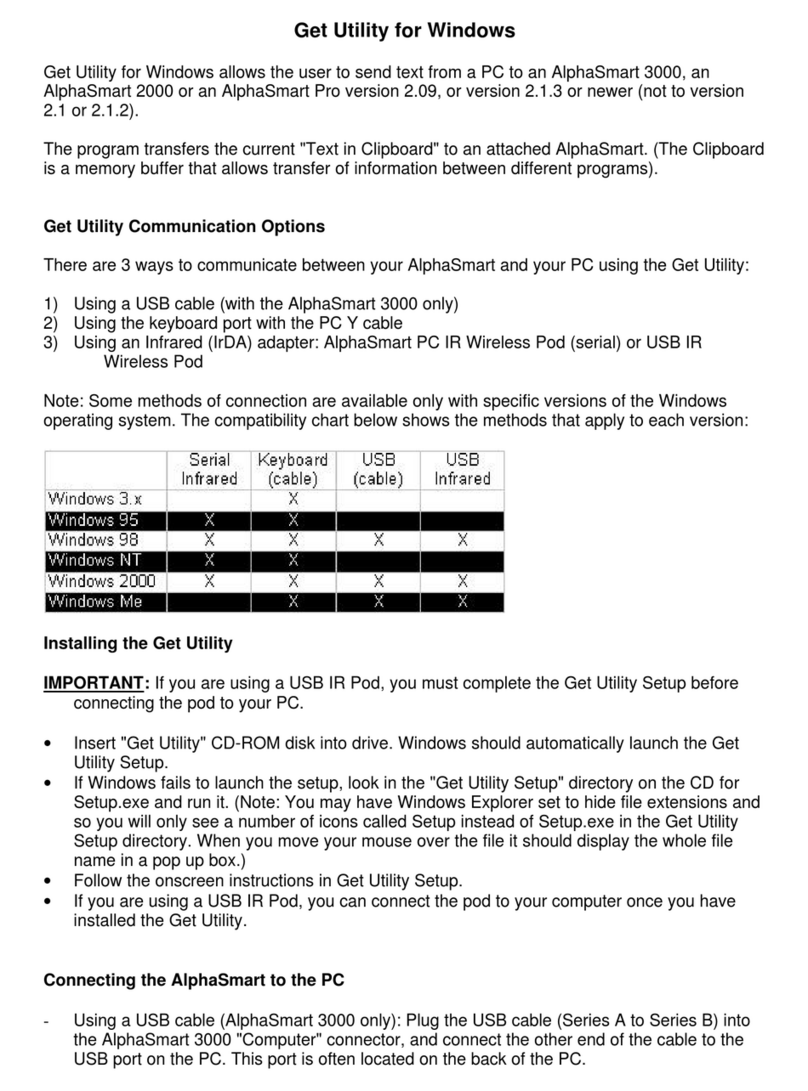
Alphasmart AS 3000 User manual

1
SmartApplet Installation Guide
Where to begin
SmartApplets can only be installed using AlphaSmart Manager 2
software on your computer. Both AlphaSmart 3000 and Neo
users must install this application on their computers. See page 7
for instructions on how to install AlphaSmart Manager 2.
To install this SmartApplet on a Neo, follow the instructions for
Neo on page 2. You must already have AlphaSmart Manager 2
installed on your computer.
To install this SmartApplet on an AlphaSmart 3000, follow the
instructions for AlphaSmart 3000 on page 3. You must already
have AlphaSmart Manager 2 installed on your computer.
XNeo
XAlphaSmart 3000
XAlphaSmart Manager 2

2
Neo
You’ve probably already installed AlphaSmart Manager 2 on your computer. If you haven’t,
you’ll need to do so to install your new SmartApplet. See page 7 for installation instructions.
Install and send SmartApplets to your Neo
Once you’ve installed AlphaSmart Manager 2, you’re ready to install your SmartApplet on
your Neo.
To install and send SmartApplets to your Neo:
1. If AlphaSmart Manager is already running, exit the application (File > Exit or
File > Quit). If it’s not, go on to step 2.
2. Connect your device to your computer with the USB cable or connect it to an AlphaHub
that is connected to your computer.
3. On your computer, use Windows Explorer or Macintosh Finder to browse to the location
where you unzipped or unstuffed the SmartApplets files.
4. Locate the file that ends with .OS3KApp, such as KeyWords.OS3KApp, and double-click
it. AlphaSmart Manager 2 launches and displays the SmartApplets tab.
5. Make sure the Install List shows the SmartApplet that you are installing. (If it doesn’t, try
closing AlphaSmart Manager 2 and restarting it.)

3
6. Click the Send List tab and check that the SmartApplet is listed under the SmartApplets
section, then click Send. The SmartApplet is sent to your device.
AlphaSmart 3000
There are a couple of tasks you need to do before you can install your new SmartApplet on
your AlphaSmart 3000.
Check system software on your device
This SmartApplet can only be installed on a System 3 AlphaSmart device. To check whether
your AlphaSmart 3000 is running System 3, turn your device on and press option-a-V and
note whether the screen displays “System 3.” If it doesn’t, you need to update the device
with the System 3 Update Kit (visit www.alphasmart.com for details).
Think about available space on your device
System 3 software for your device already contains several SmartApplets:
SpellCheck, Thesaurus, and StyleWriterFont are “hidden” SmartApplets. They don’t appear
in the SmartApplets menu on your AlphaSmart 3000, but they do appear in
AlphaSmart Manager 2 and occupy space on your device. During installation, you might
need to remove a SmartApplet to make room for the new SmartApplet you’re installing. If
AlphaWord Plus Thesaurus (small)
Calculator Beamer
Control Panel KeyWords
Spell Check (small) StyleWriterFont

4
necessary, consider removing Thesaurus or SpellCheck, as they are two of the largest
SmartApplets on the device. Or, you might consider removing KeyWords or Beamer and
StyleWriterFont.
The Memory column on the SmartApplets tab shows you how much space is being used and
how much is available. The following instructions contain additional information on how to
handle this situation.
Install and send SmartApplets to your AlphaSmart 3000
Once you’ve installed AlphaSmart Manager 2, checked that your device is running System 3,
and thought about how to handle space issues, you’re ready to install your SmartApplet on
your AlphaSmart 3000.
To install and send SmartApplets to your AlphaSmart 3000:
1. If AlphaSmart Manager 2 is already running, exit the application (File > Exit or
File > Quit). If it’s not, go on to step 2.
2. Connect your device to your computer with the USB cable or connect it to an AlphaHub
that is connected to your computer.
3. On your computer, use Windows Explorer or Macintosh Finder to browse to the location
where you unzipped or unstuffed the SmartApplet files.
4. Locate the file that ends with .OS3KApp and double-click it. AlphaSmart Manager 2
launches and displays the SmartApplets tab.
5. Make sure the Install List shows the SmartApplet that you are installing.

5
6. Do one of the following:
•If you don’t see an error message and the Memory column shows that there is enough
space for the SmartApplet, go on to step 7.
•If an error message appears that says there is not enough space on the device (Win-
dows), if the Memory column shows 100% or more (Macintosh), or if the SmartApplet
doesn’t appear in the Install List, follow these steps:
a. Click OK to dismiss the error message, if necessary.
b. Select Calculator from the SmartApplet list and click Add.
c. Check the option to Delete SmartApplets not on the Install List.
(Note that the Currently Used amount in the Memory Column
drops significantly.)
d. Select the SmartApplet you’re trying to install in the Install List
and click Add
e. Select and add AlphaWord Plus and Control Panel.
f. If you want to wirelessly beam files between other AlphaSmart
devices, without using cables or wires, select and add Beamer.
g. If you want to learn typing/keyboarding skills, select and add Key-
Words.
h. Keeping an eye on the Memory column, try adding SpellCheck
(small) or Thesaurus (small). You probably won’t be able to add
both of these, so you should pick the function you’ll use most.

6
7. Click the Send List tab and check that the SmartApplet(s) is listed under the
SmartApplets section, then click Send. The SmartApplet(s) is sent to your device.
i. When you’re satisfied with the Install List, go on to step 7.

7
AlphaSmart Manager 2
You must have Administrator privileges on your computer to install AlphaSmart Manager 2.
That is, if your computer is set up with multiple users, you must have permission to install
applications. If you don’t, see your system administrator for help in installing the
application.
Some very restrictive networks require Administrator privileges not only to install but to run
AlphaSmart Manager 2. If this is the case with your network, see your system administrator
for help in running AlphaSmart Manager 2.
System requirements
You need the following components to install and run AlphaSmart Manager 2:
•One of the following computers:
•Macintosh running OS 9.0 or higher
•PC running Windows 98 (Second Edition) or higher
•USB cable or AlphaHub® (included with the SmartOption MobileLab)
•Neo or AlphaSmart 3000
Install AlphaSmart Manager 2
The AlphaSmart Manager 2 CD was included with your Neo; it’s also included in the System
3 Update Kit for the AlphaSmart 3000. (A version for Neo only can be downloaded from the
Support section of the AlphaSmart web site.) You must install AlphaSmart Manager 2 before
you can install a SmartApplet.
Once you’ve installed the application, see the appropriate section in this guide (either
AlphaSmart 3000 or Neo) to install your SmartApplet. Additionally, refer to the AlphaSmart
Manager 2 User’s Guide for specific information on using AlphaSmart Manager 2 features
and functions.
To install AlphaSmart Manager 2 on a Windows computer:
1. Insert the AlphaSmart Manager 2 CD in the CD drive. A window appears displaying the
contents of the CD. Or, if you downloaded the files, use Windows Explorer to browse to
the location where you unzipped or unstuffed the AlphaSmart Manager 2 files.
2. Double-click the Setup.exe file. (If the window doesn't open, click the Windows Start
button, choose Run, and then type D:\setup.exe and press Enter.) The installation
program begins.
3. Read the End-User License Agreement, then click Accept.

8
4. The installation program asks if you want to search for configuration files from earlier
versions of AlphaSmart Manager. Click Yes to search your hard drive, or click No to skip
this step.
If no files are found, you can browse to specify a location, such as a CD or network
drive, and then follow the onscreen instructions to select the configuration files.
5. If you have any existing SmartApplets and you want to update them for use with your
System 3 device, click Yes and follow the onscreen instructions. Otherwise, click No to
skip this step.
6. Choose whether to view the ReadMe file and/or start AlphaSmart Manager 2, and then
click Finish.
To install AlphaSmart Manager 2 on a Macintosh computer:
1. Insert the AlphaSmart Manager 2 CD in the CD drive. A window appears displaying the
contents of the CD. Or , if you downloaded the files, use Macintosh Finder to browse to
the location where you unzipped or unstuffed the AlphaSmart Manager 2 files.
2. Double-click the icon labeled “AlphaSmart Manager Installer.”(If the window doesn’t
appear, double-click the CD icon on the desktop to display the CD contents.) The
installation program begins.
3. Read the End-User License Agreement and then click Accept.
4. View the ReadMe file, and then click Continue. After the Easy Install dialog box appears,
click Install.
5. The installation program asks if you want to search for configuration files from earlier
versions of AlphaSmart Manager. Click Yes to search your hard drive, or click No to skip
this step.
If no files are found, you can browse to specify a location, such as a CD or network
drive, and then follow the onscreen instructions to select the configuration files.
6. If you have any SmartApplets and you want to update them for use with your System 3
device, click Yes and follow the onscreen instructions. Otherwise, click No to skip this
step.
7. Click OK to create an alias for AlphaSmart Manager 2. An icon for the program will be
installed on your desktop. Click Cancel if you don’t want an icon on your desktop.
8. Choose whether or not you want to start AlphaSmart Manager 2, then click Finish.
© 2006 Renaissance Learning, Inc. 47-0026-061222

Other manuals for AS 3000
4
This manual suits for next models
2
Table of contents
Other Alphasmart Software manuals

Alphasmart
Alphasmart AS 3000 User manual

Alphasmart
Alphasmart AS 2000 User manual

Alphasmart
Alphasmart AS 3000 User manual

Alphasmart
Alphasmart NEO2 SmartApplet User manual

Alphasmart
Alphasmart AS 3000 User manual

Alphasmart
Alphasmart Manager for Dana User manual

Alphasmart
Alphasmart AS 3000 User manual

Alphasmart
Alphasmart AS Pro User manual

Alphasmart
Alphasmart AS Pro Operating manual