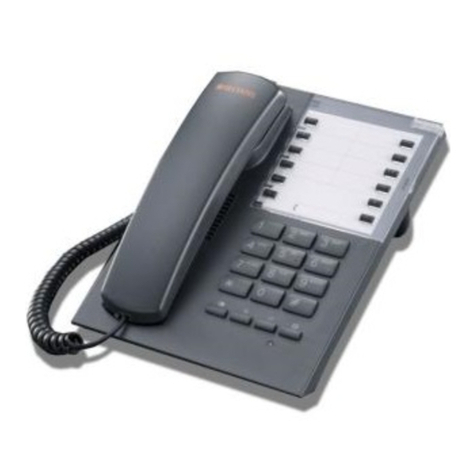
AGFEO ST 42 User manual

User Guide
System Telephone ST 42
System Telephone

Saftey Notes
- Do not connect or disconnect the subscriber´s line of ST 42 during a storm.
- Lay the subscriber´s line in such away that nobody steps on or tripples over it.
- Take care that no liquids spill inside the digital system telephone.This can cause short-circuits.
Regarding this User Guide
This user manual is valid for the at the time installed system firmware. As the ST 42 is controlled
via the telephone system it may be that after a firmware change some parts of this manual will no
longer be appropriate. This manual will give a brief explanation to the operation of the ST 42 and
the features of your AGFEO Telephone System. For detailed information regarding features, please
refer to user manual of your Telephone System.
The digital System Phone ST 42 is for the connection to an internal S0-Bus or an Up0-Connection
of an AGFEO ISDN Telephone System. The ST 42 may be connected to the following AGFEO ISDN
Telephone Systems:
- TK-HomeServer with Firmware 2.339.15 or higher.
- AS 151 plus, AS 181 plus, AS 181 plus EIB with Firmware 8.5a or higher.
- AS 281 All-In-One, AS 35, AS 35 All-In-One with Firmware 8.5a or higher.
- AS 40 P (P400-1), AS 4000 (P400-1), AS 100 IT (P400 IT), AS 43, AS 45, AS 200 IT with Firmware
8.5a or higher.
Please note due to the higher power consumption of the AGFEO ST 42 when connected to the in-
ternal S0-Bus and the limited system capacity for systems already on the market like the AS 40P
(P400-1), AS 4000 (P400-1) and AS 100 IT (P400 IT), it may become necessary to use additional
power supply units. A ST 42 has a maximum power consumption of 2,2 Watt (all LEDS are lit, A
Module 42 and/ or BT-Module 40 inserted , with ringer active, volume to maximum) the S0 Bus of
an S0 440 module is based on a double port (4,5 Watt), therefore the max. load is already over the
permitted limit with the connection of 2 x ST 42 and 1 x ST 31 (P max. 1,7 Watt) in the worst case
scenario. In such cases the system may activate the safety protection circuit for the relevant double
port. (System Phones / ISDN Bus without any function. After reset of the system the ports will be
reinstated)! In such eventualities an additional power supply should be connected in order to avoid
such failure to occur.
The power supplies are available from your distributor, AGFEO Ref. No. 6100826 (6100756 for Eng-
land an Cyprus, Identical to Power Supply Unit STE 40 / DECT S0-Base plus)!
Information regarding software upgrades are available via your dealer.
AGFEO will not accept any liability for damages which may result from improper use of the digital
System Phone ST 42.
Stipulation for User

System Telephone ST 42
3
Stipulation for User ................................................................................................................................. 2
Saftey Notes ............................................................................................................................................ 2
Regarding this User Guide ...................................................................................................................... 2
Table of Contents ..................................................................................................................................... 3
Underneath the ST 42 ............................................................................................................................. 4
The connection of an Untangler .............................................................................................................. 4
Display Position ....................................................................................................................................... 5
Connect the ST 42 ................................................................................................................................... 5
ST 42 Registration ................................................................................................................................... 5
ST 42 Buttons .......................................................................................................................................... 6
Display of the ST 42 ................................................................................................................................. 7
Context Menu ........................................................................................................................................... 7
Notes on using this Manual .................................................................................................................... 7
Function Buttons - Freely programmable Function Buttons (overview) ............................................... 8
LED - Display for freely programmable function buttons.................................................................... 10
Button Assignment ................................................................................................................................ 12
Changing Button Assignment ............................................................................................................... 12
„Direct Access“ activated ...................................................................................................................... 12
„Direct Access“ deactivated .................................................................................................................. 12
Call Waiting ............................................................................................................................................ 13
Reject the waiting call ........................................................................................................................... 13
Requesting Ring back when free .......................................................................................................... 13
Call Pick Up (External) .......................................................................................................................... 13
Call Pick Up (from Answering machine) .............................................................................................. 13
Display Call Log ..................................................................................................................................... 14
Programming the Do Not Disturb function .......................................................................................... 14
Changing the retrieval method ............................................................................................................. 14
Phonebook (Numeric retrieval) ............................................................................................................. 14
Phonebook (Vanity) ................................................................................................................................ 15
Phonebook (Alphabetic retrieval) .......................................................................................................... 15
Extended Redial ..................................................................................................................................... 15
Automatic Redial ................................................................................................................................... 15
Place of Installation ............................................................................................................................... 16
Cleaning ................................................................................................................................................. 16
Inserting inscription for the function keys ........................................................................................... 16
DHSG Headset (Cordless Headset) ....................................................................................................... 17
Connection of Headset .......................................................................................................................... 17
Using a DHSG Headset ......................................................................................................................... 18
ST 42 Firmware Upgrade ...................................................................................................................... 18
Declaration of Conformity ..................................................................................................................... 18
Table of Contents

System Telephone ST 42
4
LAN
Modulslot 1
Modulslot 2
Underneath the ST 42
The connection of an Untangler
In the handset of the ST 42 you will find a compartment for a cord untangler. Due to this design the
untangler will not be obtrusive when on the phone or interfere when on the receiver is put back on
hook.
- to open the handset cover , press the lid (arrow 1) and remove lid (arrow 2).
- unplug the handset cord from the handset.
- connect the untangler to the handset.
- connect the handset cable to the untangler.
- Close the lid
Connection for op-
tional Power Plug
or Optional STE 40
Connection to the
PBX System
Module Shaft
for optional
A-Module 42
Connection of
Receiver
Connection
for Headset
(disabled with
inserted BT-
Module 40)
1)
2)
Module Shaft for op-
tional
BT-Module 40
S0/
UP0

System Telephone ST 42
5
Connect the ST 42
To operate the ST 42, please insert the RJ 45 plug into the relevant socket which is connected to the
internal ISDN line or Up0 port of your AGFEO ISDN Telephone System.
- insert the RJ 45 plug into the socket until your hear a positive click.
- to release the plug, press the release latch on the plug and at the same time pull the cable out of
the socket (use a small screw driver if required).
Please note that the S0 Bus must be terminated with two 100 Ohm ¼ Watt Resistors, the UP0 port
does not require any termination.
An extension number will be allocated to the ST 42, like any other device when programming the
telephone system. If you connect the ST 42 for the first time to the telephone system, then the
digital system phone will have to be registered to the system. Please follow the instruction in the
display.
If the ST 42 is connected to an Up0-Port of your telephone system, the system will provide an
extension number automatically.
We therefore advise you to configure the extension number in TK-Suite Set before connecting
the ST 42.
ST 42 Registration
Display Position
Your Display can be adjusted to 6 different viewing angles.

System Telephone ST 42
6
10 Function
Buttons and LED‘s
Adjustable
Graphic
Display
Loudspeaker
underneath
handset
Microphone
Button Labelling
ST 42 Buttons
Softkeys
Numeric Keypad
* and # Buttons
Set Button - Start and end program-
ming. Keep this button pressed to
toggel between programming tree and
programming index
Handsfree Button - Activates the
Loudspeaker. Button lights up when
activated.
Arrow Buttons - To scroll through the
display where there is more than one
function.
Phone Book Button - Retrieval of Tele-
phone Numbers.
LNR - Last Number Redial Button.
Keep this button pressed to show call
log.
1 0
* #
!
=
y&
t
:
M
%
Mail Button - Flashes on new
entry in call log or missed calls.
Stays lit for numbers already
viewed. Clears when number
is called or deleted from list by
pressing clear button
10 function Buttons - User pro-
grammable, two entries per But-
ton (First & Second Level) Keep
this button pressed for approx
1 sec. to show the second level.
LED indication only for first level.
Plus and minus for volume con-
trol of handset and speaker.
Softkeys: The function for these
buttons are shown in the display
above. Function offered are de-
pending on the relevant phone
status.
+
-

System Telephone ST 42
7
Context Menu
Display of the ST 42
Please look at the display when using the telephone as it will guide you through all operating pro-
cedures. Depending on its operating condition the following soft keys are offered:
Answer, Park Call, Retrieve, Get, Split, Transfer, Call Back. Conference, Recall, Reject, Disconnect,
Go To, Back, End, OK, on, off, Store, Door Opener, mute, Mic on, stop, listen, AutoRedial, and Open.
Notes on using this Manual
The soft keys below the phone display will be indicated by this symbol.
The relevant button which is to be pressed will be shown in black.
Please observe the display area if no black button is indicated. Should there be more than three
option, then the most used function will be shown fi rst. More functions can be selected by pressing
the arrow buttons.
Activated features
are shown here
Extensions off hook. Called
extension will be shown
inverted.
Internal and external S0
Status, one box per S0.
Current function of
soft key below.
WK26 Tu 28.Jun.11 11:59
ii xx A *$ {%“S
12 14 16 18
ok back
Status of analogue
trunk lines
}
x
i
A
*
External ISDN-Line. One line (a B-channel)
is busy. The „x“ is shown inverted on an
external call.
Internal ISDN-Line. One Line (a B-channel)
is busy.
Analogue trunk line. The „A“ is shown in-
verted on an external call
Features:
Browse with yx, Confi rm with „ok“
Call-Waiting off
Do Not Disturb on
Diversion/ISDN-call forwarding active
CVA 2 (Night service) on
Phone lock on
Wake-up on
Appointment on
Sensor activated
Filter ativated
Withhold own number
PC Programming in process
$
{
}
%
"
S
F
I
PC
1. Display Line: Date / Time
Index of functions:

System Telephone ST 42
8
Function Buttons - Freely programmable
Function Buttons (overview)
TAM activation To switch TAM module on or off.
TAM info To listen to messages recorded on the TAM.
TAM Memo To record messages on the TAM
Reject Reject the ringing call. Caller will hear busy tone.
Call Waiting Enabled / off You can select if:
If the caller will get busy tone if on a call. (off)
If a waiting call should only be visually indicated on your phone.
Or if a call waiting tone should be signalled. (audible)
Call Deflection To divert an incoming call during the ringing phase. There will be no change to the ringing tone when
diverted. The caller will not be aware that the call was forwarded.
Call Filter To switch Call Filters on or off.
Call Log Will list the Call Log.
Cleaning In connection with the check in / check out button. This can be used to signal to the front desk that a
room has been cleaned and is ready for occupation.
Do not Disturb (DND) This will disable the Tone Ringer
Special function buttons may be set:
DND for internal calls
DND for external calls
DND for internal- and external calls.
Night Service (AVA 2) Night Service on or off.
Special function buttons may be set:
Night Service can be switched for each trunk line.
Night Service can be switched for all trunk lines.
Call Forwarding Enable / Disable Call Forward if designated extension does not answer on incoming call.
Special function buttons may be allocated:
Switch Call Forward for each trunk line.
Switch Call Forward for all trunk lines.
Tannoy Announcement via Public Address Amplifier connected to the Telephone System.
Busy on Busy Return Busy Tone to Caller if one Extension is Busy within Call Distribution Group.
Special Buttons can be assigned
-Busy on Busy for each Call Distribution Group swithcable seperately
-Busy on Busy for call Call Distribution Group switchable together
Call by Call To select Network Provider via LCR
Check In/ Check Out Check in / Check out for Hotel applications. Will start and stop call logging and switch on or off trunk
line access.
Page (Tannoy) Pageing Announcement to System Phones. Programmable function Button - Page
specific Extensions.
Units Display Call Cost
Call Capture Malicious Call Identification via ISDN-Exchange
Remote functions Sending of stored DTMF Tones (1..0 * #) for a remote interogation of a Telephone Answering Machine
(TAM)
Remote Answer Possible to make the ringing extension go off hook from another phone.
Group Button Log in and out of Groups and their features
Headset To use a Headset (only Digital System Phones)
Mute Button To mute microphone on your telephone.

System Telephone ST 42
9
Function Buttons - Freely programmable
Function Buttons (overview)
Call Pick Up To Pick Up incoming calls. Special Function Button can be assigned to Pick Up internal and external
calls from specific extensions
Withhold To withhold own number to be sent to a called party.
Internal Button To Dial Extensions. Special function Button programmable: Call specific Extension
ISDN-Hold To Hold an external call in the Telephone Exchange (only available on PTMP connection)
ISDN-Call Forwarding To switch on or off the ISDN Call Fowarding feature.
Conference To set up a Coneference Call with Internal and or External calls.
Speaker Volume To set the Speaker Volume Level for Handsfree or On Hook use.
LCR To switch Least Cost Routing (LCR) on or off for your System Phone.
Call Split To talk to more then one External Call in turn. (Switch between them)
Brokers Call To talk to one internal and one external call at a time and without connecting them.
External To transmit another of your MSN numbers other the the one allocated to the Extension making the
call. A special Button can be assigned for this feature.
Relays To switch a Relays. A special function Button can be assigned.
Reserve To reserve a line should all lines be engaged at the time.
Sensor To Enable or Disable Sensors.
Enquiry Call To establish or set up an Enquiry Call, a connection or a Brokers Call
Telephone Book To select a number out of the System Telephone Book
Telephone Lock To Lock the System Phone and activate pr-set Emergency and Direct Call numbers.
Appointment To set or cancel a preset Appointment Time
Timer To switch on or off a Time based function, such as Day-Night Service, Call Forwarding, Relays etc.
Button can be assigned for this function. 10 Timers are available. Timers are form 0 to 9.
Doorphone and Lock Re-
lease Function Button can be assigned to connect to the Doorphone. Another Button can be assigned to
activate Lock Release.
Transfer To transfer and connect an external call to an external call.
Diversion from (Follow me) To divert all calls from another phone to the current phone used.
Diversion to To divert all calls to another extension- or external number.
Wake Up To Enable or Disable the set Wake up call.
Destination Button
- Public
- Private
To Call a preset Telephone Number
- This number is stored in the Telephone System Memory
- This number is only stored in your telephone

System Telephone ST 42
10
LED - Display for freely programmable
function buttons
LED on LED off LED flashes
Answering Ma-
chine Messages
Stored messages
already listened to.
No Messages New Messages
Call Waiting
activation
enabled disabled
Call Log Call Log entries
already viewed
No numbers in Call
Log
New Numbers in
Call Log
Do Not Disturb on off
Night Service on off Telephone is being
called
Call Forwarding set off
Busy on Busy on off
Group Button Logged in Logged out
Headset active off Telephone is being
called
Withhold Number on off
LCR on off
Relays on off Relay is being rung
SMS Info Messages already
read
No Messages New Messages
Mute Button enabled disabled
Telephone Lock on off
Appointment set off when appointment
call is ringing
Ringer Off on off
Doorphone and
Lock Release
connected to door
phone
switched off called from door
phone
Diversion from enabled disabled
Diversion to enabled disabled
Wake Up set off Wake up call not
answered
Table of contents
Other AGFEO Telephone manuals

AGFEO
AGFEO AS 31 ST User manual

AGFEO
AGFEO AS 43 User manual

AGFEO
AGFEO ST 30 Technical manual

AGFEO
AGFEO T 10 User manual

AGFEO
AGFEO ST 40 S0 User manual

AGFEO
AGFEO ST 15 User manual

AGFEO
AGFEO AC 14 analog Product information sheet

AGFEO
AGFEO basic-line plus AS 140 Troubleshooting guide

AGFEO
AGFEO AS 151 plus User manual

AGFEO
AGFEO ST 30 Instruction Manual

AGFEO
AGFEO AS 281 All-In-One User manual

AGFEO
AGFEO AS 33 User manual

AGFEO
AGFEO ST 21 UP0 User manual

AGFEO
AGFEO AC 14 USB User manual

AGFEO
AGFEO Profi AS 40 User manual

AGFEO
AGFEO DECT-S0-Base plus User manual

AGFEO
AGFEO AC 14 User manual

AGFEO
AGFEO AS 200 IT User manual

AGFEO
AGFEO T 18 User manual

AGFEO
AGFEO AS 33 Operating instructions