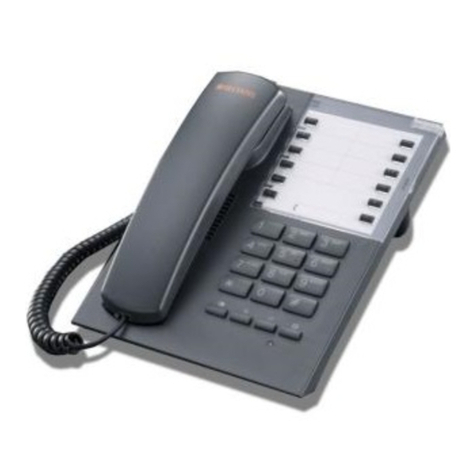
AGFEO AS 151 plus User manual

Reference Guide
AGFEO Telephones
www.agfeo.com

-2-
Short User Guide
About this Manual This Short User Guide will illustrate the conventional functions of your AGFEO Telephone System. Please refer to the user manual available on
the enclosed CD ROM or from our home page at www.agfeo.com, to obtain a detailed overview of the complete feature range of your AGFEO
Telephone System.
This Short User Guide applies to the following Telephone Systems:
- AS 151 plus
- AS 181 plus
- AS 181 plus EIB
- AS 281 All-In-One
- AS 35
- AS 35 All-In-One
- AS 43
- AS 45
- AS 200 IT
- TK-HomeServer
The described functions within this Short User Guide refer to the default setting of the relevant telephone system. Should the Telephone
System be upgraded to another firmware level, which may be made available by the manufacturer at a later date, then some parts within this
manual may no longer be applicable. All ISDN features mentioned in this manual will be supported by the system. However, not all features will
be available as standard from the relevant network providers and some may have to be ordered as additional services.

-3-
Short User Guide
About this Manual ..........................................................................................................................................................................................................2
Pictograms and Buttons ................................................................................................................................................................................................4
Using this Manual ..........................................................................................................................................................................................................4
Making a Trunk Call .......................................................................................................................................................................................................5
Intercom Calling .............................................................................................................................................................................................................5
Select Specific Trunk Line or MSN ..............................................................................................................................................................................6
Call Waiting .....................................................................................................................................................................................................................7
Reject a Waiting Call ......................................................................................................................................................................................................8
Program Call Waiting .....................................................................................................................................................................................................8
Call Pick Up .....................................................................................................................................................................................................................9
Enquiry Calls ................................................................................................................................................................................................................11
Transferring Calls.........................................................................................................................................................................................................12
Conference ....................................................................................................................................................................................................................15
Paging............................................................................................................................................................................................................................16
Call Back on Busy ........................................................................................................................................................................................................17
Dialling from Phone Book ...........................................................................................................................................................................................17
Phone Lock - Emergency Call ....................................................................................................................................................................................21
Divert Doorphone to External Telephone Number ...................................................................................................................................................23
Operating Doorphone and Lock Release...................................................................................................................................................................24
Diversion to - Call Diversion to Another Phone .......................................................................................................................................................25
Withhold Own Number Enable / Disable .................................................................................................................................................................28
Wake Up Call .................................................................................................................................................................................................................29
Extension Reset ............................................................................................................................................................................................................32
Index ..............................................................................................................................................................................................................................33
Check List .....................................................................................................................................................................................................................35
Table of Contents

-4-
Short User Guide
Pictograms
Buttons
Pictograms and Buttons The operation of each function of the Telephone System will be explained by the use of pictograms.
Weitergabe eines
Gespräches
Phone rings
Lift Handset
Enter Telephone Number or PIN
Tones you might hear, like confi r-
mation tone
A
+
Z
Q
Recall Button to transfer or make
an enquiry call
Enter required function number,
like „9“ in this example
r
9
Talk
Replace Handset
Conference
A
-
K
S
R
Star Button to initiate certain
functions
Hash Button to Dial an Extension if
„Direct Line“ access is set
Note Terminals who do not have a S-button or do not support this can dial 99 instead of the S-button. Operation of the listed functions will also
depend on the particular ISDN terminal used and therefore may restrict access to certain features.
Using this Manual The header of each listed function will indicate if the operation procedure is for the ST 40, ST 21 and ST 31 or if this only applies to analogue or
ISDN telephones. Please observe any display messages of the system phone as this will guide you through the relevant operating procedures.
If the context menu is enabled (default setting), then frequently used call handling features will be shown in the display area of the phone whilst
on a call.
The System Phones ST 21 and ST 31 will display one function at a time. Should more than one function be available, then the required function
can be selected with the arrow buttons.
Die Softkeys directly below the display of the ST 40 , ST 21 and 31 will be indicated in this manual by this symbol:
The button to be pressed will be illustrated in solid black. If no black button is shown in this manual, then please observe the display of the
telephone. Should there be more than three functions available, then the most frequently used will be displayed fi rst. Additional functions may
be selected by using the arrow buttons.

-5-
Short User Guide
„Direct Line“ Disabled Lift handset
Dial 0 (or 9) for trunk
line followed by the
telephone number
required
Note
Making a Trunk Call
Analogue and ISDN PhonesST 40 ST 21/ST 31
Intercom Calling
Analogue and ISDN Phones
ST 40 ST 21/ST 31
+
0z
Lift handset
Dial 0 (or 9) for trunk
line followed by the
telephone number
required
+
0z
Lift handset
Dial 0 (or 9) for trunk
line followed by the
telephone number
required
+
0z
Lift handset
Dial Phone Number
+
z
Lift handset
Dial Phone Number
+
z
Lift handset
Dial Phone Number
+
z
Lift handset
Press „#“ followed by
the extension number
+
#z
Lift handset
Press „#“ followed by
the extension number
+
#z
Lift handset
Press „#“ followed by
the extension number
+
Rz
If the function direct line is disabled, then dialling „#“ is not necessarily required.
„Direct Line“ Enabled

-6-
Short User Guide
Press
External Button
Use arrow buttons
to select number or
name of S0 - or ana-
logue trunk line which
should be seized and
confirm selection
Enter required tele-
phone number and lift
handset. Number will
be dialled.
Note
Select Specific Trunk Line or
MSN
Analogue and ISDN PhonesST 40 ST 21/ST 31
%
y&
z+
+
S00
Z
R
Z
A
You may only select trunk line(s) which have been authorised for use by your extension.
Press
External Button
Use arrow buttons
to select number or
name of S0 - or ana-
logue trunk line which
should be seized and
confirm selection
Enter required tele-
phone number and lift
handset. Number will
be dialled.
%
y&
z+
Lift handset
Prepare trunk dialling
Enter number of trunk
line required
Finalise entry
Enter required te-
lephone number of
subscriber
Talk
The operation below will forward a specific telephone number for the next following out going trunk call.

-7-
Short User Guide
1st Option
Call Waiting
Analogue and ISDN PhonesST 40 ST 21/ST 31
AQ
-
A
+
A
You’re on a call and
hear the call waiting
tone
End current call
Waiting call will au-
tomatically ring your
extension
Lift handset
Talk
AQ
-
A
+
A
You’re on a call and
hear the call waiting
tone
End current call
Waiting call will au-
tomatically ring your
extension
Lift handset
Talk
AQ
-
A
+
A
2nd Option
During a telephone call you may receive another call. You will hear a call waiting tone in the receiver. You may answer or reject the waiting call.
Press „Accept“. The
current call is put on
hold and your are con-
nected to the waiting
caller. You now can
toggle between the two
calls or connect the
two calls.
Press „Call Split“
button. The current call
is put on hold and you
are connected to the
waiting caller. You now
can toggle between the
two calls or connect
the two calls,
%You’re on a call and
hear the call waiting
tone
Press recall button
caller is put on hold.
Pick up waiting caller
Talk
AQ
r
0
A
You’re on a call and
hear the call waiting
tone
End current call
Waiting call will au-
tomatically ring your
extension
Lift handset
Talk

-8-
Short User Guide
Press „Reject“. Caller
will now hear busy
tone instead of ringing
tone, if only your ex-
tension was ringing.
The caller will continue
to hear ringing tone if
other extensions are
ringing as set within
the call distribution.
table.
Continue to talk
Reject a Waiting Call
Analogue and ISDN PhonesST 40 ST 21/ST 31
A
Press „Reject“. Caller
will now hear busy
tone instead of ringing
tone, if only your ex-
tension was ringing.
The caller will continue
to hear ringing tone if
other extensions are
ringing as set within
the call distribution.
table.
Continue to talk
%
A
You’re on a call and
hear the call waiting
tone
Press recall button
caller is put on hold.
Reject waiting call
Continue to talk
AQ
r
S21
A
Initiate function by
pressing “Set“ and the
“Call Waiting“ button.
„1“ : Visual
„2“ : Audible
End programming
mode.
Afterwards you may
then switch the pro-
grammed call waiting
feature on or off.
Program Call Waiting
Available Options
Analogue and ISDN PhonesST 40 ST 21/ST 31
!/
z
!
Initiate function by
pressing “Set“ and the
“Call Waiting“ button.
„1“ : Visual
„2“ : Audible
End programming
mode.
Afterwards you may
then switch the pro-
grammed call waiting
feature on or off.
!/
z
!
Lift handset
Call Waiting on/off
Switch On/Off:
0= Off
2= Audible
Confi rmation Tone
Replace
Handset
+
S55
Z
Q
-
With the function „Call Waiting“, you may set if
- the caller will hear busy tone (off).
- the waiting caller will be indicated in the display of your extension (visual) or
- a tone in your handset will indicate a waiting caller (audible).

-9-
Short User Guide
To pick up an incoming
call.
Lift handset.
Press the „Pick Up“
button. You are now
connected to the caller.
Call Pick Up
Analogue and ISDN PhonesST 40 ST 21/ST 31
a
+
To pick up an incoming
call.
Lift handset.
The display shows
„Pick Up Call?“ Confi rm
with „OK“. You are now
connected to the caller.
a
+
To pick up an incoming
call.
Lift handset.
Dial feature number.
You are now connected
to the caller.
a
+
S260
Pick Up Incoming Call
Directed Pick Up
A telephone is ringing for an incoming call. You may pick up this call from your extension. You may also pick up a call already answered by the
answering machine.
a
+
%Z
You hear an extension
phone ringing.
Lift handset.
Press the „Pick Up“
button followed by the
extension number of
the ringing phone. You
are now connected to
the caller.
a
+
%Z
a
+
S26
Z
You hear an extension
phone ringing.
Lift handset.
Press the „Pick Up“
button followed by the
extension number of
the ringing phone. You
are now connected to
the caller.
You hear an extension
phone ringing.
Lift handset.
Dial feature number.
Dial the extension
number of the ringing
phone. You are now
connected to the caller.

-10-
Short User Guide
Call Pick Up
Analogue and ISDN PhonesST 40 ST 21/ST 31
Pick Up Call from Answe-
ring Machine
Note
A
+
%
The answering ma-
chine has answered
the call.
Lift handset.
Press the „Pick Up“
button. You have now
picked up the caller
from the answering
machine and can con-
duct a normal telepho-
ne conversation.
A
+
%
A
+
S26
Z
The answering ma-
chine has answered
the call.
Lift handset.
Press the „Pick Up“
button. You have now
picked up the caller
from the answering
machine and can con-
duct a normal telepho-
ne conversation.
The answering ma-
chine has answered
the call.
Lift handset.
Dial feature number
Dial the extension
number of the answe-
ring machine. You have
now picked up the cal-
ler from the answering
machine.
To pick up calls from an answering machine is only possible if the extension port has been programmed as „Answering Machine“ via TK-Suite.
To pick up callers from the answering machine via a dedicated pick up button is only possible if the pick up botton has been programmed with
the extension number of the answering machine.
This manual suits for next models
7
Table of contents
Other AGFEO Telephone manuals

AGFEO
AGFEO ST 30 Technical manual

AGFEO
AGFEO AS 33 User manual

AGFEO
AGFEO DECT-S0-Base plus User manual

AGFEO
AGFEO ST 31 User manual

AGFEO
AGFEO AS 200 IT User manual

AGFEO
AGFEO AC 14 analog Product information sheet

AGFEO
AGFEO ST 30 Instruction Manual

AGFEO
AGFEO T 10 User manual

AGFEO
AGFEO ST 30 Manual

AGFEO
AGFEO ST 15 User manual

AGFEO
AGFEO Profi AS 40 User manual

AGFEO
AGFEO AS 281 All-In-One User manual

AGFEO
AGFEO AS 33 Operating instructions

AGFEO
AGFEO AS 3x User manual

AGFEO
AGFEO AC 14 USB User manual

AGFEO
AGFEO basic-line plus AS 140 Troubleshooting guide

AGFEO
AGFEO AC 14 User manual

AGFEO
AGFEO T 11 User manual

AGFEO
AGFEO ST 21 UP0 User manual

AGFEO
AGFEO ST 42 User manual