
ActionTec GT724R User manual
Other ActionTec Modem manuals

ActionTec
ActionTec GT701-WG User manual

ActionTec
ActionTec GT701R User manual

ActionTec
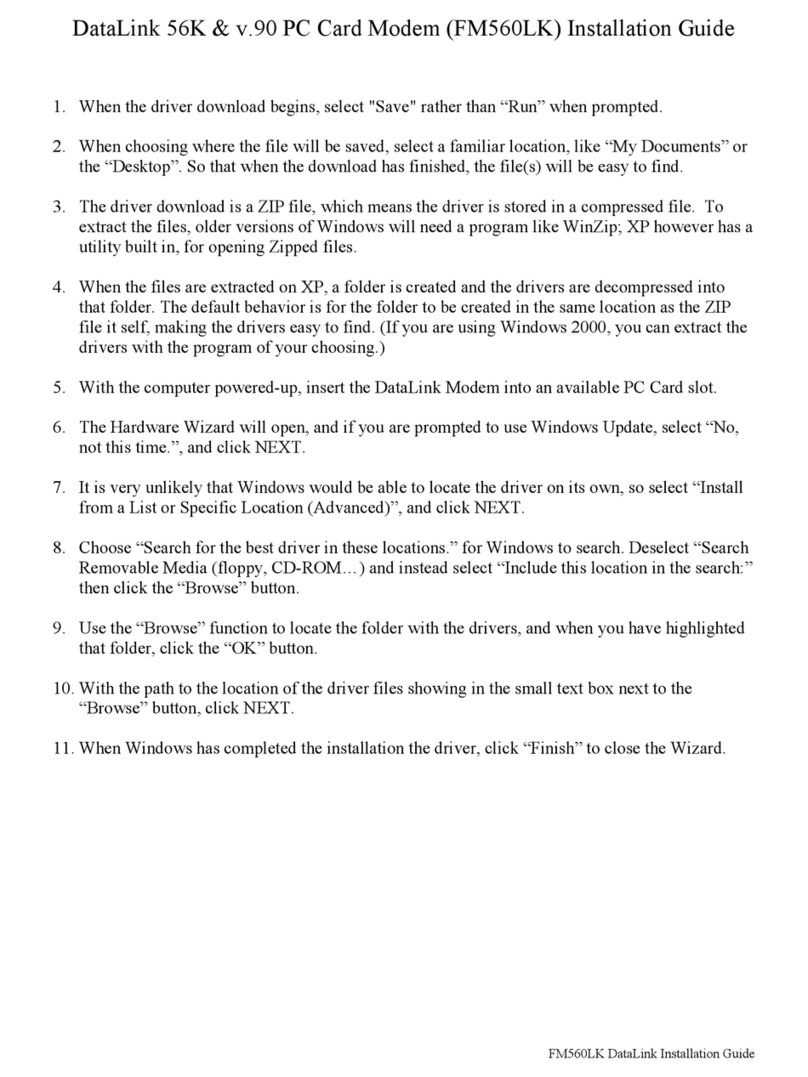
ActionTec DataLink V.90 PC Card Fax Modem PCMCIA User manual

ActionTec
ActionTec GT724WGR User manual

ActionTec
ActionTec GT701C User manual

ActionTec
ActionTec GT724WG User manual

ActionTec
ActionTec GT701D User manual

ActionTec
ActionTec PCI0839-01 User manual

ActionTec
ActionTec 56K Internal PC Modem User manual

ActionTec
ActionTec IS560LH User manual

ActionTec
ActionTec GT701-WG User manual

ActionTec
ActionTec 56K PCI Lite Modem HSP56I User manual
ActionTec
ActionTec External 56K Call Waiting User manual

ActionTec
ActionTec V.92 User manual

ActionTec
ActionTec GT701R User manual

ActionTec
ActionTec GT724WGB User manual

ActionTec
ActionTec External 56K Call Waiting User manual

ActionTec
ActionTec GT724WGR User manual

ActionTec
ActionTec R4500U User manual

ActionTec
ActionTec External USB 56K Modem User manual


