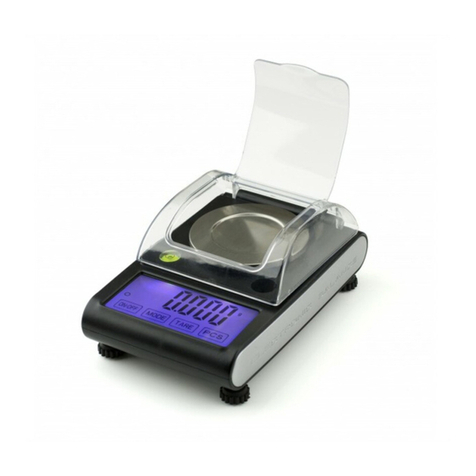
acaia Pearl User manual

Acaia Pearl
User Manual
FW 2.0.009
AP001AT / AP004AT

In the Box
Introduction
Scale overview
Getting Started
Placement
Power on / off
Tare weight
Switch mode
Toggle unit
Product Care Information
Battery charge
Calibration
Mode Introduction
Mode 0 - Weighing Only Mode
Mode 1 - Espresso Mode
Mode 2 - Dual Display Mode
Mode 3 - Timer Starts with Flow Mode
Mode 4 - Beverage Mode
Mode 5 - Auto-Tare Mode (for versions after 2.0.008)
Conguration
Appendix
Buttons
LED indicators
Error codes
Other
Specications
3
3
3
4
4
4
4
4
4
5
5
5
6
6
6
7
7
8
8
9
12
12
13
14
14
15
Contents

Next, follow the instructions in the “Getting Started” chapter in this manual to start using
your scale. To take full advantage of the many features of the Pearl Model S, carefully read
through this user manual for step-by-step procedures, examples, and other information.
Warning: Incorrect handling of this product could result in personal injury or physical damage.
Thank you for choosing one of our scales. The Acaia Coffee Scale is designed and
manufactured to the most rigorous standard to give you the best coffee brewing experience.
First, check the shipping carton to nd the following:
*Note: For the best performance, place the weight in the center of the weighing platform.
In the Box
Introduction
Scale overview
Weighing Pan
LED Display
Power Tare
Acaia Coffee Scale Heat Resistant Pad Micro USB
Charging Cable
3

Getting Started
Placement
Power on / off
Tare weight
Switch mode
Toggle unit
Select a work place that is stable, vibration-free and, if possible,
a horizontal location for the weighing platform.
4
[Press] to turn on the scale.
[Double tap] to turn off the scale.
[Short press] to tare / zero the weight.
[Press and hold] to toggle units.
[Press and hold] to switch modes.
* Please see the “Mode Introduction” section for more details.

• You can charge the battery by plugging the USB cable into
any of the power supplies listed below:
• A computer
• A USB wall-charger with an output of 5 volts and 1 amp
• A DC car-charger with an output of 5 volts and 1 amp
• It takes about 1-2 hours to fully charge the battery from
empty. Try not to let the battery completely run out before
charging. Charge the battery as needed, but it is best not to
exceed more than once a week.
• A fully charged battery can work continuously for about 25
hours.
• Battery percentage can be viewed via the Acaia apps.
* Note: Using a “fast-charging” charging block or charging hub (a charging block/hub delivering
over 5v at 1A) could damage your Acaia scale’s circuit board.
Turn on the Acaia
scale.
Make sure the scale
is in weighing mode
and the unit is set to
‘gram’, then tap the
‘T’ button rapidly.
Keep tapping the ‘T’
button until ‘CAL’ is
shown on the
display.
Place a weight
(100g/500g/1000g)
on the scale and
wait until the
display shows
‘_End_’. Calibration
is now complete!
Product Care Information
Turn on scale Tap T button See CAL display Place a weight
Battery charge
Calibration
5

In the Weighing Only Mode, the scale will only display
weight in either grams or ounces.
Timer and weighing settings tailored for espresso use.
• There are two different weighing units in Weighing Only Mode: gram and ounce. A
dot will appear in the upper right of the LED display and the scale will read 0.000 when
weighing in ounces.
• The readability is 0.1 g for grams and 0.005 oz for ounces.
• The LED display shows [0.0] when weighing in grams.
• This mode displays the LED timer on the left, and the weight on the right.
• The timer displays 0 to 59 seconds and will reset to 0 when 60 seconds has been reached.
When it resets, the mode indicator ashes.
• When the weight exceeds 999 grams, the LED display only shows the integer part (the
decimal point will not be displayed). The LED display shows up to 1999 grams. If the weight
exceeds 1999 grams, the scale will display [ _ _ _ _ ].
Mode Introduction
Mode 0 - Weighing Only Mode
Mode 1 - Espresso Mode
Action Operation
Tare Weight Tap Tare button
Toggle Unit g/oz Long press Tare button
Reset Mode Double tap Tare button
Switch Mode Long press Power button
Action Operation
Start/Stop/Reset Timer Tap Power button
Tare Weight Tap Tare button
Reset Mode Double tap Tare button
Switch Mode Press and hold Power button
6

• There are two different weighing units in Dual Display Mode: gram and ounce.
• In grams, the LED display shows [0.00 0].
• In ounces, the LED display shows [0.00 0.00].
• The maximum display time will be 9 minutes and 59 seconds. The weight shown on
the right side of the display measures from 0 to 999. When the value is over 1000, it will
restart from 0 with mode indicator ashing.
• The LED display shows [0:00 0] with the timer on the left and the weight on the right in
grams.
• The LED display shows [0:00 0.00] with the timer on the left and the weight on the right
in ounces.
• The timer will display from [0:00] to [9:59] before stopping.
Mode 2 - Dual Display Mode
Mode 3 -Timer Starts with Flow Mode
In Dual Display Mode, the scale displays [0.00 0] with
a timer (left) and weight (right).
Place an item on the scale. Tap the power button to
automatically tare and prepare the timer to detect the
ow of water. The timer will ash, indicating that it is
ready. Begin pouring and the timer will start with ow
detection from the pour. The timer stops when the
brewing equipment is removed.
7
Action Operation
Start/Stop/Reset Timer Tap Power button
Tare Weight Tap Tare button
Reset Mode Double tap Tare button
Switch Mode Press and hold Power button
Action Operation
Initiate Auto Start Tap Power button
Tare Weight Tap Tare button
Stop Timer While timer is running, tap Power button
Reset Mode Double tap Tare button
Switch Mode Press and hold Power button

Designed for pour overs and extraction measurements. Follow
instructions on the display to place the carafe/cup, lter, and
coffee (tap tare in between steps). The timer will start when
the rst ow of water is detected. Timer stops when the power
button is tapped or items are removed (dripper). The ashing
number is the beverage weight with all items subtracted.
Displays weight only. The scale will automatically tare
when an item is placed on and taken off the scale.
• There are two different weighing units in Beverage Mode: gram and ounce.
• As soon as the weight is stabilized or the tare button is pressed, the next step will show
in display.
• AFTER the process is completed and the lter is removed, the display will blink and ash
between the water weight and beverage weight (marked with “b”).
Mode 4 - Beverage Mode
Mode 5 - Auto-Tare Mode (for versions after 2.0.008)
Display Action/Description
CUP Put the carafe/cup on the scale
FLt Put the lter in your pour over dripper and place on the carafe/cup
COF Put the coffee in the lter
Timer Flashes Ready to brew
-FLt- Remove the lter
bxxxx.x
xxx.x
Beverage Weight
Total Weight
Action Operation
Next Step Tap Tare button
Previous Step Tap Power button
Stop Timer Tap Power button
Reset Mode Double tap Tare button
Switch Mode Long press Power button
Action Operation
Tare Weight Tap Tare button
Reset Mode Double tap Tare button
Switch Mode Long press Power button
8
• The LED display shows [ Atr 0 ] with the timer on the left and the weight on the right in grams.
• The LED display shows [ Atr 0.00 ] with the timer on the left and the weight on the right in ounces.

1. With the Pearl powered off, press and hold the power button.
2. When the display shows [ ACAIA ] and then [ SEt ], continue to hold the power button
and tap the tare button.
3. Release both power button and tare button when display shows [ F.0000 ].
4. Press and hold tare button to move the ashing digit to the right. Repeat this step for 4
times to enter Settings. It will show the rst setting [ SLEEP ].
Chapter 5: Conguration
Enter settings
Settings Menu
Action Operation
Next Setting Tap Tare button
Previous Setting Tap Power button
Enter Setting Press and hold Tare button
Toggle Options Tap Tare button
Save Option Press and hold Tare button
Back to Menu without Saving Tap Power button
Exit Settings and Return to Modes Double tap Power
Setting Display Options Default
Sleep Timer Setting SLEEP 5,10, 20, 30, 60, Off 5
Auto Zero Setting 0.AUto On, Off Off
Zero Tracking Setting trAcE 2d, 3d, Off 2d
Key Sound Setting bEEP On, Off On
Zero Range Setting 0.rAnGE 2, 100 100
Weighing Filter Setting Fi lt 2, 4, 6, 8, 16, 32, 64, 128 16
Default Weighing Unit Setting Unit Gram, Ounce Gram
Weighing Resolution Setting rESoL Default, High Default
Espresso Mode Setting NodE_1 On, Off Off
Dual Display Mode Setting NodE_2 On, Off On
Timer Starts with Flow Mode Setting NodE_3 On, Off Off
Beverage Mode Setting NodE_4 On, Off Off
Auto-Tare Mode Setting NodE_5 On, Off On
Reset to Default Setting rESEt.d Yes, No No
Bluetooth Setup Setting bt_SEt On, Off On
9

Sleep Timer Setting [ SLEEP ]
1. The Sleep Timer setting can also be congured in the Acaia apps.
2. The number displayed indicates the amount of time before the scale will automatically power
off. For example, when 10 is selected and the scale is disconnected from all mobile devices,
the scale will power off after 10 minutes of no use.
3. Tap the tare button to toggle through the options.
Auto Zero Setting [ 0.AUto ]
1. When the Auto Zero function is off or disabled, the initial weight on the weighing pan must be
less than 50% of capacity, i.e., less than 1 kg, before the scale is turned on; otherwise, an error
[ Er.303 ] occurs. When the error occurs, the scale will not work until the initial weight on the
weighing pan is cleared.
2. When Auto Zero setting is on or enabled, the scale displays the initial weight directly even if
the weight is over 50% of capacity.
Zero Tracking Setting [ trAcE ]
1. Zero Tracking is a function to help compensate the weight readout uctuations at zero point
to improve the usability of the scale. Acaia Pearl is allowed to compensate uctuations of up to
2 d according to the industrial weighing guidelines.
2. OFF: It is not recommended to turn off Zero Tracking as the zero indication would drift easily
as the room temperature changes.
3. 0.5 d~3 d: For example, since each division is 0.1 g, 3 d = 0.3 g. When Zero Tracking is set
to be 3 d, any initial weight between +/- 0.3 g on the weighing pan would be zeroed out.
4. 2 d is recommended in general for Acaia coffee scales.
Key Sound Setting [ bEEP ]
1. Key Sound settings can also be congured in the Acaia apps.
2. Set the Key Sound function to on/off to turn the beeping sound on/off.
Zero Range Setting [ 0.rAnGE ]
1. Zero Range setting determines the range for which the tare button executes zero operation
instead of tare operation.
2. When Zero Range is set to 2, the range for zero setting will be 2% of the capacity, i.e., +/- 40
g for Acaia coffee scales. By pressing the tare button, any weight +/- 40 g is zeroed out by zero
operation while any weight outside the range is tared out by tare operation.
3. If Zero Range is set to 100, the range for zero-setting will be 100% of the capacity, i.e., +/- 2
kg for Acaia coffee scales. Therefore, instead of tare operation, zero operation would be exe-
cuted in this setting whenever the tare button is pressed.
4. Note: The difference between zero operation and tare operation is that zero operation would
simply ignore the weight and display as 0 while tare operation would deduct the weight from
the weighing result. However, zero operation does not increase the scale capacity.
Weighing Filter Setting [ Filt ]
1. The number shown on the LCD indicates the current lter parameter. The Weight Filter
Setting determines the speed for the load receptor to respond to weight and to determine the
weighing value. The higher the level, the more stable but slower the weighing result will be.
2. Press the tare button to change the parameter.
10
Other manuals for Pearl
8
This manual suits for next models
2
Table of contents
Other acaia Scale manuals


acaia
acaia AL010 User manual

acaia
acaia Pearl User manual

acaia
acaia lunar User manual

acaia
acaia Pearl S User manual

acaia
acaia Pearl User manual

acaia
acaia Cinco User manual

acaia
acaia AC002 User manual

acaia
acaia Pearl Specification sheet

acaia
acaia Coffee Scale User manual

acaia
acaia Pearl Specification sheet