
Abocom WR5205G User manual

WR5205G/Wireless11nGigaRouter
WR5205G 802.11n 2T2R Giga Router
with USB2.0 Port
User’s Manual

Federal Communication Commission
Interference Statement
This equipment has been tested and found to comply with the limits for a Class B digital device,
pursuant to Part 15 of the FCC Rules. These limits are designed to provide reasonable protection
against harmful interference in a residential installation. This equipment generates uses and can
radiate radio frequency energy and, if not installed and used in accordance with the instructions,
may cause harmful interference to radio communications.
However, there is no guarantee that interference will not occur in a particular installation. If this
equipment does cause harmful interference to radio or television reception, which can be
determined by turning the equipment off and on, the user is encouraged to try to correct the
interference by one or more of the following measures:
Reorient or relocate the receiving antenna.
Increase the separation between the equipment and receiver.
Connect the equipment into an outlet on a circuit different from that to which the receiver is
needed.
Consult the dealer or an experienced radio/TV technician for help.
Warning: Changes or modifications to this unit not expressly approved by the party responsible
for compliance could void the user authority to operate the equipment.
This device complies with Part 15 of the FCC Rules. Operation is subject to the following two
conditions: (1) this device may not cause harmful interference, and (2) this device must accept any
interference received, including interference that may cause undesired operation.
The user’s manual or instruction manual for an intentional or unintentional radiator shall caution the
user that changes or modifications not expressly approved by the party responsible for compliance
could void the user’s authority to operate the equipment.
CAUTION:
1.To comply with FCC RF exposure compliance requirements, a separation distance of at least 20 cm
must be maintained between the antenna of this device and all persons.
2.This Transmitter must not be co-located or operating in conjunction with any other antenna or
transmitter

Table of Content
CHAPTER 1: INTRODUCTION..............................................................................1
Features.........................................................................................................................................1
Physical Details..............................................................................Error! Bookmark not defined.
CHAPTER 2: ABOUT OPERATION MODES.......................................................3
Gateway Mode ............................................................................................................................3
Bridge (WDS) Mode...................................................................................................................3
Repeater (WDS+AP) Mode.....................................................................................................4
CHAPTER 3: CONFIGURATION...........................................................................5
Hardware Connection...............................................................................................................5
Login...............................................................................................................................................5
Setup Wizard...............................................................................................................................9
Internet.......................................................................................................................................14
Wireless.......................................................................................................................................21
Firewall........................................................................................................................................34
Administration ..........................................................................................................................40
CHAPTER 4: PC CONFIGURATION .................................................................45
Overview.....................................................................................................................................45
Windows Clients.......................................................................................................................45
Macintosh Clients.....................................................................................................................49
Linux Clients..............................................................................................................................49
Other Unix Systems.................................................................................................................50
Wireless Station Configuration...........................................................................................50
APPENDIX A: TROUBLESHOOTING.................................................................51
Overview.....................................................................................................................................51
General Problems.....................................................................................................................51
Internet Access.........................................................................................................................51
Wireless Access ........................................................................................................................52
APPENDIX B: ABOUT WIRELESS LANS..........................................................54
BSS................................................................................................................................................54
Channels......................................................................................................................................54
Security........................................................................................................................................54
Wireless LAN Configuration.................................................................................................55

1
Chapter 1:
Introduction
The WR5205G 802.11n 3G Router with USB2.0 Port is a draft 802.11n/b/g compliant Wireless
Broadband Router with 4-port Fast Ethernet Switch. 802.11n 3G Router with USB2.0 Port with latest
Draft 802.11n technology that delivers up to 150Mbps wireless, provides multi-functional capabilities,
particularly the high-performance throughput and high-quality security to propose an integrated,
thorough SOHO solution. The incredible speed of 802.11n 3G Router with USB2.0 Port makes it
ideal for media-centric applications like streaming video, gaming, and Voice over IP technology,
ensure optimum performance and maximum coverage with an external antenna. With the 3G Router,
government employees or corporate users can create a wireless network and provide colleagues with
remote access to their secure private networks. By installing the 3G Router on a bus, train, or even a
boat, you can allow passengers to check e-mail or chat online while commuting.
Features
1.Support the IEEE 802.11n/b/g standard, high speed date rate up to 300Mbps.
2.Support USB 2.0 storage fucntion device
3.Support WPS (Wi-Fi Protected Setup) with reset button.
4.High security with build-in Security: WEP 64/128, WPAPSK,WPA2PSK, WPA, WPA2, 802.1x and
802.11i
5.Support Router, WDS (Bridge + Repeater)
6.Wireless Quality of Service (QoS) - 802.11e,WMM
7.Easy configuration for home user setup.

2
WPS
To enable the WPS function via web configuration (Wireless >
WPS), then press the WPS button once on the Wireless Router,
the WPS LED will start to flash. To make a connection with other
WPS supported device within 3 minutes.
RESET Keep on pressing the Reset button more than 3 seconds, the
Wireless Router will set all setting back to factory default values.
LAN 1~4
Use standard LAN cables (RJ45 connectors) to connect your
PCs to the port. If required, any port can be connected to another
hub. Any LAN port will automatically function as an "Uplink" port
when necessary.
WAN Connect the ADSL or Cable Modem here with RJ45 cable. If
your modem came with a cable, use the supplied cable,
otherwise, use a standard LAN cable.
POWER Connect the power supply adapter here.
USB 2.0 Port Insert the USB 3.5G card that provided by your ISP(Internet
Service Provider) here.

3
Chapter 2: About
Operation Modes
Please go to the Wireless> WDS to set up the WDS function (Bridge or Repeater) of the Wireless
Router.
Gateway Mode
The wireless connection will be set up from a point-to-point local LAN into a point-to-multipoint
WAN. This device connects all the stations (PC/notebook with wireless function) to a wireless network.
All stations can have the Internet access if only the device has the Internet connection.
Bridge (WDS) Mode
The WDS (Wireless Distributed System) function lets this access point act as a wireless LAN access
point and repeater at the same time. Users can use this feature to build up a large wireless network in a
large space like airports, hotels and schools and so on. This feature is also useful when users want to
bridge networks between buildings where it is impossible to deploy network cable connections between
these buildings.
In this mode, all Ethernet ports and wireless interface are bridge together and NAT function is disabled.
All the WAN related function and firewall are not supported.

4
Wireless Distribution System uses wireless media to communicate with other APs, like the Ethernet
does. To do this, you must set these APs in the same channel and wireless MAC address to each other
APs that you want to communicate with.
Repeater (WDS+AP) Mode
If set to Repeater mode, a device connects to each other through an access point or a base station
(gateway or router.) This device can also work like a wireless station when it’s connected to a computer
directly, so that the computer can send packets from wired end to wireless interface.

5
Chapter 3:
Configuration
Hardware Connection
1.Connect one end of the Ethernet cable to the LAN port of the Wireless Router, another end to your
PC or notebook.
2. There are two connection methods to connect to Internet (Only one can be selected):
¾Connect Ethernet cable one end to the WAN port of the Wireless Router, the other end to the
ADSL or cable modem.
¾Or you can insert USB 3.5G card (that provide by your ISP) into USB port.
3. Finally, connect the Wireless Router with a power to an outlet.
Login
1. Start your computer and make sure the connection by an Ethernet cable between your computer
and the Wireless Router.
2. Start your Web Browser.
3. In the Address box, enter the IP address of the Wireless Router, as in this example, which uses the
Wireless Router's default IP address: http://192.168.1.1
4. After connected successfully, the following screen will show up. Simply enter the username
“admin” and password “password” to login.

6
7
If you cannot connect...
If the Wireless Router does not respond, check the following:
•The Wireless Router is properly installed, LAN connection is OK, and it is
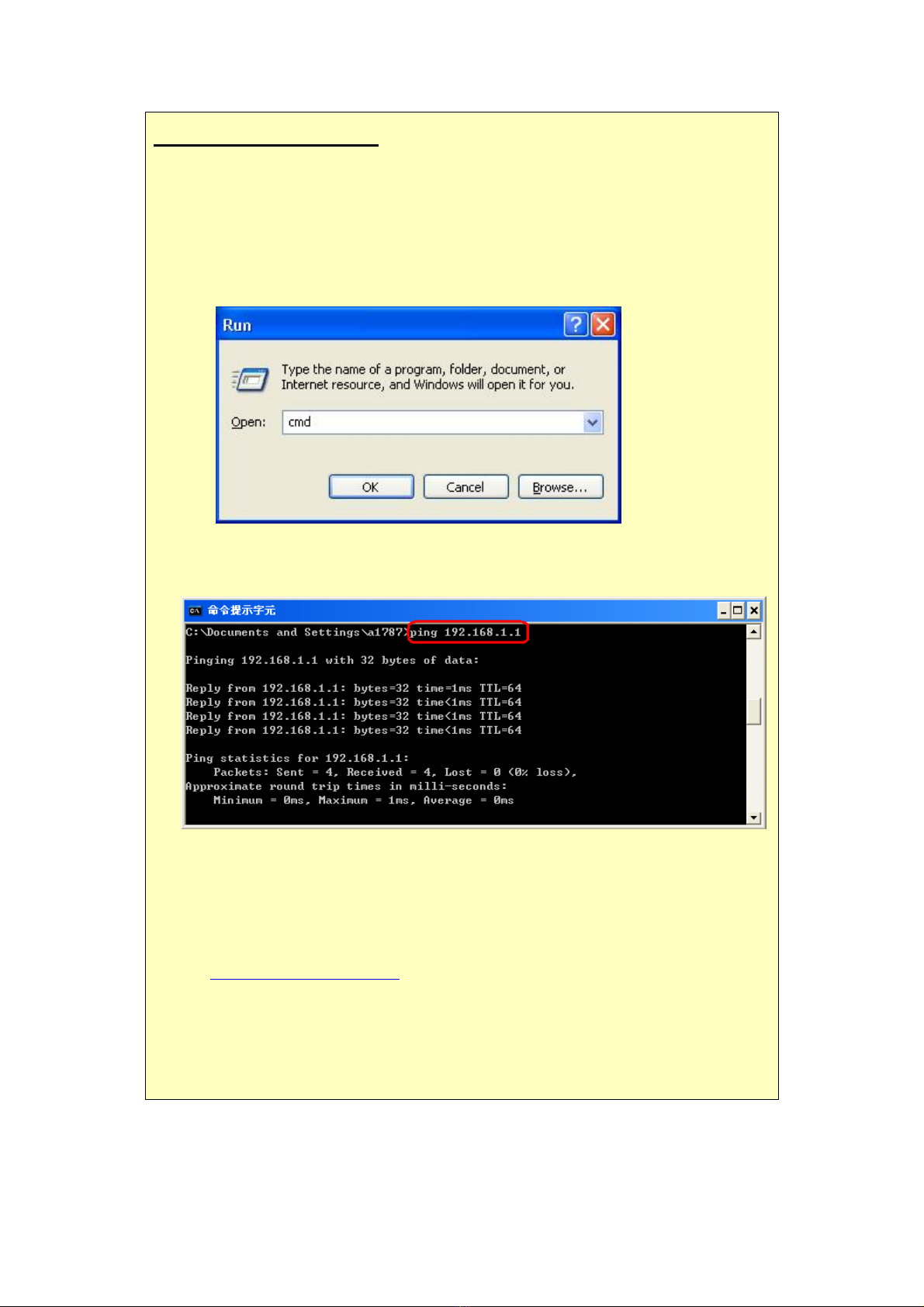
powered ON. You can test the connection by using the "Ping" command:
•Please go to Start>Run…> Enter “cmd” command in the column to open the MS-DOS
window.
•Enter the command:
ping 192.168.1.1
If no response is received, either the connection is not working, or your PC's IP
address is not compatible with the Wireless Router's IP Address. (See next item.)
•If your PC is using a fixed IP Address, its IP Address must be within the range
192.168.1.2 to 192.168.1.254 to be compatible with the Wireless Router's default
IP Address of 192.168.1.1. Also, the Network Mask must be set to 255.255.255.0.
See Chapter 4 - PC Configuration for details on checking your PC's TCP/IP settings.
•Ensure that your PC and the Wireless Router are on the same network segment.
(If you don't have a router, this must be the case.)
•Ensure you are using the wired LAN interface. The Wireless interface can only
be used if its configuration matches your PC's wireless settings.
Table of contents
Other Abocom Network Router manuals

Abocom
Abocom PL1000 User manual

Abocom
Abocom SW1600B User manual

Abocom
Abocom PLC342 User manual

Abocom
Abocom HomePlug 1.0 Turbo Ethernet Adapter PLE0085 User manual

Abocom
Abocom PLS485 User manual

Abocom
Abocom SW800AI User manual

Abocom
Abocom SW500A User manual

Abocom
Abocom FVR206 User manual

Abocom
Abocom AR3500 User manual

Abocom
Abocom WBR480 User manual

Abocom
Abocom AR3000 Advanced User manual

Abocom
Abocom SW800 User manual

Abocom
Abocom WR5207 User manual

Abocom
Abocom WR5205 User manual

Abocom
Abocom WR5503U User manual

Abocom
Abocom SW800AE User manual

Abocom
Abocom FSM610 User manual

Abocom
Abocom CAS1040 User manual

Abocom
Abocom WBA580 User manual

Abocom
Abocom WR104 User manual





