Zte V779M User manual

WCDMA Digital Mobile Phone Handset
ZTE V779M
User Manual

- 1 -
Using your phone
Thanks for choosing the V779M, It’s a WCDMA Digital
Mobile Phone, which willrefer to as ‘phone’fromnow on.
Powered by AndroidTM, thephone supports 3G
high-speed Internet access,which brings you brand new
experiences.
Don’t worry ifthe pictures we use to demonstrate your
phone’s functions look a little different fromwhat you see
on the screen. It’s the functions that matter.

- 2 -
Before getting started
Inserting and removing the SIM
1. Switch off yourphone and
disconnect any external power.
2. Remove the back cover and
then the battery.
3. Hold your SIMon the cut
corner,and slide it face down
into the card holder.
4. Insert thebattery.
5. Replace the back cover.
Inserting a memory card
1. Remove the back cover.
2. Push tightly untilthe card is installed in the correct
positionand replace the back cover.

- 3 -
Using the battery
Inserting the battery
1. Open the battery cover on the back ofyour phone.
2. Align the battery's contactpoints with those ofthe
phone and gently press the battery down into place.
3. Replace the batterycover clicking it back into
position.
Removing the battery
1. Switch off your phone.
2. Open the battery cover.

- 4 -
3. Lift the battery up and out of your phone.
Charging the battery
The battery is notfully charged when
you unpack it for the first time. Please
exhaust the capacity of the battery
before you recharge it for the first
time.To ensure the battery is always in
its best condition, please charge the
battery8 hours for the first time and
recharge it later at least 2 hours each
time.
1. Connect the charger to the phone,
and insert the charger to the
standard power socket.
2. Please disconnect the charger
from the power socket after the charging is
completed.
Tips:
To charge the battery, you can also connect the
phone to the PCthrough the USB cable.
During charging, the phone and charger may
normally become hot.
- 5 -
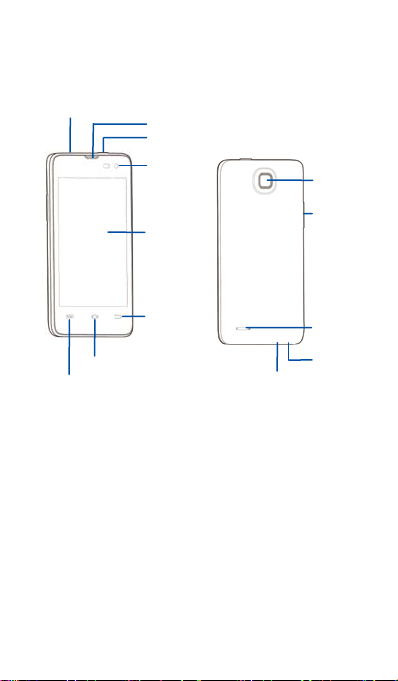
Headset jack
Earpiece
Power key
Front camera
Touch
screen
Menu key
Home key
Back key
Camera
Volume
Speaker
Microphone
USB port
Getting to know your phone

- 6 -
Descriptions of Keys
Keys Functions
Menu key Touch it to open a menu with items that
affectthe current screen or application.
Home key
Touch it to open the home screen. Ifyou’re
viewing the left or rightextended home
screen, Press it to open the central home
screen.
Back key
Touch it to open the previousscreen you
were working in.
If the onscreen keyboard is open, touch it to
close the keyboard.
Power key
Press it to turn on/off the display.
Long pressit to open a menu with options for
Airplane mode, for Silent mode, for Vibration
mode, and for powering offand for rebooting
the phone.
Volume
keys
Adjust the volume.
Long pressit to quickly adjust the ring tone
volume to maximum or minimum.

- 7 -
Onscreen icons
Icons Descriptions Icons Descriptions
Signal strength Full battery
Charging Missed calls
You have an
unread
message. Music playing
New calendar
reminder Airplane mode
ConnectedtoaPC
Alarm clock on
Vibration mode Silent mode
Wi-Fi function on Bluetooth
function is on
Power on/off
Powering on
Long press the Power key until the power-on animation
appears.
Powering off
Long press the Power key to display thephone options
and select Power off.

- 8 -
Basic Operation
Screen control
You can controlyour phone through a series of operations
on the screen.
Touch: you can touch the itemson the screen to
select them, to open the applications, orusing the
keyboard to input characters.
Swipe or slide: Quickly move your finger across the
surface of the screen, without pausing whenyou first
touch (so you don't drag something instead).
Touch & hold: you can touch & hold some items to
get the item’s available menu.
Drag: you can drag some items on the screen to
realize someoperations.
Switch between landscape mode and portrait
mode: you can switch to the landscape mode by
rotating your phone.The landscape mode is only
valid under some interfaces, such as text input
interface, message viewing interface, etc.
Pinch:In some apps (suchas Maps, Browser, and
Gallery), youcan zoomin and out by placingtwo
fingers on the screenat once and pinching them
together (to zoom out) or spreading them apart (to
zoom in).

- 9 -
Home screen
Switch to a recently used application
On the home screen,touch & hold the Homekey, opens a
list of thumbnail images of apps you've worked with
recently. To open an app, touch it. To remove a thumbnail
from the list, swipe it left or right.
Manage notifications
•Open notifications panel: When a new notification
appears on the notification bar, you candrag the
notification bar down from the top ofthe screen to
open notifications panel.
•Respond to a notification:Touch it.
•Dismiss a notification: Swipe it sideways.
•Close notifications panel: Drag the tab atthe
bottom of the notification panel to the top of the
screen.
Notification bar
Drag the notification
bar down from the top
of the screen to open
the notifications panel.
Status bar
Shows the signal
strength,battery
status, etc.
Favorites tray
Table of contents
Other Zte Handset manuals