Zoom 1099 Series User manual

3G+ Modem
USER MANUAL

NOTICE
This document contains proprietary information protected by copyright, and this Manual and all the
accompanying hardware, software, and documentation are copyrighted. No part of this document may
be photocopied or reproduced by mechanical, electronic, or other means in any form.
The manufacturer does not warrant that the hardware will work properly in all environments and
applications, and makes no warranty or representation, either expressed or implied, with respect to the
quality, performance, merchantability, or fitness for a particular purpose of the software or
documentation. The manufacturer reserves the right to make changes to the hardware, software, and
documentation without obligation to notify any person or organization of the revision or change.
All brand and product names are the trademarks of their respective owners.
© Copyright 2012
All rights reserved.
______________________________________________________________________________________
0472-A 27676 ©2012

Contents
Contents........................................................................................................................3
Installing Your New Modem .......................................................................................4
Step 1: Have or Sign Up For a Mobile Broadband Service Plan ................... 4
Step 2: Slide the Service Provider's SIM Card into Your Modem.................. 5
Step 3: Install the Modem on Your Computer or 3G Router, and Make an
Internet Connection ......................................................................................... 5
The 3G+ Modems Home Page ....................................................................................8
The Data Stats Symbol on the Home Page ..............................................................10
The Text Symbol.........................................................................................................11
The Phone Book Symbol on the Home Page ...........................................................13
The Voice Symbol on the Home Page.......................................................................14
The Settings Symbol on the Home Page ..................................................................15
The USSD Symbol on the Home Page......................................................................24
The Browser Symbol on the Home Page..................................................................25
The Help Symbol on the Home Page........................................................................26
Appendix A: Troubleshooting Tips...........................................................................27
Appendix B: Registering Your Product and Getting Help.....................................29
Appendix C: Regulatory Information......................................................................30

1
Installing Your New Modem
This chapter describes installing the Zoom 3G+ Modem for use with a computer or mobile
broadband router and then making an Internet connection.
This document first repeats the Quick Start information, and then discusses the many
features of the modem and software.
Before you can connect to the Internet with your new modem, you must:
1Have or sign up for a mobile broadband service plan.
2Slide the service provider’s SIM card into your modem.
3Install the modem on your computer or 3G router and make an Internet connection.
Step 1: Have or Sign Up For a Mobile Broadband Service Plan
Most countries have one or more GSM service providers who offer mobile broadband
service. When you sign up for service, you will get a SIM card to slide into your modem. As
you travel, you may save money and get better coverage by using different service providers
for different countries or regions. Wherever you are, just make sure that you slide in the SIM
for the service provider you want to use. You should select a GSM service provider who
uses at least one of this modem’s mobile broadband frequencies, ideally 850, 1900, or 2100
MHz since these frequencies support the modem’s highest speed.
Note that some (but not all) services permit you to use your mobile phone’s voice/data SIM
card in the modem. If you plug the modem into a Windows or Macintosh computer that
has a headset and/or a microphone and speakers, you should be able to make and receive
voice calls while also using the modem for the Internet. This is discussed in more detail in
the User Manual.
You may also want to have a data or voice/data SIM card dedicated to the modem, not
shared with a mobile phone.
If you need to sign up for service, we recommend that you bring the IMEI number of
your Zoom 3G+ modem with you. To find the IMEI number, you need to remove the
modem’s cap and cover as detailed in step 2 below. The IMEI number is on the back side
of the cover.
Since you are using your own modem, most service providers will not require you to make a
long-term commitment. Most will allow you to simply arrange for a monthly data plan with
no long-term commitment or for a prepaid plan.
______________________________________________________________________________________
0472-A 27676 ©2012

If you want to use AT&T service in the US, you can do that. We suggest that you go to the
following link to get helpful information about signing up for AT&T:
www.zoomtel.com/ATT
Step 2: Slide the Service Provider's SIM Card into Your Modem
•Slide the cap off the modem. Position the modem so the silver-colored USB
connector is toward your left and the Zoom logo is facing away from you. To the
right of the connector is the cover, which you should remove by sliding it to the right
about 1/8 inches and then lifting it. The microSD memory and SIM card slots are
now exposed.
•Hold the SIM card with its angled edge at upper right, and then carefully slide the card
under the silver bracket all the way to the left until the card stops.
Tip: If you are also inserting a microSD memory card for your modem, you should insert it
now. MicroSD cards can be used to store data on your modem or to expand the amount of
memory in your modem’s phone book. The modem supports standard microSD memory
cards with up to 8 GB storage capacity.
•Replace the back panel cover. In doing that, first put the small tab on the bottom of
the cover into the modem’s slot, with the cover almost flush with the modem. Then
slide the cover toward the silver-colored USB connector.
Step 3: Install the Modem on Your Computer or 3G Router, and Make
an Internet Connection
If you are using the modem with a computer, please go to the appropriate section for
Windows or Macintosh computers.

If you are using the modem with a 3G router, simply plug the modem into the USB port of
e router. Then power up the router. If the router is compatible with the modem, it should
n with Wi-Fi®
ompatible computers, phones, and other products. For more information, please see
th
work automatically. The modem's light will stay green when it's online.
Zoom has 3G routers that let you share your 3G USB modem connectio
c
www.zoomtel.com/3Grouter
Installing and connecting on Windows 7, Vista, XP, and 2000
aPower on your computer. Then plug the modem into a USB port on your computer.
b
c
Windows 7 / Vista users: If the AutoPlay dialog opens, click Run Setup.exe. If
the User Account Control dialog opens, click Allow or Yes.
Note: If you have installed a MicroSD card a Removable Disk dialog box appears.
You may close this box while you are installing your modem.
The setup will now install the driver. When it is complete the
Zoom 3G+ Modem
software will open on the screen.
Click the Connect icon (the earth in the center of the screen).
dWhen the Internet connection is active the text under the earth changes to Connected,
r default browser
Select the next
he
is
and the Browser window opens on the Desktop. You may launch you
from this window by clicking on the icon in the middle of the screen.
If the modem failed to connect, you should try the different profiles that are stored on
your SIM card. To change the profile, click on Settings then Profile.
profile in the list and click on Set as Default. Click the Xin the upper right corner of t
profile box to close it. Now click the Connect icon. If it still fails to connect repeat th
step until you have tried all the profiles listed on the Profile page.
If you are unable to connect to the Internet please go to Appendix A, Troubleshooting
Tips.
Installi connecting on Mac OS X 10.4.9 and higher
aPlug the modem into an available USB port on your computer. A Zoom 3G+
c
Continue and follow the installation
t.
m
pen on the screen.
ng and
Modem folder with a disk icon appears on the desktop.
bOpen the Zoom 3G+ Modem folder, and then double-click the MAC folder.
Double click the 3G+ Modem.pkg icon.
dClose the Modem folder.
eOn the Install 3G+ Modem window, click
prompts.
fIf prompted for a Password, use the password that you used to create your Mac
user accoun
gThe setup will now install the driver. When it is complete the
Zoom 3G+ Mode
software will o
______________________________________________________________________________________
0472-A 27676 ©2012

hOn the Zoom 3G+ Modem's main window, click the Connect icon .
iWhen the Internet connection is active the text under the earth changes to Connected,
and the Browser window opens on the Desktop. You may launch your default browser
from this window by clicking on the icon in the middle of the screen.
If the modem failed to connect, you should try the different profiles that are stored on
your SIM card. To change the profile, click on Settings then Profile. Select the next
profile in the list and click on Set as Default. Click the Xin the upper right corner of the
profile box to close it. Now click the Connect icon. If it still fails to connect repeat this
step until you have tried all the profiles listed on the Profile page.
If you are unable to connect to the Internet please go to Appendix A, Troubleshooting
Tips.
Tip: Open the Mac OS X Applications folder and double-click the Zoom 3G+
Modem icon. Drag the icon to the Dock for future use.

2
The 3G+ Modem’s Home Page
If you followed the instructions in the Quick Start (this document’s chapter 1), you should
have installed the 3G+ Modem’s software onto your computer and learned how to start up
that software. Here we assume you’ve done that, so you should be looking at the home page
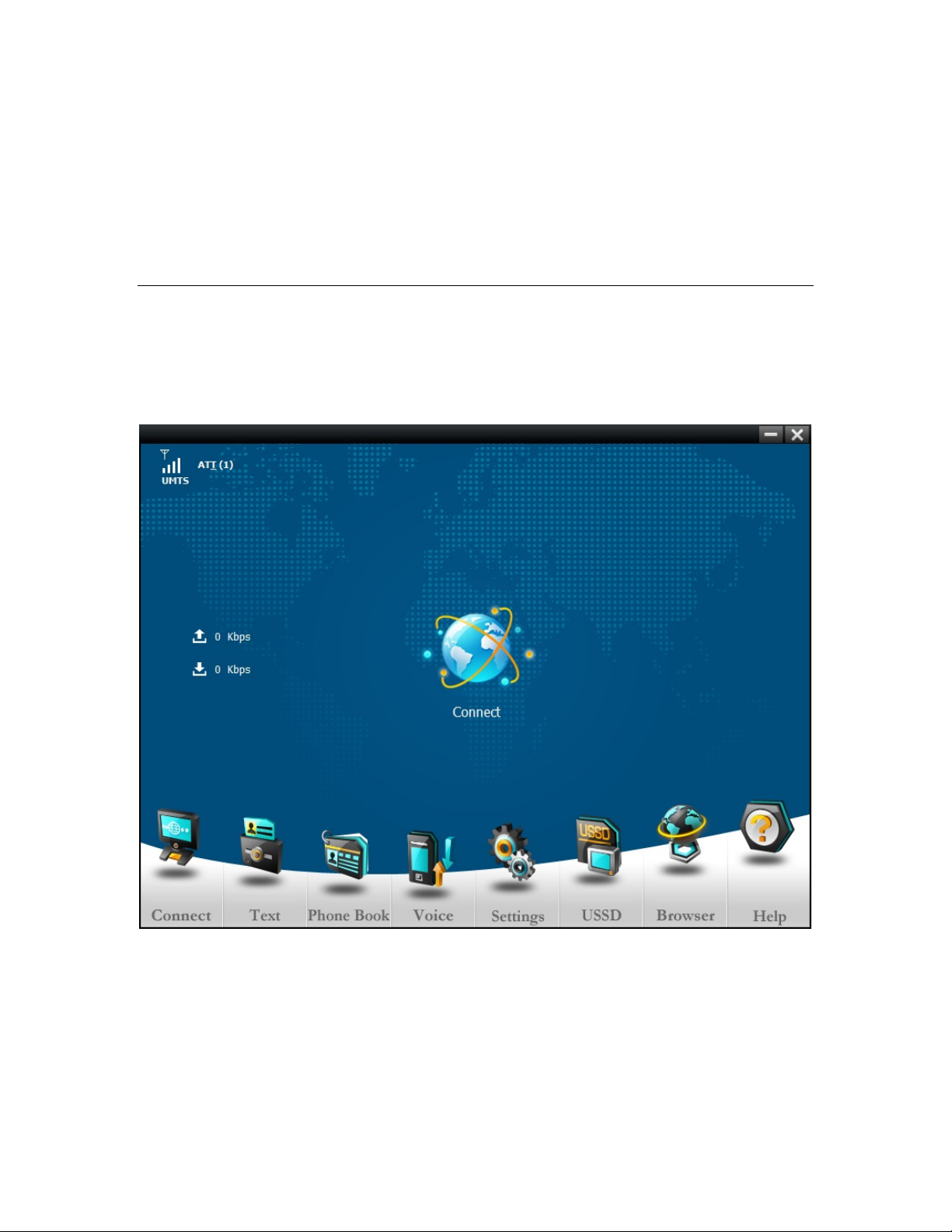
of the software that’s shown below.
In the upper left you can monitor the strength of the UMTS frequencies, which are used for
high-speed data. You can also see which service provider you’re using. About half way up
the left side of the page, you should see a way to monitor the downstream and upstream data
speeds. Double clicking on the globe in the center of the screen either connects to or
disconnects from your mobile broadband service provider’s network. Across the bottom of
the screen are various symbols, and below each symbol is a word that describes the function
associated with that symbol.
______________________________________________________________________________________
0472-A 27676 ©2012

In the next chapters we discuss what happens when you select each of the symbols on the
bottom by pointing at the symbol and left-clicking.
Note: The screens shown in the user guide are from the Windows application. The screens
for Macintosh users may vary slightly in their appearance.

3
The Data Stats Symbol on the Home Page
Data Stats displays statistics about your modem. When you select Data Stats, the following
screen appears:
You can see that this screen lets you monitor upload and download speeds, track the amount
of data you’ve transmitted during this Internet session, and keep track of how much data
you’ve uploaded and downloaded over various times. This can be especially useful if you
have a service plan where you pay a premium once you’ve reached a certain amount of data
transmitted. However, you should always confirm your actual data usage with your service
provider.
Please note the Home symbol on the right of the screen. Clicking on this symbol
brings you back to the Home page.
______________________________________________________________________________________
0472-A 27676 ©2012
This manual suits for next models
1
Table of contents
Other Zoom Modem manuals

Zoom
Zoom 5363 User manual

Zoom
Zoom 5590C Use and care manual

Zoom
Zoom 5651A User manual

Zoom
Zoom ADSL Modem BRIDGE 5515 User manual

Zoom
Zoom Series 1063 User manual

Zoom
Zoom 5370 User manual

Zoom
Zoom 1070 Series User manual

Zoom
Zoom 2985C User manual

Zoom
Zoom ADSL X6 User manual

Zoom
Zoom USB Faxmodem User manual