
Zida VCTnet AirXpress UC11B User manual

VCTnet AirXpress UC11B
USB Wireless Network Adapter
Installation and Getting Started Guide
Version 2.00

Copyright © 2002, Zida Technologies Ltd. All rights reserved
Other product and corporate names are trademarks of other companies and are used only for explanation and to the owner’s
benefit.
Disclaimer
The information contained in this document is subject to change without notice.
Zida Technologies Ltd. assumes no responsibility for errors or omissions in this manual.
Safety
Before installing and operating the products, please read through this Manual first.
2

Table of Contents
1 Introduction .......................................................................................4
2 Wireless LAN Basics.........................................................................5
3 About the Hardware ..........................................................................6
3.1 Know about the AirXpress UC11B Wireless Network Adapter ......6
3.2 To Use of the Wall Mount Kit .........................................................7
4 Windows Installation .........................................................................8
4.1 Install VCTnet AirXpress UC11B under Windows 98/ME ..............10
4.2 Install VCTnet AirXpress UC11B under Windows 2000 ................18
4.3 Install VCTnet AirXpress UC11B under Windows XP....................25
4.4 Configuration Utility under Windows 98/ME/2K/XP .......................38
Appendix A Technical Specifications......................................45
Appendix B FCC Information ..................................................46
Appendix C Regulatory Information........................................47
Appendix D Quick Troubleshooting Guide ..............................48
3

1 Introduction
Thank you for purchasing the VCTnet AirXpress UC11B USB Wireless
Network Adapter. With VCTnet AirXpress products, you are about to enter
the world of Wireless Local Area Network (WLAN) to enjoy a network cable
free working environment..
With using the radio frequency (RF) technology, WLANs transmit and
receive data over the air, minimizing the need for wired connections. Thus,
WLANs combine data connectivity with user mobility, and, through
simplified configuration, enable movable LANs.
This wireless networking solution has been designed for both large and
small businesses, and it is scalable so that you can easily add more users
and new network features as your business grows.
This manual will assist you in the installing VCTnet AirXpress UC11B
USB Wireless Network Adapter.
4

2 Wireless LAN Basics
The Wireless LAN defined by IEEE 802.11b standard committee could be
configured as:
•Ad Hoc wireless LAN or
•Infrastructure wireless LAN
Ad Hoc wireless network is a group of PCs installed with the Wireless PCMCIA
card, e.g. VCTnet AirXpress PC11B, or USB Wireless Network Adapter, e.g. VCTnet
Airpress UC11B, to compose a Basic Service Set (BSS). The PCs in the same BBS
communicate with each other directly with the WLAN devices.
STA 1
STA 2
STA 3
Figure 2-1 Ad Hoc wireless network
The most obvious differentiation between Infrastructure wireless network and
Ad Hoc wireless network is that the notebooks in Infrastructure wireless network can
make use of the resource in the Internet through Access Point.
STA 3
STA 1
STA 2
Access Point
Internet
Figure 2-2 Infrastructure wireless network
To set up your notebook’s network as the type of “Ad Hoc” or “Infrastructure”
wireless network depends completely on your requirement. Generally, if your network
environment has an Access Point, we recommend that you set it as “Infrastructure”
to connect to the Internet.
5

3 About the Hardware
3.1 Know about the AirXpress UC11B Wireless Network
Adapter
The following picture shows a AirXpress UC11B Wireless Network USB Adapter.
With reference to the picture, it shows different part of the unit.
Antenna
ACT LED
USB Port
Power LED
Antenna - it helps to receive and transmit the RF Signal. With adjusting the
position of the antenna, it would improve signal quality.
ACT LED - this LED will blink when data is being transmitted or received.
Power LED - this LED lights up when power is connected.
USB Port - to plug the attached USB cable to the Adapter and the other end of the
USB cable to the USB port of the PC.
6

3.2 To Use of the Wall Mount Kit
A wall mount kit comes with the AirXpress UC11B USB Wireless Network Adapter.
With the wall mount kit, the adapter can be attached onto the wall or any other vertical
surface, such as chassis of monitor, to have better reception.
Step 1: Remove the adhesive strip of
velcro and attach it to the wall or the
vertical surface where the Wireless
Network Adapter will mount on.
Step 2: To install the UC11B Adapter to
the Wall Mount Kit, just simply slide the
UC11B Adapter into the Wall Mount Kit as
the direction shown.
Wall Mount Kit of the UC11B USB
Wireless Network Adapter
7

4 Windows Installation
This section describes the procedures for installing the VCTnet AirXpress UC11B
Wireless Network Adapter under Windows 98, ME, 2000, and XP operating systems.
Before You Start
Before the installation, please check your system in advance and ensure it meets
the minimum requirements as described below:
- Processor: Intel Celeron / Pentium II /Pentium III / Pentium IV; AMD Duron /
Athlon or above
- Operating System: Microsoft Windows 98 / ME / 2000 / XP/ Linux
- System memory: 32MB minimum
- Hard Drive Free Space: 5MB
Note: To prevent potential problems during installation, please run the
installation tool from the CD to finish the driver installation before you
plug the UC11B wireless network adapter into the computer.
To use the UC11B, the system must be has an available USB port. All drivers
and the supporting software for the UC11B must be installed and configured.
Ask your system administrator for the following information, which you may need
during driver installation:
•Your Wireless LAN SSID.
•Your computer’s unique client name and workgroup name
•For your network account, your user name and password.
•Your IP address, gateway address, and subnet mask, if you’re not using a
DHCP server.
Every computer on a network is identified by a unique network address. There
are two methods to assign network addresses to computers on a TCP/IP network:
•Static IP addressing
•Dynamic IP addressing (DHCP)
8
In networks with static IP addressing, the network administrator manually
assigns an IP address to each computer. Once a static IP address is assigned, a
computer uses the same IP address every time it reboots and logs on to the network.
You may manually change the IP address in the Network Properties dialog box.
Networks using static IP addresses are easy to set up and do not require additional
network management software.
In networks with dynamic IP addressing, a DHCP server in the network
dynamically assigns IP addresses to all its clients every time they log onto the network.
Network using dynamic IP addresses require setting up and running a DHCP Server.
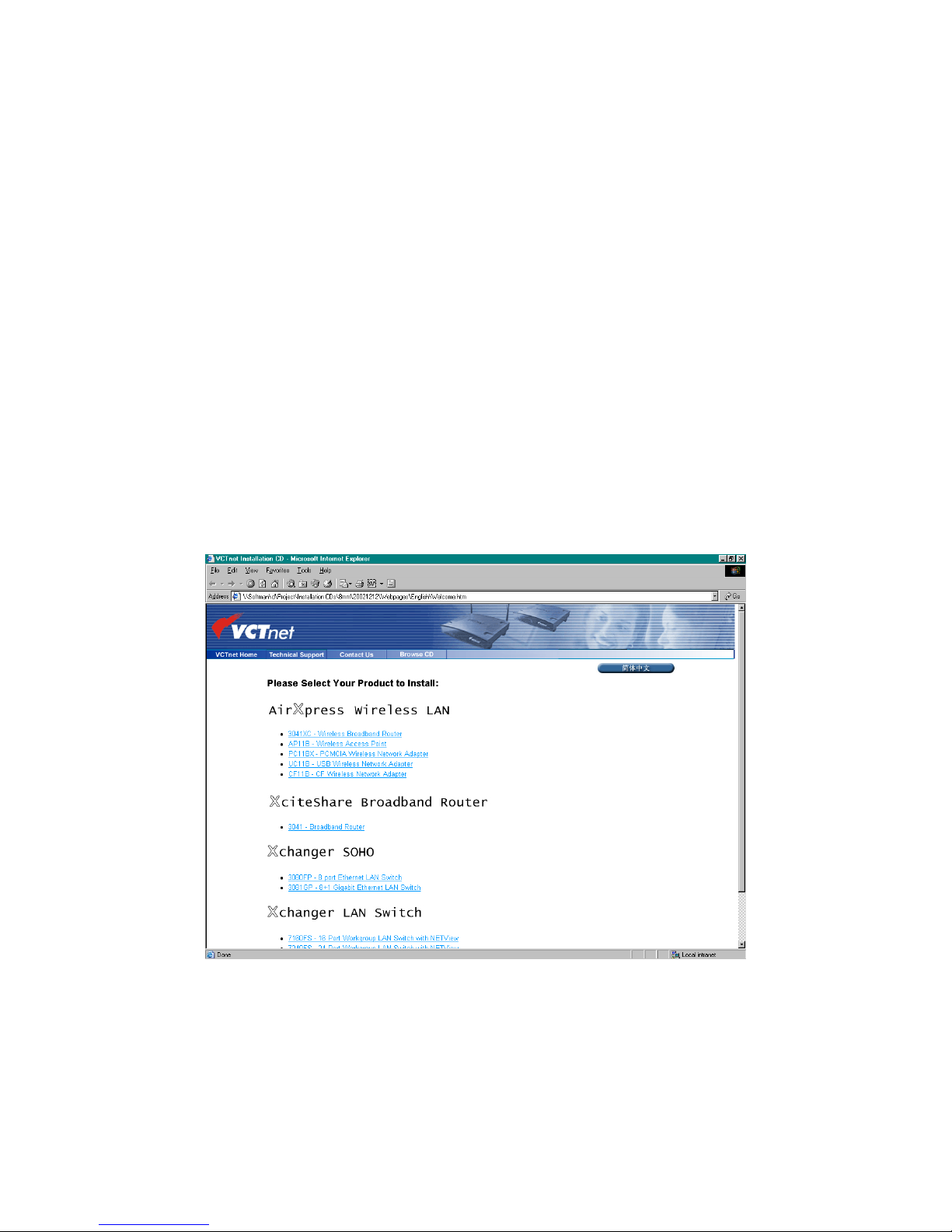
Installation Menu
After you insert the VCTnet CD, the welcome screen will appear. Note: If the
welcom screen window doesn’t appear automatically, you can browse the CD
content and run “setup.exe” manually from the UC11B directory.
9

4.1 Install VCTnet AirXpress UC11B under Windows 98/ME
Step 1 Insert the VCTnet CD, and the welcome menu will appear. If the
welcome menu window doesn’t appear automatically, you can browse the
CD content and run setup.exe manually under the UC11B directory.
10
Table of contents
Popular Network Card manuals by other brands



Buffalo
Buffalo AirStation WLI-PCM-L11GP user manual

National Instruments
National Instruments NI 9234 operating instructions

Hama
Hama 49276 Operating instruction

Linksys
Linksys WCF54G - Wireless-G Compact Flash Card Product data

Compaq
Compaq Wireless LAN 100 specification

Bose
Bose PowerMatch Dante quick start guide