VXI Reveal Pro Office User manual


VXi Reveal ProTM Office User Guide PAGE 2
Welcome .........................................................................................3
• Headset Features
• Base Features
Safety Information ..................................................................................4
What’s in the Box...................................................................................4
Base Overview.....................................................................................5
Headset Overview ..................................................................................6
Optional Accessories ................................................................................6
How to Wear ......................................................................................7
• Changing Wearing Styles
• Headset Positioning
• Using the Headset in High-Noise Situations
Connect to Your Desk Phone ..........................................................................9
• Connect Power
• Charge Headset
• Connect and Configure Desk Phone
– Desk Phone
– Desk Phone with EHS
– Desk Phone with L50 Lifter
• Position Base
Pairing the Headset ................................................................................12
• To the Base
• To a Cell Phone
– NFC Pairing
– Manual Pairing
Making Calls with a Desk Phone ......................................................................14
• Place a Call
• Answer a Call
• End a Call
• Mute a Call
• Reject a Call (Desk Phone)
• Answer a Second Incoming Call
– On Your Desk Phone
– From a Paired Cell Phone
Making Calls with a Cell Phone .......................................................................15
• Place a Call
• Answer a Call
• End a Call
• Mute a Call
• Reject a Call
• Answer a Second Incoming Call
Parrott ButtonTM....................................................................................16
Energy-Saving Charging Mode........................................................................16
Functions and Indicators Tables .......................................................................17
• Base
• Headset
– Standby Mode Functions
– In-Call Functions
– Notifications
TABLE OF CONTENTS

VXi Reveal ProTM Office User Guide PAGE 3
WELCOME
Congratulations on purchasing your new VXi office wireless product. This guide contains instructions for
setting up and using your VXi Reveal Pro Office Wireless Headset System.
Reveal Pro Office Headset Features
• Advanced noise-canceling microphone
• Extendable boom for optimal mic placement
• HD Voice (wideband audio) for easy-to-hear, easy-to-understand calls
• A2DP support for streaming audio from Bluetooth devices
• Multipoint pairing for use with two devices at the same time
• NFC for easy, instant mobile device pairing
• 7+ hours of talk time/150 hours’ standby time per charge
Reveal Pro Office Base Features
• Headset Docking/Charging Cradle
• Connects to Desk Phone

VXi Reveal ProTM Office User Guide PAGE 4
SAFETY INFORMATION
WHAT’S IN THE BOX?
IMPORTANT SAFETY NOTE: Prolonged exposure to high volume levels can damage your hearing. To avoid
injury, set the volume to the lowest comfortable level. If you experience ringing in your ears, or voices sound
muffled, stop using the headset. Avoid turning up the volume to block noisy surroundings. It’s possible for
your ears to adapt to volume that is too high, and this could result in permanent hearing damage without
any noticeable discomfort.
• Check with local and state laws regarding cell phone/headset usage while operating a motor vehicle.
• Do not immerse any part of this product in water.
• Plastic bags and small parts may cause choking if ingested. Keep them away from small children and pets.
• Use only the power cords included with this product.
• Avoid temperatures exceeding 140° F (will cause equipment failure).
Reveal Pro Office Package Contents
1. BlueParrott®Reveal Pro Headset
2. Reveal Pro Office Base Unit
3. Power Supply
4. Desk Phone Connection Cable
5. Headband
6. Neckband*
7. Wearing Styles Collar*
8. Ear Hooks (multiple sizes)
9. Ear Buds (multiple sizes)
10. Quick-Start Guide*
11. Warranty and Compliance Insert*
*Not pictured.
2
1
Images are not shown to scale.
3
4
5
9
8

VXi Reveal ProTM Office User Guide PAGE 5
BASE OVERVIEW
Front
A. Headset Docking/Charging Cradle
B. PC Button/LED (function not applicable for
Reveal Pro Office version)
C. Multi-Function (MFB)/Pairing Button/MFB LED
D. Phone Button/LED
Back
A. EHS Interface Port
B. Telephone Interface Port
C. Micro-USB Port (for firmware updates)
D. Mini-USB Power Supply Port
Base
A. Compatibility Switch
B. Microphone (Tx) Gain Adjustment Switch
K-Lock Side
A. Kensington Security Slot
A
B
C
D
A
BC
D
A
A
B
VXi Reveal ProTM Office User Guide PAGE 6
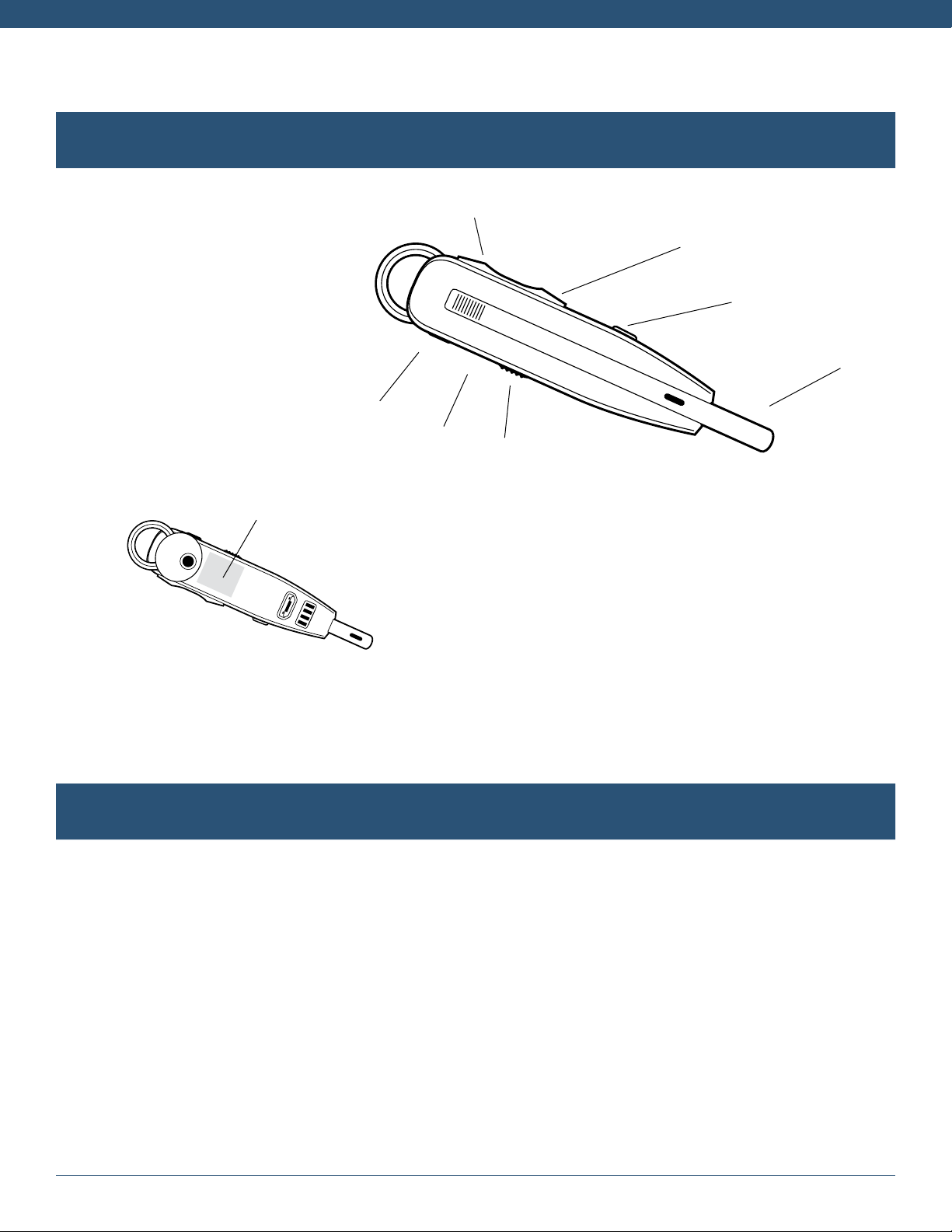
HEADSET OVERVIEW
A. Volume Up/Mute
B. Volume Down
C. Parrott ButtonTM
D. Extendable Microphone Boom
E. On/Off Switch
F. Indicator Lights
G. Multifunction Button (MFB)
H. NFC Zone (pictured below)
A
B
F
G
E
H
D
NFC Zone
C
OPTIONAL ACCESSORIES
VEHS Electronic Hook Switch (EHS) – Electronically takes your desk phone off hook. Enables remote
call answer/end with your headset. See www.vxicorp.com/VEHS for VEHS variants and supported phones.
L50 Lifter – Automatically depresses/releases the handset hook switch of your desk phone. Enables
remote call answer/end with your headset.
Replacement Wearing Styles Kit – Replacement parts to refresh your headset. Kit includes headband,
neckband, ear hooks, and ear buds.
VXi Reveal ProTM Office User Guide PAGE 7
HOW TO WEAR
Changing Wearing Styles
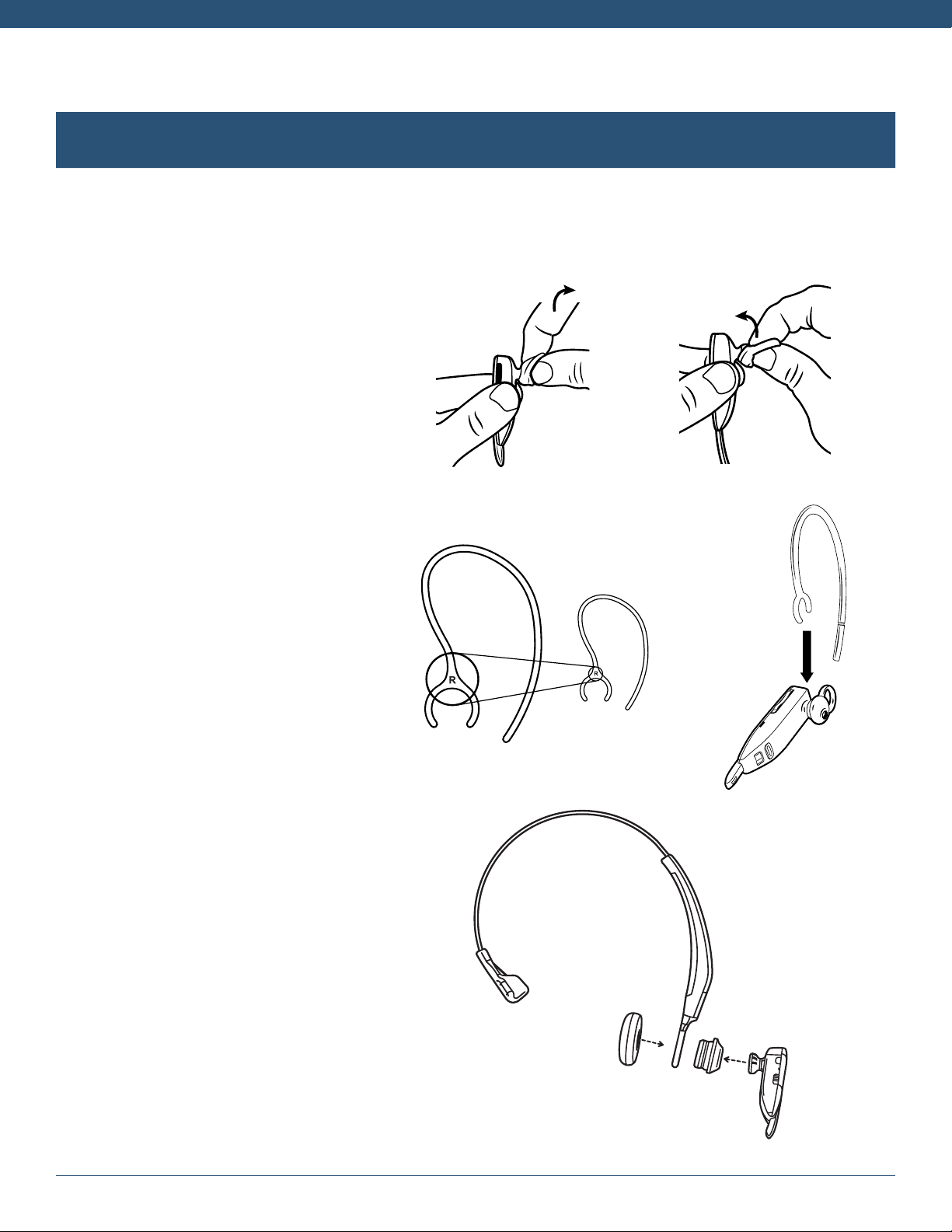
The Reveal Pro Office headset is supplied with a choice of wearing styles:
Ear Hook and Ear Buds
The headset is provided with the
medium-loop ear bud already
attached. The loop on the ear bud
should tuck into the back curve of
your ear. If it feels too loose or tight,
try a different size.
Headband or Behind-the-Neck
Remove the ear bud from the
headset. Attach to the headband
as shown. Add foam or rubber ear
cushion. (The behind-the-neck style
uses the same method.)
Rotate the ear bud on the headset to
position it. If desired, clip on one of
the optional ear hooks. Ear hooks are
configured for either left- or right-ear
wearing.

VXi Reveal ProTM Office User Guide PAGE 8
HOW TO WEAR (continued)
Using the Headset in High-Noise Situations
The microphone boom is extendable for greater levels of noise cancellation in noisy environments.
Simply slide the boom in or out as needed.
For Normal Use
(Low-Noise Environment) For Noisy Environments
Headset Positioning
To get the best noise-canceling performance, angle the microphone
boom towards the corner of your mouth. Positioning is important.
Small adjustments in microphone placement can improve performance.

VXi Reveal ProTM Office User Guide PAGE 9
CONNECT TO YOUR DESK PHONE
Connect Power
Plug the mini-USB jack of the power supply into the mini-USB
port on the back of the base unit. Plug the other end into a
working power outlet. The round Multi-Function Button (MFB)
will show three quick flashes.
Charge Headset
Place the headset in the charging cradle. The charging
LED on the headset will be red when charging and change
to blue when the headset is fully charged. Note that if the
headset and base are paired together, the headset LED and
base MFB LED will show a slow blue blink. A full charge
takes less than 90 minutes.

VXi Reveal ProTM Office User Guide PAGE 10
Connect and Configure Desk Phone
There are three options to set up the Reveal Pro Office with your desk phone.
Select the best option for your situation:
• Desk Phone (standard)
• Desk Phone with EHS (sold separately)
• Desk Phone with L50 Lifter (sold separately)
Desk Phone (standard)
Connect the desk phone connection cable to the
back of the base and the other end to the headset
port of the phone. If you do not have a headset
port, you will need to use the handset port.
Check Configuration and Make a Test Call:
1. Set your desk phone volume to mid-range.
2. Check that the compatibility switch on the
underside of the base is correct for your phone.
Most phone makes use setting A, but many
Cisco phones will use setting B, and many
Avaya phones setting C.
3. Open the headset line on your desk phone, or remove the handset from the cradle if you are connected
to the handset port.
4. While wearing the headset, press the Multi-Function Button on the headset.
5. |f you do not hear a dial tone (or tones) when pressing dial pad buttons, try the other base compatibility
switch settings until you do.
6. Dial a test call from the desk phone.
• You can fine-tune the volume using the headset volume buttons.
• If additional microphone gain (speaking volume) is needed, you can adjust this on the underside of
the base. Position 8 gives you maximum gain. Position 1 delivers minimum gain.
SET
CONNECT TO YOUR DESK PHONE (continued)
Table of contents
Other VXI Headset manuals


VXI
VXI BlueParrott B100 User manual

VXI
VXI VoxStar User manual

VXI
VXI V100 User manual

VXI
VXI Passport 10-V User manual

VXI
VXI Passport 37-G User manual

VXI
VXI 201403B User manual

VXI
VXI Passport 10G User manual

VXI
VXI TuffSet 15 User manual

VXI
VXI BlueParrott B200 User manual

VXI
VXI Passport 20-DC User manual