Vosonic VP2160 User manual

X’s-Drive II+ VP2160
1
( VP2160 )

X’s-Drive II+ VP2160
2
Index
1. Ports Connection and Buttons
2. Using the X’s –Drive II+
-Charge Batteries
-Power On / Off
3. Driver Installation
4. USB Connection
5. Format Hard Disk under Win 2K/ Win XP
6. Downloading or Editing the files on PC
6. Data Transfer from Memory Card
7. Auto Power off Function
8. Battery Recharge
9. If an erroneous display / operation occurs
10. Care for the Hard Drive and unit
11. Troubleshooting

X’s-Drive II+ VP2160
3

X’s-Drive II+ VP2160
4
CAUTION
Under no circumstances should you try to repair the system yourself, as this
will invalidate the warranty. Do not open the system as there is a risk of
electronic shock.
IMPORTANT WARRANTY INFORMATION
yTo reduce the risk of fire or shock hazard, do not expose this equipment to rain ,
any liquid or moisture.
yVosonic shall have no obligation to repair ,replace or refund until the customer
returns the defective product to Vosonic.
yThe repairs and replacement service will not apply to PRODUCT units that were
misused, repaired without authorization or by other reasons beyond the range of
intended use.
yAny replacement product may be either new or like –new, provided that it has
functionality at least equal to that of the product being replaced.
yVosonic is not responsible for any data stored on returned products, please
backup any data prior to shipping the unit.
yThe limited warranty for accessories (included battery ) is only valid for 6 months
from the date of purchasing..
yAll OUT OF WARRANTY repairs maybe subject to a normal repair fee.
Please contact your dealer or Vosonic for current charges.

X’s-Drive II+ VP2160
5
Features:
zUSB 2.0 High speed compatible
zA stand -alone ,Palm-sized rechargeable storage device. No PCs required.
zSupport SmartMedia , SD/MMC , Memory Stick , Memory Stick Pro and
Compact Flash Type I/II ,IBM MicroDrive , Mini-SD(with adapter) ,
RS-MMC (with adapter), MS Duo (with adapter),MS Pro Duo (with adapter)
zInfinite memory & storage expansion configuration with internal Hard Disk
zAble to copy the data from memory card(s) into the internal hard drive
zFast & easy file transfer and storage with a simple button operating.
zBack up all kinds of files as the 2.5" external HDD , USB card reader/ writer.
zConvenient charged by a generic AC/DC adapter.
Package Checklist :
zMain unit
zUSB cable
zPouch
zWarranty Card
zEnglish user's guide
zSetup CD-ROM
zPower Adapter (100-240V auto switched )

X’s-Drive II+ VP2160
6
SPECIFICATION:
ITEM DESCRIPTION
Support Memory Card Interfaces SM, SD/MMC, MS ,MS Pro and CFType I/II,MicroDrive,
Mini-SD (with adapter) ,RS-MMC (with adapter),
MS Duo (with adapter), MS Pro Duo (with adapter).
LCD Amount of battery power
File transfer status
Main storage (HDD) capacity
Memory card / HDD error indicator
USB Access
Charge Status
Hard Disk Size 2.5 inch
Hard Disk Capacity Unlimited ( Any 9.5mm 2.5" HDD )
Power Source Internal Power: Li-ion rechargeable battery 3.7V x 1
(1100mA)
Model Number:Fuji-NP60
External Power:5V adapter (2.5A)
Download interface USB 2.0 interface port
Files System Support Standard FAT 12/16/32
System OS
yWindows98/98SE with driver
yWin 2000 SP3 above without driver
yLinux Kernel version 2.4 or above without driver
yMac OS 10.01 above without driver
Note: VP2160 doesn’t support Windows SP1 , SP2 ,
please upgrade to SP3 or above.
Accessories Power Adapter / USB Cable / User's Guide /
Driver Disc/Carrying Bag
Operating Temperature. 0。C ~70。C
Storage Temperature -40。~70。C
Humidity 90% RH
Weight 230gr ( Included 2.5” HDD & battery pack )
Dimension ( L*W*H ) 116 x78x23mm

X’s-Drive II+ VP2160
7
1. Ports Connection and Buttons
SM ,Memory Stick, MMC/SD card
slot:
CF card slot :
For the CF card / Micro Drive insertion
USB Port:
Insert USB cord mini jack
RESET
DC IN:
Insert Ac adapter Jack
Power on /off
Copy / Stop Copying
X’s-Drive II+ VP2160
8
2. Using the X’s-drive II+
1) Charge the batteries
zBefore using for the first time, charge the batteries for a full 4 hours.
2) Power On /Off
zLong press the Power button for 2 seconds.
zThe green light will go on and the operating system will boot up.
zTo shut off the unit, press the power button.
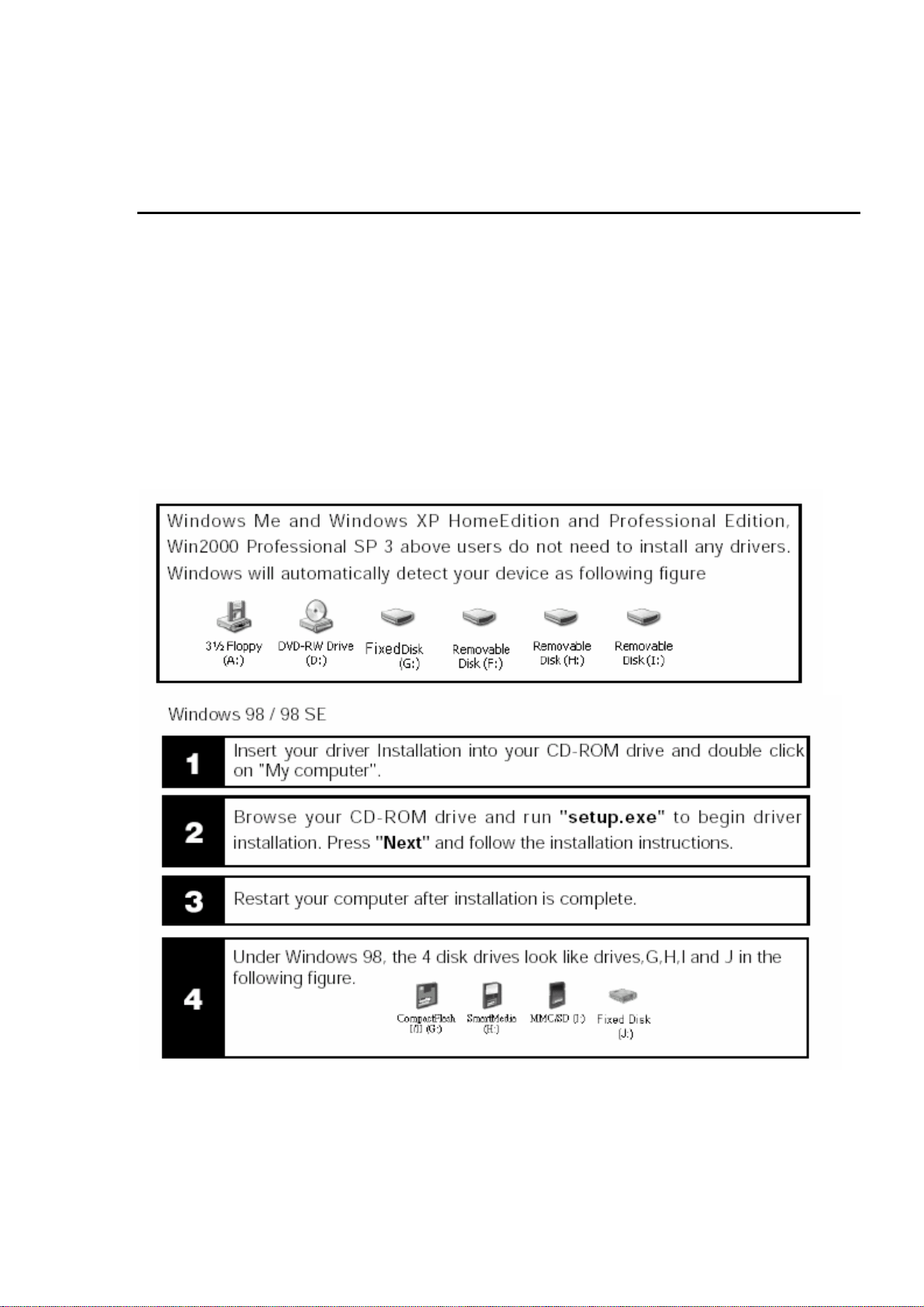
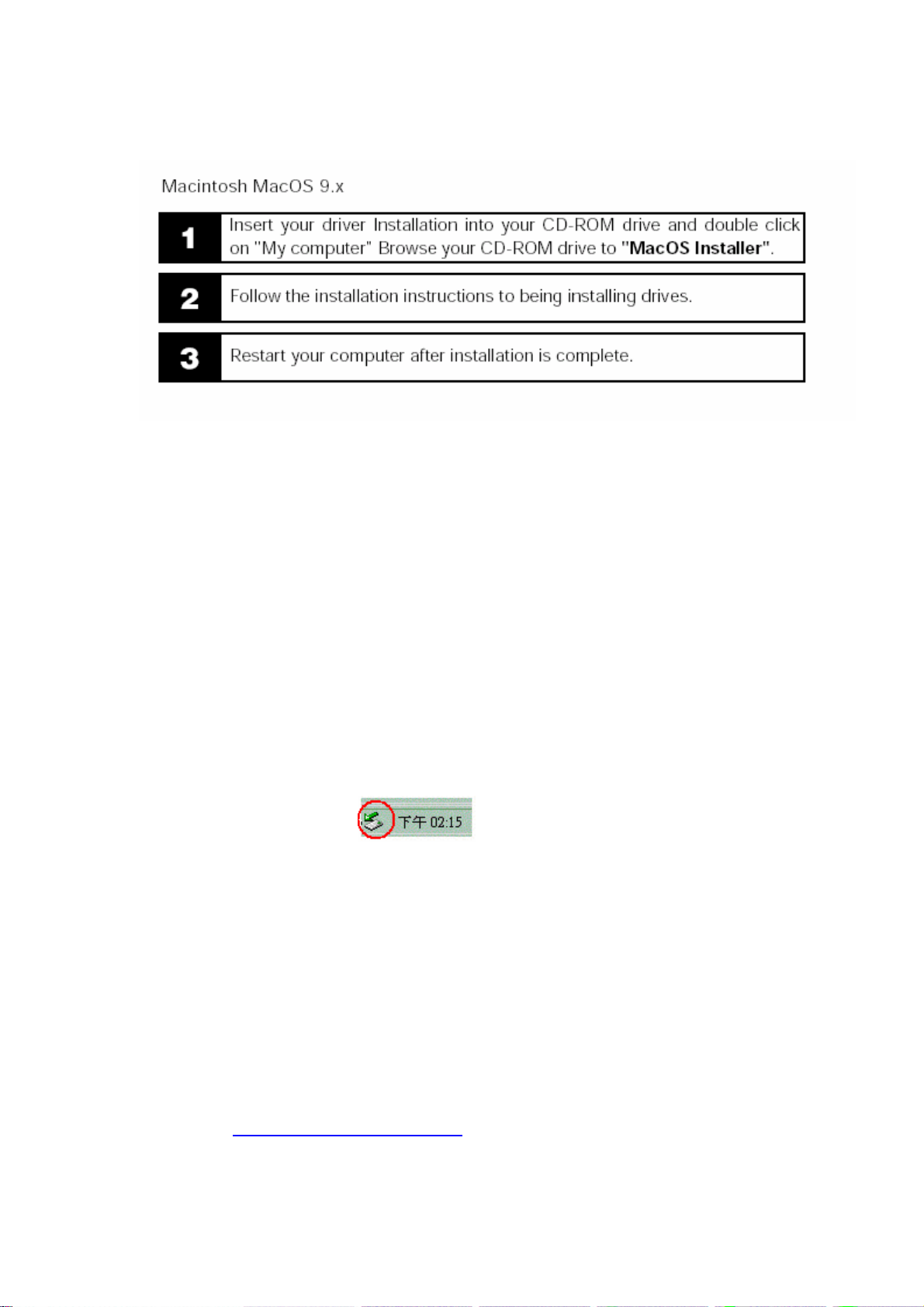
3. Driver installation
Windows Me and Windows XP Home Edition and Professional Edition
,Win2000 Professional SP 3 above .
Note: Please partition the Hard Disk first , then the Windows 98
Can recognize the Hard Disk .
X’s-Drive II+ VP2160
9
4. USB CONNECTION:
When VP2160 begins connecting to the computer, the " HD TRANSFER " message will appear on
the screen. During file transfer in the PC mode
DO NOT :
1. Plug out the USB cable
2. Remove memory card(s) from the card slot,
otherwise, there may be a chance of lost or corrupt data.
3. Keep the power supplier plugged if you are connecting to the laptop.
Note:
a. When you connect to your laptop , please remember to keep the device plugged into the AC
adapter or the secondary power source via USB cable
b. To safely disconnect the VP2160 from computer, click on the system tray
remove icon and wait until you get a message saying
that you can safely unplug the device before disconnecting the USB cable.
5. Format Hard Disk under Win 2K/ Win XP
Due to Win 2K/ Win XP can not support Format Disk for 30G above
Hard Drive. Please find the Application Program on the included CD-ROM.
This program is a “ FDisk AP” for Format Application Program .
It has a simple interface which you can use it to format the Hard Disk .
Note : If you are using the new Hard Disk, please remember to
Initialize the HDD first .
Learn more about your partitioning and formatting options , please link to
http://support.microsoft.com

X’s-Drive II+ VP2160
10
1.Type the drive letter
2.
Get Hard Disk
Information.
3. Start formatting
zUse the power adapter to avoid the device shuts off due to low power .
zConnect the device and PC with the provided USB cable
zFind the Application Program on the included CD-ROM.
zFollow then instructions to being formatting drives.
6 .Downloading or Editing the files on PC:
zPower on the VP2160
zConnect the VP2160 and PC with the provided USB cable
zDouble Click the " My computer" icon , the operating system will
display 4 icons identifying the media types orrespondingly.
zYou can then read ,write,copy ,delete and remove data on the PC.
7. Data Transfer from Memory Card
zInsert memory card(s) into the card slot .
This manual suits for next models
1
Table of contents
Other Vosonic Storage manuals