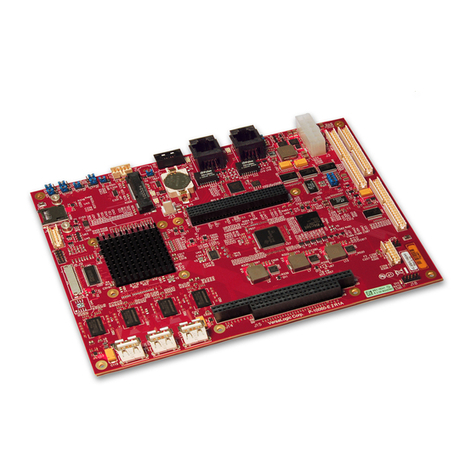
VIA Technologies VAB-820 User manual

1.00-02202017-110700
QUICK START GUIDE
VAB-820
Android BSP v4.0.3

Copyright
Copyright © 2017 VIA Technologies Incorporated. All rights reserved.
No part of this document may be reproduced, transmitted, transcribed, stored in a retrieval system, or translated into any language,
in any form or by any means, electronic, mechanical, magnetic, optical, chemical, manual or otherwise without the prior written
permission of VIA Technologies, Incorporated.
Trademarks
All brands, product names, company names, trademarks and service marks are the property of their respective holders.
Disclaimer
VIA Technologies makes no warranties, implied or otherwise, in regard to this document and to the products described in this
document. The information provided in this document is believed to be accurate and reliable as of the publication date of this
document. However, VIA Technologies assumes no responsibility for the use or misuse of the information (including use or
connection of extra device/equipment/add-on card) in this document and for any patent infringements that may arise from the use of
this document. The information and product specifications within this document are subject to change at any time, without notice
and without obligation to notify any person of such change.
VIA Technologies, Inc. reserves the right the make changes to the products described in this manual at any time without prior notice.

VAB-820 Android BSP v4.0.3 Quick Start Guide
iii
Revision History
Version Date Remarks
1.00 2/9/2017 Initial release

VAB-820 Android BSP v4.0.3 Quick Start Guide
iv
Table of Contents
1. Introduction .................................................................................................................................. 1
1.1.
Package Contents............................................................................................................................ 1
1.1.1.
BSP Folder Contents .................................................................................................................................. 1
1.1.2.
Document Folder Contents ..................................................................................................................... 1
1.1.3.
EVK Folder Contents ................................................................................................................................. 1
1.2.
Version Information and Supported Features .......................................................................... 2
2. Image Development ................................................................................................................... 3
2.1.
Booting from the SPI ROM with an eMMC ............................................................................... 3
2.2.
Setting Up U-Boot Parameters ..................................................................................................... 5
2.3.
Restoring Default U-Boot Parameters ........................................................................................ 6
2.4.
Using the Android Console ......................................................................................................... 7
3. Build Environment Setup ........................................................................................................... 8
3.1.
Configuring Ubuntu ........................................................................................................................ 8
4. Image Build ................................................................................................................................... 9
4.1.
Extract the VAB-820 BSP............................................................................................................... 9
4.2.
Downloading the Source Code of Android 5.0.0 ................................................................... 9
4.3.
Installing the Source Code Patch ................................................................................................ 9
4.4.
Building the Android Image ......................................................................................................... 9
5. Hardware Functions .................................................................................................................. 10
5.1.
Setting Up Display Device .......................................................................................................... 10
5.1.1.
Setting Up the HDMI U-Boot Display Parameter .............................................................................. 10
5.1.2.
Setting Up the LVDS U-Boot Display Parameter............................................................................... 11
5.1.3.
Setting Up the Dual Display U-Boot Display Parameter ................................................................. 12
5.2.
Setting Up the Video-in .............................................................................................................. 13
5.3.
Configuring the VNT9271 USB Wi-Fi Dongle / EMIO-1533 USB Wi-Fi Module ............ 14
5.4.
Configuring the EMIO-1541 miniPCIe Wi-Fi Module ............................................................ 16
5.5.
Configuring the EMIO-2531 miniPCIe / EMIO-5531 USB Wi-Fi & Bluetooth Module...... 17
5.5.1.
Connecting to the Internet ..................................................................................................................... 17
5.5.2.
Enabling Bluetooth .................................................................................................................................. 18
5.5.2.1.
Using the Bluetooth A2DP Profile ............................................................................................. 18
5.5.2.2.
Using the Bluetooth SPP Profile ................................................................................................. 19
5.6.
Configuring the EMIO-2550 miniPCIe Mobile Broadband Module ................................... 21
5.6.1.
Connecting to the Internet ..................................................................................................................... 21
5.6.2.
Enable GPS ................................................................................................................................................ 23
5.7.
Smart ETK ....................................................................................................................................... 24
5.7.1.
Testing Watchdog Timer Function ....................................................................................................... 25
5.7.2.
Testing GPIO Function ............................................................................................................................ 26
5.7.3.
Testing UART Function ............................................................................................................................ 28
5.7.4.
Testing FlexCAN Function ..................................................................................................................... 29

VAB-820 Android BSP v4.0.3 Quick Start Guide
1
1. Introduction
The purpose of this document is to provide an overview of getting started with the VAB-
820 board using Android 5.0.
The VAB-820 Android BSP v4.0.3 is developed based on the NXP android_l5.0.0_1.0.0-ga
(Android 5.0 Lollipop) and it enables hardware features that are defined on the VAB-820 board.
1.1. Package Contents
There are three folders in the package as listed below.
BSP folder Description
VAB-820_Android_source_code_patch.zip Android source code patch files and Image building
script files
Smart_ETK_Demo_Program _Source_Code.zip Smart ETK demo program source code
Document folder Description
VAB-820_Android_BSP_v4.0.3_Quick_Start_Guide
_v1.00_20170209.pdf Quick Start Guide
VAB820_Android_EVK_v4.0.3_Image_Installation_
Guide_v1.00_20170209.pdf Image Installation Guide
EVK folder Description
Images_autoinstall_sd.zip Android EVK system image and installation script files
OTA.zip OTA upgrade packages
VAB-820_Smart_ETK_Demo_v0.0.16.apk Smart ETK demo program
BluetoothSPPTest.apk Bluetooth SPP testing program
VAB-820 Android BSP contents
1.1.1. BSP Folder Contents
VAB-820_Android_source_code_patch.zip: includes NXP Android patch file
android_L5.0.0_1.0.0-ga_core_source.tar.gz, the VAB-820 Android source code patch file
and Image building script files.
Smart_ETK_Demo_Program_Source_Code.zip: Smart ETK demo program source code.
1.1.2. Document Folder Contents
VAB-820_Android_BSP_v4.0.3_Quick_Start_Guide _v1.00_20170209.pdf: The Quick Start
Guide provides an overview of getting started with the VAB-820 system using Android.
VAB-820_Android_EVK_v4.0.3_Image_Installation_Guide_v1.00_20170209.pdf: The Image
Installation Guide explains how to boot the Android EVK image on the VAB-820 system in
order to begin evaluating the platform.
1.1.3. EVK Folder Contents
Images_autoinstall_sd.zip: The Android EVK system image and installation script files.
OTA.zip: OTA testing upgrade packages.
VAB-820_ETK_Demo_v0.0.16.apk: The Smart ETK demo program.
BluetoothSPPTest.apk: The Bluetooth SPP testing program.

VAB-820 Android BSP v4.0.3 Quick Start Guide
2
1.2. Version Information and Supported Features
•U-Boot version: 2014.04
•Kernel version: 3.10.53
•Evaluation image: Android Lollipop 5.0
•Development based on NXP android_l5.0.0_1.0.0-ga (Android 5.0 Lollipop)
•Supports SPI with eMMC boot
•Supports HDMI and LVDS display
•Supports HDMI audio output
•Supports AUO LVDS capacitive touch panels (through USB interface)
oAUO 10.4” G104XVN01.0 (1024×768)
oAUO 7” G070VW01 V0 (800×480)
•Supports S-Video and CVBS
•Supports COM1 DTE mode, COM2 as debug port
•Supports 2 FlexCAN TX/RX
•Supports Gigabit Ethernet
•Supports Line-in, Line-out and Mic-in
•Supports VNT9271 USB Wi-Fi dongle
•Supports EMIO-1533 USB Wi-Fi Module
•Supports EMIO-5531 USB Wi-Fi & BT module
oSupports Bluetooth A2DP and SPP profile
•Supports EMIO-1541 miniPCIe Wi-Fi module
•Supports EMIO-2531 miniPCIe Wi-Fi & BT module
oSupports Bluetooth A2DP and SPP profile
•Supports EMIO-2550 miniPCIe Mobile Broadband module
•Supports Smart ETK v0.0.16: Watchdog timer, GPIO, UART and CAN bus
•Support OTA (Over-the-Air technology)
•Support shutdown option in Quick Settings
•Support Ethernet configuration in Settings

VAB-820 Android BSP v4.0.3 Quick Start Guide
3
2. Image Development
This section explains the setup requirements for booting from the SPI ROM with an eMMC.
A precompiled image is provided in the “EVK” folder of the BSP.
2.1. Booting from the SPI ROM with an eMMC
The Images_autoinstall_sd.zip includes the Android EVK system image and the installation
scripts files.
The first step is to extract Images_autoinstall_sd.zip file to make the bootable Micro SD
card. Insert a card into your Linux host machine and make sure it is not mounted. Open the
terminal on your host machine, and run the script mk_install_sd.sh as shown below,
replacing <device name> with the correct value for the card, for example “sdb”.
Important: Make sure you are writing to the correct device or the host system environment
could be damaged.
$ sudo ./mk_install_sd.sh /dev/<device name>
Next, on the VAB-820, set the boot select jumper (J11) to the Micro SD position as shown
below.
Micro SD / SPI boot select jumper diagram
Insert the prepared Micro SD card into the VAB-820, connect an HDMI display, and power
on the VAB-820 to initiate the boot process. When the boot process is completed, you
will see the Linux environment command line.
To install the U-Boot and Android EVK image into SPI ROM and eMMC, use the following
command:
$ ./fsl-eMMC-partition.sh –f imx6q /dev/mmcblk0
VAB - 820
J11
2
3
1
Micro SD
SPI
1
1
1
2
3

VAB-820 Android BSP v4.0.3 Quick Start Guide
4
In order to boot from the SPI ROM make sure the boot select jumper (J11) is set to SPI
ROM boot.
Micro SD/SPI boot select jumper diagram
Next, power on the device to initiate the boot process. When the boot process is
completed, you will see the Android desktop.
VAB - 820
J11
2
3
1
Micro SD
SPI
1
1
1
2
3

VAB-820 Android BSP v4.0.3 Quick Start Guide
5
2.2. Setting Up U-Boot Parameters
The first step is to connect the host machine and the VAB-820 through the COM2
connector (J5). Use a serial port communication program such as PuTTY, GtkTerm, or
Minicom, to configure the serial port setting and connect to the debug console. There you
will be able to see the U-Boot boot log and adjust settings in the U-Boot console.
+--------------------------------------------------------------+
| A - Serial Device : /dev/ttymxc0 |
| B - Lockfile Location : /var/lock |
| C - Callin Program : |
| D - Callout Program : |
| E - Bps/Par/Bits : 115200 8N1 |
| F - Hardware Flow Control : No |
| G - Software Flow Control : No |
+--------------------------------------------------------------+
Serial port setting of host machine
COM2 connector (J5) diagram
Next, power on the VAB-820 to initiate the boot process. When prompted, press any key
to stop the boot process, and enter the U-Boot console as illustrated by the screenshot
below.
1
J5
1

VAB-820 Android BSP v4.0.3 Quick Start Guide
6
U-Boot 2014.04 (May 31 2016 - 18:49:13)VAB820 ver:4.0.3
CPU: Freescale i.MX6Q rev1.2 at 996 MHz
CPU: Temperature 30 C, calibration data: 0x5894f169
Reset cause: POR
Board: iMX6Q-VAB820
I2C: ready
DRAM: 1 GiB
MMC: FSL_SDHC: 0, FSL_SDHC: 1
SF: Detected W25Q32BV with page size 256 Bytes, erase size 4 KiB, total 4 MiB
*** Warning - bad CRC, using default environment
No panel detected: default to Hannstar-XGA
Display: Hannstar-XGA (1024x768)
In: serial
Out: serial
Err: serial
Net: FEC [PRIME]
Warning: failed to set MAC address
Normal Boot
Hit any key to stop autoboot: 0
=>
Debug console view of boot process
To list the current U-Boot parameters, use the following command:
=> printenv
Make sure the printout message is as follows:
=> printenv
baudrate=115200
boot_emmc_root=mmc dev ${root_media_uboot};ext2load mmc ${root_media_uboot}:${root_partition} ${loadaddr}
uImage;ext2load mmc ${root_media_uboot}:${root_partition} ${dtbaddr} imx6q-vab820.dtb;bootm ${loadaddr} - ${dtbaddr};
boot_media=booti mmc1
2.3. Restoring Default U-Boot Parameters
If the U-Boot parameters have been modified, the “destroyenv” command in the U-Boot
console can restore the factory default settings.
To restore the default U-boot settings, use the following command:
=> destroyenv
=> saveenv
=> reset
Other manuals for VAB-820
9
Table of contents
Other VIA Technologies Single Board Computer manuals