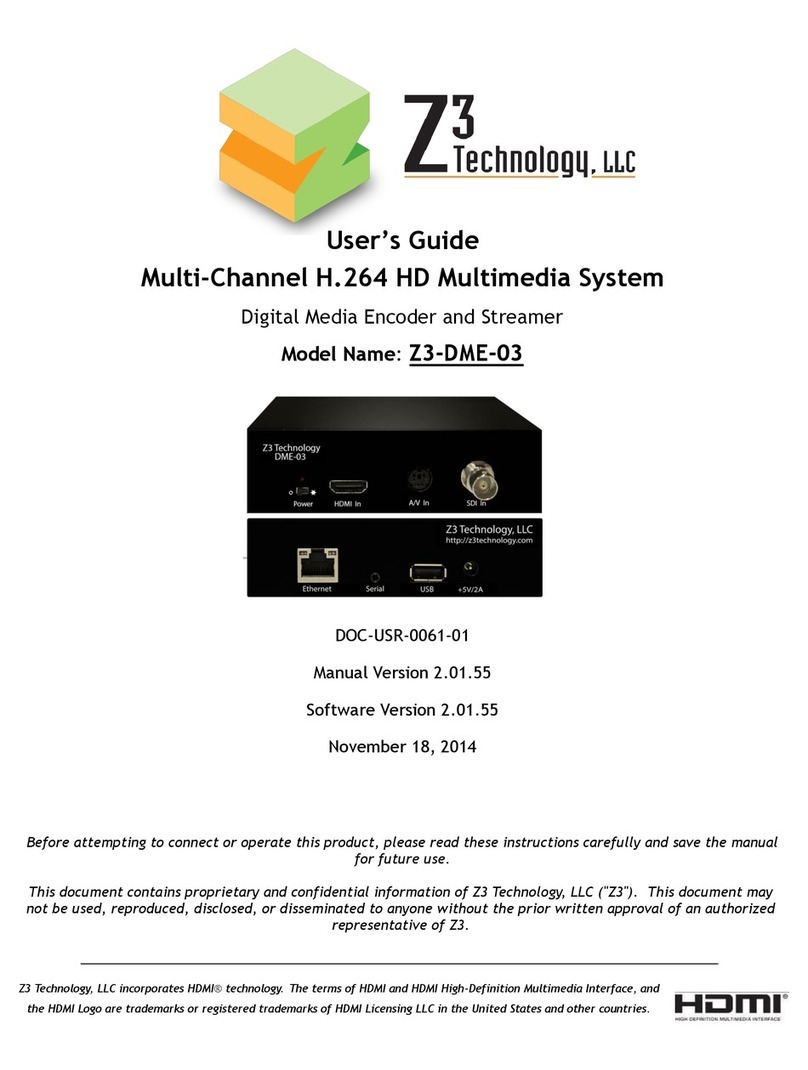
Topaz CMS Media Player Instructions for use

TOPAZ™ CMS Media Player –Hardware User Manual
1
Hardware User Manual
Manual Version TPZ-CMS-MP.1.0

TOPAZ™ CMS Media Player –Hardware User Manual
2
Our Full Product Range
Full details of all TOPAZ™ products available can be found by visiting our web site
www.topazdigital.com
Small Format POS
Your NOT so silent sales partner!
This counter top display is the ideal
way to get your message noticed,
deliver dynamic content and drive
your sales message to your
customer at the point of decision
With inputs including HDMI, DVI &
VGA, the NEW 10” TOPAZ™
Display is designed to mirror our
current 10” POS whilst offering the
perfect solution when looking to link
into an existing network or deploy
an enterprise level solution.
Small enough to fit into areas not
generally able to take large format
advertising screens, yet big
enough to make a real statement
with your promotional messages.
The patented HalO™ ensures your
message stands out and truly gets
noticed delivering the very best
ROI.
Large Format Displays
Our best seller! This screen features the ‘Smart Insert’
compartment to house your media player conveniently
behind the display together with one of the lowest Total
Cost of Ownership [TCO] on the market today with the
energy saving features built into the display.
Create maximum impact with the TOPAZ™ 55”
LCD –120Hz technology drives this display
ensuring the most exceptional graphics together
with high brightness this display really makes a
statement.
This display is ultra sleek with its thin and elegant
design coupled with the LED backlighting giving
breathtaking results your audience will be captivated by
this display.
Our 46” LED display delivers all the design
features associated with the brand together with
the added benefit of an in-built media player for
basic stand-alone digital signage presentations.
10” TOPAZ POS
23” TOPAZ POS
42” TOPAZ LCD
55” TOPAZ LCD
40” TOPAZ LED
46” TOPAZ LED
10” TOPAZ HDMI

TOPAZ™ CMS Media Player –Hardware User Manual
3
Our Full Product Range
Full details of all TOPAZ™ products available can be found by visiting our web site
www.topazdigital.com
SL Series
Our SL Series screens with inbuilt Wi-Fi allow you to seamlessly connect to our TOPAZ™ CMS. With
this model of screen no other equipment is required to deliver networked digital signage from
anywhere in the world. We include everything you need… Just add Power!
19” TOPAZ SL
32” TOPAZ SL
42” TOPAZ SL
55” TOPAZ SL
22” TOPAZ SL
Small but powerful –Slim profile
and stunning graphics makes this
display your ideal choice when
space is at a premium but you want
your message noticed.
Great for getting your message
seen –this size is perfect for so
many applications, big enough to
be seen but small enough to fit
where large format cannot!
One of our most popular sizes! As
with all SL Series displays this
screen features built in Wi-Fi and
access to our CMS platform
Great for when a real statement is needed!
This display makes an impact and as with all
our SL Series displays combines connectivity
and functionality to ensure you can manage
your network from anywhere in the world
Big picture but sleek profile! This display
redefines elegance and has so much
functionality built in you will be managing
your network seamlessly

TOPAZ™ CMS Media Player –Hardware User Manual
4
Safety Instructions
Please keep the unit away from any heat sources. Place the unit in a
stable and well-ventilated place.
The holes or openings on the unit are designed for ventilation. Do not
cover or block the ventilation holes or openings with any objects.
Do not attempt to repair this product yourself! Improperly disassembly of
the product may invalidate the warranty and lead to possible danger
If you have a problem that cannot be solved using the "Troubleshooting"
guidelines, please contact your supplier.

TOPAZ™ CMS Media Player –Hardware User Manual
5
Quick Setup Guide
This section of the guide is to allow fast set up and use of the unit. Please refer to the main part of
the User Guide for full information on use of the unit.
Please follow the steps detailed below:
1. Unpack unit and place in desired location, along with your display.
2. Take out the Wi-Fi antenna from the accessories bag and screw in (for Wi-Fi connectivity).
OR
3. Plug in the LAN cable that is connected to your router or your integral network (for LAN
connectivity). Please see section 1.5.2 Network Settings for instructions on how to switch your
player from “WiFi” mode to “LAN” mode.
4. Take the power lead from the accessories bag, insert the lead into the unit and connect to mains
outlet. Make sure that the “POWER” slider is pushed to the left; the unit will now power ON.
5. Connect the unit to the display via the HDMI lead included and power ON the screen.
6. You may need to change the screen input source to HDMI –please refer to your screen user
manual for details of how to do this.
7. You will now be greeted by some pre-loaded default content (for Wi-Fi connectivity please see
section 1.5.2 Network Settings).
8. You can now begin updating your player (for rapid first-time update, please see the Quick Start
Guide).

TOPAZ™ CMS Media Player –Hardware User Manual
6
Contents:
1. Introduction................................................................................................................................ 7
1.1 Box Contents ................................................................................................................... 7
1.2 Product Overview ...........................................................................................................7
1.3 Remote Control............................................................................................................... 8
1.4 Replacing the Remote Control Battery ...........................................................................9
1.5 System Menu Operation ...............................................................................................10
1.5.1 System Settings ......................................................................................................11
1.5.2 Network Setting .....................................................................................................14
1.5.3 Date & Time ...........................................................................................................19
1.5.4 On/Off Timer.......................................................................................................... 20
1.5.5 Screen Mode .......................................................................................................... 22
1.5.6 File Management ................................................................................................... 22
1.5.7 Exit..........................................................................................................................23
2. System Operation ..................................................................................................................... 24
2.1 Supported Media Files ..................................................................................................24
2.2 Outputs ......................................................................................................................... 24
2.3 Connecting via VGA....................................................................................................... 25
3. F.A.Qs and Troubleshooting Guide ...........................................................................................26
3.1 Why is my screen displaying "Error (Screen Mode Unmatch)"?................................... 26
3.2 How do I update my player if it is not connected to the internet? (Plug and play
method) ................................................................................................................................. 27
3.3 How do I play PowerPoint presentations on my display?............................................. 32
3.3.1 Option 1 (for plain slides with no animation): .......................................................32
3.3.2 Options 2 (for presentations with animation): ...................................................... 32
3.4 My media file does not fit properly on the screen .......................................................33
3.5 My moving GIF files will not move................................................................................ 33

TOPAZ™ CMS Media Player –Hardware User Manual
7
Table of Figures
Figure 1 Product Overview...................................................................................................................7
Figure 2 Home Screen........................................................................................................................ 10
Figure 3 Screen Outputs..................................................................................................................... 24

TOPAZ™ CMS Media Player –Hardware User Manual
8
1. Introduction
Congratulations on your purchase of the TOPAZ CMS Media Player. Please read carefully and follow
all instructions in the manual before first use.
The product should not be exposed to liquids dripping or splashing and no objects filled with
liquids should be placed on the product.
For user convenience, a number of operations can be performed through the remote control.
Attention:
1. Do not change any default settings when it is unnecessary.
2.Keep the product far away from water during installation and use.
1.1 Box Contents
1 x TOPAZ CMS Media Player.
1 x Power Cable.
1 x CD (User Manuals).
1 x Remote Control (with 2xAAA batteries).
1.2 Product Overview
Figure 1 Product Overview

TOPAZ™ CMS Media Player –Hardware User Manual
9
1.3 Remote Control

TOPAZ™ CMS Media Player –Hardware User Manual
10
Replacing the Remote Control Battery
1. Slide the battery cover off, as shown below.
2. Remove the used batteries.
4. Insert the two new AAA batteries with their terminals corresponding to the indicators.
5. Put the cover back on.
Table of contents